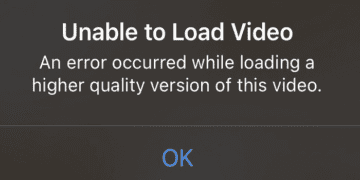
Your iPhone may sometimes fail to play old videos from your library. The terminal may occasionally throw an alert that says “An error occurred while loading a higher quality version of this video“. This error affects both short and long videos, as well as edited and non-edited videos. So, even if you keep your videos under two minutes, there’s no guarantee you won’t encounter this error. Let’s explore what else you can do to get rid of this error message.
Fix: iPhone Is Unable to Load a Higher Quality Version of This Video
Quick Workarounds
Double-tap the problematic video and select the Favorite icon. Then remove the video from Favorites, and check if your iPhone can play it.
Go to iCloud settings, select Videos, and turn off the option. Wait thirty seconds, and turn the video option back on.
Import the problematic video into iMovie and try to play it.
Duplicate the video and try to play the copy.
Upload the video to a shared album and then redownload it.
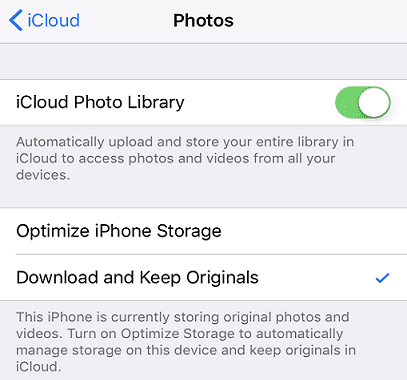
Navigate to Photos settings and select Download and keep originals. This should get your videos back. Don’t select “Optimize iPhone Storage”.
Check for App and iOS Updates
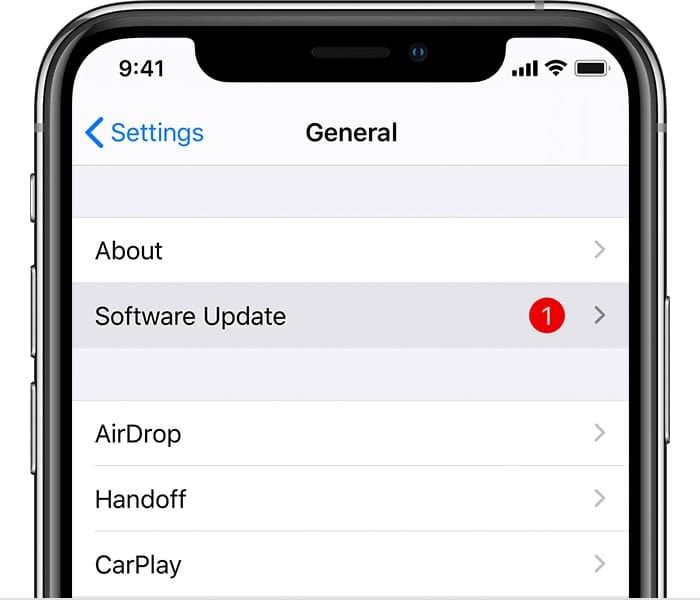
Launch the App Store, tap your profile icon, and check if there are any updates available for the Videosapp. Install them and check if the error persists. Additionally, go to Settings, tap General, select Software Update, and update your iOS version.
Make sure your device is running the latest software.
The first iOS 14 version brought many video-related issues but the subsequent updates contained a lot of bug fixes. Restart your iPhone after installing the latest iOS version, and check if the error persists.
Hard Reset Your iPhone
Other users confirmed that hard resetting the device fixed the problem.
Press and quickly release the Volume Up button.
Then press and immediately release the Volume Down button.
Press and hold the Side button until the Apple logo appears on the screen.
Release the Side button, and check if the video error is gone.
Set Camera Record Settings to 1080p
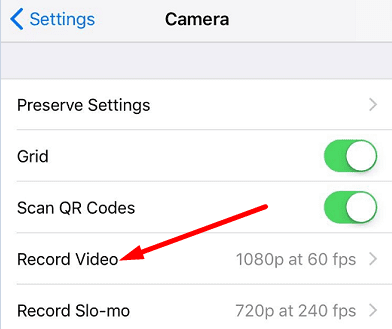
If you set your iPhone to record 4K videos, edit the settings to record 1080p videos. Go to Settings, tap Camera, and select Record Video. Then select the 1080p option, and check if the videos load properly.
Edit the Video in QuickTime Player on Mac
Launch the Photos app on your Mac, and check the info.
Select the Edit With option.
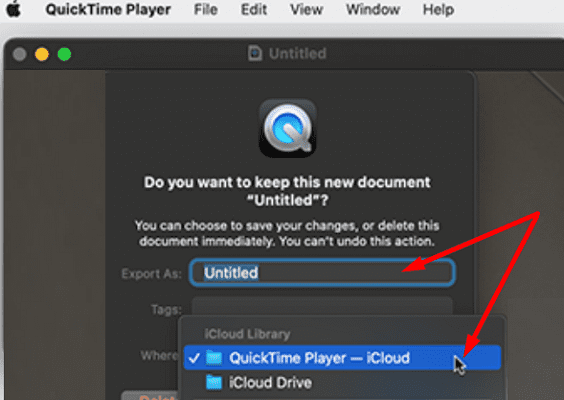
Edit the video with QuickTime Player.
Your laptop should now open a QuickTime player window and you should be able to play the video.
Simply export the video and check if your iPhone can play it too.
Conclusion
If your iPhone says that “An error occurred while loading a higher quality version of this video”, first check for app and iOS updates. Then set the camera record settings to 1080p. If the issue persists, add and remove the video from Favorites, and edit it in QuickTime Player on Mac. You can also duplicate the problematic video and check if you can play the copy.
Did these tips help you fix the problem? Which of these solutions worked for you? Let us know in the comments below.
Madalina has been a Windows fan ever since she got her hands on her first Windows XP computer. She is interested in all things technology, especially emerging technologies — AI and DNA computing in particular.
none of these tips helped to recover my video, I tried everything except with the Mac since I don’t have any. The video still says unable to load video, an error occurred while loading a higher quality version of this video. what should I do ?











None of them works
Tried all these options and none worked.
I just texted the video to myself and it immediately fixed it!
none of these tips helped to recover my video, I tried everything except with the Mac since I don’t have any. The video still says unable to load video, an error occurred while loading a higher quality version of this video. what should I do ?