The Apple Watch is great for tracking workouts and all other forms of daily fitness, such as the number of steps you take. Thanks to its complex hardware and the number of sensors it has, you can accurately track multiple kinds of workouts. These include your heart rate, distances covered, and calorie count.
If you’re curious to see how many calories you burn during your workout, you can set calorie goals. But as you may have already tried, resetting a goal you’ve set in the Workout app isn’t always so easy.
Today, we’ll aim to help you reset the calorie goal for your workouts on an Apple Watch.
You may have set it intentionally, or you may simply have noticed a calorie, distance or time goal show up for a workout without any direct input.
Either way, you’ll notice that this workout goal is incredibly persistent. Even if you try to change it, it’ll likely reappear the next time you open the Workout app.
That’s due to a couple of reasons.
When you use the built-in feature for starting a new workout with an open goal, for example, it’ll start a new workout with that goal rather than edit the goal for the current one.
Similarly, the Workout menu will prioritize the workouts that you do most often — with their previously preselected goal attached.
Is It Possible to Reset Your Workout Goals?
Unfortunately, there doesn’t seem to be a baked-in option for manually resetting goal types on established workouts.
This has been well-noted in various Reddit and Apple Support forum posts. There’s no single feature or button to reset individual workouts (or all workouts) back to a single calorie or distance goal.
On the other hand, there does seem to be a workaround for “resetting” your workout goals. Here’s how to do it.
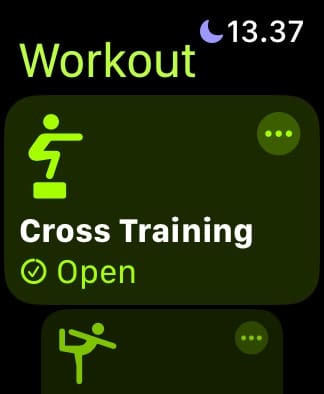
Open the Workout app.
Scroll around and find your preferred activity.
Next to the activity, there should be a three-dot in a circle icon. Tap on it.
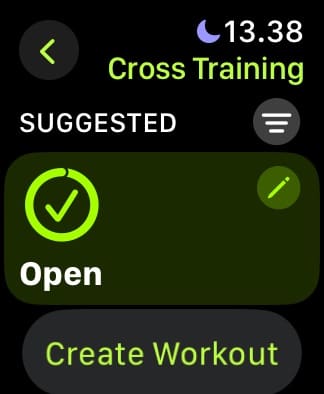
Change your goal type for your preferred activity to Open / No Goal.
Of course, at this point, it’s worth noting a couple of things. Namely, this might not seem to work at first.
This isn’t necessarily “resetting” your workout calorie goal. As we mentioned earlier, it’s simply creating a new workout of that same type with an open goal. Because of the way the Workout app learns and remembers preferences, you might need to repeat the above steps several times.
According to some users with this problem, you just need to repeat the workout with an open goal two or three times for it to appear as a priority option in the Workout menu.
In other words, for the current version of watchOS, you’ll need to reset the calorie goal for an activity a few times for it to “stick.”
But the Apple Watch should eventually learn your preference for an opened goal for that particular activity type (with the appropriate distance or calorie goal).
Changing Fitness Goals with the Activity App is easy
Here is How you can change your “Move” daily goal on your Apple Watch.
Press the Digital Crown to start up the Home Screen.
Scroll and select the Activity app.
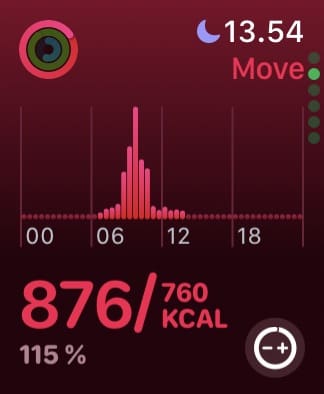
Swipe to minimize the ring and tap the circle with – and + in it.
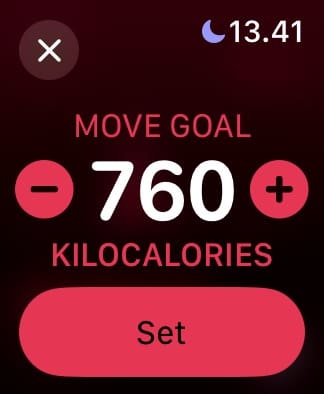
Adjust the Goal using the + or – button.
When you’re happy with your new calorie goal, select Set. Your changes will then take immediate effect.
When you do the above, it’s worth noting that this will track your calories for the entire day — not just your workouts. Nonetheless, it’s a useful option if you want to increase or decrease how much you move each day. If you love working out, you can then use your daily exercise to ensure that you meet these objectives.
Can You Turn Off Calories for Your Apple Watch Workouts?
While tracking how many calories you burn can be a useful metric, others might prefer to exercise without the added pressure of seeing how many calories they burn. But unfortunately, this is not possible at the moment. The closest thing you can do is adjust your daily calorie goal to the lowest possible amount, which you can do by following the instructions in the previous section.
You should keep in mind that you may still have to deal with your Apple Watch vibrating after “accomplishing” that goal, which some users might find annoying. Nonetheless, it’s the best that you can do at this moment in time.
Adjust Your Apple Watch Workout Calorie Goals With These Tips
While you can’t turn off your calorie goals for the Apple Watch, it is possible to adjust your daily calorie-burning goals. You should note, however, that these do not solely apply to one workout. If you don’t want to have calorie goals for your workouts, it’s best to start workouts with open-ended objectives. That way, you can instead focus on having fun and meeting your daily calorie goals instead.
Hopefully, these tips have helped you adjust your Apple Watch calorie goals however you felt was necessary. While we hope that Apple will introduce the option to completely switch off your calorie goals in the future, these tips will work for now.
Mike is a freelance journalist from San Diego, California.
While he primarily covers Apple and consumer technology, he has past experience writing about public safety, local government, and education for a variety of publications.
He’s worn quite a few hats in the journalism field, including writer, editor, and news designer.
Is there a way to delete the calorie display for daily activities? Steps would be a great substitute. To be clear, I am asking about the activity display, not the options in an individual workout. I am not alone in this. Every person I know wants the calories display gone. Thank you
Thanks, this was the only useful and really practical comment on the topic, that stupid Outdoor Walk time goal that I set by mistake was driving me mad.
Fir some reason with the outdoor walk the open goal icon has been removed and replaced with a time of 0.43 in yellow text. How do I reset this to read open goal. I have tried tapping on the 3 dots and clicking open goal several times but this does not work Thank you









Is there a way to delete the calorie display for daily activities? Steps would be a great substitute. To be clear, I am asking about the activity display, not the options in an individual workout. I am not alone in this. Every person I know wants the calories display gone. Thank you
Thanks, this was the only useful and really practical comment on the topic, that stupid Outdoor Walk time goal that I set by mistake was driving me mad.
Fir some reason with the outdoor walk the open goal icon has been removed and replaced with a time of 0.43 in yellow text. How do I reset this to read open goal. I have tried tapping on the 3 dots and clicking open goal several times but this does not work Thank you
I would like to see a goal reset/update on the activity app for my Apple Watch.