• Skip to primary navigation
  • Skip to main content
  • Skip to primary sidebar
  • Skip to footer

AppleToolBox

Tools and Fixes for Mac, iPad, iPhone & iWatch

Search posts

  • About
  • Contact

CONNECT WITH US

CATEGORIES

  • iPhone
  • iPad
  • iPod
  • Apple Watch
  • Mac/MacBook
  • AirPods
  • Apple TV
  • News
  • Apple Services
  • HomePod
  • Reviews

SITE

  • Home
  • About Us
  • Contact
  • Advertise

Search posts

You are here: Home / iPhone / How to Sync Spotify Across Windows, Mac & iOS Using Spotify Connect

How to Sync Spotify Across Windows, Mac & iOS Using Spotify Connect

By Louis Roundtree 0 comments Last updated January 28, 2026

Things to Know
  • All your devices need to be on the same Wi-Fi network to sync.
  • You can use your phone as a remote to control the music on your laptop or desktop PC.
  • It’s possible to access and sync local MP3 files not on Spotify across all your devices.

Syncing Spotify across the Windows, Mac, and iOS environments is handled automatically through Spotify Connect. Not only does it sync your albums and playlists, but it also turns your devices into one unified control system, allowing you to start a song on your Mac, pausing or skipping it seamlessly from your iPhone. This is particularly great if you have speakers throughout your home, as it allows you to move from the room where you were playing music on your PC or Mac, using your phone to pick up where you left off in another part of the house.

Contents

  • Setting Up Spotify Connect
    • Desktop (Windows & Mac)
    • iOS (iPhone & iPad)
  • Syncing Local Files
    • Desktop Setup
    • iPhone Setup

Setting Up Spotify Connect

To get all of your devices communicating with each other across Spotify Connect, you first need to make sure they’re all on the same Wi-Fi network, and they’re each logged into the same Spotify account.

Desktop (Windows & Mac)

Step 1. Open Spotify and play any song.

How to Sync Spotify Across Windows, Mac & iOS Using Spotify Connect 1

Step 2. Look for the “Devices” icon at the bottom-right side (a small speaker with a monitor behind it).

How to Sync Spotify Across Windows, Mac & iOS Using Spotify Connect 1

Step 3. Click to see a list of all available devices on your network, making sure they are all shown.

iOS (iPhone & iPad)

Step 1. Open the Spotify app and navigate to the “Now Playing” screen.

How to Sync Spotify Across Windows, Mac & iOS Using Spotify Connect 3 How to Sync Spotify Across Windows, Mac & iOS Using Spotify Connect 4

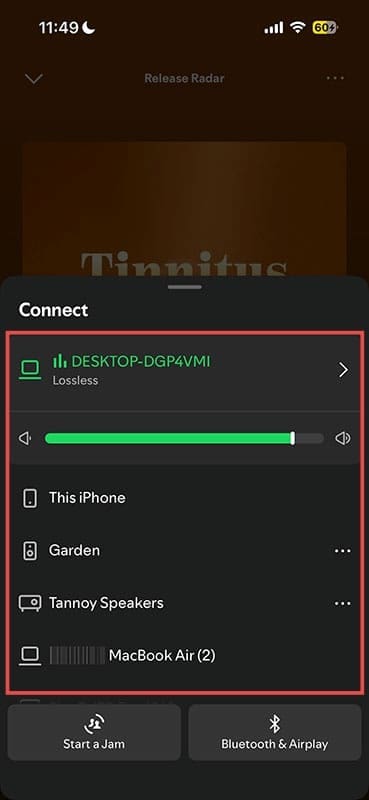
Step 2. Tap the “Devices” icon in the bottom-left corner (in iOS, it’s now in the bottom-right corner).

How to Sync Spotify Across Windows, Mac & iOS Using Spotify Connect 5

Step 3. Select whichever device you started the song on, whether that was a Mac or PC, to hand off the audio or control it from your phone. The up and down side buttons will now control the volume, and you can pause or change tracks.

Syncing Local Files

If you have other files, such as MP3s, stored on a hard drive and not on Spotify, you can sync them to your iPhone using Spotify Connect. It just requires a few extra steps.

Desktop Setup

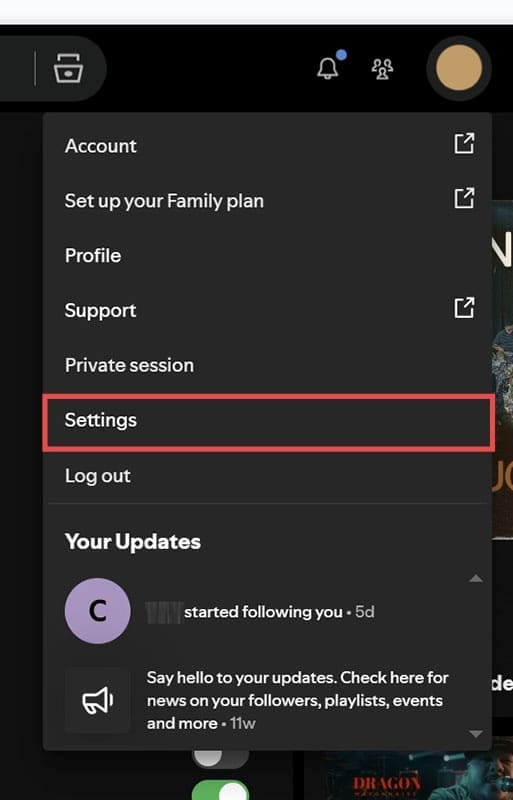
Step 1. On your PC or Mac, open Spotify and click on your profile picture or icon.

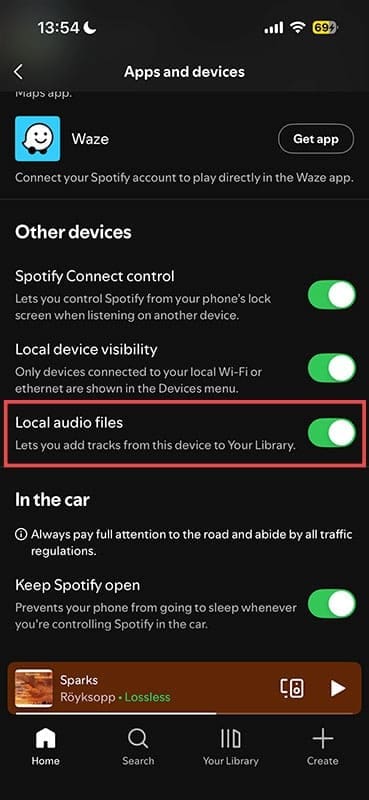
Step 2. Navigate to “Settings,” then scroll down on the left to “Library,” and toggle the switch “Show Local Files” to the “On” position. In iOS, it’s now found in Settings and privacy > Apps and devices > Local audio files, while in the browser-based version, it’s in the “Library” section of the “Settings” menu.

You will then have the option to choose to show songs from your “Downloads,” “Music Library,” or optionally, “Add a source” to navigate to a custom folder on an external hard drive.

How to Sync Spotify Across Windows, Mac & iOS Using Spotify Connect 6 How to Sync Spotify Across Windows, Mac & iOS Using Spotify Connect 7

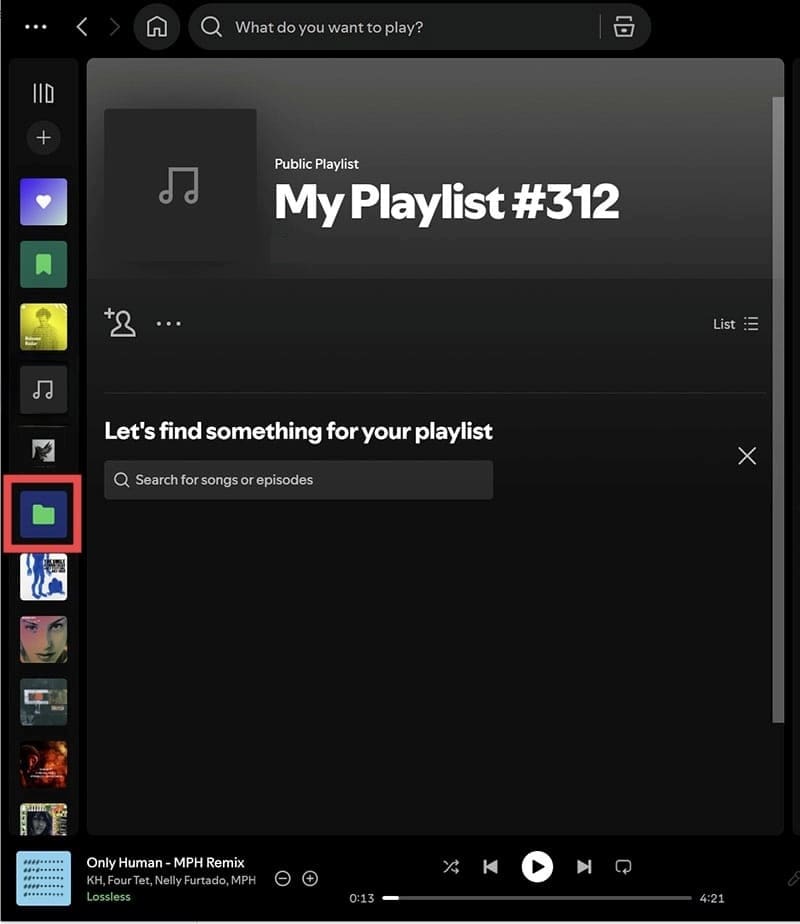
Step 3. Next, create a new playlist on your desktop computer. Navigate to your local files folder (it will be on the left-side with all your other albums and folders).

How to Sync Spotify Across Windows, Mac & iOS Using Spotify Connect 8

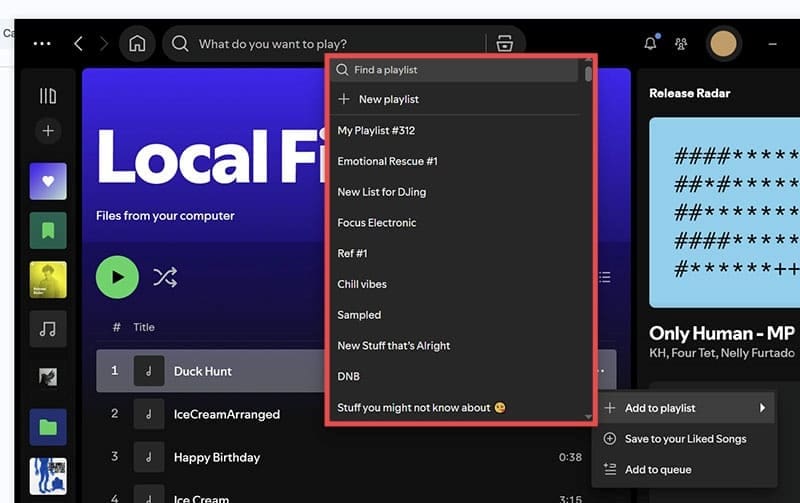
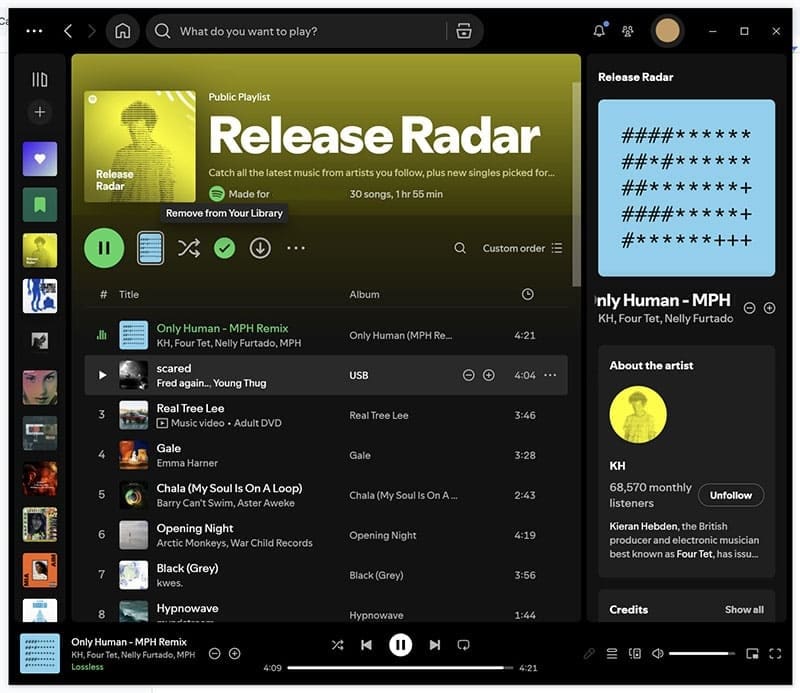
Step 4. Add the songs from your local folder to the playlist by hovering the mouse over the song and then clicking the 3 horizontal dots to the right-hand side.

How to Sync Spotify Across Windows, Mac & iOS Using Spotify Connect 10

iPhone Setup

Now you need to set up your iPhone to correctly access and play the playlist containing the synced files from your computer.

Step 1. Open Spotify on your phone and go to “Settings,” “Apps and devices,” and make sure “Local audio files” is toggled to the “On” position.

How to Sync Spotify Across Windows, Mac & iOS Using Spotify Connect 11 How to Sync Spotify Across Windows, Mac & iOS Using Spotify Connect 12

You should now be able to access and play the songs from your local folder on your desktop.

Related Posts:

  • Photo of someone using Apple Music on their smartphone
    How to Fix Apple Music Not Working on iPhone / iPad
  • transfer spotify playlists to apple music
    Useful Apps to Transfer Spotify Playlists to Apple Music
  • pexels-designecologist-1779487
    The Best iPhone And Mac Shortcuts For Beginners
  • How to Use the New Google Home App on iPhone and iPad hero
    How to Use the New Google Home App on iPhone and iPad
  • Apple Home app in front of modern smart home
    An Introduction To the Apple Home App and How To Use It
  • Photo of Spotify on a person's smartphone
    How to Use Spotify for iOS: A Complete Guide
  • sidecar on iPadOS and macOS
    Sidecar not working in iPadOS and macOS? How to fix…
  • 2022 Mac Mini with Studio Display and Accessories
    Mac Tips For New Users In 2023
  • Screen Shot 2021-07-12 at 4.52.12 AM
    AirPods Max Review: How They Look Six Months Later
Louis Roundtree
Louis Roundtree

As an avid gamer, I’ve run into my fair share of error codes and weird faults that have forced me to find fixes to problems I never anticipated. That gave me a passion for sharing those fixes with others so we can all game without feeling like our hardware is rebelling against us.

Reader Interactions

Write a Comment Cancel reply

Primary Sidebar

Recent Posts

  • How to Manage Your iPhone Call Log
  • Are Apple’s Safety Precautions Enough for AirTags?
  • How to Hide Username and Photo on the Mac Lock Screen
  • Microsoft Resume vs. Apple Handoff – Which Wins for Cross-Device Work?
  • How to Export iTunes Library to New Computer
  • What the Gemini Desktop App Will Bring to Mac

Connect with us

Footer

ABOUT

  • About Us
  • Contact us
  • Advertise
  • Privacy
  • Terms of Use

GUIDES

  • iOS & iPadOS
  • Apple ID
  • iCloud
  • App Store
  • iTunes
  • FaceTime
  • iMessage
  • Siri
  • Books and iBooks
  • Game Center
  • AirPlay

CONNECT

  • Facebook
  • Twitter
  • FeedBurner
  • YouTube

© Copyright 2010-2024 Guiding Tech Media · All Rights Reserved

This site and its content are in no way affiliated or endorsed by Apple, Inc. · Reproduction without explicit permission is prohibited

Last Updated on January 30, 2026 by Louis Roundtree