• Skip to primary navigation
  • Skip to main content
  • Skip to primary sidebar
  • Skip to footer

AppleToolBox

Tools and Fixes for Mac, iPad, iPhone & iWatch

Search posts

  • About
  • Contact

CONNECT WITH US

CATEGORIES

  • iPhone
  • iPad
  • iPod
  • Apple Watch
  • Mac/MacBook
  • AirPods
  • Apple TV
  • News
  • Apple Services
  • HomePod
  • Reviews

SITE

  • Home
  • About Us
  • Contact
  • Advertise

Search posts

You are here: Home / iPad / How to Use Shortcuts in Spotlight

How to Use Shortcuts in Spotlight

By Michelle Honeyager 0 comments Last updated July 22, 2022

Shortcuts is an app that lets you streamline tasks on other apps. It helps people get one or more tasks done on apps at a time. For instance, you can load a certain shortcut that can pull up workout music, give an estimated time to the nearest gym and pull up workout videos. You can also use Shortcuts through the Spotlight. Below we’ll cover how.

Using Shortcuts in Spotlight

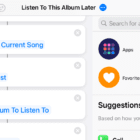
This method is very simple. Load the Spotlight by hitting the Command key and space key at the same time on the Mac, or by swiping down on an empty space on an iPhone or iPad. The spotlight will look like this on an iPhone:

Now type the name of a Shortcut you created so that it populates in the field. You may have to scroll to find it. Tap on or double-click the shortcut to run it.

Related Posts:

  • Photo of someone using Apple Music on their smartphone
    How to Fix Apple Music Not Working on iPhone / iPad
  • pexels-designecologist-1779487
    The Best iPhone And Mac Shortcuts For Beginners
  • Photo of person sleeping after saving so much time with the best Automator routines for Mac
    The Best iPhone Shortcuts (2021 Edition)
  • iPhone 15 Pro Max - 1
    10 Handy Apple Shortcuts You Can Use Every Day
  • pexels-sanaan-mazhar-2272752
    Workout vs Nike Run Club: Which Is The Best Apple Watch App?
  • IMG_2654
    How To Start Using The iPhone Shortcuts App
  • iphone and airpods on a table
    These Apps Have the Best iOS 17 Widgets
  • 2023 Mac Studio lifestyle - 1
    macOS Could Not Be Installed, How-To Fix
  • 2022 Mac Mini with Studio Display and Accessories
    Mac Tips For New Users In 2023

Reader Interactions

Write a Comment Cancel reply

Primary Sidebar

Recent Posts

  • How to Hide Username and Photo on the Mac Lock Screen
  • Microsoft Resume vs. Apple Handoff – Which Wins for Cross-Device Work?
  • How to Export iTunes Library to New Computer
  • What the Gemini Desktop App Will Bring to Mac
  • What to Do When Windows 11 Won’t Detect Your iPad
  • Outlook Outage 2026: iPhone Fixes for Sign-In Chaos

Connect with us

Footer

ABOUT

  • About Us
  • Contact us
  • Advertise
  • Privacy
  • Terms of Use

GUIDES

  • iOS & iPadOS
  • Apple ID
  • iCloud
  • App Store
  • iTunes
  • FaceTime
  • iMessage
  • Siri
  • Books and iBooks
  • Game Center
  • AirPlay

CONNECT

  • Facebook
  • Twitter
  • FeedBurner
  • YouTube

© Copyright 2010-2024 Guiding Tech Media · All Rights Reserved

This site and its content are in no way affiliated or endorsed by Apple, Inc. · Reproduction without explicit permission is prohibited