• Skip to primary navigation
  • Skip to main content
  • Skip to primary sidebar
  • Skip to footer

AppleToolBox

Tools and Fixes for Mac, iPad, iPhone & iWatch

Search posts

  • About
  • Contact

CONNECT WITH US

CATEGORIES

  • iPhone
  • iPad
  • iPod
  • Apple Watch
  • Mac/MacBook
  • AirPods
  • Apple TV
  • News
  • Apple Services
  • HomePod
  • Reviews

SITE

  • Home
  • About Us
  • Contact
  • Advertise

Search posts

You are here: Home / Mac / macOS: How to Print Large Image Across Multiple Pages

macOS: How to Print Large Image Across Multiple Pages

By Michelle Honeyager 0 comments Last updated May 6, 2022

Printing can be a shockingly finicky process even at the best of times. The preview always seems to want to cut off where you don’t want it to or something didn’t turn out looking as large as you wanted. Issues like this can lead to wasted paper and ink. When you want to print a large image across multiple pages, it can take some special know-how. Below we’ll cover how to get that large image to print across several pages.

Contents

  • When Would You Want to Print an Image Across Multiple Pages?
  • How to Print A Large Image Across Multiple Pages on an iMac
  • Going Through Independent Print Companies

When Would You Want to Print an Image Across Multiple Pages?

Printing an image across several different pages can have a few uses:

  • You want to create a homemade mural and want to tape several images together over your wall.
  • You have a large image that needs heavy analysis, like a long graph, where it can help to tape up the graph for long-range analysis or showing to others.
  • You want to show off some high-definition large art or even replicate a movie poster in a larger format than the typical 8 ½ by 11-inch piece of paper.

Luckily, printing one image over several pages is fairly easy to do, which we’ll get into below.

How to Print A Large Image Across Multiple Pages on an iMac

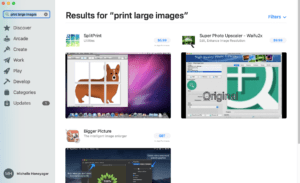
The iMac itself does not have the functionality to print one image across multiple pages. However, there are some workarounds for this. You can actually download apps that can help you do this. If you go into the App Store, you can find these apps with a simple search. For instance, when I went into my App Store and searched the term “print large images,” I came up with these three results:

You’ll want to give SplitPrint a try, as that app is made for allowing an iMac to do exactly what you need it to do: take one image and print it over several sheets of paper. Sadly, you’ll have to pay for the app, currently $5.99 at the time of writing. On the other hand, that’s not exactly bad for a one-time purchase that upgrades how your Mac can print images.

Going Through Independent Print Companies

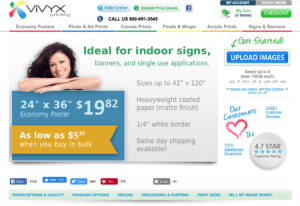
You might also want to check if print companies can just print the image for you, if it is a one-time use and you need the image to look very professional. One example is Vivyx Printing:

As you can see, this company advertises economy sizes for as low as $19.82, and you can get discounts for bulk orders. However, be aware that the larger the image you need, the more expensive this option is. For example, Vivyx printing goes all the way up to $69.70 for a 40” by 60” print at the time of writing. So if you’re on a budget and you need something particularly large, suddenly the $5.99 app purchase doesn’t seem like such an inconvenience. It’s also important to shop around at different printing services for the best price, with both online and local print shops, if professional printing is the way you decide to go.

Related Posts:

  • 15 Essential Safari Extensions for Mac in 2023
    15 Essential Safari Extensions for Mac in 2023
  • 14 Best Mac Cloud Storage for Home, Work, and School in 2023
    14 Best Mac Cloud Storage for Home, Work, and School in 2023
  • 2023 Mac Studio lifestyle - 1
    macOS Could Not Be Installed, How-To Fix
  • 10 Best Hidden Camera Detector Apps for iPhone
    10 Best Hidden Camera Detector Apps for iPhone
  • 10 Best PowerPoint Alternatives for Mac in 2023
    10 Best PowerPoint Alternatives for Mac in 2023
  • How to Fix Verifying Microsoft Outlook Mac Stuck Error 11 Best Methods
    How to Fix Verifying Microsoft Outlook Mac Stuck…
  • How to Fix an Unknown Error Occurred in Apple ID on iOS and macOS
    How to Fix an Unknown Error Occurred in Apple ID on…
  • pexels-tima-miroshnichenko-6860464
    How To Start Using Regex With The Shortcuts App
  • How to Edit a PDF on Mac 6 Best Methods You Should Know
    How to Edit a PDF on Mac: 6 Best Methods You Should Know

Reader Interactions

Write a Comment Cancel reply

Primary Sidebar

Recent Posts

  • How to Disable Predictive Text in iOS 26
  • How to Stop Sharing Analytics in iOS 26
  • How to Manage Your iPhone Call Log
  • Are Apple’s Safety Precautions Enough for AirTags?
  • How to Hide Username and Photo on the Mac Lock Screen
  • Microsoft Resume vs. Apple Handoff – Which Wins for Cross-Device Work?

Connect with us

Footer

ABOUT

  • About Us
  • Contact us
  • Advertise
  • Privacy
  • Terms of Use

GUIDES

  • iOS & iPadOS
  • Apple ID
  • iCloud
  • App Store
  • iTunes
  • FaceTime
  • iMessage
  • Siri
  • Books and iBooks
  • Game Center
  • AirPlay

CONNECT

  • Facebook
  • Twitter
  • FeedBurner
  • YouTube

© Copyright 2010-2024 Guiding Tech Media · All Rights Reserved

This site and its content are in no way affiliated or endorsed by Apple, Inc. · Reproduction without explicit permission is prohibited

Last Updated on May 6, 2022 by Mitch Bartlett