• Skip to primary navigation
  • Skip to main content
  • Skip to primary sidebar
  • Skip to footer

AppleToolBox

Tools and Fixes for Mac, iPad, iPhone & iWatch

Search posts

  • About
  • Contact

CONNECT WITH US

CATEGORIES

  • iPhone
  • iPad
  • iPod
  • Apple Watch
  • Mac/MacBook
  • AirPods
  • Apple TV
  • News
  • Apple Services
  • HomePod
  • Reviews

SITE

  • Home
  • About Us
  • Contact
  • Advertise

Search posts

You are here: Home / Mac / macOS: How to Select All

macOS: How to Select All

By Michelle Honeyager 0 comments Last updated May 16, 2022

There are tons of neat little tricks to learn so you can use the macOS quickly and conveniently.  One of those tricks is how to select all. Anyone coming over from a PC has to get used to the lack of a full right click option or the select all feature might work differently. Or maybe you never realized a Mac had this feature. So below we’ll go over how to select all on a macOS.

The Basic Select All Feature

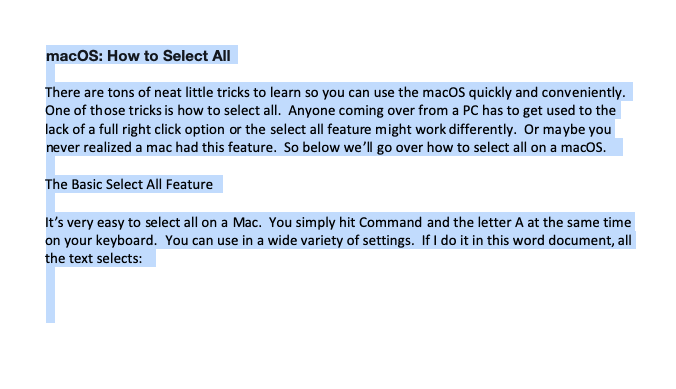
It’s very easy to select all on a Mac. You simply hit Command and the letter A at the same time on your keyboard. You can use it in a wide variety of settings. If I do it in this Word document, all the text selects:

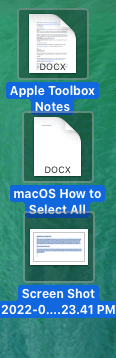
It even works on the finder if you have that window open. You can also do it if you click your desktop and hit Command-A. Then every document on your desktop will be selected at once.

What If You Just Want to Select a Certain Set of Items?

Selecting a few items is easy as well. If you want a few items off your desktop to drag elsewhere, for instance, simply click by the first document you want to select. Drag the arrow icon until you see a box and then drag that box until it covers multiple documents, like this:

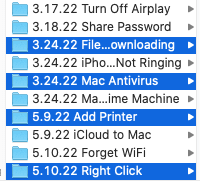
Another option is if you are in a menu like the Finder, you can also select multiple items by clicking on the first item and then holding the Command key. Then you can click on the items you want individually to select them all at once.

If you want to select a whole list at once, click the first item in the list you want, hold the Shift key and then select the last item:

To de-select one item, you can hit Command-A and click the item you want to deselect.

Related Posts:

  • pexels-tima-miroshnichenko-6860464
    How To Start Using Regex With The Shortcuts App
  • pexels-rodnae-productions-7915313
    Trying Out the Best Apple Arcade Games for 2021
  • 2022 Mac Mini with Studio Display and Accessories
    Mac Tips For New Users In 2023
  • 2023 Mac Studio lifestyle - 1
    macOS Could Not Be Installed, How-To Fix
  • pexels-cottonbro-4709285
    How To Learn Swift On Mac And iPad
  • pexels-cottonbro-5474033
    How To Use The Mac Terminal: The Basics
  • 0E4A6A0B-65E8-4184-B0C9-16C2179A1256
    The Best Weight Loss Apps For iPhone In 2021
  • pexels-designecologist-1779487
    The Best iPhone And Mac Shortcuts For Beginners
  • Screen Shot 2021-07-12 at 4.52.12 AM
    AirPods Max Review: How They Look Six Months Later

Reader Interactions

Write a Comment Cancel reply

Primary Sidebar

Recent Posts

  • How to Manage Your iPhone Call Log
  • Are Apple’s Safety Precautions Enough for AirTags?
  • How to Hide Username and Photo on the Mac Lock Screen
  • Microsoft Resume vs. Apple Handoff – Which Wins for Cross-Device Work?
  • How to Export iTunes Library to New Computer
  • What the Gemini Desktop App Will Bring to Mac

Connect with us

Footer

ABOUT

  • About Us
  • Contact us
  • Advertise
  • Privacy
  • Terms of Use

GUIDES

  • iOS & iPadOS
  • Apple ID
  • iCloud
  • App Store
  • iTunes
  • FaceTime
  • iMessage
  • Siri
  • Books and iBooks
  • Game Center
  • AirPlay

CONNECT

  • Facebook
  • Twitter
  • FeedBurner
  • YouTube

© Copyright 2010-2024 Guiding Tech Media · All Rights Reserved

This site and its content are in no way affiliated or endorsed by Apple, Inc. · Reproduction without explicit permission is prohibited