• Skip to primary navigation
  • Skip to main content
  • Skip to primary sidebar
  • Skip to footer

AppleToolBox

Tools and Fixes for Mac, iPad, iPhone & iWatch

Search posts

  • About
  • Contact

CONNECT WITH US

CATEGORIES

  • iPhone
  • iPad
  • iPod
  • Apple Watch
  • Mac/MacBook
  • AirPods
  • Apple TV
  • News
  • Apple Services
  • HomePod
  • Reviews

SITE

  • Home
  • About Us
  • Contact
  • Advertise

Search posts

You are here: Home / iPhone / How to Make WhatsApp Stickers From Photos on iPhone

How to Make WhatsApp Stickers From Photos on iPhone

By Mehvish 0 comments Last updated May 21, 2024

You can make WhatsApp stickers on your iPhone via the Create button in the sticker section of WhatsApp. Even the iPhone Photos app lets you create stickers that can be used in WhatsApp and other apps.

Method 1: Using the Built-in Feature in WhatsApp

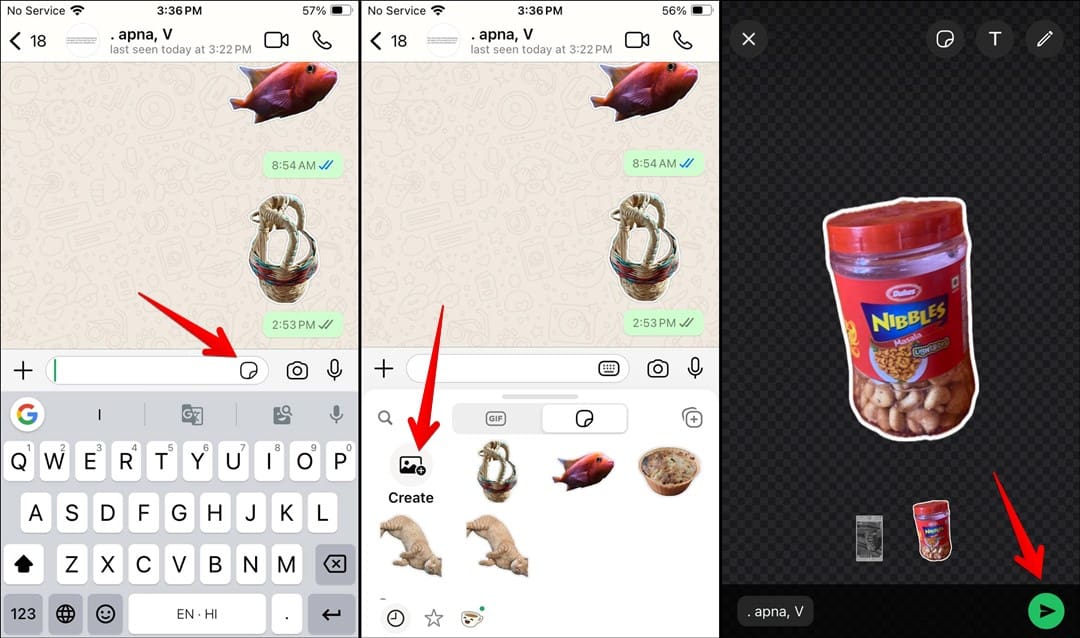
WhatsApp offers a native way to create stickers from your pictures on your iPhone, as shown below.

  1. In WhatsApp, open any chat where you want to make a sticker.
  2. Tap on the Sticker icon next to the typing area and press Create.
  3. Select the picture from which you want to make a sticker. The subject from the image will be highlighted, and a sticker will be created.
  4. If you like it, press the Send icon to send it. Once sent, the sticker will be saved in the list of favorite stickers, which you can also send to other apps.

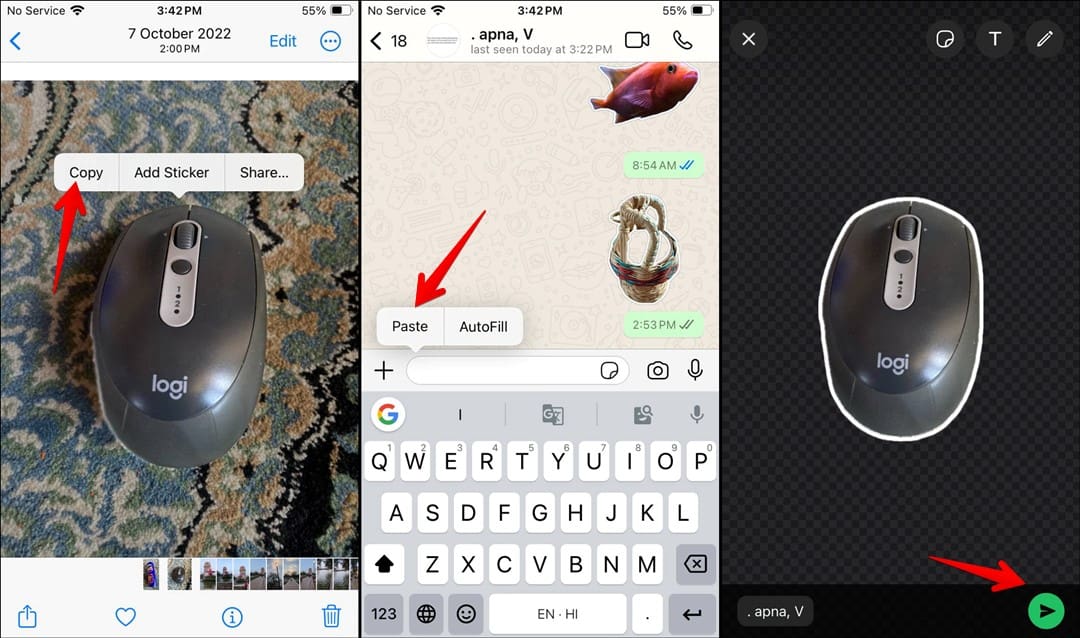
Method 2: Using the Photos App

If the above method doesn’t work, you can use the photo cutout feature of iOS to create stickers from your pictures. Please note that this method works only on iOS 16+.

  1. Open the picture from which you want to create a sticker in the Apple Photos app.
  2. Press and hold the subject in the image. A white animated light will appear around it, indicating the sticker is ready. Select Copy from the menu that appears.
  3. Open the WhatsApp chat and long-press on the typing area. Select Paste from the menu, followed by the Send icon. Stickers created using this method will also show in the WhatsApp sticker gallery and can be reused in other chats.


Related Posts:

  • photo of an iphone with ios 16 downloaded on it
    iOS 16 Tips and Tricks: The Definitive List
  • How to use ChatGPT on iPhone and iPad - Hero
    How to Use ChatGPT on iPhone and iPad
  • New iMessage hero
    How to Create iMessage Stickers on iOS 16
  • iPhone 15 Pro Max - 1
    10 Handy Apple Shortcuts You Can Use Every Day
  • Apple Watch Ultra Tips and Tricks
    Apple Watch Tips and Tricks for 2023
  • How to Change Login Picture on Mac
    How to Change Login Picture on Mac
  • 2022 Mac Mini with Studio Display and Accessories
    Mac Tips For New Users In 2023
  • pexels-tranmautritam-696899
    iPhone Tips for New Users In 2023
  • iPhone 15 Pro unboxing
    How To Extend Your iPhone Battery Life
Mehvish
Mehvish

Mehvish Mushtaq is a computer engineer by degree. Her love for Android and gadgets led her to develop the first Android app for Kashmir. Known as Dial Kashmir, she won the prestigious Nari Shakti award from the President of India. She has been writing about technology for 6+ years and her favorite categories include how-to guides, explainers, tips and tricks for iOS/iPadOS, Android, social media, and web apps.

Reader Interactions

Write a Comment Cancel reply

Primary Sidebar

Recent Posts

  • How to Hide Username and Photo on the Mac Lock Screen
  • Microsoft Resume vs. Apple Handoff – Which Wins for Cross-Device Work?
  • How to Export iTunes Library to New Computer
  • What the Gemini Desktop App Will Bring to Mac
  • What to Do When Windows 11 Won’t Detect Your iPad
  • Outlook Outage 2026: iPhone Fixes for Sign-In Chaos

Connect with us

Footer

ABOUT

  • About Us
  • Contact us
  • Advertise
  • Privacy
  • Terms of Use

GUIDES

  • iOS & iPadOS
  • Apple ID
  • iCloud
  • App Store
  • iTunes
  • FaceTime
  • iMessage
  • Siri
  • Books and iBooks
  • Game Center
  • AirPlay

CONNECT

  • Facebook
  • Twitter
  • FeedBurner
  • YouTube

© Copyright 2010-2024 Guiding Tech Media · All Rights Reserved

This site and its content are in no way affiliated or endorsed by Apple, Inc. · Reproduction without explicit permission is prohibited