In the ever-evolving landscape of technology, Apple’s iPhone has remained at the forefront, symbolizing innovation, design excellence, and seamless user experience. Since its inception in 2007, the iPhone has undergone numerous transformations, each model bringing its unique features, improvements, and technological advancements.
Given the plethora of models released over the years, you may find yourself pondering, “What kind of iPhone do I have?” Whether you’re seeking support, looking to upgrade, or simply curious about your device’s capabilities, identifying your iPhone model is the first step in unlocking a wealth of information about your device.
Understanding your iPhone model is crucial for several reasons. It informs you about the hardware capabilities, software features, and compatibility with accessories and iOS updates. This knowledge is particularly useful when:
Seeking Technical Support: Knowing your model allows Apple or third-party technicians to provide accurate advice and service.
Selling or Trading In: The model significantly affects the resale value of your iPhone.
Purchasing Accessories: Not all accessories are compatible with every model, especially when it comes to cases, screen protectors, and camera attachments.
Updating iOS: Certain iOS updates may not be supported by older models, affecting your device’s functionality and security.
Identifying Your iPhone Model
Apple provides several straightforward methods to identify your iPhone model. Here’s a detailed guide to find out exactly which iPhone you have:
Method 1: Using the Settings App
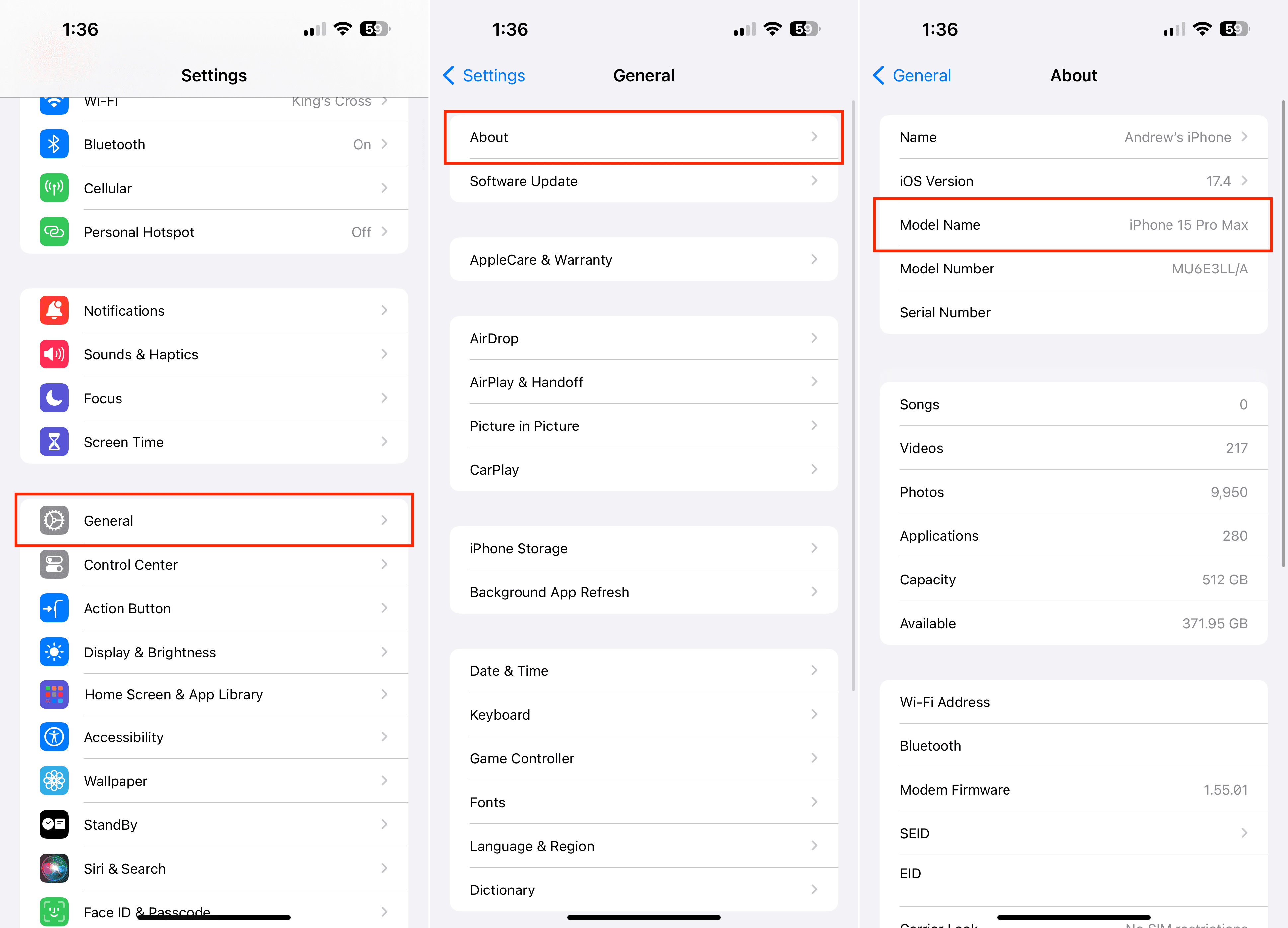
The easiest way to identify your iPhone model is through the Settings app, which provides the most direct and accurate information.
Open Settings: Tap on the Settings app on your home screen.
General: Scroll down and tap on “General.”
About: Tap on “About” at the top of the list.
Model Name & Number: Here, you’ll find the “Model Name” and “Model Number.” The name gives you the general model (e.g., iPhone 12 Pro), while the number (beginning with “A”) provides the specific model number, useful for more detailed information.
Method 2: The SIM Tray Method
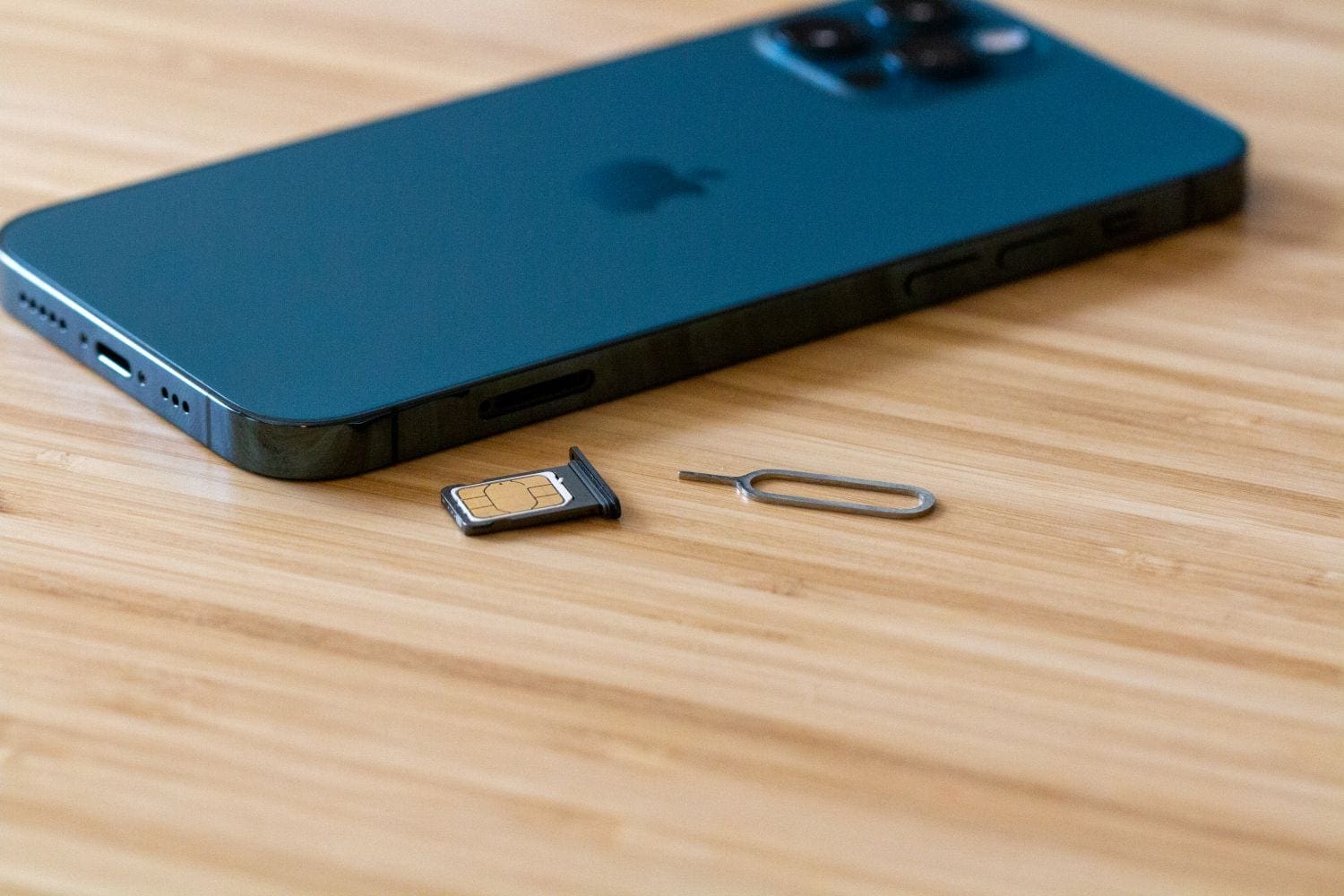
For most iPhone models, the model number is engraved on the SIM tray. Simply eject the SIM tray using a paper clip or the SIM-eject tool. Look closely to find the model number engraved on the inner side. This method is particularly useful if your iPhone is not operational.
As a reminder, if you purchased an iPhone 14 or iPhone 15 in the United States, you will not be able to use this method. This is because the two most recent iPhone models in the U.S. do not have a SIM card slot. However, if you purchased one of these iPhones in a different country, the SIM card tray will still be accessible.
Method 3: The Back of Your iPhone
On older iPhone models (iPhone 5 and earlier), the model number is printed on the back of the device at the bottom, which can be used to identify your iPhone model directly.
Method 4: The Original Packaging
If you still have the original iPhone packaging, you can find the model number and other details on the label that includes the serial number, IMEI/MEID, and ICCID.
Method 5: iTunes or Finder
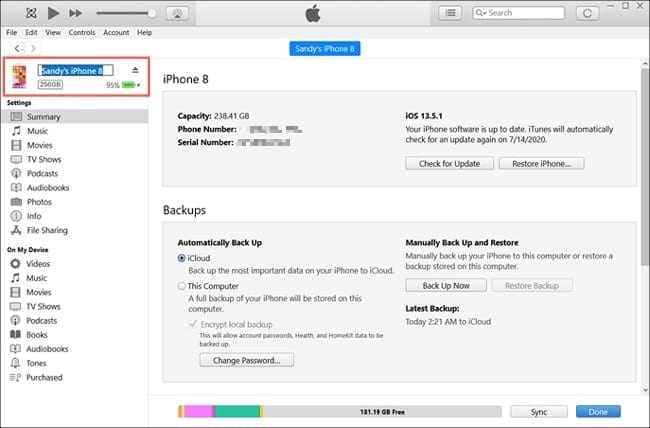
Change your iPhone name in iTunes on Windows
If your iPhone isn’t turning on or if you prefer using a computer, connecting your iPhone to iTunes (on PCs or Macs running macOS Mojave 10.14 or earlier) or Finder (on Macs running macOS Catalina 10.15 or later) can reveal your device’s model. Once connected, select your device to view the summary page, where the model name and number are displayed.
Understanding iPhone Model Numbers
Each iPhone model number corresponds to specific characteristics, configurations, and markets. For instance, an iPhone model designated with “LL/A” typically indicates a device intended for the U.S. market, while “J/A” might denote a model for Japan. These distinctions are crucial for compatibility with network carriers, warranty services, and even certain software features.
Once you have your model number, you can use Apple’s handy support page to identify the specific iPhone model you have. The model number usually starts with a letter (A, M, or F), followed by four digits. The first digit usually indicates the year the phone was released (e.g., A2631, released in 2020).
Conclusion
Knowing your iPhone model is more than a trivial piece of information; it’s a gateway to understanding your device’s capabilities, ensuring compatibility with accessories and updates, and optimizing its use in your daily life. Whether you’re troubleshooting, upgrading, or simply curious, identifying your iPhone model is a simple yet crucial step in becoming a more informed and savvy Apple user.
As we’ve explored the various methods to identify your iPhone model and delved into the evolution of iPhone models over the years, it’s clear that each model carries its legacy of innovation and excellence. Apple’s commitment to pushing the boundaries of what’s possible in a smartphone is evident in the detailed design and thoughtful features of each new model.
In a world where technology is ever-changing, staying informed about your device ensures you’re making the most of its potential. So, the next time you find yourself wondering, “What kind of iPhone do I have?” remember that the answer lies just a few taps away, unlocking a world of possibilities tailored to your device.
Andrew Myrick is a freelance writer based on the East Coast of the US. He enjoys everything to do with technology, including tablets, smartphones, and everything in between. Perhaps his favorite past-time is having a never-ending supply of different keyboards and gaming handhelds that end up collecting more dust than the consoles that are being emulated.














Write a Comment