Several users have noticed that their iPhone 11 model, XR, XS, and iPhone XS Max displays are darker than usual. The displays show low brightness even when the auto-brightness feature is enabled on the device.
The change in iPhone display brightness is prominently visible to folks who switched from the older iPhone models.
Out of the box, the new iPhones are set to a low display setting. It requires some use before it can adjust to user preferences.
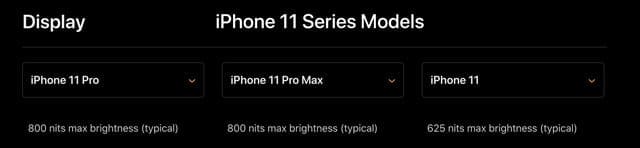
The new iPhone 11 Pro models have a display brightness of 800 nits max brightness (typical) with 1200 nits max brightness (HDR)
While the iPhone 11 and X Series, including the iPhone XS, iPhone XS Max, and iPhone XR have the same display brightness specifications
If you experience this issue with your iPhone’s auto-dimming feature, you are not alone.
This issue is not a hardware issue by any means so you can relax a bit!
The auto-brightness/auto-dimming feature is controlled by the iOS software, which has the capability to learn user preferences.
You can quickly fix this issue by following the steps below to help the iOS to tune to your preferences.
Turn off Zoom
Go to Settings > Accessibility (for older iOS version, go to Settings > General > Accessibility)
Tap Zoom
Toggle Zoom off
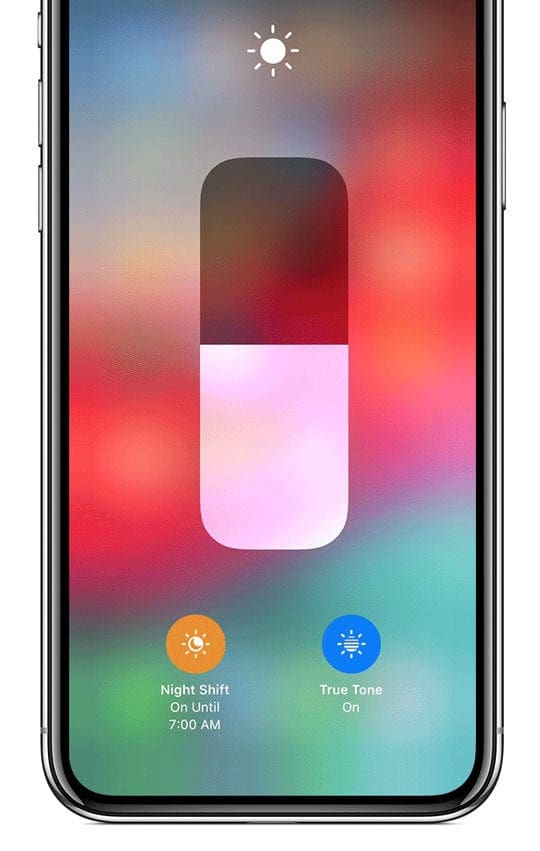
Check Night Shift and True Tone
Before you spend a lot of time troubleshooting, make sure Night Shift feature is off. and True Tone is on.
Night Shift changes the colors of your display to warmer colors–like oranges and yellow.
True Tone adjusts the color and intensity of your display to match your current environments ambient light.
Either or both of these display settings can dim your screen or cause it to look slightly yellow or warm toned.
I like tapping into Control Center and then pressing down on the Brightness Slider to open up further details.
Top change Night Shift and True Tone settings, go to Settings > Display & Brightness.
How To Fix Auto-Brightness Issue on iPhone 11/XS/XS Max /XR
Start by taking your iPhone into a dark room or dimly lit area
Turn on the display of your iPhone screen and wait for a few seconds till it adjusts and shows you the darker display
Tap on Settings >Accessibility > Display & Text Size (or General > Accessibility >Display Accommodations)
Toggle off Reduce White Point and turn on Auto-Brightness
If Auto-Brightness is already on, toggle it off, wait 20 seconds, and toggle it back on
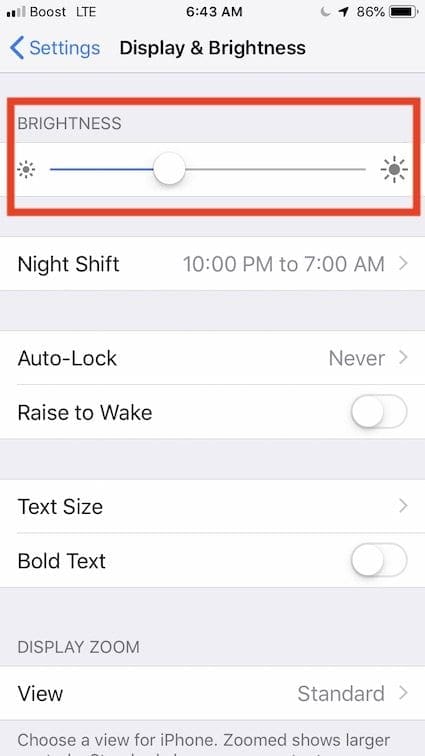
Next, Tap on Settings > Display and Brightness
Adjust the Brightness slider to the setting of your preference
Go to Settings > Zoom (or General > Accessibility > Zoom) > Zoom Filter and checkmark None as your Zoom filter option–do not use the Low Light setting!
Essentially, you are suggesting to the iOS software that in a dim or darker setting, your iPhone will use the level of brightness that you have chosen in step 6
Switch off your device and Switch it back on
You should now see a brighter display based on the calibration that you made on step 6
Next, take your iPhone 11/XS/XR to a brighter place and follow steps 3 to 6 above for setting up your display preferences in a bright environment
The steps above should take care of the dimming or dark display on your new iPhone. iOS does this to preserve battery.
Is Your Display Still Dark or Dim?
Toggle on and off Reduce White Point in Settings > Accessibility > Display & Text Size (or General > Accessibility > Display Accommodations)
Toggle off Auto-Brightness
Turn off True Tone in Settings > Display & Brightness
You may need to restart your device to get these setting changes to stick!
Screen Looks Yellow?
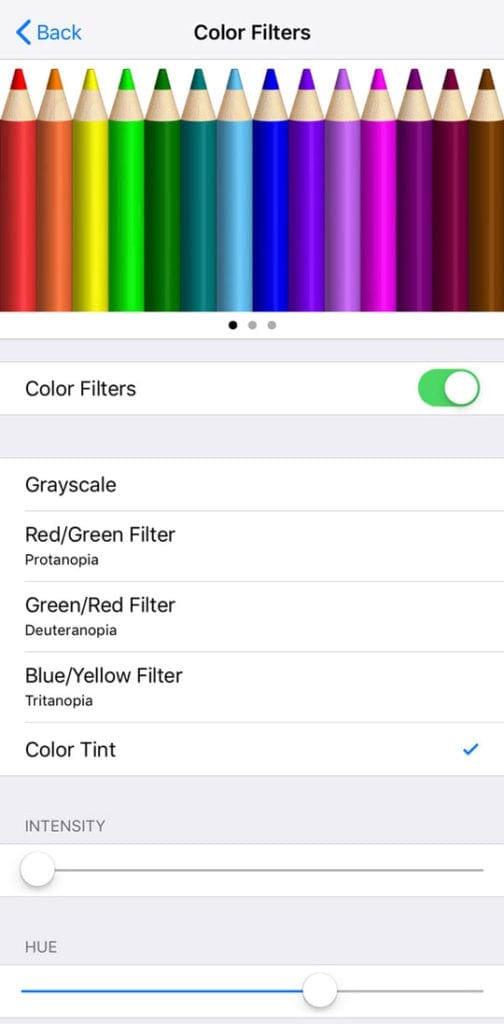
Go to Settings > Accessibility > Display & Text Size (or General > Accessibility > Display Accommodations) and toggle on Color Filter
Adjust the Hue and Intensity sliders left or right until you reach your screen tint preference with that yellow tint gone
Wrapping It Up
It’s always a good idea to keep your iPhone tuned to Auto-Brightness to save battery power.
Apple’s iOS has an uncanny ability to learn user preferences as you use your iPhone.
With most settings that you change to adjust to your preferences, it auto adjusts the device to show you your preferred preferences.
Obsessed with tech since the early arrival of A/UX on Apple, Sudz (SK) is responsible for the original editorial direction of AppleToolBox. He is based out of Los Angeles, CA.
Sudz specializes in covering all things macOS, having reviewed dozens of OS X and macOS developments over the years.
In a former life, Sudz worked helping Fortune 100 companies with their technology and business transformation aspirations.
Same here!! I kept wondering my iPhone 11 was so much dimmer outside than my wife’s XS – granted the resolution is better on her phone, but come on!! Disabling White Point was the key!
I have been trying for four days to stop my iPhone from dimming. Googling gave me hints to try turning off everything that has to do with screen brightness. None of them worked. Finally saw the suggestion to turn off zoom. It worked!!!!!
It’s useful. I resolved screen darken issue during I upgrade my IPoneSX to 13.3. “Zoom filter” is the key step to me, when I turned it to none, everything is ok. Thanks, it’s a great tip.
SK you are so a great guy!
Your detailed step-by-step explanation on this really helped me out. I contacted Apple online specialist but he couldn’t figure out the solution prior to stumble on your piece. Second time Apple online specialists failed me, and I had to grab solution from the net.
I have had it looked at the Apple store three times.
My auto brightness is turned off, the true tone turned off no reason it should be adjusting the brightness but still, it dims the brightness automatically.
Not by actually adjusting the slider but dimming it by about 30 or 40% while I am using it.
Then if I adjust slider from max to lower then to max it will not adjust any brightness at all like it the phone lowered the max brightness by 30% so above 70% it will slide but not adjust brighter at all.
They wiped my phone thinking maybe software glitch.
They replaced my screen thinking some sensor on the screen is broken
They REPLACED my phone yet the problem persists even in the new phone.
I expect if I had it happen on two phones it is some software that is overriding any settings I make to enforce not using full brightness so they can save money on battery replacements.
This is crap I wish I never switched from Samsung android phone wasted my time with 4 hours in Apple store trying to fix something they apparently can’t fix.





 Top change Night Shift and True Tone settings, go to Settings > Display & Brightness.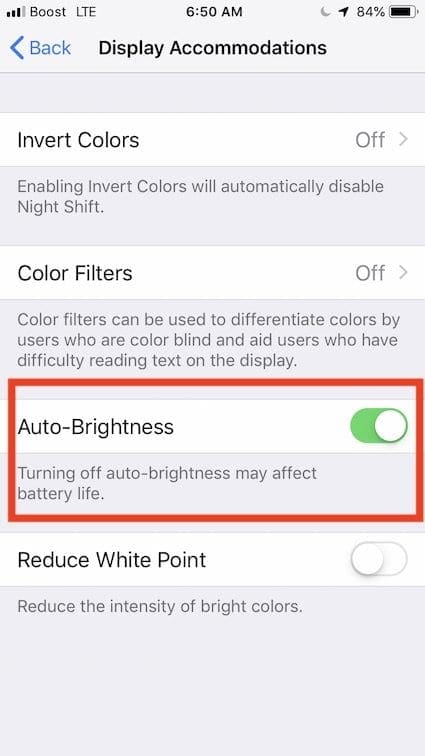







THANK YOU!! REDUCE WHITE POINT WAS THE ANSWER, we thought his phone was broken for a year, haha.
Cheers.
Turning off Reduce White Point did the trick for me. Have no idea how it was turned on in the first place?? Screen is markedly brighter now.
Same here!! I kept wondering my iPhone 11 was so much dimmer outside than my wife’s XS – granted the resolution is better on her phone, but come on!! Disabling White Point was the key!
excellent instruction!! thank you very much. could fix my dark display in just 1 minute > ZOOM settings
I have been trying for four days to stop my iPhone from dimming. Googling gave me hints to try turning off everything that has to do with screen brightness. None of them worked. Finally saw the suggestion to turn off zoom. It worked!!!!!
Hi Eduman,
Awesome! Thanks for letting us know it worked for you!
My I Phone 5xr has been switching from a light to dark screen WHY>
Hi Marilyn,
If your iPhone is an XR, then it’s possible you engaged dark mode if you use iOS 13. To turn dark mode off, review this article: Dark mode isn’t for everyone, disable it for iOS 13, iPadOS, or macOS
It’s useful. I resolved screen darken issue during I upgrade my IPoneSX to 13.3. “Zoom filter” is the key step to me, when I turned it to none, everything is ok. Thanks, it’s a great tip.
Thanks for the tips.
i had the issue of dim display with my Iphone 11 Pro Max and i was about to take it to the dealer to check it.
i turned out that *Reduce White Point* was on all time and caused that low brightness issue.
I PROMISE you this will work…
Go to settings, general, accessibility, zoom and TURN OFF ZOOM. I did this and it worked.
Yeah, that doesn’t work either. Try using your phone on the beach. You CANNOT see the screen. It’s AWFUL!!!
SK you are so a great guy!
Your detailed step-by-step explanation on this really helped me out. I contacted Apple online specialist but he couldn’t figure out the solution prior to stumble on your piece. Second time Apple online specialists failed me, and I had to grab solution from the net.
Thank you so much for this great work.
This is ridiculous.
I have had it looked at the Apple store three times.
My auto brightness is turned off, the true tone turned off no reason it should be adjusting the brightness but still, it dims the brightness automatically.
Not by actually adjusting the slider but dimming it by about 30 or 40% while I am using it.
Then if I adjust slider from max to lower then to max it will not adjust any brightness at all like it the phone lowered the max brightness by 30% so above 70% it will slide but not adjust brighter at all.
They wiped my phone thinking maybe software glitch.
They replaced my screen thinking some sensor on the screen is broken
They REPLACED my phone yet the problem persists even in the new phone.
I expect if I had it happen on two phones it is some software that is overriding any settings I make to enforce not using full brightness so they can save money on battery replacements.
This is crap I wish I never switched from Samsung android phone wasted my time with 4 hours in Apple store trying to fix something they apparently can’t fix.
Settings – General – Accessibility – Zoom – Zoom Filter (deslect “Low Light” and click “None).
Presto – bright screen!
Thank you! this worked for me
Thanks, it worked for me too! 🙂
It worked! Thank you sooooooooo much!
Followed those steps, still experiencing auto dimming… although the feature is disabled.
Your instructions do not work. I tried several times on a dimly lighted room, and it still goes back to a lower lighted display.
Hi Gary,
Yes, it seems iOS 12 is really trying to ramp down the amount of power used by the display to extend battery life.
Try turning Auto-Brightness completely off. Then set the display to your preferred brightness. See if this makes a difference.
Sam
l have the exact same problems. Maybe the phone is the problem. For the price there should not be any issues.