Trying to work with the App Store on your Mac or with iTunes and your iDevice (iPhone, iPad, or iPod) but keep seeing error 1004 and need help? Seeing a message to please try again later, an unknown error occurred, or unable to download?
Several people have reported that they receive the error 1004 (error message: Error 1004, try again later) message when they want to download apps from the App Store.
How Do I Fix App Store Error 1004 When Using iTunes and My iPhone, iPad or iPod Touch?
To troubleshoot this problem please follow each tip until you resolve this issue:
Quit iTunes, unplug your device, then relaunch iTunes and plug your device back into the computer
Try using a different cable, if available or a different port, if available
Restart BOTH the device and the computer and try again
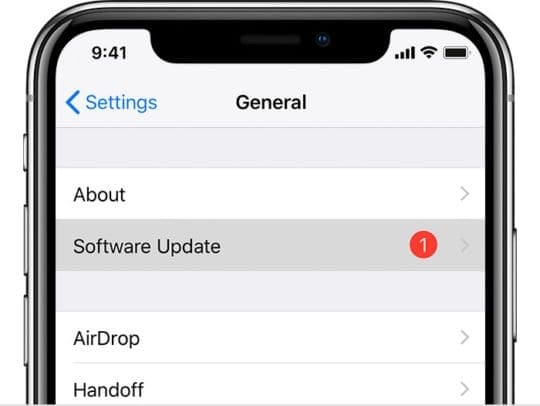
Check for an iOS Update, if available back up your data via iTunes or iCloud and then update the iOS
Temporarily disable any antivirus apps on your device, such as Norton, McAfee, Avira, and so forth
Open the App Store > Updates Tab
Check if any apps are listed as Resume or Waiting. If so, tap them to restart the updating process
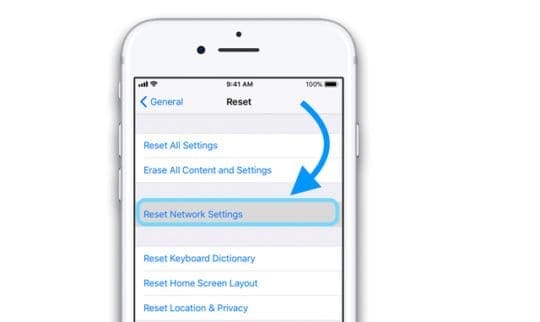
Reset your network settings by tapping Settings > General > Reset > Reset Network Settings
Try logging and log back into the Apple store
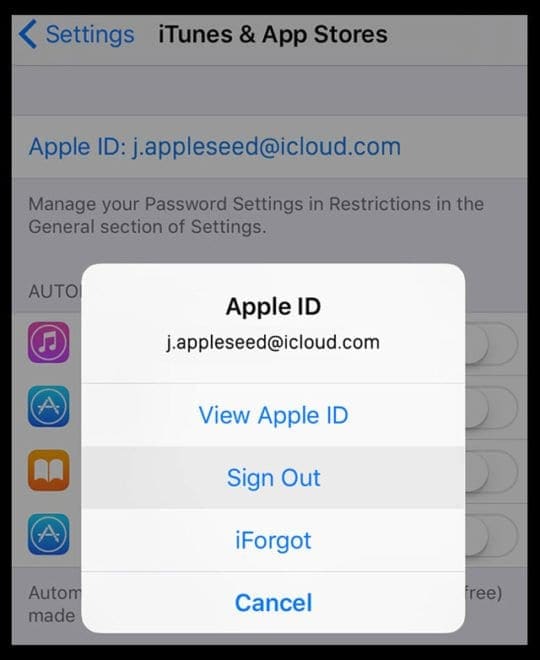
To do so, go to Settings > iTunes & App Store > Tap your Apple ID > Sign Out
Once you sign out, then sign in entering your Apple ID and password
Some people have reported that clearing Safari’s data and history fixes this problem
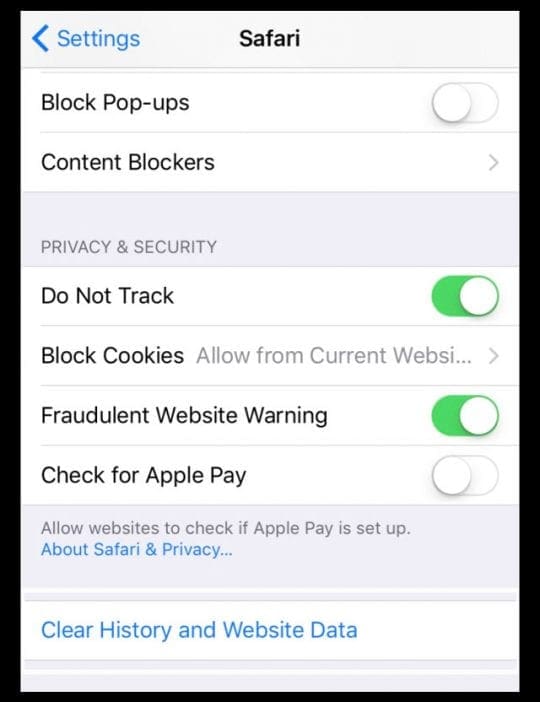
To this, simply tap Settings > Safari
Scroll down to Clear History and Website Data and tap it
Confirm you want to Clear History and Data
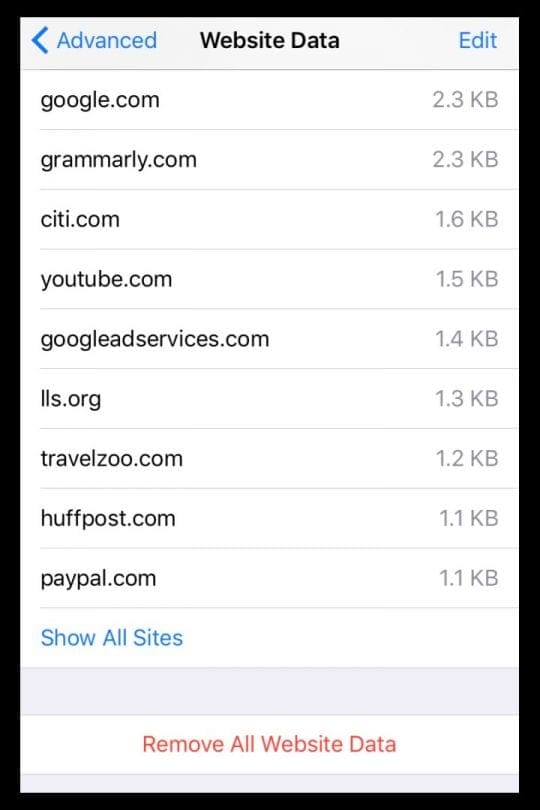
Back in Settings > Safari, scroll down to Advanced at the bottom and tap it
Choose Website Data
After data populates, select Remove All Website Data
Confirm the selection by tapping Remove Now
Close the Settings App
Restart your device (iPhone, iPad or iPod Touch)
How Do I Fix App Store Error 1004 on My Mac or MacBook?
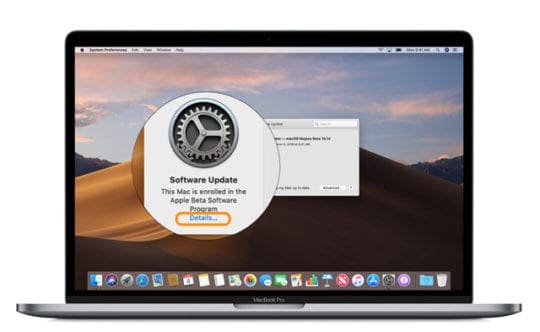
Update your macOS or Mac OS X–make sure you back up your Data first and then update
Temporarily disable any antivirus software
Look for Apps that need to Resume installing or downloading
Hold the Option Key and then tap on the Resume button–this cancels the update
Then try to update or download/install the app again from the App Store
Isolate Some App Store User Files
Quit the App Store
Open the Finder
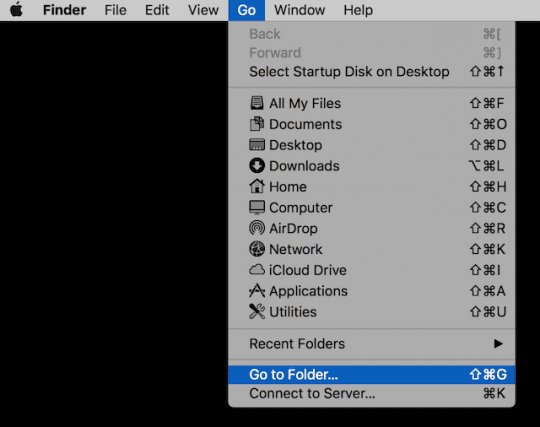
From the Top Finder Menu choose Go > Go to Folder
Type in this text (or copy/paste) ~/Library/Cookies
Choose Go
Locate the file com.apple.appstore.cookies or com.apple.appstore.binarycookies in the Cookies folder
Isolate this file by moving it to the Desktop, Trash, or another folder you’ll remember
Go back to the Top Finder Menu and choose Go > Go to Folder
Type in this text (or copy/paste) ~/Library/Preferences
Click Go
Locate and then isolate the file com.apple.appstore.plist from the Preferences
Close open windows and apps
Try the App Store again
How Do I Fix App Store Error 1004 on My Windows PC?
Shut down your computer completely and then restart
Repair iTunes
Locate and then right-click the iTunes installer iTunesSetup or iTunes6464Setup—and choose “Run as administrator.”
You see a prompt to repair the software
After the repair is complete, restart your computer and try launching iTunes again
If you can’t locate the iTunes installer, Download the latest iTunes from Apple’s website, then click Download to download the iTunes installer. When prompted, click Save instead of Run and repeat the above steps
Try running the feature Run Diagnostics from the iTunes Help menu
View Network Connections
On your PC, click Start, then click Control Panel
Click Internet Connections
Right-click the network interface you want to enable, then choose Enable
Click Start, then click Turn Off Computer
Click Restart
Clear DNS Cache
On your PC, click Start, then choose Run
In the dialog that appears, type “cmd” (don’t type the quotes), then click OK
After the DOS prompt (C:\), type “ipconfig /flushdns” (without the quotes) and press Enter. Make sure you enter a single blank space after “ipconfig”
Note: Errors 1004, 1013, 1638, 3194 are results of similar problems; this fix may work for these error messages also.
Obsessed with tech since the early arrival of A/UX on Apple, Sudz (SK) is responsible for the original editorial direction of AppleToolBox. He is based out of Los Angeles, CA.
Sudz specializes in covering all things macOS, having reviewed dozens of OS X and macOS developments over the years.
In a former life, Sudz worked helping Fortune 100 companies with their technology and business transformation aspirations.












I had the same error and tried all the advice I could find on discussion boards. My error fixed when I disabled Norton.
I just did everything you said and it still comes up
I am getting this same error on my mac mini, what to do ?
The easy solution is to keep trying to update. Lucky for you, there’s a more expedient way to do it.