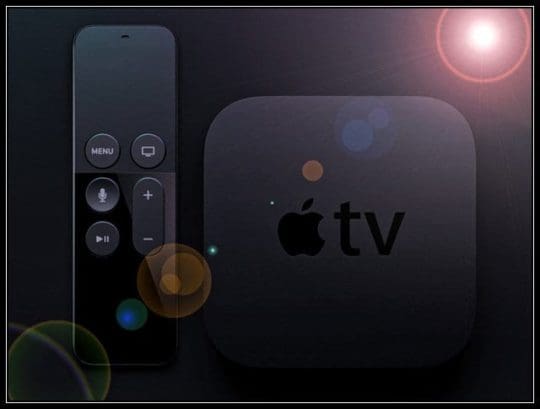
The Apple TV is arguably one of the best media streaming boxes on the market. But that does not mean that there are not issues that arise from time to time.
One such issue that has been popping up is the fact that the Apple TV has become unresponsive. This has led to many folks left scratching their heads, unsure of what to do.
Today, we’re going to take a look at a few different steps that you can take to try to fix your Apple TV. It’s important to note that these steps should work for any Apple TV other than the new Apple TV 4K.
Before getting started, there are some indications that you will notice if things are acting up. These have to do with the white notification light on the front of your Apple TV.
Basic Fixes
If you are having troubles with your Apple TV, then you will want to try some of the following methods:
Switch out the HDMI cable for a different one
Check the input on your TV to make sure that the Apple TV is on the right option
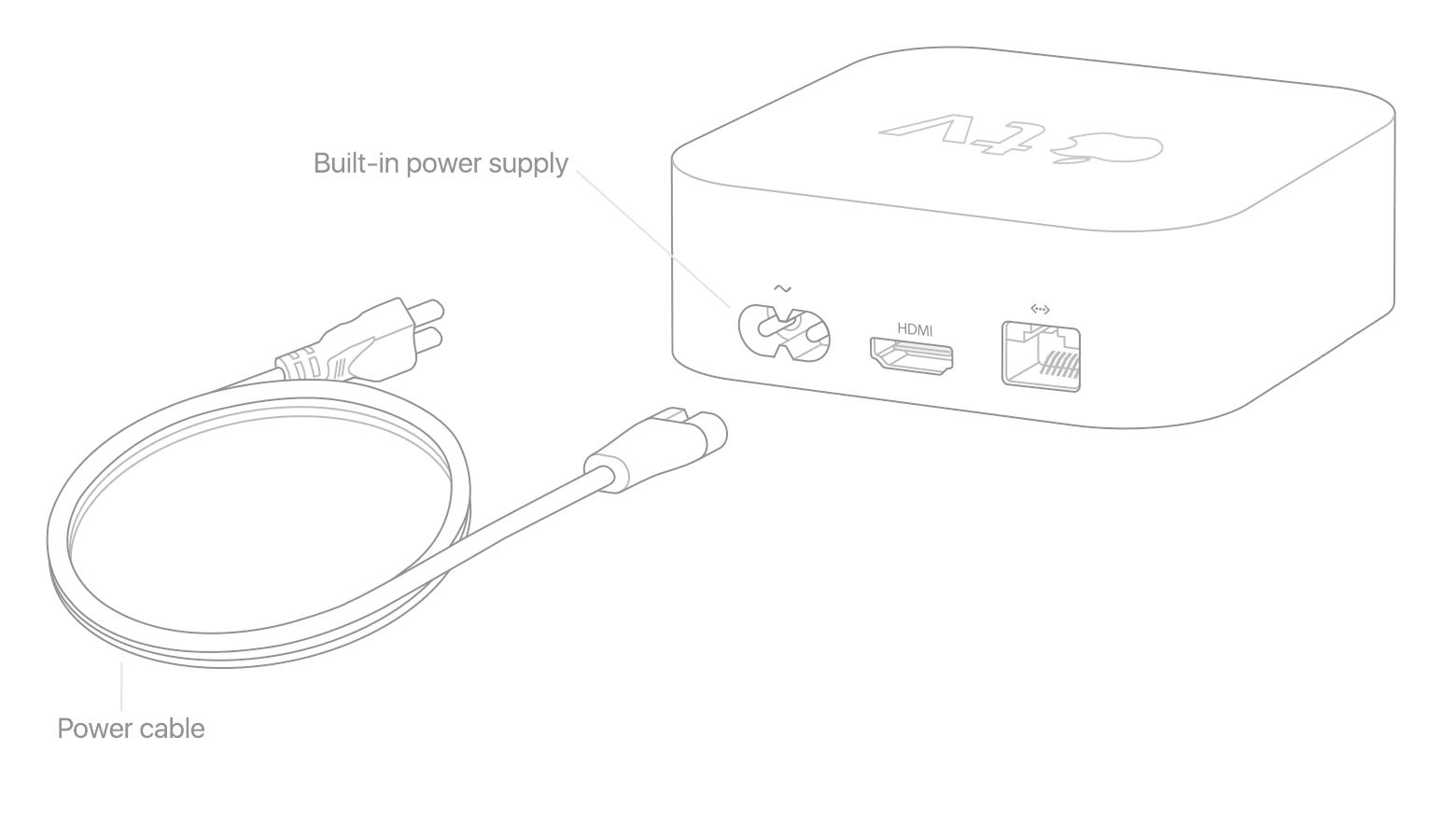
Make sure that your Apple TV is plugged in
Unplug the Apple TV, wait 30 seconds, then plug it in
Try a different power outlet
If you’ve exhausted these fixes and are still having issues, you may have to bump things up a notch. Luckily, there are a few more fixes to test out to get your Apple TV working again.
Switch to another Display Mode
In some cases, your Apple TV and regular television may not see eye-to-eye on the resolution. When this happens, you will want to change the resolution to see if this brings your ATV back to life.
For the Apple TV 4K or ATV (4th Generation):
Hold Menu and Volume Down for 5 seconds then release. This will force your ATV to cycle through the different resolutions. When you see the proper resolution, select OK to choose the resolution, or Cancel to quit.
For the Apple TV (2nd or 3rd Generation):
Press and Hold Menu and Up for 5 seconds. This will force the ATV to cycle through the different resolutions. When you see the proper resolution, select OK to choose the resolution, or Cancel to quit.
If this doesn’t fix things with your Apple TV, then we are starting to get into dangerous territory. Have no fear, as there is another fix to try out before resorting to contacting Apple for support.
Try to restart
From time to time, a simple reset may fix all of the issues that you could be running into. This can either be performed through the Settings panel on your ATV, or with the included Remote.
For the Apple TV 4K or ATV (4th Generation):
Go to Settings > System > Restart
For the Apple TV (2nd or 3rd Generation):
Go to Settings > General > Restart
Of course, the above methods don’t really matter much if you can’t see anything on your TV. But, Apple has included a way to restart your ATV from the included remote.
For the Siri Remote or Apple TV Remote:
Hold down the Home and Menu buttons. Let go when you see the light on your ATV begin to flash
For the aluminum or white Apple Remote:
Hold down the Menu and Down buttons. Let go when you see the light on your ATV begin to flash
Unfortunately, if a restart doesn’t knock out the cobwebs, then you’ll likely be forced to perform a restoration on your Apple TV. This is not the most ideal situation, but it could still get everything to work properly without needing to contact Apple.
Restore Apple TV
If the light on your ATV is flashing for at least three minutes, then you will want to restore the device. You will also want to restore your Apple TV if you see a triangle warning on your TV display. This method is a bit tedious, as you’ll need to make sure you have a USB Type-C or MicroUSB cable handy.
Unplug the HDMI cable and power cord
Open iTunes
Plug in the USB-C cable to the back of your Apple TV (4th Gen). If you are working with the 2nd or 3rd generation, then you’ll need a Micro-USB cable.
Plug the other end of the cable into the USB port on your computer
If working with the 3rd or 4th generation Apple TV, plug in the power cord to the wall. For the 2nd generation Apple TV, leave it unplugged
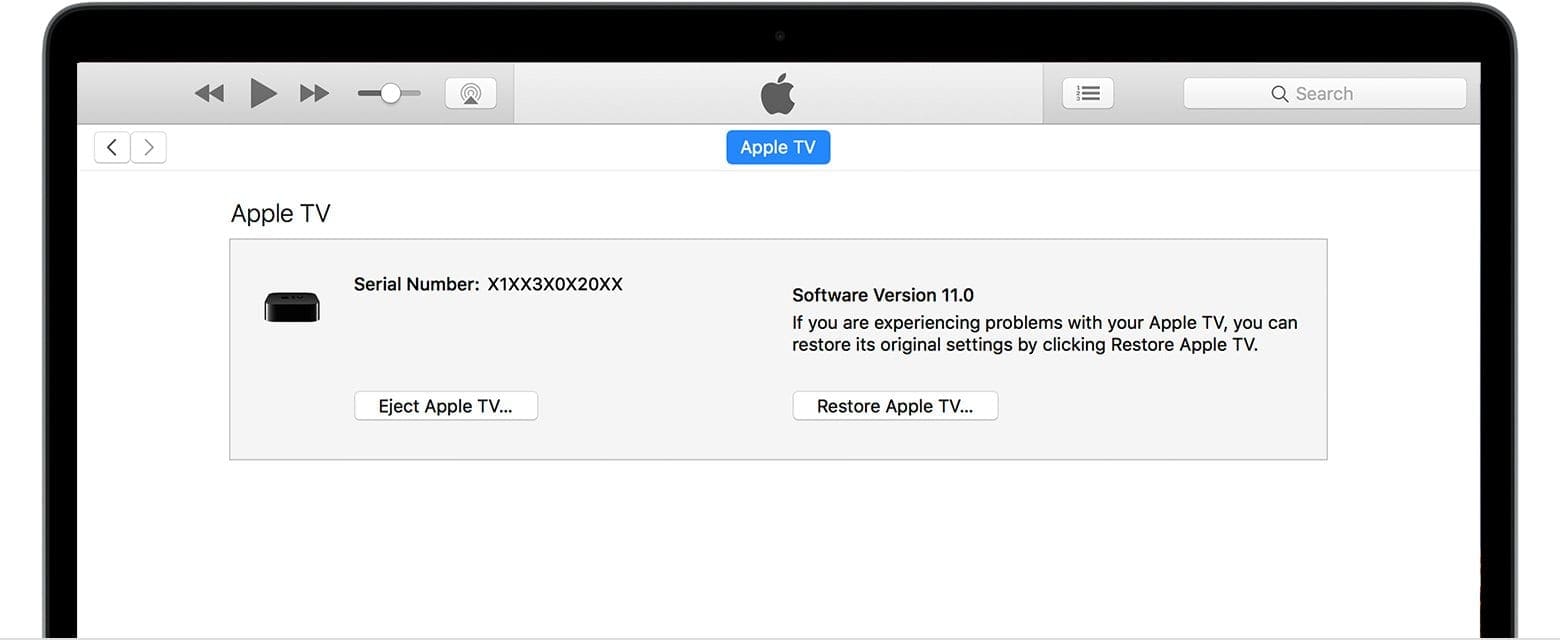
After the computer has recognized your Apple TV, iTunes will show a ‘Summary’ page
Click the “Restore Apple TV” button on the Summary page
After the restoration has been completed, plug the Apple TV back into your TV
During the process of restoring your ATV, it’s important that you don’t unplug any of the cables attached to the device. This will ensure that the process runs smoothly.
What about the Apple TV 4K?
Apple launched the TV 4K back in September of last year, but removed one key element that was found in previous models. Instead of keeping the USB-C port found in the 4th generation ATV, Apple opted to remove this altogether.
This decision has removed the ability for users to be able to safely restore their ATV from their homes with iTunes. Instead, if you run into any major issues with the ATV 4K, you’ll be forced to contact Apple for support.
If you have an Apple store in your vicinity, it may be a better option to head to the store. That way, you don’t have to wait for Apple to respond to emails and can get your ATV replaced on the spot if it’s under warranty.
Andrew Myrick is a freelance writer based on the East Coast of the US. He enjoys everything to do with technology, including tablets, smartphones, and everything in between. Perhaps his favorite past-time is having a never-ending supply of different keyboards and gaming handhelds that end up collecting more dust than the consoles that are being emulated.
For weeks now my APPLE TV 4G would not start. The white LED blinked, but my TV said there was no input. I tried power-cycling it by unplugging and replugging the power cable, I replaced the HDMI cable, held the two top buttons on the remote until they flashed rapidly, but ultimately I could not get the device to start by simply selecting “Source” on the TV and waking the Apple TV – until tonight. I discovered the Apple TV’s Remote settings were configured to control my TV, eg Apple remote switched TV on and off, controlled volume etc, so I disabled that feature and now the Apple TV remote has no remote control role to play with my TV other than to change volume. Now, using my TV remote, I select the HDMO source to which the Apple TV is connected, then wake the ATV by clicking its remote, and everything works again. I suspect the issue had something to do with the ARC connection. Simple is best
I have an Apple TV 4th generation. It’s been “on the blink” for 5 days now. It literally just blinks. I’ve tried all the reset options above, but none of them works. When I connect it to iTunes on my computer, it doesn’t even show up there! I’ve connected both my iPhone and my iPad and they show up there.
What to do now? Contact Apple support directly?











My Apple tv 4K Model 1842 does not come on, no light at all on the front.
For weeks now my APPLE TV 4G would not start. The white LED blinked, but my TV said there was no input. I tried power-cycling it by unplugging and replugging the power cable, I replaced the HDMI cable, held the two top buttons on the remote until they flashed rapidly, but ultimately I could not get the device to start by simply selecting “Source” on the TV and waking the Apple TV – until tonight. I discovered the Apple TV’s Remote settings were configured to control my TV, eg Apple remote switched TV on and off, controlled volume etc, so I disabled that feature and now the Apple TV remote has no remote control role to play with my TV other than to change volume. Now, using my TV remote, I select the HDMO source to which the Apple TV is connected, then wake the ATV by clicking its remote, and everything works again. I suspect the issue had something to do with the ARC connection. Simple is best
I have an Apple TV 4th generation. It’s been “on the blink” for 5 days now. It literally just blinks. I’ve tried all the reset options above, but none of them works. When I connect it to iTunes on my computer, it doesn’t even show up there! I’ve connected both my iPhone and my iPad and they show up there.
What to do now? Contact Apple support directly?
Louise, I think you should contact Apple Support directly. Have you already updated your AppleTV to the latest tvOS?