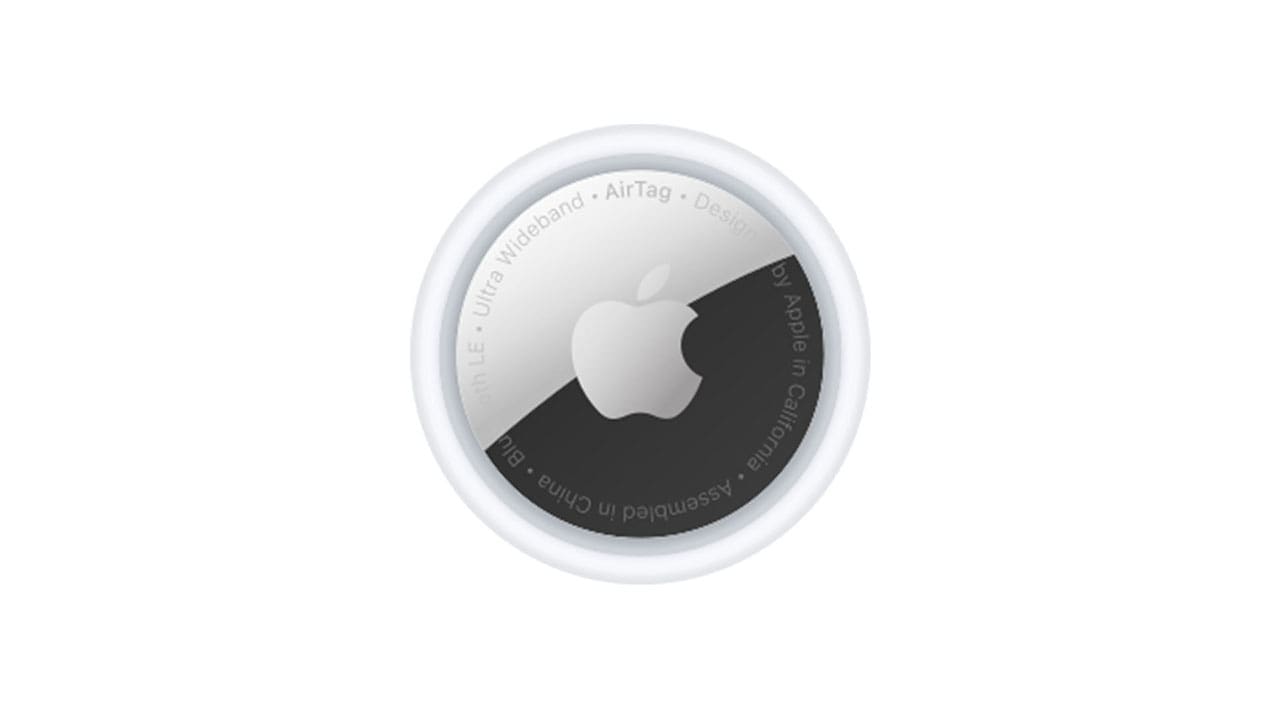
Since its introduction back in 2021, the Apple AirTag has been a useful way to keep track of possessions. Simultaneously, safety concerns around its ability to track people have also plagued the product since launch. In this article, we’ll be looking at Airtag safety concerns and what Apple is doing to address them.
The Apple AirTag has been a magnet for discussions around privacy and technology. This year, the tech giant is facing more than 30 lawsuits related to stalking with the Apple AirTag. This isn’t the first time either, another being filed in 2022, but ultimately failing to achieve class certification.
The same things that make AirTags useful are also to their detriment. AirTags can be quietly slipped into bags, cars, or even clothing to track people. Add to these fears around privacy concerns from Apple, and legal ramifications for misuse of the tech from different countries, and you can see why Apple has to take the necessary security steps.
What Are AirTag’s Safety Features?
From their introduction, Apple has ensured that certain safety features are in place for their AirTags. Here are the major ones:
Bluetooth identifiers are randomized, which changes regularly to prevent tracking.
Data encryption that prevents the device’s signal from being intercepted.
Warnings not to misuse the technology on Apple’s site.
No personal data is stored on an AirTag. They can only be identified by serial number.
What’s more, unknown AirTags will be detected by your phone, iPhone, or Android. In fact, Apple and Google worked closely together to ensure that AirTags could be detected on both operating systems. The iPhone will alert the user with the pop-up “AirTag found moving with you,” while Android users can use the built-in “Unknown Tracker Alerts,” Apple’s “Tracker Detect” app (now available in the Android shop), or rely on other third-party apps like Air Guard.
What Is Apple Still Doing to Address AirTag Safety Concerns?
The initial safety features haven’t been the only ways Apple is ensuring its AirTag users stay both safe and honest. Beyond the precision finding through “Find My” and serial numbers that can be tied to purchasers, Apple is still refining safety aspects. These include:
A separation alert from an AirTag has decreased from three days to 24 hours
The AirTag 2 features a louder speaker to help with location
The recently released Apple Firmware Update 3.0.49 plays a refined sound to help better identify and locate an unknown AirTag
The key balance to strike with AirTags is to keep them useful while reducing their capacity for misuse. Apple is constantly improving software to remove false positives in crowded places and to facilitate alerts for shared users. The Shared AirTag configuration, for example, is one way to ensure a family or group of users can access the same AirTags without triggering alarms.
Activating Tracking on Your iPhone
If you’re worried about an unknown AirTag following you, then you can easily turn on tracking on your iPhone. Here’s how:
Step 1. Open “Settings.”
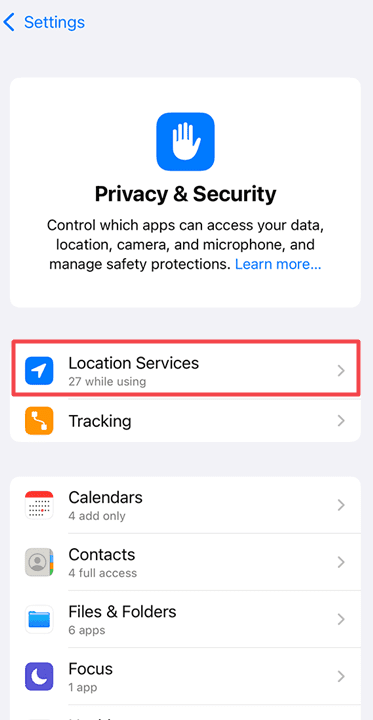
Step 2. Navigate to “Privacy & Security.”
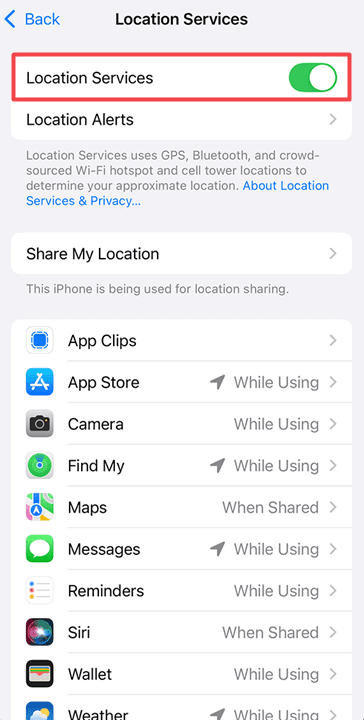
Step 3. Tap “Location Services” and ensure it’s on.
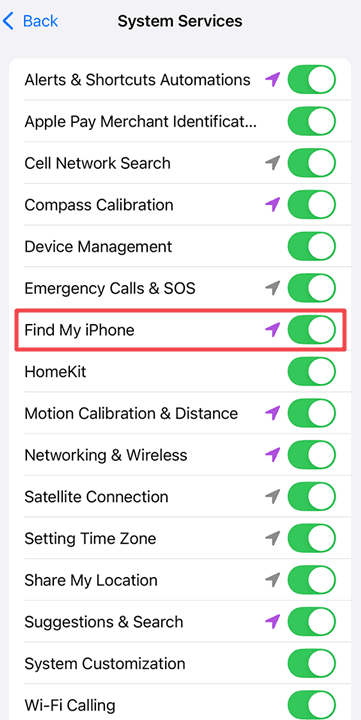
Step 4. In Location Services, tap “System Services.”
Step 5. Ensure the “Find My iPhone” toggle is on.
Step 6. Back in Settings, tap “Notifications” and ensure the “Find My” notifications are allowed.
As an avid gamer, I’ve run into my fair share of error codes and weird faults that have forced me to find fixes to problems I never anticipated. That gave me a passion for sharing those fixes with others so we can all game without feeling like our hardware is rebelling against us.







Write a Comment