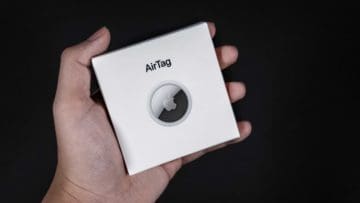
In the world of technology, Apple’s AirTag has emerged as a handy tool for keeping track of your valuable items. However, like any piece of technology, it’s not immune to issues. One common problem that users encounter is the “AirTag Not Reachable” error.
This error can be frustrating, especially when you’re trying to locate a lost item. This article aims to provide a comprehensive guide on how to fix the “AirTag Not Reachable” error, exploring various solutions based on common causes such as Bluetooth connectivity issues, range limitations, signal interference, and hardware problems
Before diving into solutions, it’s essential to understand what “Not Reachable” means. This status appears when your iPhone or iPad cannot communicate with the AirTag, possibly due to distance, interference, or the AirTag’s battery life. Unlike other errors that might indicate a specific problem, “Not Reachable” is a general alert that requires some detective work to resolve.
First, ensure you’re within Bluetooth range of your AirTag. Apple’s AirTags rely on Bluetooth technology, which typically has a range of about 30 to 100 meters (100 to 330 feet) under optimal conditions. If you suspect distance is the issue, try moving closer to the location you last remembered having your item.
Refresh Your Connection
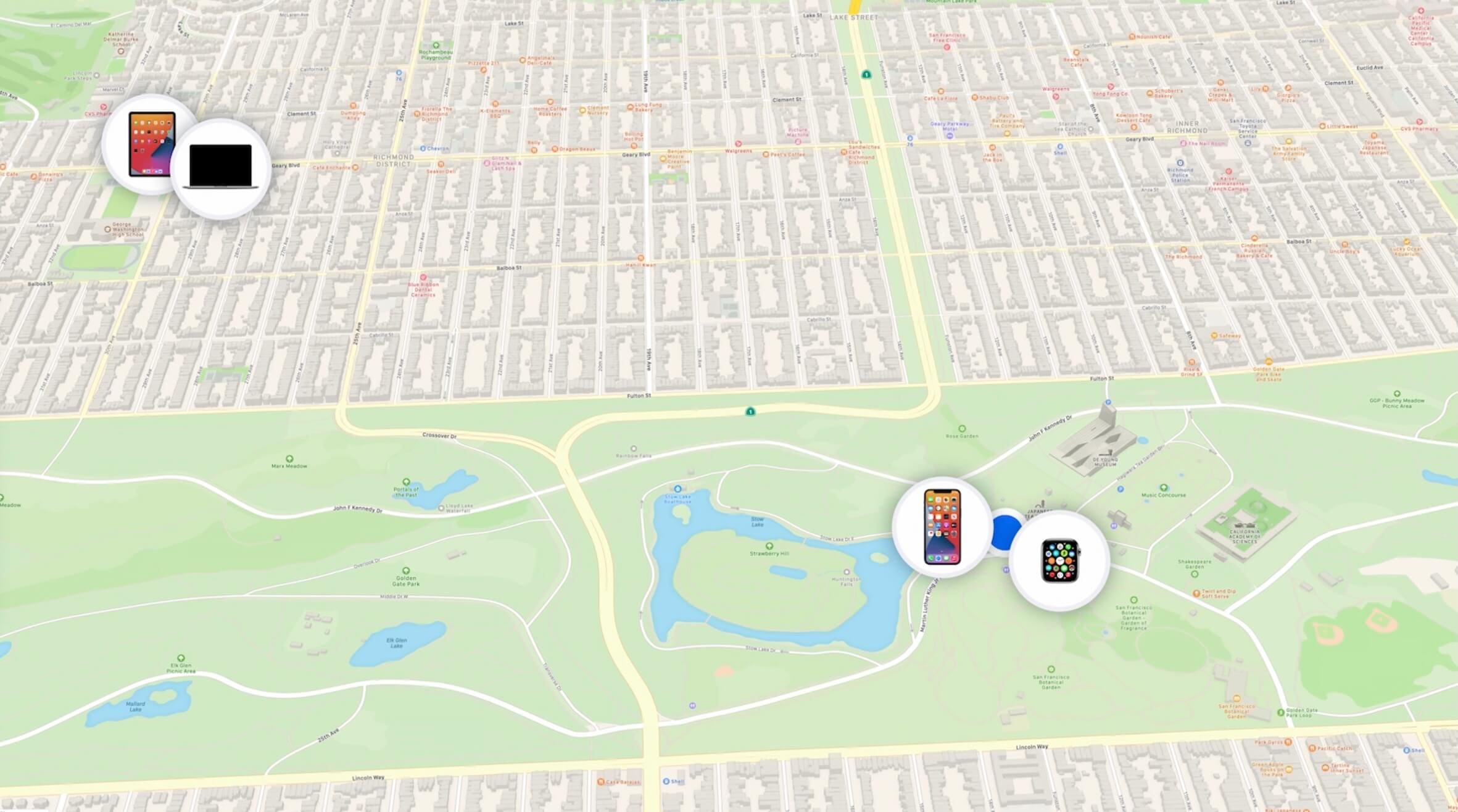
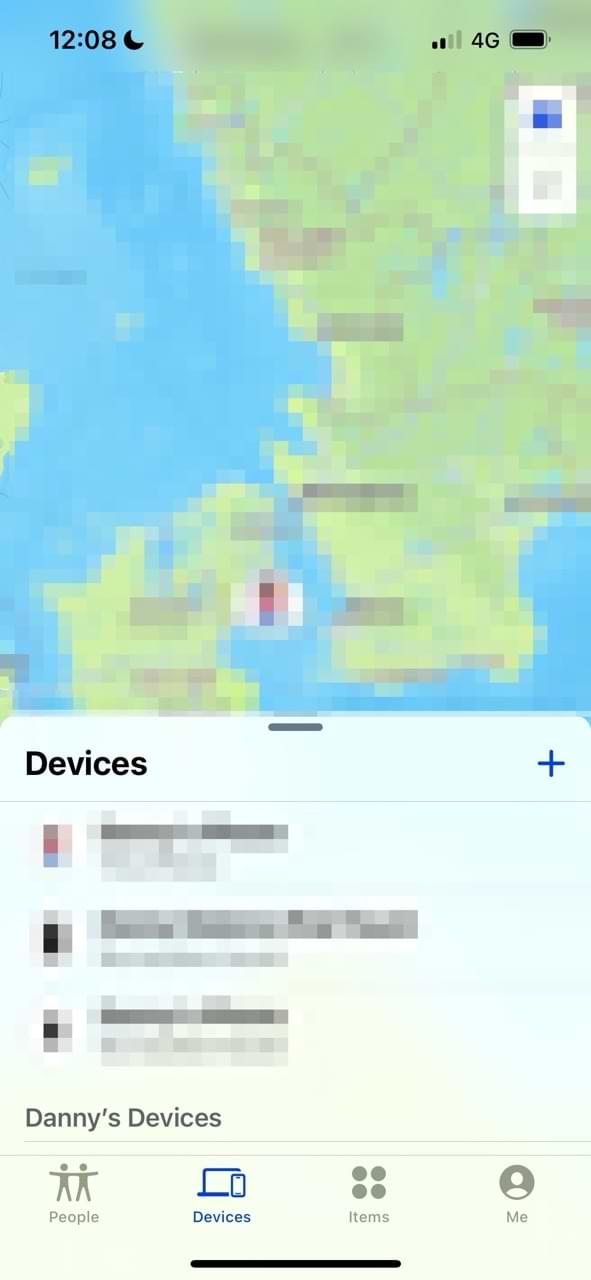
Sometimes, simply refreshing the connection can solve the problem. Open the Find My app, swipe down on the screen to refresh the list of devices, and see if your AirTag reappears as reachable.
Inspect the Battery
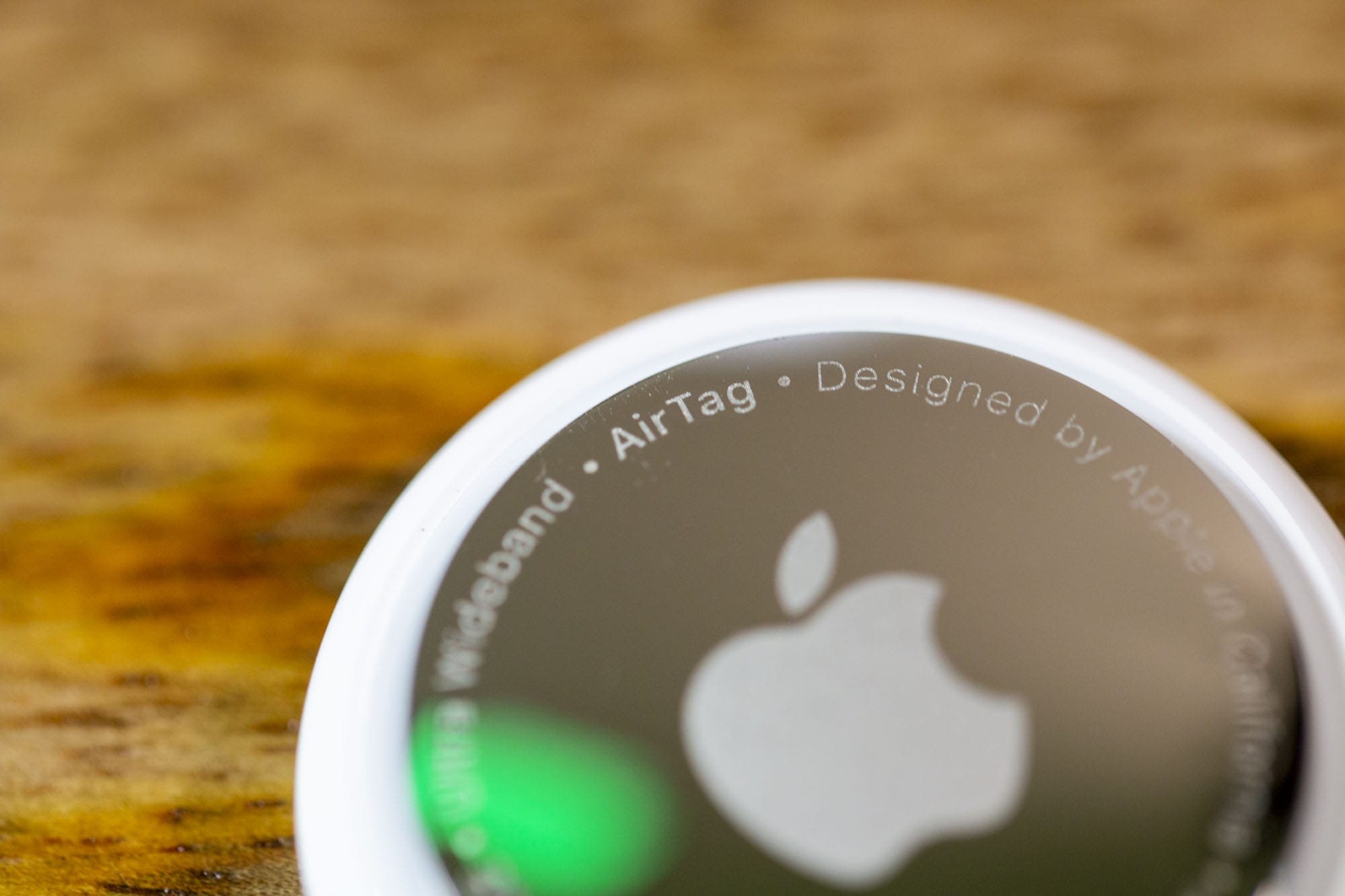
AirTags are powered by a CR2032 coin cell battery designed to last over a year. However, battery life can vary based on usage. If your AirTag has been in use for a while, consider replacing the battery. Thankfully, replacing it is a breeze:
Press down on the polished stainless steel battery cover and rotate counterclockwise until the cover can be removed.
Replace the CR2032 battery with the positive side facing up.
Realign the cover and rotate clockwise until it snaps into place.
Ensure Your iOS is Up-to-Date
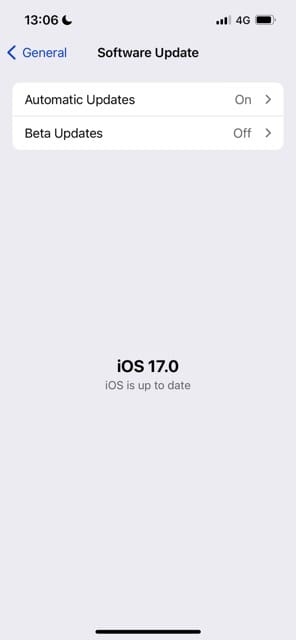
Compatibility and performance enhancements are often included in iOS updates. If your device is running an outdated version of iOS, it may affect how it communicates with your AirTag. Check for any available updates by going to Settings > General > Software Update.
Restart Your iPhone or iPad
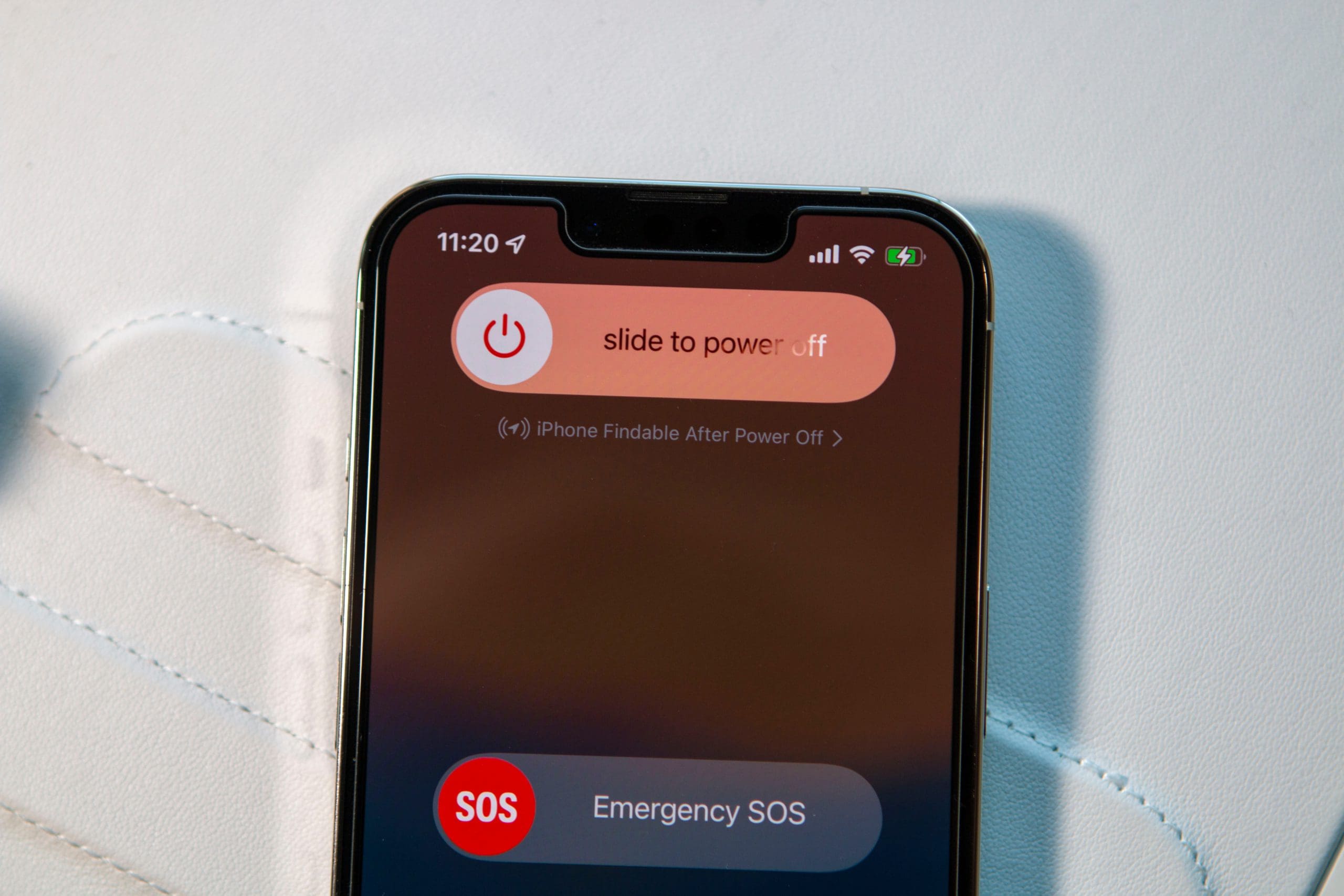
A classic troubleshooting tip for a reason — restarting your device can resolve a multitude of issues by refreshing the system’s connections. Hold down the side button and either volume button to power off your device, then turn it back on.
Reset Your AirTag
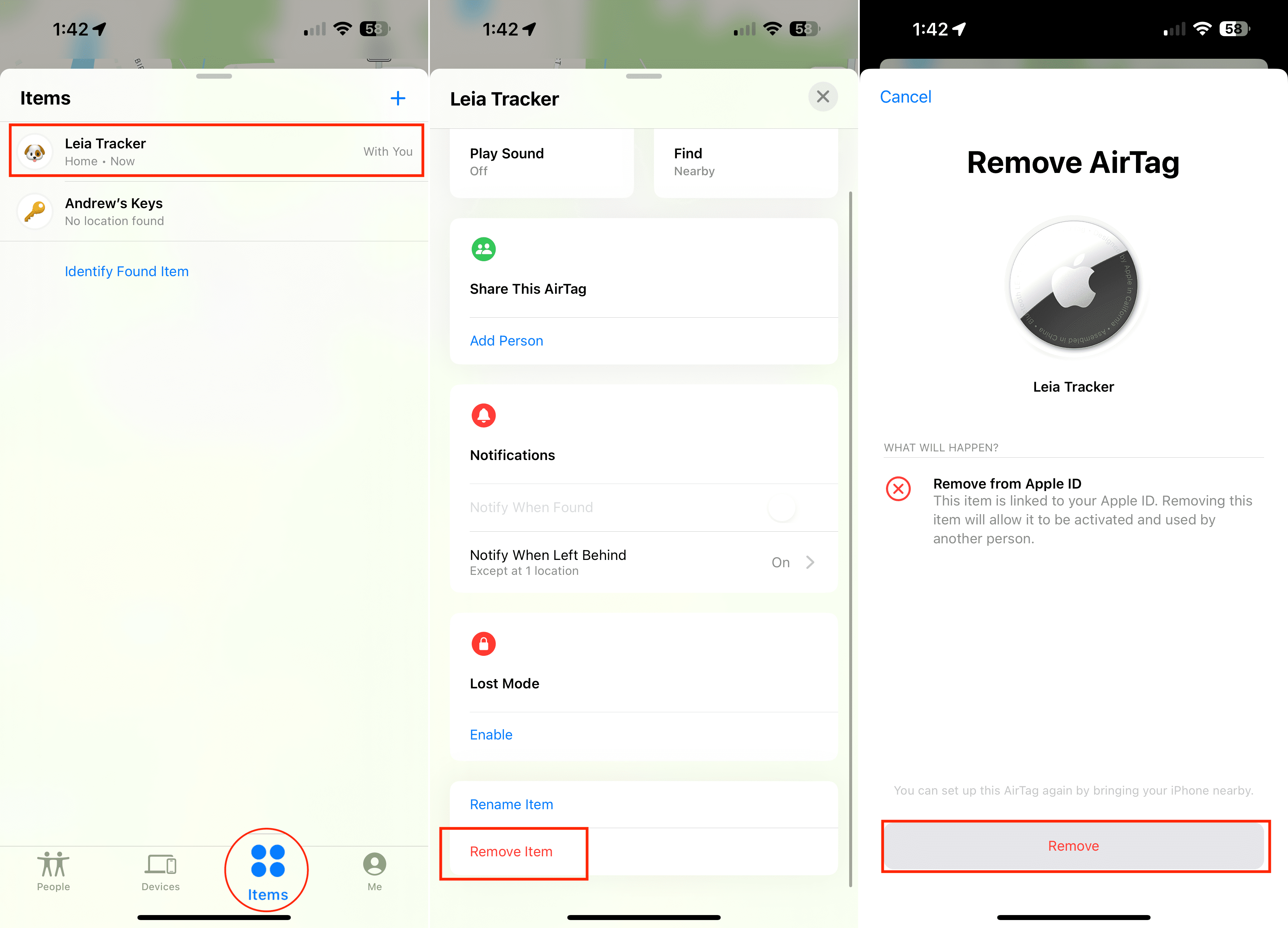
If the above steps don’t resolve the issue, consider resetting your AirTag. Remove the AirTag from your items in the Find My app, then re-add it. This process can refresh the connection and clear any minor software glitches.
No matter what the reason, there are a couple of steps that you can take if you want to reset an AirTag. The first relies on the Find My app, and here’s how you can use the app to reset the AirTag:
Open the Find My app on your iPhone or iPad.
Select the name of the AirTag that you want to remove from the list of devices.
Swipe up from the bottom to reveal the AirTag settings.
Tap Remove Item at the bottom of the page.
Tap Remove again to confirm.
Surprisingly enough, there’s actually another method for resetting an AirTag which has nothing to do with the Find My app. In fact, you don’t need to use any Apple device in order to reset the AirTag and can do so with nothing more than the AirTag itself.
With the AirTag in your hand, press down on the side with the steel backing.
While pressing down, rotate counterclockwise until the back cover stops turning.
Pull apart the two halves of the AirTag.
Remove the battery from the AirTag.
Place the battery back into the AirTag.
Push down on the battery until it makes a sound.
After the sound is made, remove the pressure from the battery.
Repeat the process four more times, including the removal and replacement of the battery until you hear a sound.
After the sound has been made five times, place the cover back onto the AirTag.
Press down on the cover and rotate clockwise until it locks into place.
Contact Apple Support
If all else fails, Apple Support is your go-to resource. They can provide additional troubleshooting steps or service options if your AirTag is defective.
Conclusion
In conclusion, while the “AirTag Not Reachable” error can be frustrating, there are several practical solutions to this issue. By understanding the common causes and following the steps outlined in this article, you can effectively troubleshoot and resolve this error.
Whether it’s ensuring Bluetooth connectivity, resetting network settings, or even performing a hardware reset on your AirTag, these solutions can help you get your AirTag back to functioning optimally. Remember, if the problem persists, it might indicate a more serious issue with the AirTag itself, in which case contacting Apple Support for further assistance would be advisable.
Andrew Myrick is a freelance writer based on the East Coast of the US. He enjoys everything to do with technology, including tablets, smartphones, and everything in between. Perhaps his favorite past-time is having a never-ending supply of different keyboards and gaming handhelds that end up collecting more dust than the consoles that are being emulated.








Write a Comment