The integration of Precision Finding technology into Apple’s ecosystem has significantly enhanced the accuracy and reliability of locating lost devices. This feature, initially designed for AirTags, has been extended to facilitate the tracking of iPhones using an Apple Watch.
This article aims to provide a comprehensive guide on utilizing Precision Finding to locate your iPhone through your Apple Watch. Whether you frequently misplace your phone or simply wish to understand the full capabilities of your Apple devices, this guide will offer valuable insights into the intricacies of this advanced locating feature.
Precision Finding was first introduced on the AirTag, making use of Apple’s self-developed U1 chip. This same chip is integrated into every model of iPhone since the iPhone 11, and helps you locate your “lost” accessories or devices. But in addition to the dedicated hardware embedded in your devices, Precision Finding also provides on-screen directions with the help of your camera, accelerometer, and gyroscope.
We can only imagine the number of complaints Apple received about its users wanting to have a better solution to find lost AirPods. Until now, you could still use the Find My app on your iPhone, iPad, or Mac, but this only would let you play sounds from the earbuds themselves in order to try and locate them.
But with the release of the Apple Watch Series 9, Apple Watch Ultra 2, and iPhone 15 series, Apple is taking things up a notch. Instead of only being able to find your compatible AirPods, you can actually use find your iPhone with Apple Watch using Precision Finding.
How to Find Your iPhone With Apple Watch Using Precision Finding
In this section, we will provide a detailed, step-by-step guide on how to leverage this advanced feature to find your misplaced iPhone. From initiating the search on your Apple Watch to following the on-screen directions, this guide aims to equip you with the knowledge needed to efficiently locate your device. Let’s delve into the process and explore how Precision Finding can alleviate the anxiety of losing your iPhone.
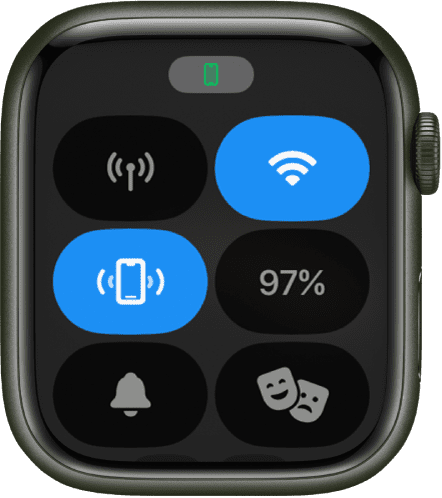
From your Apple Watch, press the Side button to open Control Center.
Tap the Find iPhone icon.
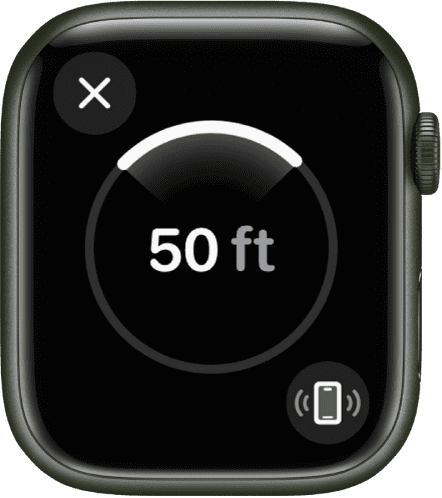
Your iPhone will begin playing a sound, and if your Apple Watch is within range, you’ll begin to see a heading and distance.
If you need to, tap the Find Watch button in the bottom right corner to play a sound again from your iPhone.
Follow the directions on your Apple Watch, making the necessary adjustments until you locate your iPhone.
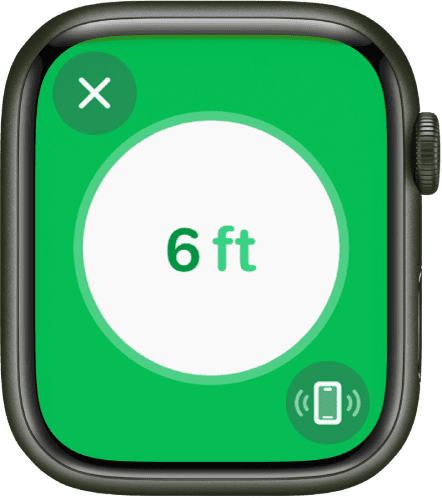
When you are close to your iPhone, your Apple Watch screen will turn green and the iPhone will ping two times.
Losing track of your iPhone can be a stressful experience, especially given the device’s integral role in daily life. Fortunately, Apple’s Precision Finding technology offers a sophisticated solution for such scenarios, allowing you to locate your iPhone with remarkable accuracy using your Apple Watch.
Conclusion
In summary, the Precision Finding feature offers a highly accurate and user-friendly method for locating your misplaced iPhone using an Apple Watch. By following the steps outlined in this article, you can quickly and efficiently find your device, thereby mitigating the stress and inconvenience associated with losing a valuable item.
The advent of Precision Finding technology marks a significant milestone in the realm of device tracking, providing users with a reliable and precise tool for safeguarding their belongings. Understanding how to utilize this feature effectively is crucial for anyone looking to maximize the benefits of their Apple ecosystem.
Andrew Myrick is a freelance writer based on the East Coast of the US. He enjoys everything to do with technology, including tablets, smartphones, and everything in between. Perhaps his favorite past-time is having a never-ending supply of different keyboards and gaming handhelds that end up collecting more dust than the consoles that are being emulated.











Write a Comment