• Skip to primary navigation
  • Skip to main content
  • Skip to primary sidebar
  • Skip to footer

AppleToolBox

Tools and Fixes for Mac, iPad, iPhone & iWatch

Search posts

  • About
  • Contact

CONNECT WITH US

CATEGORIES

  • iPhone
  • iPad
  • iPod
  • Apple Watch
  • Mac/MacBook
  • AirPods
  • Apple TV
  • News
  • Apple Services
  • HomePod
  • Reviews

SITE

  • Home
  • About Us
  • Contact
  • Advertise

Search posts

You are here: Home / iPhone / How to Manage Your iPhone Call Log

How to Manage Your iPhone Call Log

By Louis Roundtree 0 comments Last updated June 5, 2026

Things to Know
  • Your iPhone allows you to quickly see who has called you and when, as well as calls that you have made.
  • You can find your iPhone call log directly in the Phone app, under Recents.
  • You can view your iPhone call log in the Recents tab, and check voicemail separately in the voicemail tab.

One of the advantages of modern smartphones is that they allow you to instantly see who has called you, whom you’ve called, and when these calls took place. The iPhone is no exception. Your iPhone call log is an easy-to-understand list of all calls, in and out, from your device. You can also see missed calls and look at the call history for specific numbers, for example, how many times they’ve called you and the duration of the call.

Read on to discover what you can do with your iPhone call log and how to change the default view.

Contents

  • iPhone Call Log Basics: Find and Use Your Call Log
  • Deleting Your iPhone Call History
  • Change Your iPhone Call Log Default View

iPhone Call Log Basics: Find and Use Your Call Log

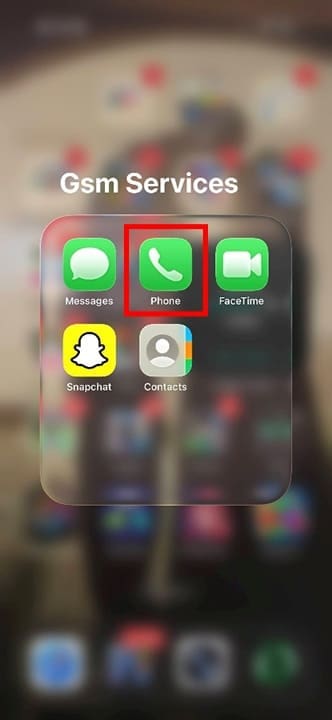
Step 1. Find your call log by first finding your Phone app. It’s a green Phone app icon with a white handset symbol.

How to Manage Your iPhone Call Log 1

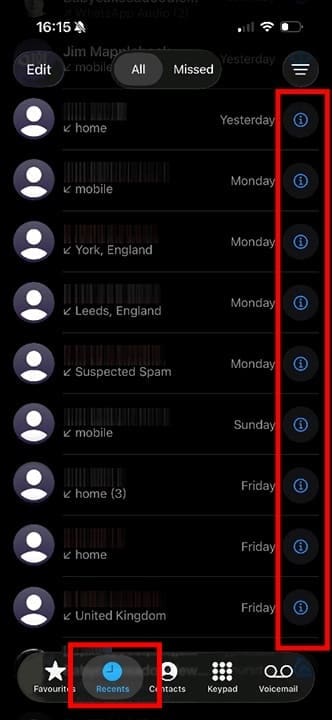
Step 2. From here, you can see a list of incoming and outgoing calls. Missed incoming calls are shown in red. The arrow next to the call indicates if it’s outgoing or incoming. You can press the blue “i” icon next to any call to get more info.

How to Manage Your iPhone Call Log 2

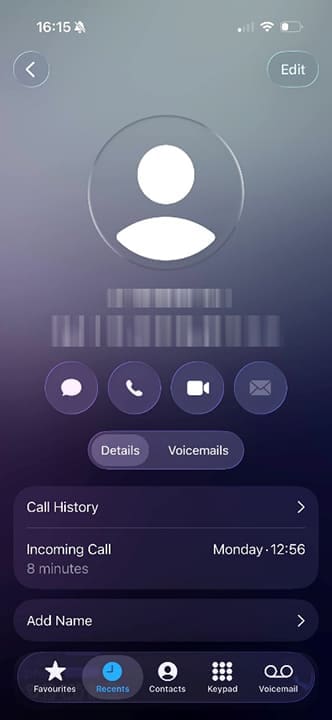
Step 3. The info screen shows the caller’s details, when they called, and the duration of the call. From this screen, you can view additional details about the caller and see related recent calls in your “Recents” list.

How to Manage Your iPhone Call Log 3

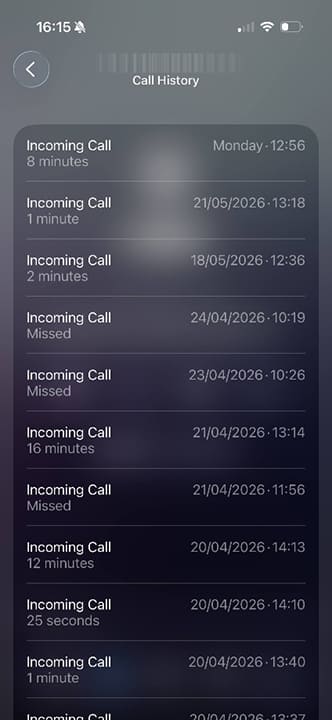
From here, you can see a full list of every time someone from that number has called you and when.

How to Manage Your iPhone Call Log 4

Deleting Your iPhone Call History

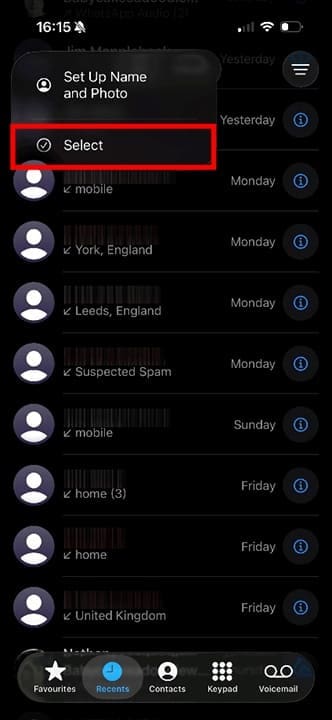
Step 1. You can delete one or more calls from your call history by pressing the “Edit” button in the top-left corner of the screen. You’ll see a small menu pop up. Choose “Select.”

How to Manage Your iPhone Call Log 5

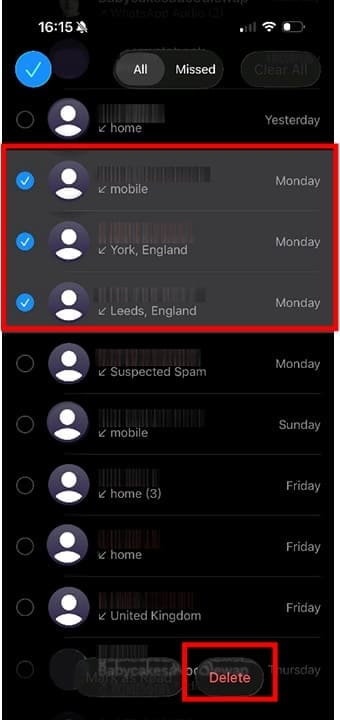
Step 2. Tap the circles that appear next to the calls you want to delete. Tap the circles next to each call to select multiple entries for deletion. Once you’re happy with your selection, press “Delete” at the bottom of the screen to delete these calls from your call log. Deleted call history entries cannot be individually restored; only a full device backup restore (if available) would recover them.

How to Manage Your iPhone Call Log 6

Change Your iPhone Call Log Default View

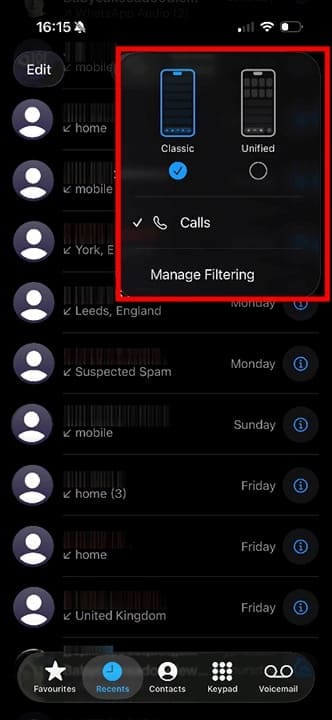
Step 1. To change from the default view to the new unified view, press the three lines in the top-right corner. From here, you can choose Classic or Unified views. Press on Unified.

How to Manage Your iPhone Call Log 7

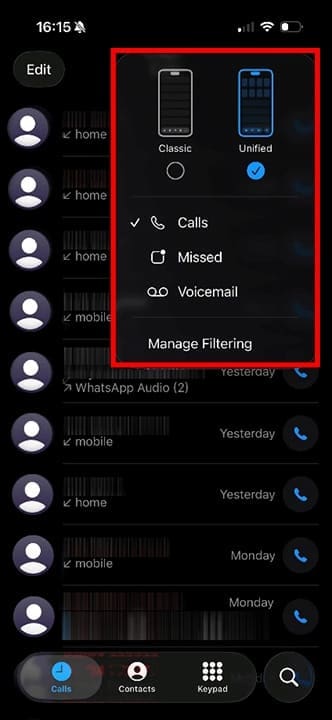
Step 2. Your Recents, Voicemail, and Missed Calls are now combined under one option: Calls.

How to Manage Your iPhone Call Log 8

Step 3. You now need to head to Calls and then press the three lines again to find your missed calls and voicemails. You can also switch back to the Classic view at any time.

How to Manage Your iPhone Call Log 9

Related Posts:

  • pexels-lukas-590022
    How To Use Numbers On Mac: Advanced Techniques
  • pexels-lukas-590022
    How To Use Numbers: The Basics
  • pexels-designecologist-1779487
    The Best iPhone And Mac Shortcuts For Beginners
  • pexels-tima-miroshnichenko-6860464
    How To Start Using Regex With The Shortcuts App
  • 2022 Mac Mini with Studio Display and Accessories
    Mac Tips For New Users In 2023
  • Windows computer
    How to AirDrop from iPhone to Windows PC
  • photo of an iphone with ios 16 downloaded on it
    iOS 16 Tips and Tricks: The Definitive List
  • Photo of an iPhone being taken out of its box
    How To Use Dual SIM and eSIM on Your iPhone
  • A problem occurred with this webpage so it was reloaded, fix
    Can’t Clear the Browsing History in Safari on Your…
Louis Roundtree
Louis Roundtree

As an avid gamer, I’ve run into my fair share of error codes and weird faults that have forced me to find fixes to problems I never anticipated. That gave me a passion for sharing those fixes with others so we can all game without feeling like our hardware is rebelling against us.

Reader Interactions

Write a Comment Cancel reply

Primary Sidebar

Recent Posts

  • How to Manage Your iPhone Call Log
  • Are Apple’s Safety Precautions Enough for AirTags?
  • How to Hide Username and Photo on the Mac Lock Screen
  • Microsoft Resume vs. Apple Handoff – Which Wins for Cross-Device Work?
  • How to Export iTunes Library to New Computer
  • What the Gemini Desktop App Will Bring to Mac

Connect with us

Footer

ABOUT

  • About Us
  • Contact us
  • Advertise
  • Privacy
  • Terms of Use

GUIDES

  • iOS & iPadOS
  • Apple ID
  • iCloud
  • App Store
  • iTunes
  • FaceTime
  • iMessage
  • Siri
  • Books and iBooks
  • Game Center
  • AirPlay

CONNECT

  • Facebook
  • Twitter
  • FeedBurner
  • YouTube

© Copyright 2010-2024 Guiding Tech Media · All Rights Reserved

This site and its content are in no way affiliated or endorsed by Apple, Inc. · Reproduction without explicit permission is prohibited

Last Updated on June 6, 2026 by Louis Roundtree