• Skip to primary navigation
  • Skip to main content
  • Skip to primary sidebar
  • Skip to footer

AppleToolBox

Tools and Fixes for Mac, iPad, iPhone & iWatch

Search posts

  • About
  • Contact

CONNECT WITH US

CATEGORIES

  • iPhone
  • iPad
  • iPod
  • Apple Watch
  • Mac/MacBook
  • AirPods
  • Apple TV
  • News
  • Apple Services
  • HomePod
  • Reviews

SITE

  • Home
  • About Us
  • Contact
  • Advertise

Search posts

You are here: Home / iPad / Can You Change Siri’s Name?

Can You Change Siri’s Name?

By Michelle Honeyager 1 comment Last updated May 6, 2022

Siri is a very iconic name at this point, but sometimes you might want a little more customization. Especially with Siri having a male voice now, you might want to customize the name. Maybe you want to pretend you have a butler named Bazil, or whatever strikes your fancy. Most people state that you cannot change Siri’s name. However, there is a workaround to customize voice commands.

Contents

  • How to “Change” Siri’s Name
  • Another Way to Use Siri
  • Changing Siri’s Gender and Accent

How to “Change” Siri’s Name

At this point, changing Siri’s name is not an easily available option like you would be able to change Siri’s gender or voice. However, there is a detailed customization workaround for the Mac:

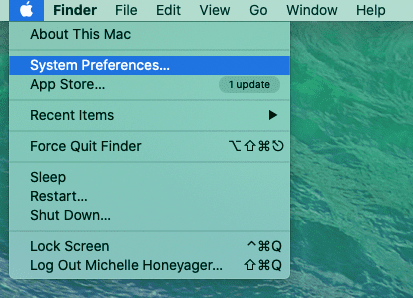
  1. Select the Apple icon on the top left of the screen.
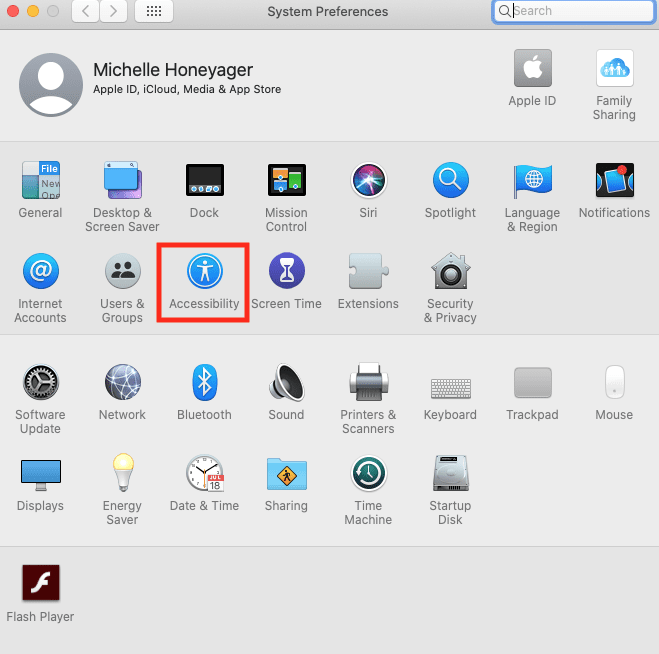
  2. Select System Preferences.

  1. Click Accessibility.

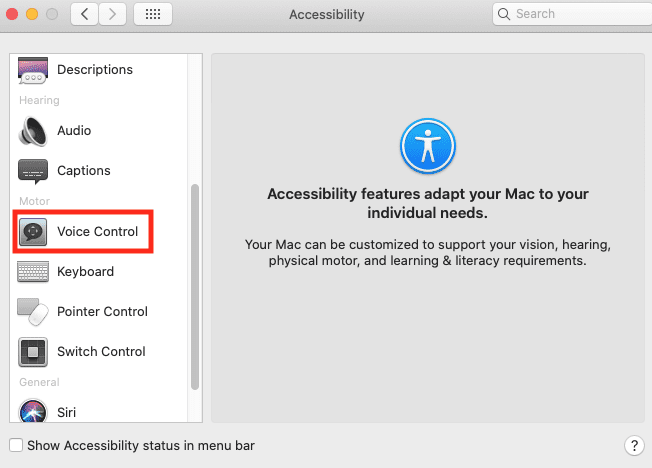
  1. Click Voice Control.

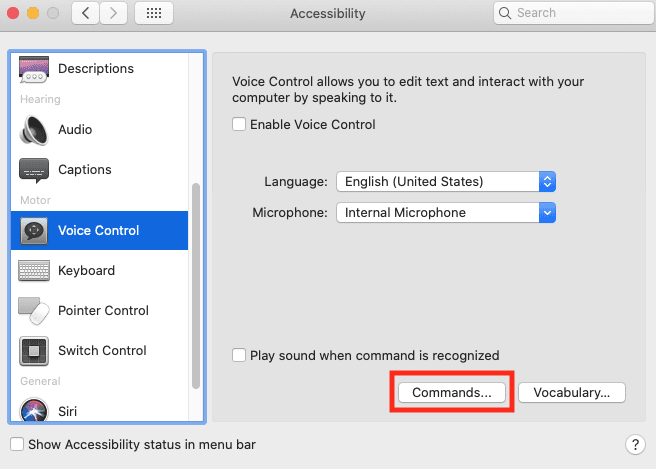
  1. Select Commands.

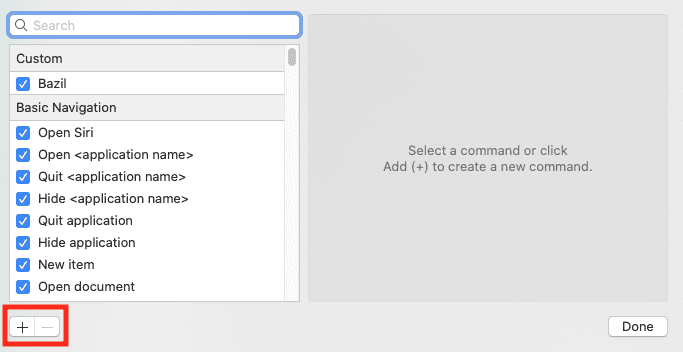
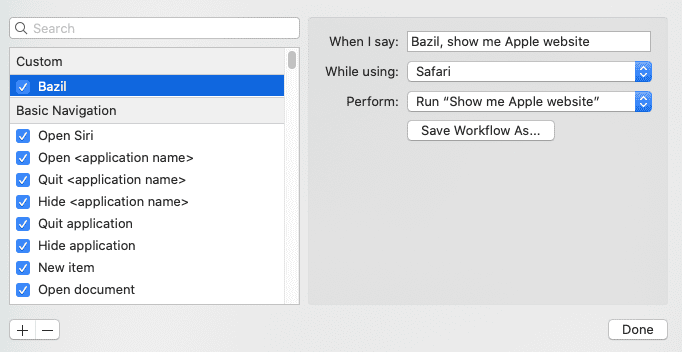
  1. Select the Plus Sign at the bottom of the screen. This will make custom commands.

  1. In the When I say column, enter a voice command using the name you want, like, “Bazil, show me Apple website.”
  2. Select the corresponding app on the next line.
  3. On the third line reading Perform, make that command match the workflow.

  1. Hit Done.

You’d have to make a lot of custom commands doing this, making it so that you use the new name more than Siri. You’d make the commands you use most often, but you’d also have to remember them all. Also, you’d still need to say Siri for non-customized commands, like actually opening Siri.

Another Way to Use Siri

Some users report not being able to use Siri due to speech differences, such as not being able to pronounce the letter R. Other times, Siri responds to other names like Sarah or Cacey, making it pop up at odd times.

In that case, it might just be easiest to shut off the command Hey Siri and use the home or side button to activate Siri. Then you can use voice commands on your terms.

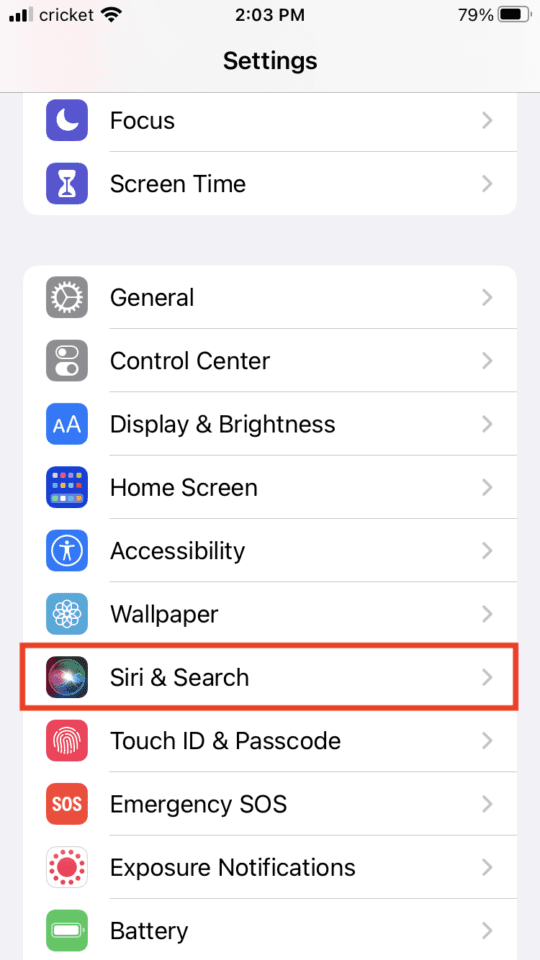
On the iPhone, under Settings, go to Siri & Search. Then you’d set it so the toggle for Listen for “Hey Siri” is off (gray) and Press Home for Siri is on (green).

Changing Siri’s Gender and Accent

Siri is a little more customizable. You can change the accent and gender. On an iPhone, simply:

  1. Go into Settings.
  2. Tap Siri & Search.

  1. Tap Siri Voice.
  2. You can select the accent you want.
  3. You can also select a male or female voice.


Related Posts:

  • pexels-tima-miroshnichenko-6860464
    How To Start Using Regex With The Shortcuts App
  • 2022 Mac Mini with Studio Display and Accessories
    Mac Tips For New Users In 2023
  • pexels-cottonbro-5474033
    How To Use The Mac Terminal: The Basics
  • macbook on a table
    The Best Apps For Mac Customization
  • pexels-designecologist-1779487
    The Best iPhone And Mac Shortcuts For Beginners
  • pexels-cottonbro-5082579
    Getting Started With iOS 15: Everything Good And Bad
  • 0E4A6A0B-65E8-4184-B0C9-16C2179A1256
    The Best Weight Loss Apps For iPhone In 2021
  • pexels-andrea-piacquadio-3760811
    Automator Workflow Types: Understanding The Differences
  • pexels-rfstudio-3825585
    How To Pick A Repair Shop For Apple Devices

Reader Interactions

Write a Comment Cancel reply

Show 1 Comments

  1. Linda Webster says

    March 1, 2023 at 1:42 PM

    I want Siri OFF all the time and still be able to use my Apple Car Play. I cannot for the life of me figure out what using Siri has to do with me playing music or using directions on my phone.

    Reply

Primary Sidebar

Recent Posts

  • How to Hide Username and Photo on the Mac Lock Screen
  • Microsoft Resume vs. Apple Handoff – Which Wins for Cross-Device Work?
  • How to Export iTunes Library to New Computer
  • What the Gemini Desktop App Will Bring to Mac
  • What to Do When Windows 11 Won’t Detect Your iPad
  • Outlook Outage 2026: iPhone Fixes for Sign-In Chaos

Connect with us

Footer

ABOUT

  • About Us
  • Contact us
  • Advertise
  • Privacy
  • Terms of Use

GUIDES

  • iOS & iPadOS
  • Apple ID
  • iCloud
  • App Store
  • iTunes
  • FaceTime
  • iMessage
  • Siri
  • Books and iBooks
  • Game Center
  • AirPlay

CONNECT

  • Facebook
  • Twitter
  • FeedBurner
  • YouTube

© Copyright 2010-2024 Guiding Tech Media · All Rights Reserved

This site and its content are in no way affiliated or endorsed by Apple, Inc. · Reproduction without explicit permission is prohibited

Last Updated on May 6, 2022 by Mitch Bartlett