Being connected to a weak Wi-Fi network can be incredibly frustrating. You might be trying to load a page on Safari and it either takes a long time to load or just stops with the page only halfway done.
You could be trying to use an app, but because the signal is not strong enough, so nothing is loading and it’s costing you precious time. All of these frustrating things can be avoided if only your iPhone knew how to recognize a weak signal and could automatically give you a better connection.
Wi-Fi signals can be affected by a lot of the same things that affect radio signals. This is essentially because wireless networks are broadcast using radio waves. So if there are obstacles, other devices sending radio waves or weaker signals sent by older wireless devices, they could all interfere with your Wi-Fi signal.
Wi-Fi Assist
Your iPhone can actually help you work around these weak signals. The iPhone has a nifty little feature called Wi-Fi Assist. When it’s turned on, it can recognize when your Wi-Fi connection is poor enough to affect apps and Safari loading time. When the iPhone detects this, it automatically kicks itself off of the Wi-Fi and onto cellular data. If at any point the speed of the Wi-Fi connection improves, the feature will connect itself back to the internet.
Make sure that you are running iOS 9 or later. If you don’t, then you won’t have Wi-Fi Assist.
This feature is hidden a little in your Settings, but it’s easy to turn on.
Open your Settings app. This is the icon with a symbol that looks like a gear.
Partway down the screen will be the Cellular option. Tap on it.
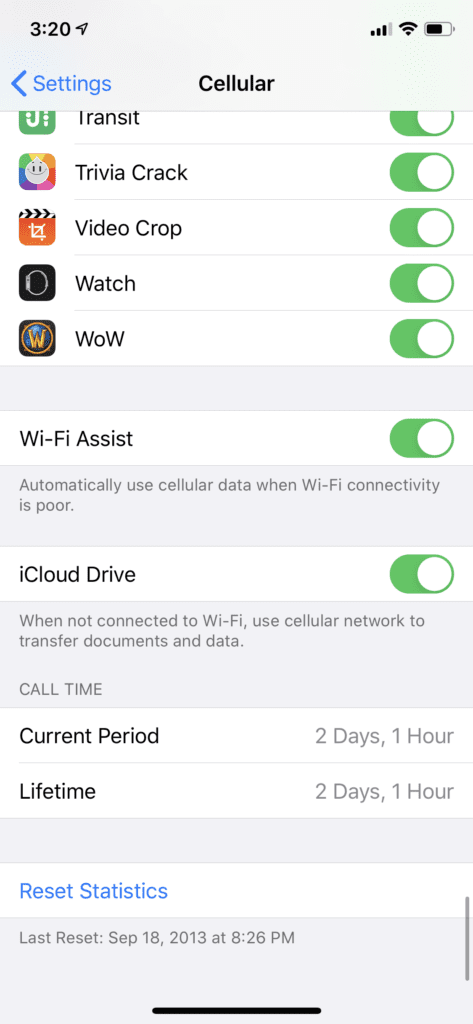
This will open a new menu. Scroll down all the way to the bottom.
After the list of apps that use Cellular data, you will see the Wi-Fi Assist option. There will be a toggle switch next to the option. Tap on it to turn the switch green and turn on Wi-Fi Assistant.
This assistant is smart enough and aware enough that it will react in real-time. You should never have to manually change the connection unless you want to. Be aware that by turning on this feature, your data may be used faster if you are constantly in areas with weak Wi-Fi connections.
How to Improve Wi-Fi Connection
Besides using Wi-Fi Assist to make a better online connection you can try doing these simple things to improve your signal so that you are not always using your cellular data.
Get a Modern Router
Make sure that you are not using a router from the stone age. Sometimes a new router can make a huge difference.
Place Your Router in a Clear Space
Do not hide it behind anything. Routers that are free of obstruction with the antennas pointed upwards will perform better than ones that are hidden behind the TV or in a box.
Get a Wi-Fi Extender
If your signal is having trouble reaching all areas of your house, consider getting a Wi-Fi extender. They are not overly expensive. It will not make your connection faster, but it will eliminate dead zones in your home.
Check for Router Updates
Go to the manufacturer’s website to download all new maintenance updates.
Use a Long-Range Router
Too many electronics on your Wi-Fi can often overwhelm the signal. A long-range router will not be so easily overwhelmed by the number of devices connected to the Wi-Fi.
Protect Your Wi-Fi from Hackers
A WPA encryption is much harder to hack into. When selecting your password type, go with WPA. To check if someone is using your Wi-Fi turn off your network, gaming console, and everything else that uses the internet. If your wireless light is still blinking this means that you most likely have someone mooching off your internet.
Perform a Speed Test
If after the test you see that the speed is really slow, then it might be a good idea to explore other internet service options.
Wrapping Up
It doesn’t matter who you are – having a weak internet connection is just plain annoying. Thankfully, Apple has come up with Wi-Fi Assist so you don’t have to manually turn your Wi-Fi off and on. It’s all high speed from here!







Write a Comment