The iMac is an excellent computer, and the large display is great for content creators and graphic designers. No matter how much you love your iMac, at the end of a long work day, all you want to do is shut it down and enjoy the offline world. Unfortunately, you iMac may sometimes refuse to shut down as normal.
Of course, the quickest workaround to bypass this problem is to press the Power button and force shut down your iMac. But if you constantly do that, your device won’t be able to shut down cleanly. Moreover, you may also lose unsaved work and even damage your computer. Let’s dive in and explore how you can fix this problem.
Open Terminal and run the sudo shutdown -h now command. This command will force the device to close any hanging processes and shut down. Check if this method works. If it fails to solve the problem permanently, pursue the solutions below.
Close Background Processes
Your iMac may sometimes have trouble closing stubborn processes. As a result, the device may take longer to shut down properly. To fix the issue, you need to manually close the problematic apps or processes.
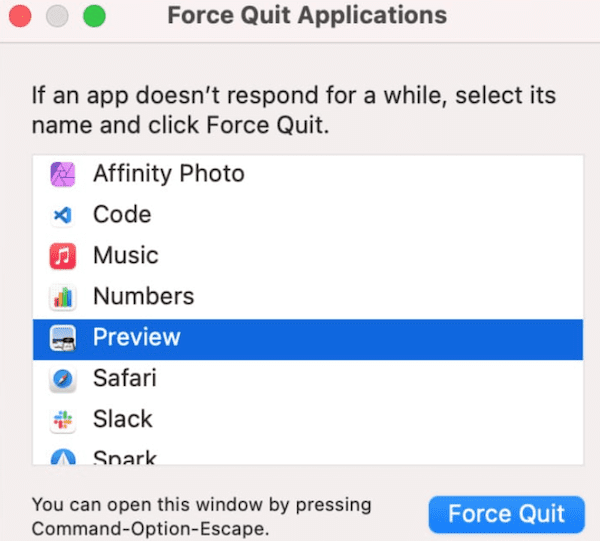
Click on the Apple menu and select the Force Quit option. In the new Force Quit window, you should see the list of the apps that are still hanging. Select the app(s) you want to close and hit the Force Quit button. Try to shut down your iMac again and check if you’re luckier this time.
Additionally, check if you have App Nap turned on and disable the option. The App Nap option might sometimes block the shutdown process. Launch Finder, go to Applications and click on More options. Then select Get info and, under General, make sure App Nap is off.
Clear All Caches
Your cache files may sometimes prevent the device from shutting down. Clear the cache and check the results.
Click on the Go menu and select Go to Folder.
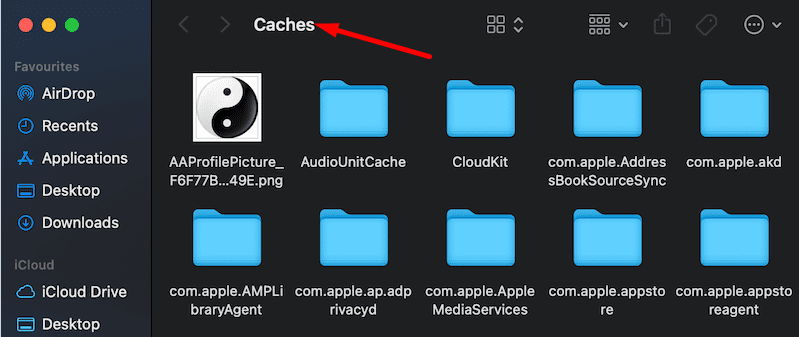
Type ~/Library/Caches and press Enter.
Start with the first folder, open it and delete absolutely all the files stored in it. Don’t delete the folder itself, remove only the files inside it. Repeat the process with the rest of the folders.
Check Your Disk, Enter Safe Mode and Reset SMC and NVRAM
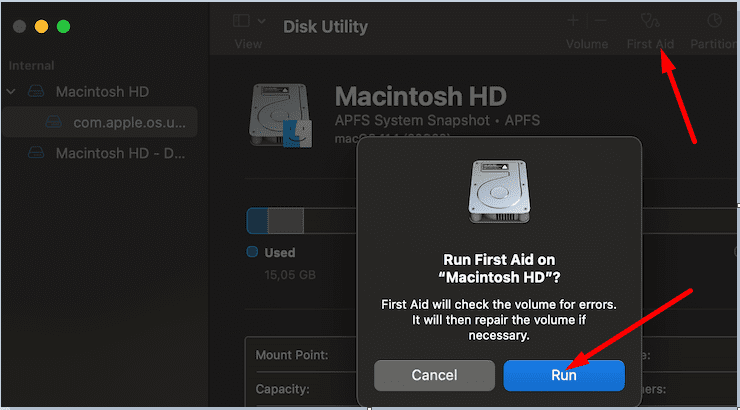
Launch the Disk Utility tool and run the First Aid option on your hard drive. Check if the tool has corrected the issue you’re experiencing.
Startup your iMac in Safe Mode and check if the issue persists. Shut down the device, wait 10 seconds, restart your machine and hold the Shift key until the login window appears on the screen. If your device uses Apple’s chips, shut it down and wait 10 seconds. Then press the Power button until the startup options appear on the screen. Exit Safe Mode and check the results.
Make sure the Trash folder is empty. Some users confirmed the problem disappeared after emptying the Trash folder.
If you’re using any antivirus, VPNs, disk cleaners or system optimizers, uninstall them and check if the shut down issue is gone. These tools may sometimes interfere with the normal operation of the OS. Besides, you don’t really need them. The built-in security of macOS can effectively keep malware at bay.
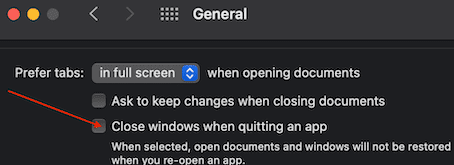
Go to System Preferences → General, and make sure “Close windows when quitting an app” is unchecked.
Right-click on your Dock, select Dock Preferences and uncheck “Minimize windows into application icon“.
Conclusion
If your iMac won’t shut down, check if there are any hanging or crashing apps and force quit them. Additionally, clear all caches, empty the Trash folder and try shutting down your machine again. If the issue persists, run First Aid, enter Safe Mode and reset SMC and NVRAM. Did these solutions help you troubleshoot the problem? Let us know in the comments below.
Madalina has been a Windows fan ever since she got her hands on her first Windows XP computer. She is interested in all things technology, especially emerging technologies — AI and DNA computing in particular.













Write a Comment