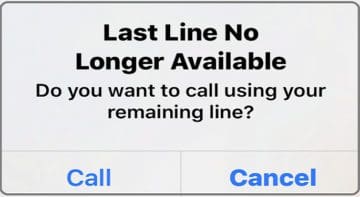
When you try to dial a number, your iPhone may sometimes throw up a strange alert that reads: “Last line no longer available. Do you want to use your remaining line?” This alert usually pops up on devices using Dual SIM with an eSIM. It indicates your device failed to switch between active lines. Let’s see how you can get rid of this annoying alert.
Steps to Fix “Last Line No Longer Available” on iPhone
Enable Airplane Mode
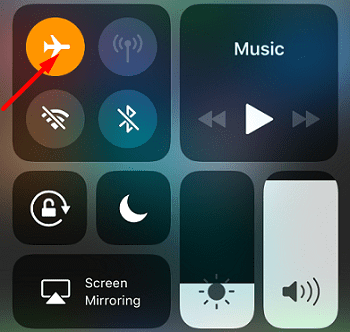
Go to Control Center and tap the Airplane Mode button to reset the connection to your carrier’s network. Wait for 30 seconds, disable Airplane Mode, and check if you’re still getting the same alert. If this is the case, enable Airplane Mode again, and restart your iPhone.
Install the Latest iOS Updates
Update your iPhone to the latest iOS version. Go to Settings, select General, tap Software Update, and check for updates. Then, open the App Store, tap your profile icon, and install all pending updates. Restart your device again, and check if the alert is gone.
Clear Out All Recent/Missed Contacts
Clear out all of your Recent/Missed Contacts. Check if the alert persists. After installing the latest updates, your iPhone may sometimes have trouble deciding which line to use although you didn’t actually make any changes.
Reset Network Settings
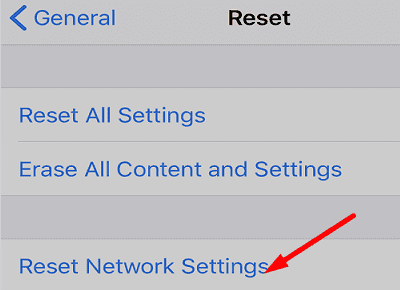
Try resetting your network settings and check if this solution solves the problem.
Navigate to Settings.
Select General.
Then tap Transfer or Reset iPhone.
Select Reset.
Go to Reset Network Settings.
Use the Second Number
If you’re using two phone numbers, set up your iPhone to use both. Go to Settings, select Cellular or Mobile Data, and then select the plan you want to use. Simply tap Turn On This Line to activate the respective line, and then set up your default number.
You can also specify which number you want to use when calling a specific contact. Tap the contact, and select Preferred Cellular Plan. Then, select the number you want to use when calling the respective contact. Switch to your other line and check if you’re still getting the same error.
For more information on eSIMs, go to Apple’s Support page. If the issue persists, turn off your iPhone and remove your SIM. Wait for a few seconds, reinsert the SIM card, turn on your phone and check the results.
Conclusion
If your iPhone says the last line is no longer available, enable Airplane Mode, and restart your device. Then, install the latest iOS updates, and clear out all Recent/Missed Contacts. If the issue persists, switch to your second number and reset network settings.
Did you manage to solve the problem? Let us know which solution did the trick for you.
Madalina has been a Windows fan ever since she got her hands on her first Windows XP computer. She is interested in all things technology, especially emerging technologies — AI and DNA computing in particular.
AT&T sent an iPhone XR to replace my 5s. All the data transferred easy enough but none of your suggestions cleared the “the last line is no longer available” problem. I do not have a 2nd number to switch to.
The new phone has a esim card. Can I replace that with the SIM card out of my 5s?
Will that fix the problem?









AT&T sent an iPhone XR to replace my 5s. All the data transferred easy enough but none of your suggestions cleared the “the last line is no longer available” problem. I do not have a 2nd number to switch to.
The new phone has a esim card. Can I replace that with the SIM card out of my 5s?
Will that fix the problem?