Google Meet is one of the most popular video meeting apps in the world. Its user-friendly interface makes it very easy to use. The fact that you can use Meet in your browser without downloading anything is a decided plus.
But the web app may not always work as expected. Camera and microphone issues occur quite frequently just to name a few of the most common problems. The funny thing is that these issues usually occur on Chrome. If you’re looking for a solution to fix Google Meet issues on Mac, follow the troubleshooting tips below.
What to Do if Google Meet Is Not Working on MacBook
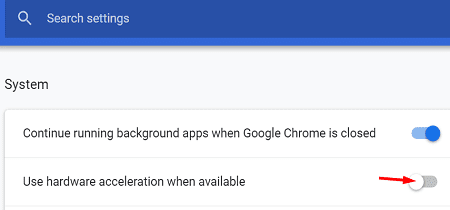
Disable Hardware Acceleration
If you’re using Chrome, open a new tab and enter chrome://settings/system. Then disable hardware acceleration, restart your browser and check if Google Meet is working as intended.
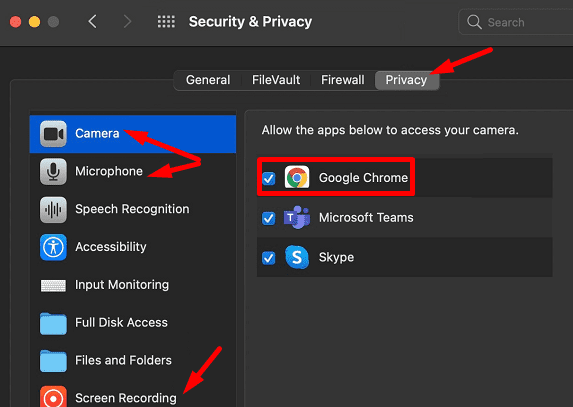
Check Your Privacy Settings
Make sure your browser can access your camera and microphone. If screen recording is not working, ensure your browser is enabled for screen recording.
Click on your Apple menu, go to Preferences, and select Security and Privacy. Click on the lock to open admin privileges and let Chrome access your camera, mic, and screen. Restart the browser and check the results.
Clear the Cache
Your browser cache and cookies might be interfering with Google Meet’s scripts. On Chrome, click on More options, select History twice, and go to Clear browsing data. Clear your cache and cookies from the last four weeks.
After that, clear absolutely all your Google Meet cache and cookies.
Then go to Settings, and scroll down to Privacy and security.
Click on Cookies and other site data.
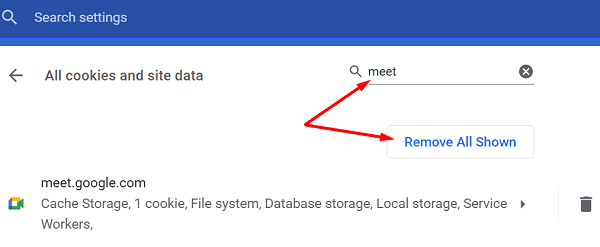
Scroll down again to All cookies and site data.
Enter “Google Meet” in the search field and hit Enter.
Then click on Remove all shown.
Restart your browser and check if Google Meet is working properly now.
Remove Your USB-C to Ethernet Dongle
If you’re using a USB-C to Ethernet dongle, remove it from your computer and check if your Google Meet issues are gone. Many users confirmed that removing the dongle fixed the problem.
As a matter of fact, if you open the Console and launch a new meeting, you may see something similar to this error: “com.apple.WebKit.Networking LibWebRTCSocketClient::sendTo failed with error 38“. These errors are usually caused by your Ethernet cable. Launching the meeting on Wi-Fi should work.
On the other hand, a number of users said they fixed the problem by setting the Ethernet adapter to use IPv6 locally only. Test both of these potential solutions and check which one works for you.
Downgrade Chrome
If your Google Meet issues started occurring after you installed the latest Chrome version on your Mac, downgrade to an older browser version. But before you do that, don’t forget to backup your data in case anything goes wrong. For step-by-step instructions on how to go back to a previous Chrome version, check out this handy guide.
If the issue persists, switch to Safari and check if you notice any improvements.
Conclusion
Google Meet is a reliable online meeting service but this doesn’t mean it’s an error-proof platform. If Google Meet is not working on Mac, check your privacy settings and remove your USB-C to Ethernet dongle. Additionally, if you’re using Chrome, disable hardware acceleration and clear the cache. Hit the comments below and let us know which of these solutions helped you fix the problem.
Madalina has been a Windows fan ever since she got her hands on her first Windows XP computer. She is interested in all things technology, especially emerging technologies — AI and DNA computing in particular.










Write a Comment