Apple’s devices and software don’t have the greatest reputation for syncing seamlessly with software and hardware outside their ecosystem. Apple Mail is no exception.
If you’re trying to access your emails from your Windows machine, the good news is that it’s still possible. This article will show you a few ways to access Apple Mail on Windows.
As of writing this article, there’s sadly no way to download the Apple Mail app directly to your Windows machine, no matter the version. The only way to access emails on your Apple account is either by accessing iCloud directly or by syncing it through Microsoft Outlook. We’ll be covering both options below.
Access iCloud
Perhaps the quickest, easiest, and most versatile way to access your Apple emails is by accessing iCloud directly. This doesn’t require any extra installation, just your login details. It’s an ideal solution for quick access on any Windows machine. Here’s what to do:
1. Open your web browser. Any browser will do for this task.
2. Head to iCloud.com and click the “Sign In” button on the welcome page.
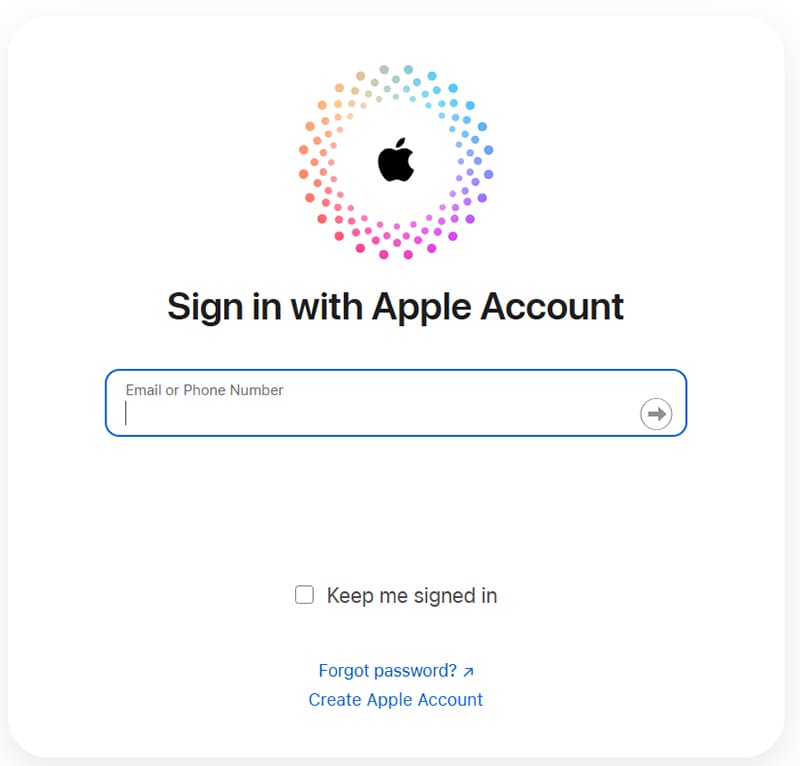
3. Enter either your email or phone number and press the Arrow button in the text box to proceed.
4. You’ll then be asked to enter your password in a new text box below. Press the Arrow button or hit “Enter” once done. You can also select “Keep me signed in” if you’ll be accessing mail through your browser frequently.
5. If this is your first time logging on from a new machine or location, you’ll be asked to grant permission and enter a two-factor authentication code. This will be sent to one of your Apple devices. Enter it into the boxes provided on your browser.
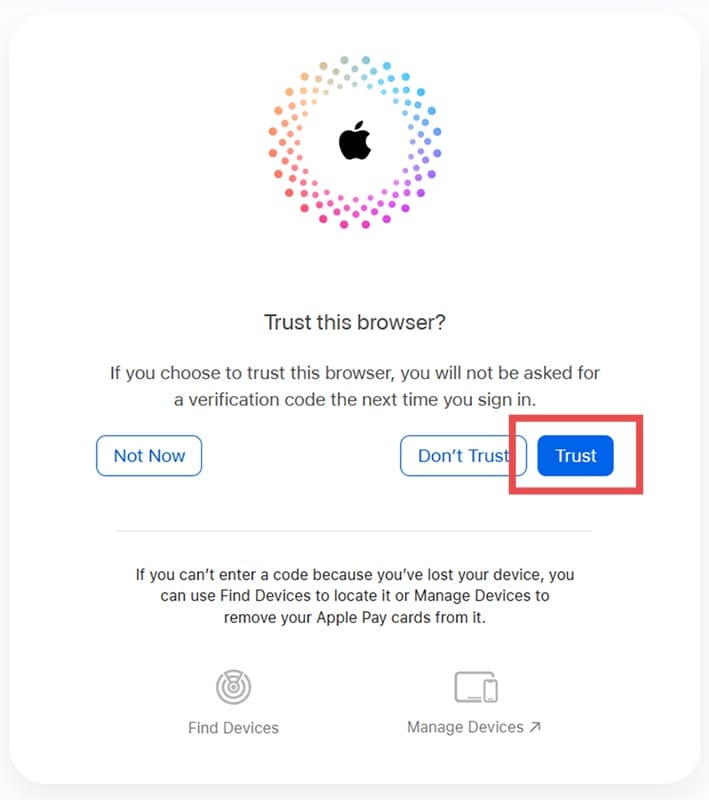
6. If you’d like to access your mail without two-factor authentication every time, click the “Trust” button on the next screen that pops up.
7. You’ll then be taken to your iCloud homepage. Scroll down to your apps and select the “Mail” app from the grid.
8. If you like, you can choose to hide your IP and protect your Mail privacy. Confirm your choice and click “Continue.”
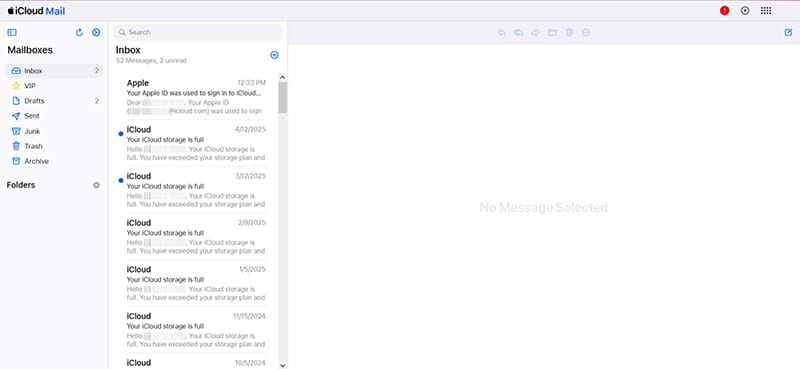
9. You’ll be taken to your Mail inbox, where you can view, send, and receive all emails from your Apple account.
Sync With Outlook
If you’re looking for a more permanent way to sync up your Mail account with Windows, you can sync it with the Outlook app and enjoy functionality across devices. First, you’ll need to create an app-specific password on your AppleID page. Here’s how.
1. Head to the AppleID website and enter your iCloud email or phone number to continue. You’ll also have to enter your password.
2. If accessing for the first time from your machine or a new location, you’ll be required to enter a two-factor authentication code sent to your Apple device. Enter it.
3. Under “Sign-In and Security,” scroll down to “App-Specific Passwords” and select it.
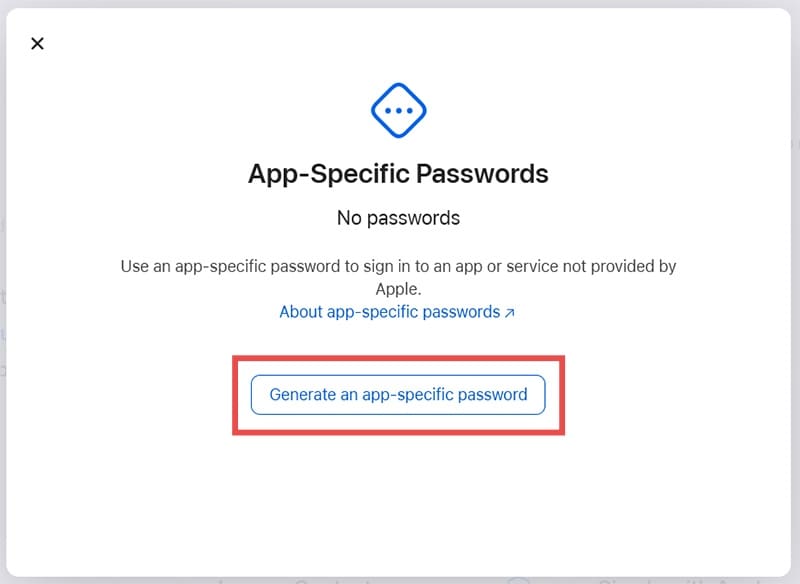
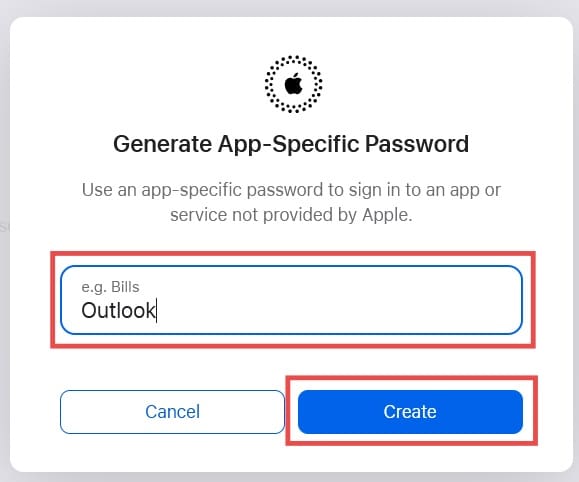
4. Click “Generate an app-specific password” from the pop-up window.
5. Enter your name for the app password (e.g. Outlook) and enter your iCloud account password to confirm.
6. You’ll then be sent a specific password for the app. Copy this.
You’re now ready to sync Outlook with your account:
1. Open your Outlook app. You’ll see a list of email account types you can sign in with.
2. Enter your Apple Mail address into the text box provided and click “Continue” once done.
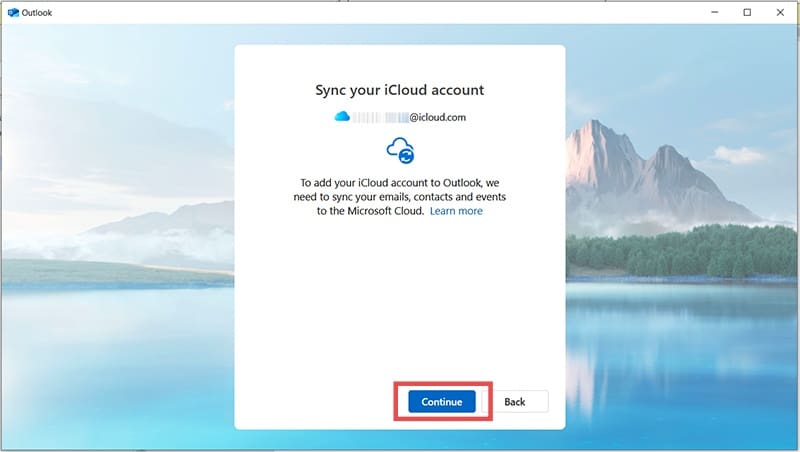
3. On the next window, click “Continue” to sync your iCloud account with Outlook.
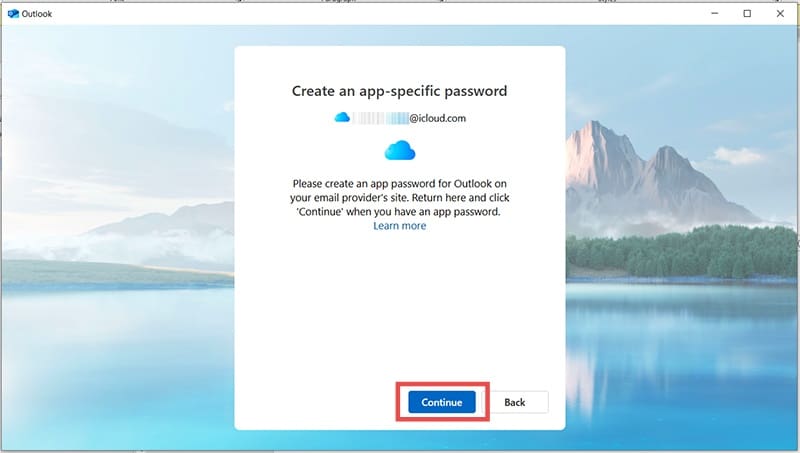
4. You’ll be asked to create an app-specific password that’ll help you log in to your iCloud account specifically through Outlook.
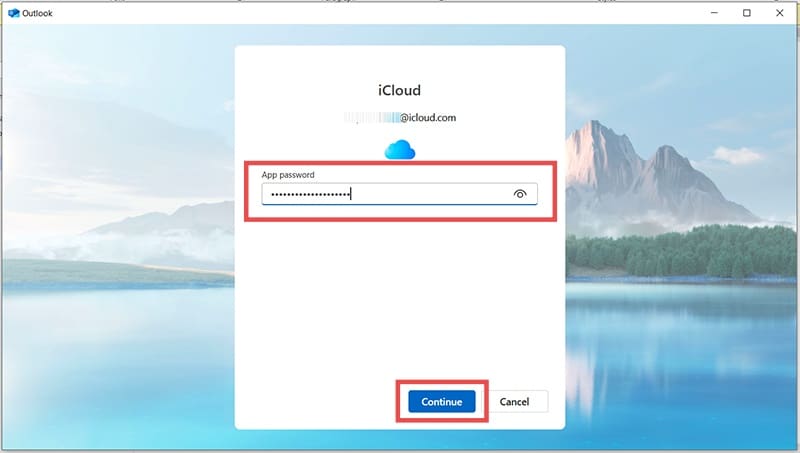
5. Enter the app-specific password that you copied from AppleID and press “Continue.”
6. Follow the extra, optional steps to set up.
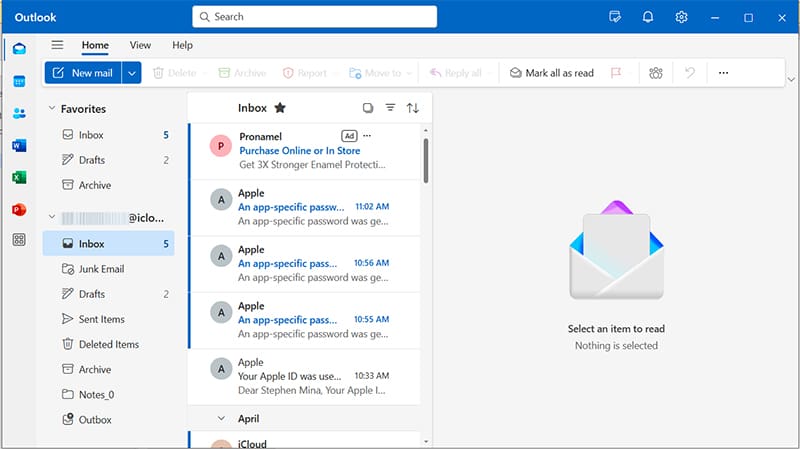
7. You’ll then be taken to your Outlook screen. Your Apple Mail will be synced. You can now view, send, and receive messages.
As an avid gamer, I’ve run into my fair share of error codes and weird faults that have forced me to find fixes to problems I never anticipated. That gave me a passion for sharing those fixes with others so we can all game without feeling like our hardware is rebelling against us.



















Write a Comment