Newer is not always better, and certainly not for everyone. The Liquid Glass design brought a new form of sophisticated simplicity to the iPhone with the release of iOS 26, but it’s become just as maligned as beloved.
Whether it be accessibility problems like hard-to-read text or motion sickness brought on by the distortions, you might be looking for ways to go back to the “old look.” Sadly, there’s no definitive way to change back Liquid Glass on iOS 26, it being a core component, but there are ways to mitigate the effects. In this article, we’ll be showing you how.
There are many reasons Liquid Glass hasn’t found acceptance by many Apple users, chief among them being readability difficulties and visual overload from the distortion effects. What’s more, the general sentiment is that the cosmetic change brings very little practical benefit while being a massive drain on resources and battery power.
Unfortunately, there’s currently no iOS 26 revert Liquid Glass control to take you back to the “Old look.” That said, we’re here to show you how to lessen this core feature’s impact.
Ways to Change Back Liquid Glass on iOS 26
Let’s take a look at different ways to improve readability and reduce the resource usage of Liquid Glass:
Reduce the Transparency
A major complaint of Liquid Glass is the issue of readability and accessibility through the transparency of panels and menus. Thankfully, there is a way to change (though not eliminate) this opacity. Here’s what to do:
Step 1. Open “Settings” on your iPhone.
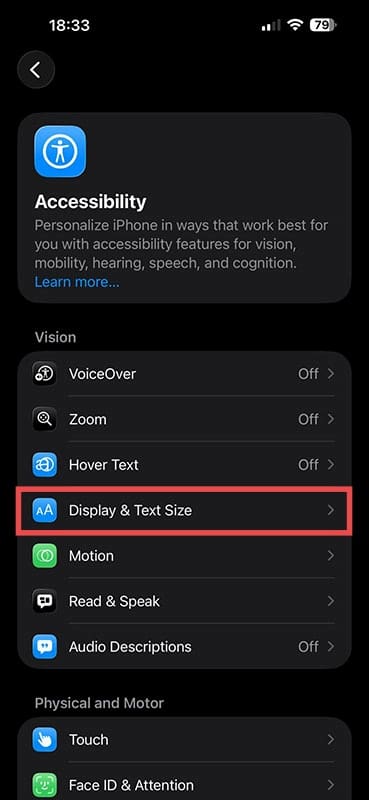
Step 2. Navigate down to “Accessibility” and tap it.
Step 3. Tap “Display & Text Size.”
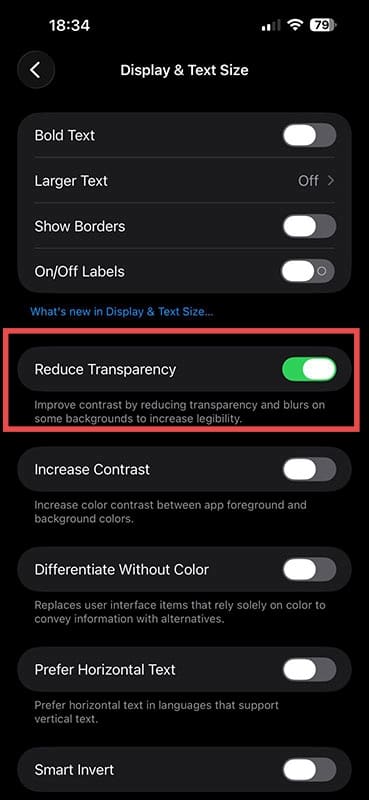
Step 4. In the next screen, drag the “Reduce Transparency” slider to “On.”
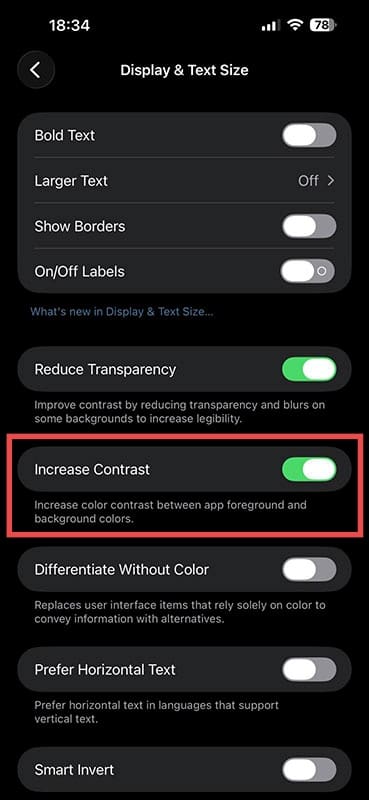
Step 5. If readability is still a problem, you can also drag the “Increase Contrast” option to “On.”
You should now at least have a “flatter” visual experience than before.
Change Certain App Settings
Certain core iOS apps can be reverted to the “classic look” of older versions. Phone is a prime example of this. You can change the Liquid Glass look in the following way:
Step 1. Open the Phone app and select the menu icon at the top right of the screen.
Step 2. In the window that pops up, check the “Classic” option.
Step 3. Your app should now change back to the older (less transparent) look.
Change the App Icons
App icons in the Liquid Glass look lose their individual colors and become more uniform, hindering easy identification in addition to the aforementioned readability. Thankfully, you can change the look of these. Here’s what to do:
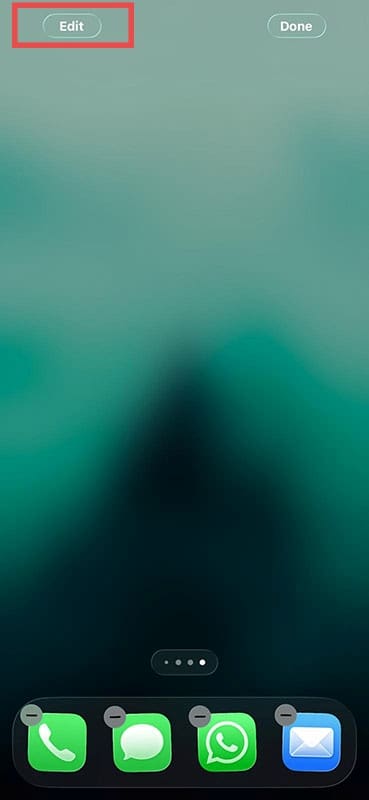
Step 1. Press and hold on your Home Screen.
Step 2. Tap the “Edit” icon in the top-left corner.
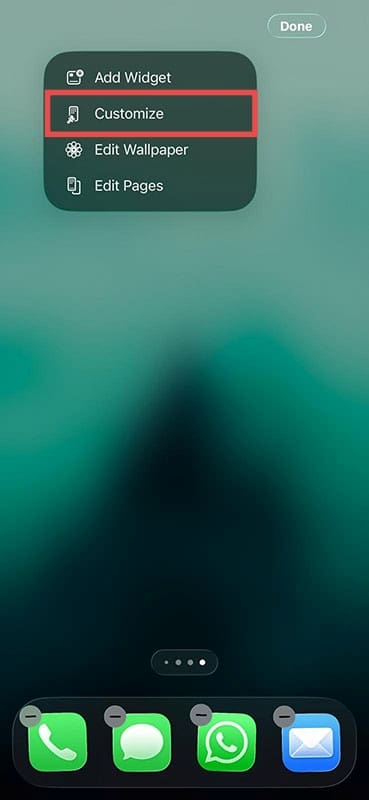
Step 3. Choose “Customize” from the dropdown menu.
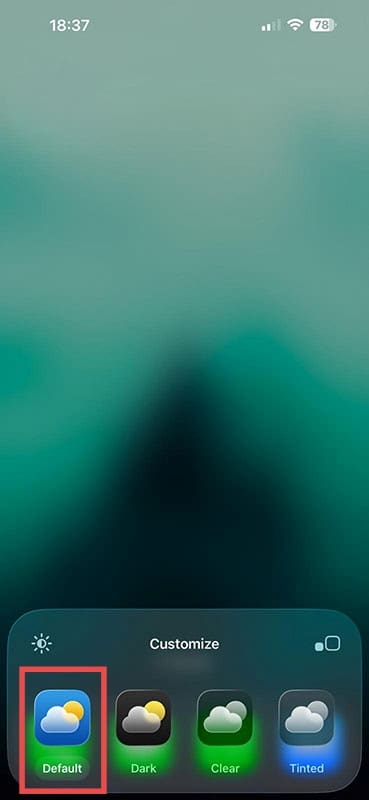
Step 4. For the classic look, click the “Default” option. Your icons should revert to the way they were.
As an avid gamer, I’ve run into my fair share of error codes and weird faults that have forced me to find fixes to problems I never anticipated. That gave me a passion for sharing those fixes with others so we can all game without feeling like our hardware is rebelling against us.










Write a Comment