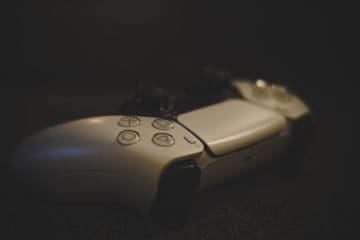
When it comes to gaming on the go, it doesn’t get much better than using your iPhone or iPad. This is especially true if you have the iPhone 14 Pro Max with its incredible battery life or the iPad Pro with its massive display. While it’s been possible to connect different controllers, there were concerns that you wouldn’t be able to connect PS5 controller to iPad. Part of these concerns has to do with the newer hardware that Sony is using as the DualSense controller is quite a bit different from Sony’s “old” DualShock lineup of controllers.
Following the update to iOS 14.5, iPadOS 14.5, and tvOS 14.5, Apple made it possible for you to quickly and easily connect PS5 controller to iPad, or your other Apple devices. The only pre-requisite that you need to meet in order to get full support is to ensure that your iPad is updated and running at least iPadOS 14.5. Considering that at the time of this article we’re currently on iPadOS 16.3, chances are that you already have the necessary update installed on your iPad.
Nevertheless, if you have an older iPad, you might want to double-check for an update just to be on the safe side. With the update installed, here are the steps you’ll need to take in order to connect PS5 controller to iPad:
Grab your PS5 Controller.
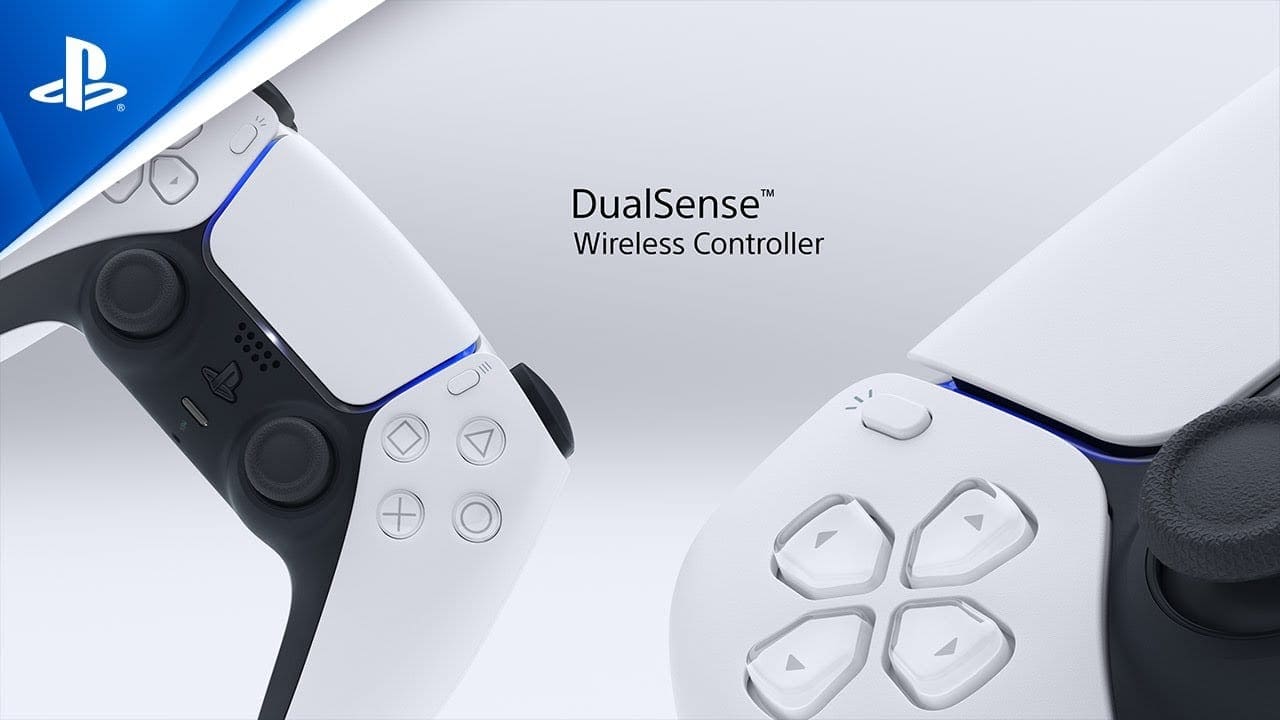
Press and hold the Share button (to the top right of the D-Pad) and the PlayStation button at the same time.
Continue holding until the light bar begins flashing to indicate that you have entered pairing mode on the controller.
Open the Settings app on your iPad.
Tap Bluetooth.
Under the Other Devices section, tap the name of your PS5 controller.
Wait a few moments.
Once paired, the PS5 controller will appear under the My Devices section of the Settings app. From there, you’ll be able to fire up any of your favorite games and use the PS5 controller instead of the on-screen controls.
Something worth pointing out is that the steps above also work for those who want to connect PS5 controller to iPhone, as the iPhone and iPad both support Sony’s latest controller. There are even phone mounts that you can get, allowing you to connect your iPhone to the PS5 controller, removing the need to have a separate stand on your desk.
Customize PS5 Controller Layout on iPad
While Sony’s PS5 DualSense controller has been officially supported since iOS 14.5, the company added another trick up its sleeve with the release of iOS 16 and iPadOS 16.5. Not only did Apple bring full support and compatibility with the Nintendo Switch Pro Controller, but the company also brought full-on controller layout customization to the iPhone and iPad. This means that if you want to remap some of the buttons on your PS5 controller, you can do just that!
Make sure that your PS5 controller is paired to your iPhone or iPad.
Open the Settings app on your iPhone or iPad.
Scroll down and tap General.
Scroll down again and tap Game Controller.
Select the name of your controller.
Tap Default Controls.
Select the controls that you would like to remap on your controller.
Alternatively, Apple even makes it possible for you to remap the controller to have a custom layout for specific games.
From the Game Controller settings panel, tap the name of your controller.
Tap Add Game Controls.
Select the game that you want to change the controls for.
From the list of options, tap the name of the game again.
Select the controls that you would like to remap.
This is a much more in-depth customization than we expected to see from Apple with iOS 16. It’s clear that the company is focused on continuing to improve the mobile gaming experience. But the best part is that unlike using an 8Bitdo controller that comes with its own accompanying app for customization, you can remap all of the buttons for your PS5 Controller, right from the Settings app on your iPhone or iPad.
Andrew Myrick is a freelance writer based on the East Coast of the US. He enjoys everything to do with technology, including tablets, smartphones, and everything in between. Perhaps his favorite past-time is having a never-ending supply of different keyboards and gaming handhelds that end up collecting more dust than the consoles that are being emulated.








Write a Comment