Software updates are a part of life for Mac users. Every time macOS updates, it may bring bug fixes and new features. Sometimes, though, a new update can cause problems. The recent update to macOS Tahoe has left some users scratching their heads as to why their battery is suddenly running out so quickly.
This macOS Tahoe battery drain problem is caused by the sheer volume of new features added, from Apple Intelligence to the slick Liquid Glass interface. Thankfully, there are a few changes you can make to improve battery life and make your Mac run more efficiently.
Fix macOS Tahoe Battery Drain: Adjusting Sleep and Display Settings
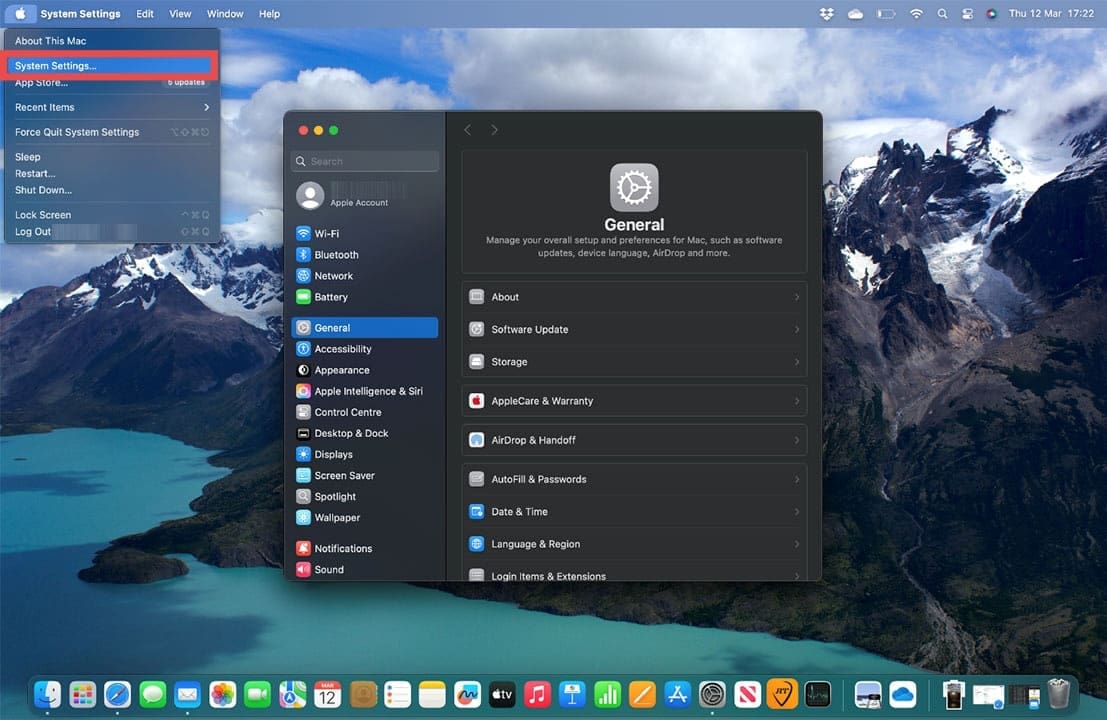
Step 1. Start by ensuring your screen switches to a screensaver or off completely after a period of inactivity. To do this, you’ll need to open System Settings from the Apple menu in the top left corner of your screen.
Step 2. Go to Lock Screen, and you’ll find settings to adjust how long your Mac remains inactive before the Screen Saver activates. The shorter you set this, the bigger the positive impact this will have on the macOS Tahoe battery drain.
Use the arrows next to Start Screen Saver when inactive to adjust this setting. Or, you can choose to have the display switch off completely when inactive, whether the device is on the battery or plugged in.
Step 3. You can also reduce battery drain by heading to Settings > Displays and adjusting your Mac’s screen brightness. If you set your Mac to automatically adjust the brightness, you should find you don’t have to manually adjust this setting as often. However, setting it at the lowest you can without straining your eyes is the most battery-efficient choice.
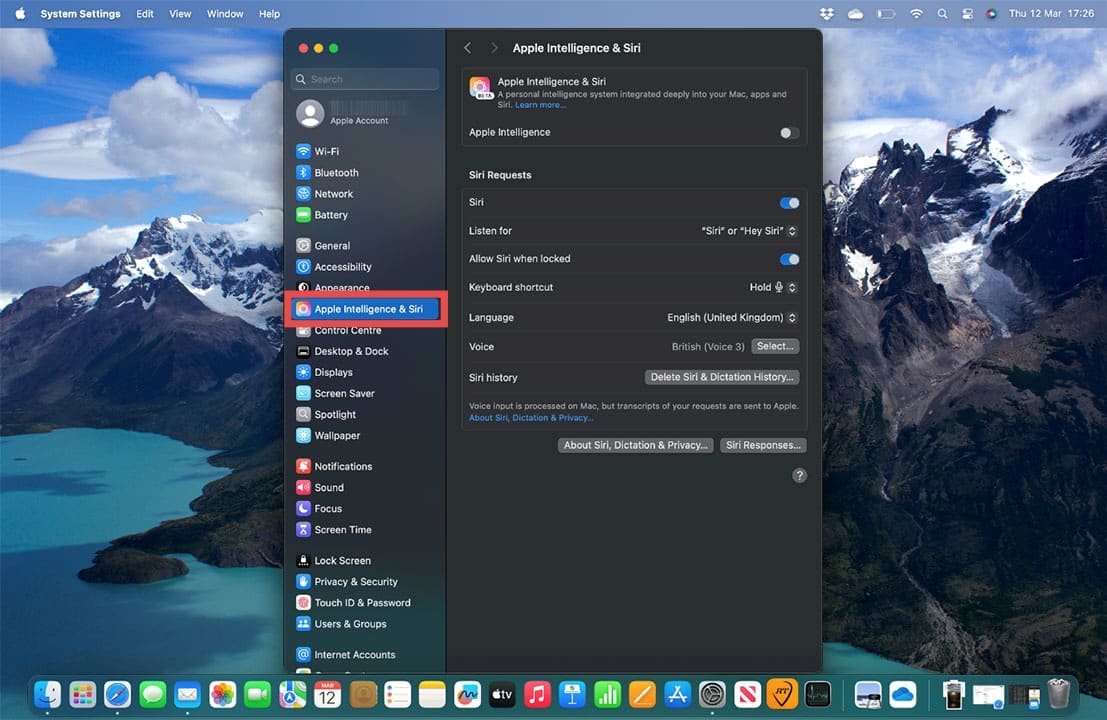
Step 1. Head to Settings > Apple Intelligence & Siri. Some users have reported battery life improvements by switching Apple Intelligence off. You can also switch Siri off, or set it so that Siri doesn’t activate when the Mac is locked. Leaving this setting on means that Siri is always listening for your prompt, which could contribute to battery drain.
Step 2. Go to Settings, click on your Apple Account details at the top, and then iCloud. From here, click on Saved to iCloud. This shows all the apps and services currently syncing to iCloud. If you see services in here that you don’t need syncing, switch them off. This will stop excessive power drain by cutting the volume of data your Mac is constantly syncing.
You may find that after the first couple of days of using macOS Tahoe, battery life improves. This is because Spotlight Indexing occurs immediately after the update. It’s heavy on your battery life, but once it’s complete, you should find that things improve. You can also head to Settings > Battery to check your Mac’s battery health.
As an avid gamer, I’ve run into my fair share of error codes and weird faults that have forced me to find fixes to problems I never anticipated. That gave me a passion for sharing those fixes with others so we can all game without feeling like our hardware is rebelling against us.














Write a Comment