• Skip to primary navigation
  • Skip to main content
  • Skip to primary sidebar
  • Skip to footer

AppleToolBox

Tools and Fixes for Mac, iPad, iPhone & iWatch

Search posts

  • About
  • Contact

CONNECT WITH US

CATEGORIES

  • iPhone
  • iPad
  • iPod
  • Apple Watch
  • Mac/MacBook
  • AirPods
  • Apple TV
  • News
  • Apple Services
  • HomePod
  • Reviews

SITE

  • Home
  • About Us
  • Contact
  • Advertise

Search posts

You are here: Home / Mac / Unstable Wi-Fi on Tahoe? Try These Fixes

Unstable Wi-Fi on Tahoe? Try These Fixes

By Louis Roundtree 0 comments Last updated March 25, 2026

Things to Know
  • Many users found their MacOS Tahoe WiFi not working properly after the most recent updates.
  • Some reported an unstable connection that cuts in and out, while others couldn’t connect at all.
  • Switching the network connection on and off or resetting the connection can help.

When working or playing on a Mac, unstable Wi-Fi connections can be a major frustration. It can slow you down, mean you miss out on important conversations, or make you look unprofessional in meetings. Unfortunately, some Mac users have reported that since recent updates to Tahoe, their usually stable connections are not working correctly.

Follow these steps to get your Mac connected and running smoothly again.

Contents

  • MacOS Tahoe Wi-Fi Not Working: Toggle WiFi Off and On
  • Fix Mac Unstable Wi-Fi Connection: Forget Networks and Re-Add
  • MacOS Tahoe Wi-Fi Not Working: Renew DHCP Lease
  • MacOS Tahoe Wi-Fi Not Working: Further Tips

MacOS Tahoe Wi-Fi Not Working: Toggle WiFi Off and On

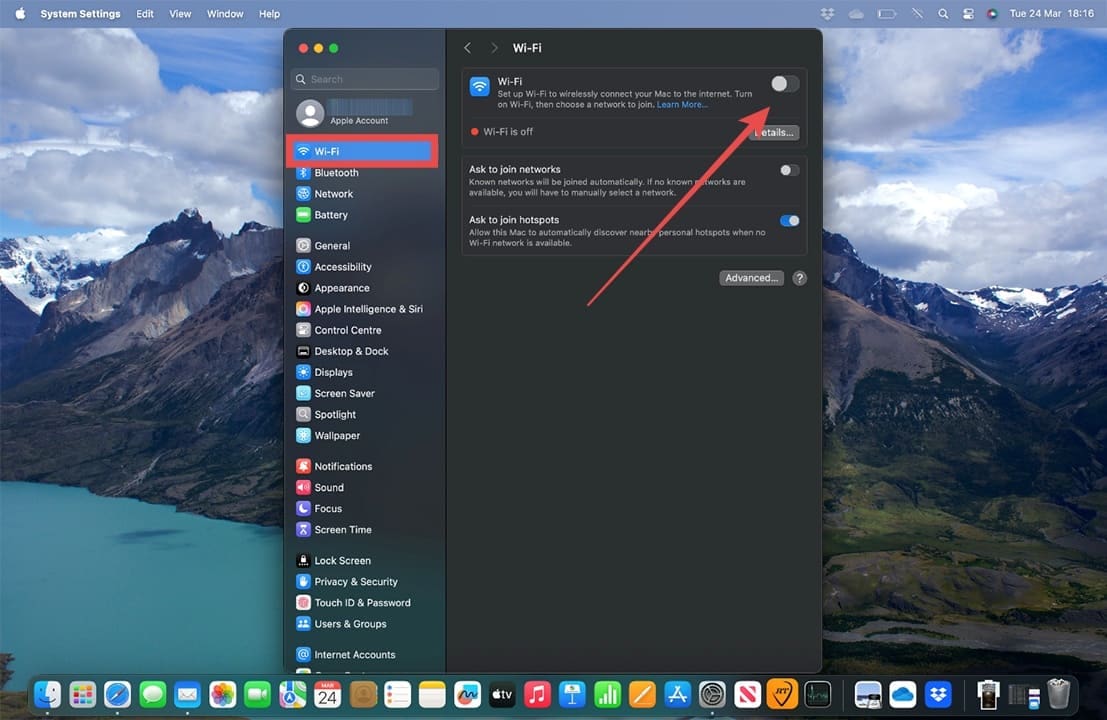
Step 1. The simplest fix is to turn Wi-Fi off, then back on. Start by going to Settings > Wi-Fi.

Unstable Wi-Fi on Tahoe Try These Fixes 1

Step 2. Click the toggle button next to Wi-Fi. It should turn grey, and all available or connected Wi-Fi networks should vanish.

Unstable Wi-Fi on Tahoe Try These Fixes 2

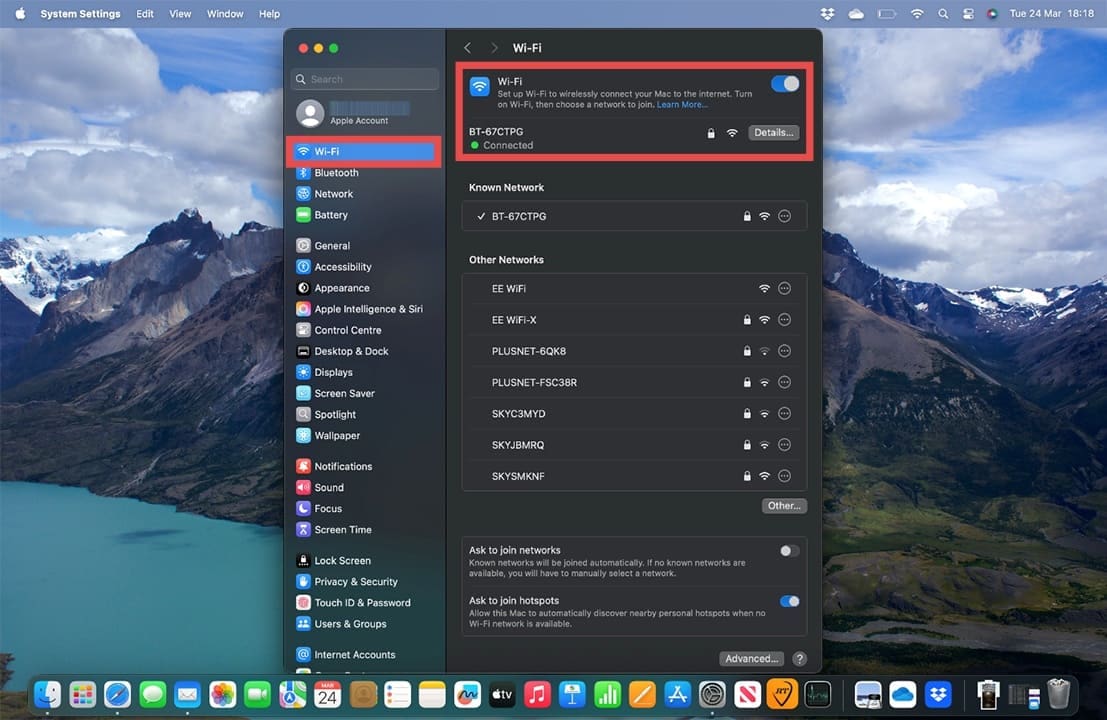
Step 3. Wait for five minutes, and then toggle Wi-Fi back on. You should find that you can connect with no issues to your chosen network. If not, move on to the next fix in this guide.

Unstable Wi-Fi on Tahoe Try These Fixes 3

Fix Mac Unstable Wi-Fi Connection: Forget Networks and Re-Add

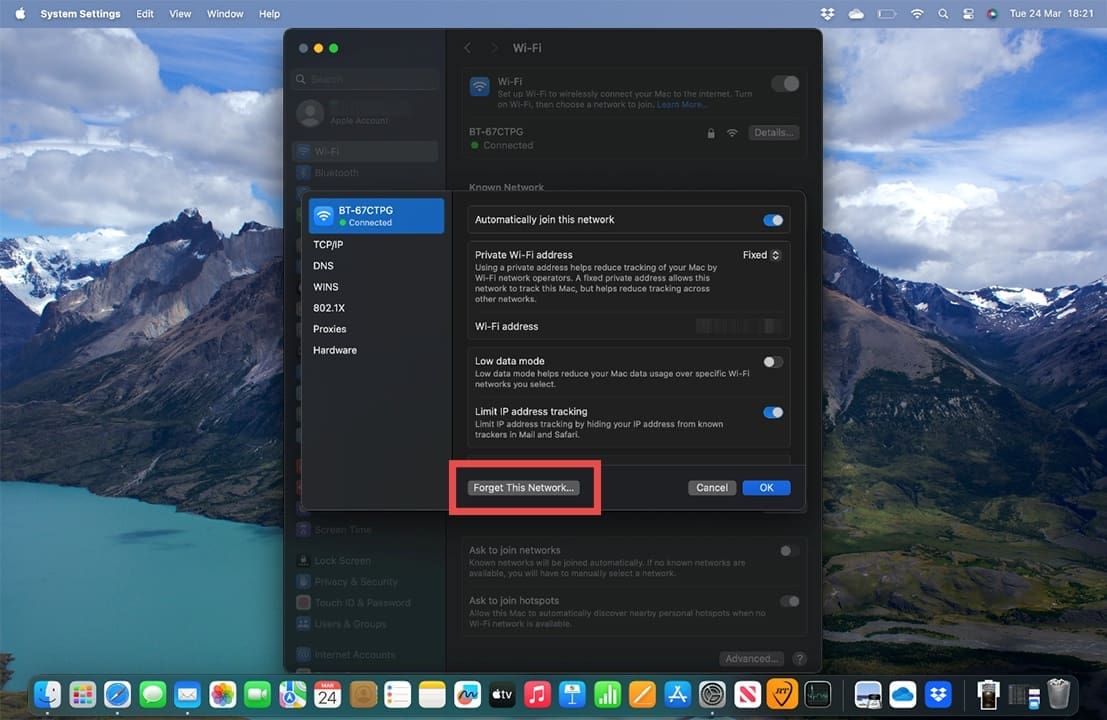
Step 1. If the network settings became corrupt during the software update, forgetting and re-adding the network can fix this. Make sure you have access to your network password before you take this step. The password is usually on the back of your router. Head to Settings > Wi-Fi > and click the “Details…” button next to the network you want to forget.

Unstable Wi-Fi on Tahoe Try These Fixes 4

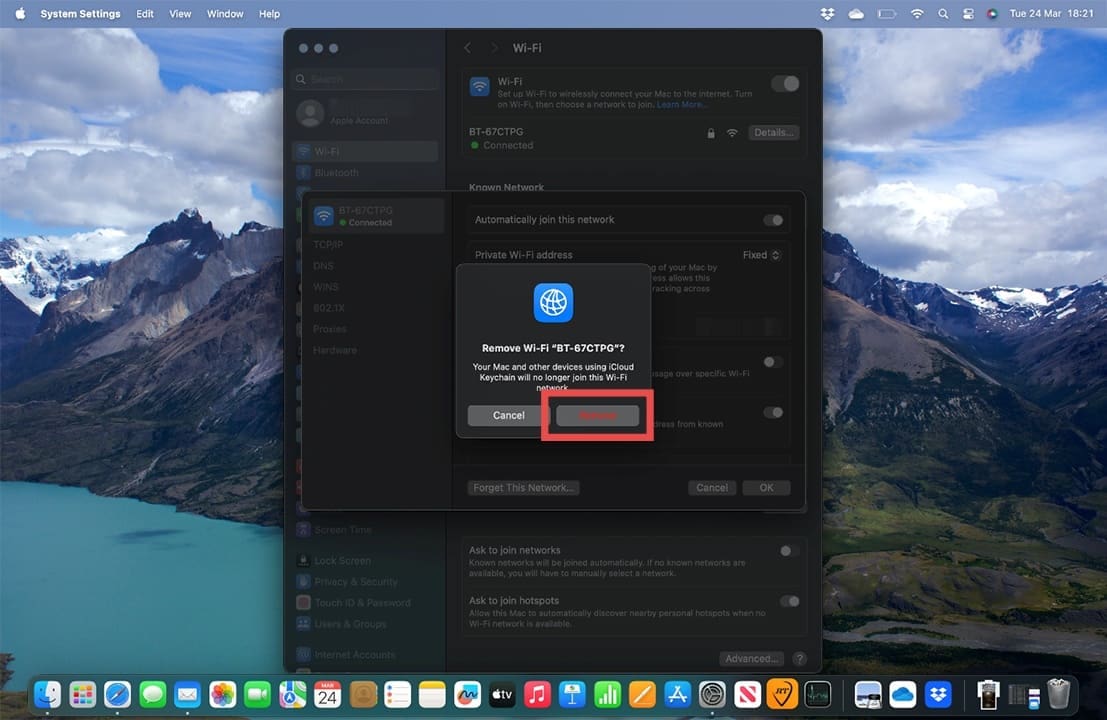
Step 2. Click on Forget This Network. You’ll see a screen asking if you definitely want to do this. Click “Remove.” Once done, you can then simply click the network from the list of available networks and re-enter the password.

Unstable Wi-Fi on Tahoe Try These Fixes 5

MacOS Tahoe Wi-Fi Not Working: Renew DHCP Lease

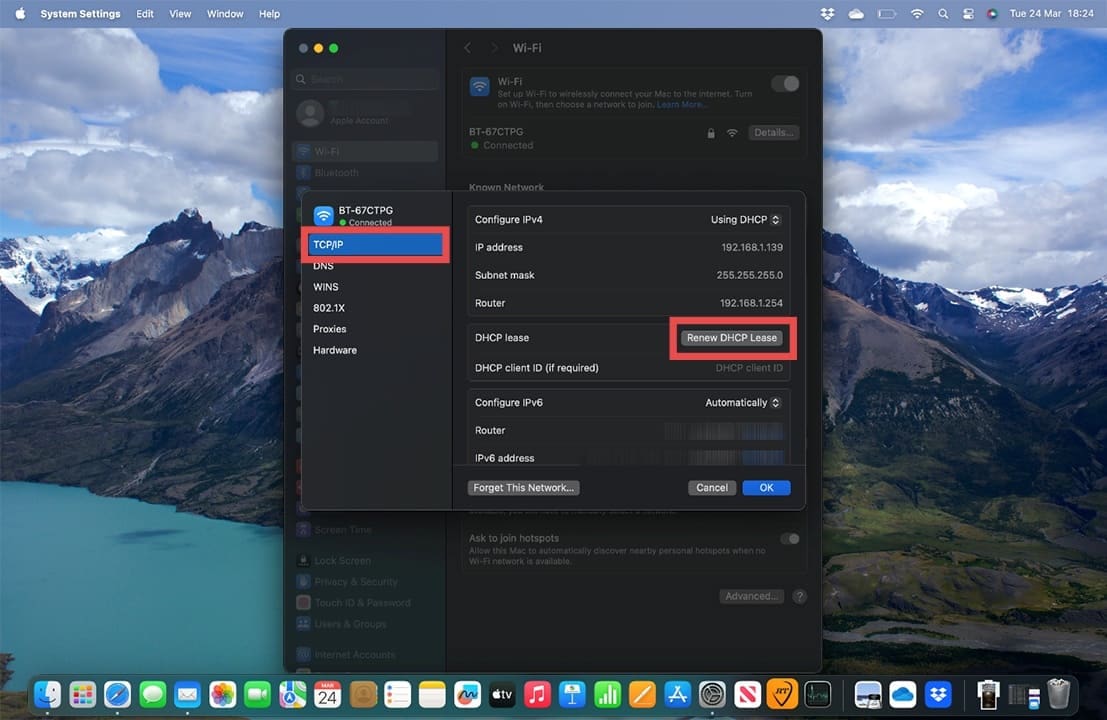
Step 1. This sounds complicated, but it’s actually very simple. DHCP means Dynamic Host Configuration Protocol and refers to the method that devices get IP (Internet Protocol) addresses given to them. IP addresses for devices like your Mac are temporary, so renewing the DHCP lease can generate a new IP address and, in many cases, fix any internet connectivity issues. Once again, head to Settings > Wi-Fi > and click the “Details…” button next to the problematic network.

Step 2. Scroll down until you see DHCP lease (it’s under the TCP/IP menu) and click the button next to it that says Renew DHCP Lease.

Unstable Wi-Fi on Tahoe Try These Fixes 6

Step 3. Confirm you want to apply your changes and wait for the Mac to confirm this has occurred. You should now find that you have a stable internet connection.

MacOS Tahoe Wi-Fi Not Working: Further Tips

You can also try:

  • Switching your Mac off and on again.
  • Switching your router off and on again.
  • Testing the wireless connection on another device. If it’s also problematic on different devices, report the problem to your internet service provider.

Related Posts:

  • 2023 Mac Studio lifestyle - 1
    macOS Could Not Be Installed, How-To Fix
  • macos tahoe battery drain
    How to Fix Rapid Battery Drain on MacOS Tahoe
  • Photo of someone using Apple Music on their smartphone
    How to Fix Apple Music Not Working on iPhone / iPad
  • pexels-jess-bailey-designs-810079
    How To Run Linux On Mac: A Step-by-Step Guide
  • Delete-Group-Reminders-Folder-macOS
    MacBook Will Not Start Up After macOS Update, How-To Fix
  • 2022 Mac Mini with Studio Display and Accessories
    Mac Tips For New Users In 2023
  • sidecar on iPadOS and macOS
    Sidecar not working in iPadOS and macOS? How to fix…
  • pexels-designecologist-1779487
    The Best iPhone And Mac Shortcuts For Beginners
  • WWDC 2021 Hero
    WWDC21 Recap: Everything You Missed In Apple's 2-Hour Event
Louis Roundtree
Louis Roundtree

As an avid gamer, I’ve run into my fair share of error codes and weird faults that have forced me to find fixes to problems I never anticipated. That gave me a passion for sharing those fixes with others so we can all game without feeling like our hardware is rebelling against us.

Reader Interactions

Write a Comment Cancel reply

Primary Sidebar

Recent Posts

  • How to Hide Username and Photo on the Mac Lock Screen
  • Microsoft Resume vs. Apple Handoff – Which Wins for Cross-Device Work?
  • How to Export iTunes Library to New Computer
  • What the Gemini Desktop App Will Bring to Mac
  • What to Do When Windows 11 Won’t Detect Your iPad
  • Outlook Outage 2026: iPhone Fixes for Sign-In Chaos

Connect with us

Footer

ABOUT

  • About Us
  • Contact us
  • Advertise
  • Privacy
  • Terms of Use

GUIDES

  • iOS & iPadOS
  • Apple ID
  • iCloud
  • App Store
  • iTunes
  • FaceTime
  • iMessage
  • Siri
  • Books and iBooks
  • Game Center
  • AirPlay

CONNECT

  • Facebook
  • Twitter
  • FeedBurner
  • YouTube

© Copyright 2010-2024 Guiding Tech Media · All Rights Reserved

This site and its content are in no way affiliated or endorsed by Apple, Inc. · Reproduction without explicit permission is prohibited

Last Updated on March 28, 2026 by Louis Roundtree