If there’s one thing that the Apple ecosystem is known for, it’s the incredible variety of productivity-focused apps. While there are mainstays still topping the App Store charts, such as Things 3 and OmniFocus, note-taking apps have continued to exponentially grow in popularity. Some of these include PKM applications, also known as Personal Knowledge Management, with options such as Obsidian, Loqseq, Notion, and many more.
Linking related notes can be extremely useful for several reasons. It allows for quick and easy navigation between different notes that contain related information. This is especially helpful in large notebooks or when working on complex projects with multiple notes. Linking notes can help provide context to the information you’re storing. By linking a note to another related note, you’re creating a reference that can help you understand the bigger picture.
Linked notes can improve the organization of your notes. Instead of searching through numerous notes to find related information, you can simply follow the links. It can save time and increase your efficiency. Instead of manually searching for a related note, a direct link can take you there instantly. For students, linking related notes can enhance learning. It can help in drawing connections between different pieces of information, aiding in comprehension and retention.
How to Link Related Notes on iPhone and iPad
A big benefit of using a Personal Knowledge Management app or system is the ability to link related notes that you might take. While third-party apps already offer this feature, Apple has now implemented the ability to link related notes on iPhone, iPad and Mac. Here’s how you can link related notes on the iPhone and/or iPad:
Open the Apple Notes app on your iPhone or iPad.
Locate and select the note that you want to link from.
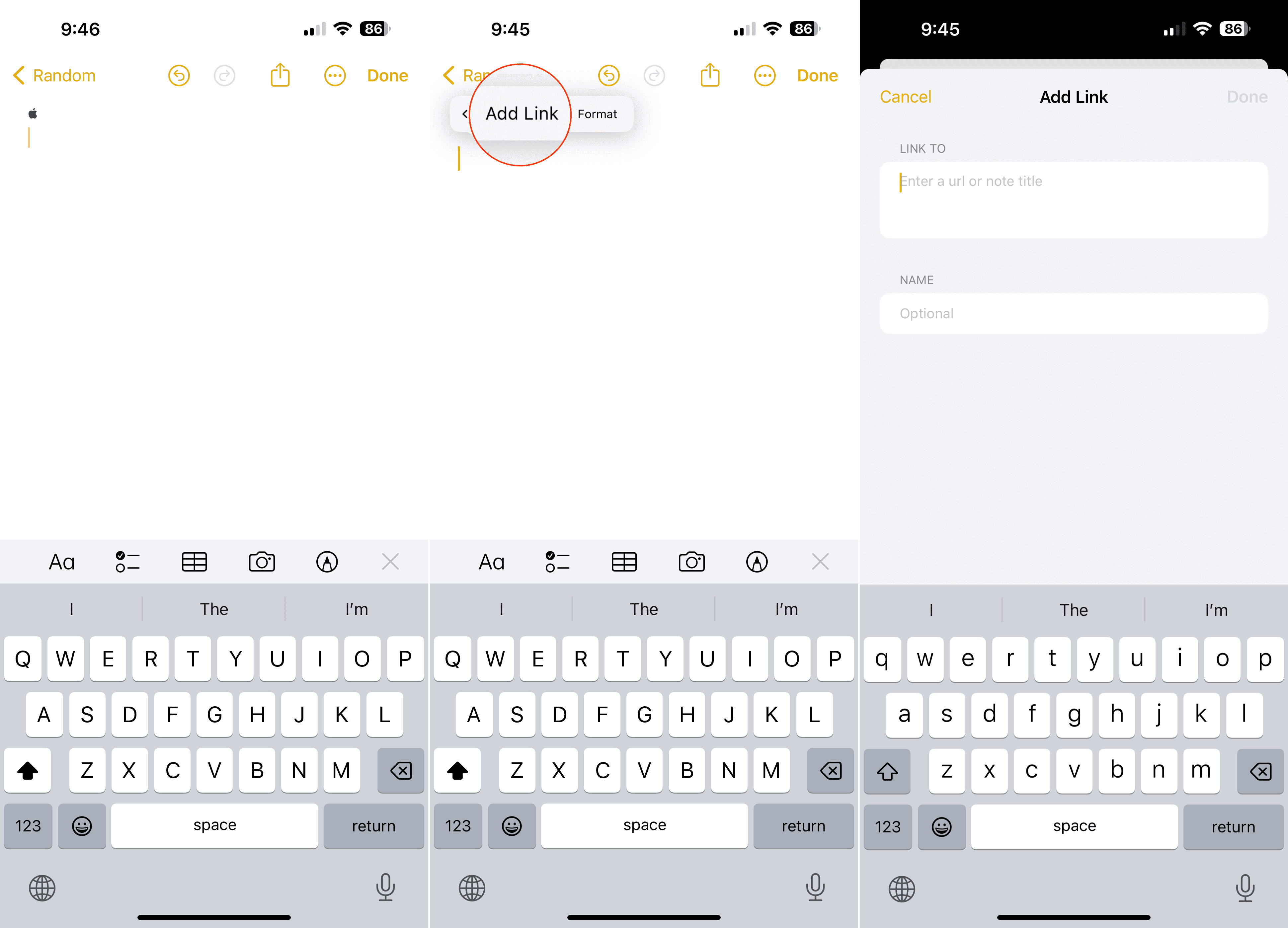
Long-press on an empty space within the note until the context menu appears.
Tap Add Link.
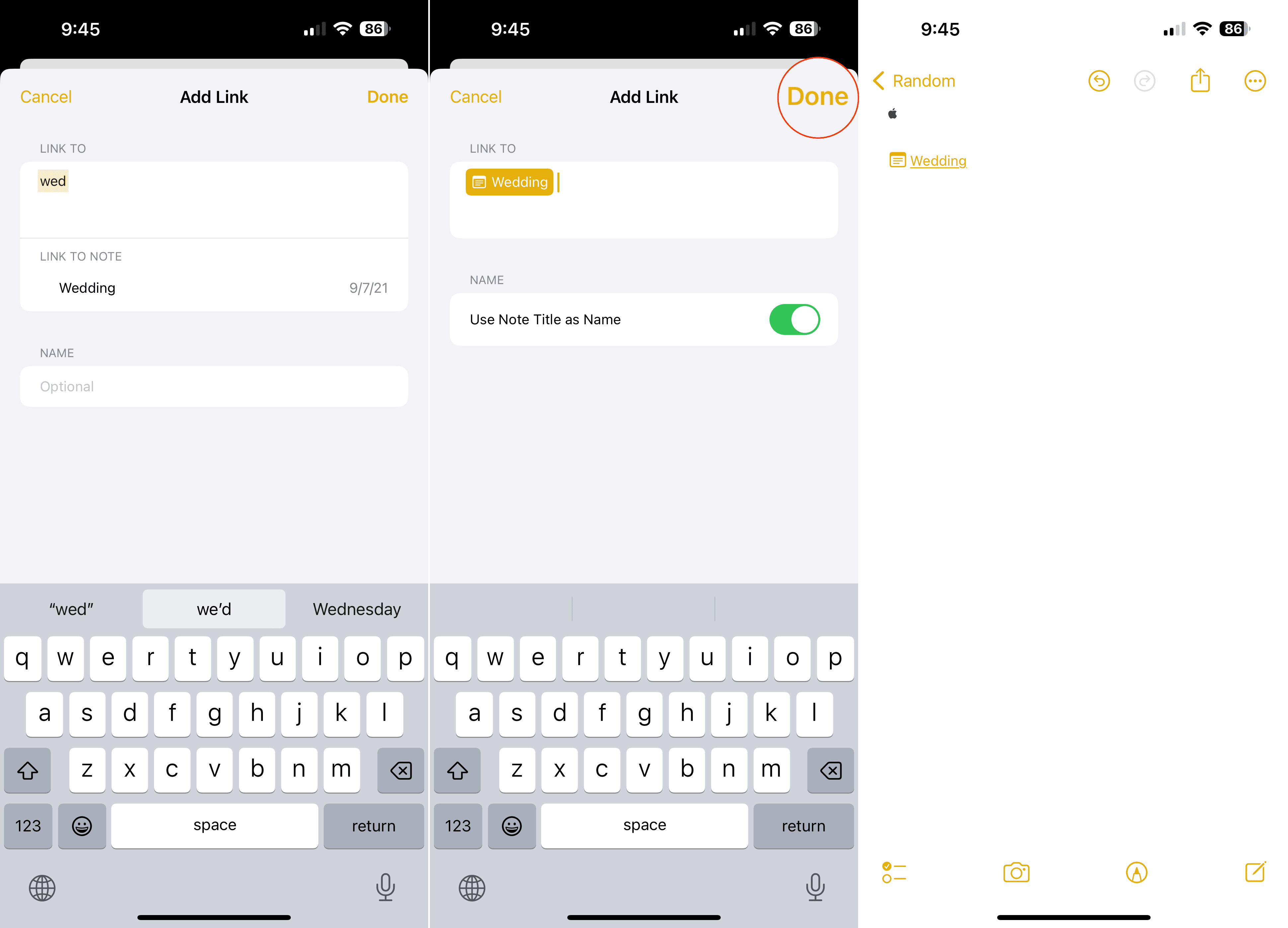
Enter the Linked Note’s title.
Under the Name section, tap the toggle to Use Note Title as Name.
Once complete, tap the Done button in the top right corner.
How to Link Related Notes on Mac
Coming as little surprise, Apple has also brought the ability to link related notes on the Mac using the Apple Notes app. And as you would expect, any changes made on your Mac will also sync back to the Notes app on your other Apple devices.
Open the Apple Notes app on your Mac.
Locate and select the note that you want to link from. Alternatively, you can simply create a new note if necessary.
Right-click on an empty space within the note.
From the drop-down menu, highlight and select Add Link.
Place your cursor in the Link To: prompt and enter the name of the note that you want to link to.
Enter a name for the note if you want it to show something other than the title of the note.
Once complete, click the OK button.
What Else Is New With Apple Notes on iOS 17 and iPadOS 17?
Given the fact that Apple spent 45 minutes on its upcoming Vision Pro headset, the company didn’t spend too much time on the other platforms. With that being said, there are still a few other changes coming to Apple Notes that might just convince you to ditch the note-taking app that you’re currently using.
Some new changes were announced for PDFs, as you’ll now be able to use “Enhanced AutoFill” if you need to fill out a PDF form or scanned document. Real-time collaboration is also coming to PDFs within the Notes app, as you can work with a colleague or classmate on a project without sharing the same iPad.
If you’re a fan of using Apple’s Pages app, the Notes app also now supports the ability to “continue your note in a Pages document for more layout and formatting options.” And speaking of formatting, you can now create block quotes from within the Notes app, along with a new “Monostyled format, an update of Monospaced format.”
Andrew Myrick is a freelance writer based on the East Coast of the US. He enjoys everything to do with technology, including tablets, smartphones, and everything in between. Perhaps his favorite past-time is having a never-ending supply of different keyboards and gaming handhelds that end up collecting more dust than the consoles that are being emulated.












Write a Comment