• Skip to primary navigation
  • Skip to main content
  • Skip to primary sidebar
  • Skip to footer

AppleToolBox

Tools and Fixes for Mac, iPad, iPhone & iWatch

Search posts

  • About
  • Contact

CONNECT WITH US

CATEGORIES

  • iPhone
  • iPad
  • iPod
  • Apple Watch
  • Mac/MacBook
  • AirPods
  • Apple TV
  • News
  • Apple Services
  • HomePod
  • Reviews

SITE

  • Home
  • About Us
  • Contact
  • Advertise

Search posts

You are here: Home / Apple Services / How to Migrate From OneNote to Apple Notes

How to Migrate From OneNote to Apple Notes

By Louis Roundtree 0 comments Last updated July 9, 2025

Things to Know
  • If you’re looking to migrate from OneNote to Apple Notes, there’s no easy, direct way to do so.
  • You can manually copy and paste between note apps or use an intermediary like Google Docs to preserve formatting.
  • Alternately, you can export your notes to a different note app and then import them to Apple Notes.

OneNote and Apple Notes are both extremely useful apps designed to play really well within their respective ecosystems. If you’re leaning more towards the Apple side of the fence in your app usage or just like the way Apple Notes does things cleanly and simply, you might want to simplify and move all your OneNote data over to it.

There’s no direct way to make this happen, but we’ll be taking you through a few ways of migrating notes from one to the other.

Contents

  • Migrate From OneNote to Apple Notes – One Task With Many Solutions
    • Manual Copy and Pasting
    • Evernote and Middleware
    • Other Middleware

Migrate From OneNote to Apple Notes – One Task With Many Solutions

Right off the bat, there’s no seamless way to make the migration between OneNote and Apple Notes, only workarounds. With this in mind, we’re going to list a few approaches, one of which will hopefully work for you:

Manual Copy and Pasting

Let’s start with the most obvious (and tedious) solution. If you’ve only got a few notes to migrate, then copying and pasting might do the trick.

Step 1. Ensure both apps are open, then select the content of a note in OneNote and press and hold to bring up the context menu.

Step 2. Select “Copy” to transfer the content to the clipboard.

Step 3. Open up Apple Notes and click the Create Note icon at the bottom right corner of the app.

Step 4. In the new note, press and hold to bring up the context menu and select “Paste.”

Step 5. Do this with as many notes as needed.

Evernote and Middleware

Because OneNote and Apple Notes don’t directly interface with each other, a middleware program like Evernote can be invaluable in bridging the gap. Many Evernote users have moved their notes to Apple following Evernote’s increasingly high subscription prices and restricted features.

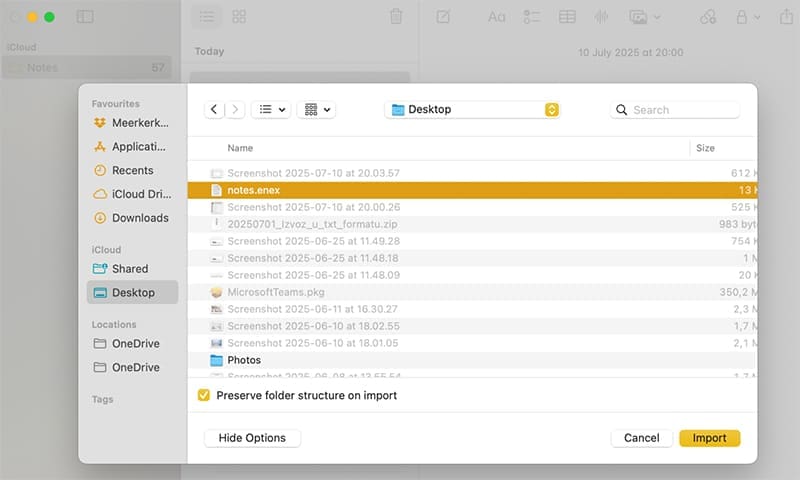
All you need to do is first import your OneNote files into Evernote, and then export the files from there as an “.enex” format, which can be read by Apple Notes. Here’s how:

Step 1. Open up Apple Notes on your Mac.

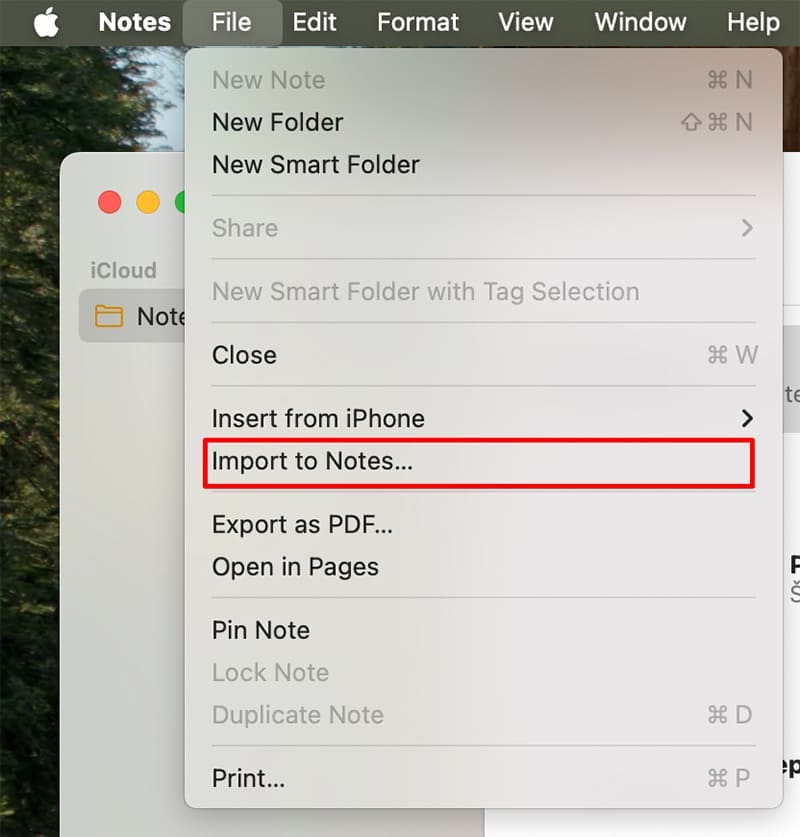
Step 2. Click “File” and then “Import to Notes…”

How to Migrate From OneNote to Apple Notes 1

Step 3. Search for your target “.enex” file and click “Import.”

How to Migrate From OneNote to Apple Notes 2

Step 4. Your notes should then be added to Apple Notes.

Your Apple Notes will probably be crammed into one folder. From that point, you may need to employ more organization before you get comfortable with how they fit into their new home.

Other Middleware

It doesn’t stop at Evernote. If you’re worrying about committing to another note-taking app, you might be able to rely on other middleware to help with the migration.

Google Docs is a great way to copy and paste over images and text from OneNote to Apple Notes while still keeping the formatting. The same is true for Microsoft Word. It might be slow going, but it’s reliable.

Keep in mind that attachments may still be unable to be exported seamlessly. You may need to save PDFs and sound files separately before transferring them to Apple Notes.

Related Posts:

  • sidecar on iPadOS and macOS
    Sidecar not working in iPadOS and macOS? How to fix…
  • iPhone 15 Pro Max - 4
    Best iPhone Lock Screen Widgets for iOS 17
  • iPadOS 17 Widgets
    Best Interactive Widgets for iPadOS 17
  • Update Apple ID settings on your iPhone, iPad, or Mac after changing your password
    Getting a Message to Update Apple ID Settings on…
  • pexels-dominika-roseclay-1036808
    The Best ADHD Apps For iPhone
  • MacBook Pro 2021 iPad Mini iPhone 13 Pro AirPods 3 Beats Fit Pro iPad Pro Best Apple Products - 2
    The Best Apps and Games Of 2022, According to Apple
  • 2023 Mac Studio lifestyle - 1
    macOS Could Not Be Installed, How-To Fix
  • iPhone 15 event - iPhone 15 Pro and iPhone 15 Pro Max A17 Pro Video Recording Promo
    iPhone 14 vs. iPhone 15: Should You Upgrade?
  • iphone and airpods on a table
    These Apps Have the Best iOS 17 Widgets
Louis Roundtree
Louis Roundtree

As an avid gamer, I’ve run into my fair share of error codes and weird faults that have forced me to find fixes to problems I never anticipated. That gave me a passion for sharing those fixes with others so we can all game without feeling like our hardware is rebelling against us.
Reader Interactions

Write a Comment Cancel reply

Primary Sidebar

Recent Posts

  • How to Export iTunes Library to New Computer
  • What the Gemini Desktop App Will Bring to Mac
  • What to Do When Windows 11 Won’t Detect Your iPad
  • Outlook Outage 2026: iPhone Fixes for Sign-In Chaos
  • Guide to Changing iMessage Backgrounds on iPhone and Mac
  • Has Apple Killed Vision Pro? (Insane Sales Flop Explained)

Connect with us

Footer

ABOUT

  • About Us
  • Contact us
  • Advertise
  • Privacy
  • Terms of Use

GUIDES

  • iOS & iPadOS
  • Apple ID
  • iCloud
  • App Store
  • iTunes
  • FaceTime
  • iMessage
  • Siri
  • Books and iBooks
  • Game Center
  • AirPlay

CONNECT

  • Facebook
  • Twitter
  • FeedBurner
  • YouTube

© Copyright 2010-2024 Guiding Tech Media · All Rights Reserved

This site and its content are in no way affiliated or endorsed by Apple, Inc. · Reproduction without explicit permission is prohibited

Last Updated on July 14, 2025 by Louis Roundtree