• Skip to primary navigation
  • Skip to main content
  • Skip to primary sidebar
  • Skip to footer

AppleToolBox

Tools and Fixes for Mac, iPad, iPhone & iWatch

Search posts

  • About
  • Contact

CONNECT WITH US

CATEGORIES

  • iPhone
  • iPad
  • iPod
  • Apple Watch
  • Mac/MacBook
  • AirPods
  • Apple TV
  • News
  • Apple Services
  • HomePod
  • Reviews

SITE

  • Home
  • About Us
  • Contact
  • Advertise

Search posts

You are here: Home / iPhone / How to Record a Message in FaceTime on iOS 17

How to Record a Message in FaceTime on iOS 17

By Danny Maiorca 0 comments Last updated June 15, 2023

FaceTime has long been a popular tool for keeping in touch with loved ones and sharing important moments when you can’t be together. And for businesses, the app is becoming increasingly popular for hosting virtual meetings.

Related Reading:

  • What’s New in iOS 17?
  • How to Download iOS 17 on Your iPhone
  • FaceTime Call Failed? Here’s How to Fix It
  • iOS 17: What Is Live Voicemail and How Can You Use It?
  • How to Change Incoming Call Settings for FaceTime on Your iPhone

In iOS 17, you’ll have the ability to record a message that others can see if they don’t answer your call. But what kinds of messages can you record, and how do you even do so in the first place? Today, you will discover the answer to both of these questions.

Contents

  • What Kinds of Messages Can You Record on FaceTime in iOS 17?
  • How to Record Your FaceTime Message in iOS 17
  • Make It Easier for Others to Know Why You’re Contacting Them on FaceTime in iOS 17

What Kinds of Messages Can You Record on FaceTime in iOS 17?

When recording FaceTime messages in iOS 17, you have the option to send both audio and video messages. As Apple also mentions in its iOS 17 preview, you can customize your camera settings if you opt for the latter:

“You get all the same video effects that make you look your best in FaceTime, like Portrait Mode and Studio Light.”

How to Record Your FaceTime Message in iOS 17

To record a message in FaceTime in iOS 17, the other person will need to not pick up your initial call. Follow these steps if that happens to send them a recorded message:

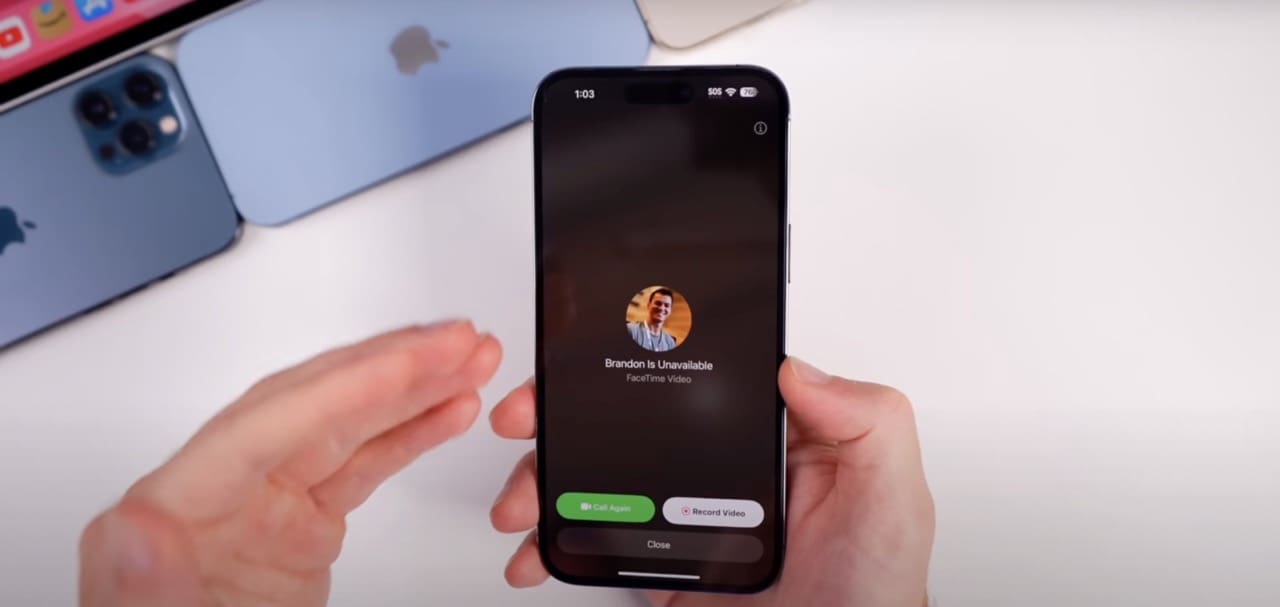
1. On your FaceTime screen, you’ll see three options: Call Again, Record Video, or Close. Select Record Video.

Record a call on FaceTime in iOS 17

2. A countdown will commence on your iPhone for when the message will begin recording. Wait for this to end.

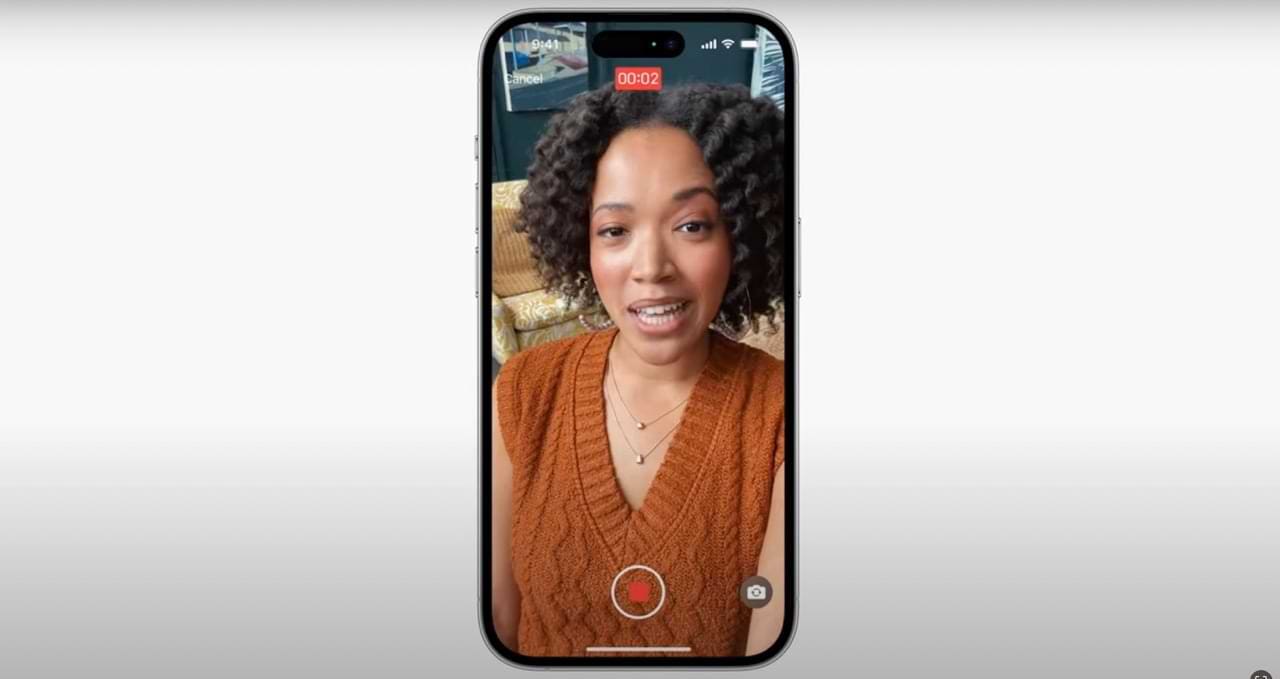
3. After the countdown has concluded, start recording your message. You can flip the camera using the icon in the bottom right if you need to.

Record a call in FaceTime in iOS 17

4. When you’ve finished recording your video, hit the Stop button and send it to the recipient.

Note that to receive your FaceTime message, the recipient will also need iOS 17 or another form of Apple’s fall 2023 software updates downloaded on their device.

Make It Easier for Others to Know Why You’re Contacting Them on FaceTime in iOS 17

Recording messages on FaceTime will make it easier for you to send important updates to others. If something big has happened, you also have the option to quickly share what’s going on and allow the recipient to call you back at a time that is more convenient for them.

When you record a FaceTime message in iOS 17, you don’t need to do too much. You’ll also receive a countdown to ensure you’re ready, along with camera customization options if you want to add some of these like you would in an actual FaceTime call.

Related Posts:

  • The home screen on an iPhone
    iOS iPhone Visual Voicemail Not Working After iOS 17…
  • iPhone Voicemail Header
    iPhone Calls Going Straight to Voicemail Without…
  • Live Voicemail in action on iOS 17
    iOS 17: What is Live Voicemail and How Can You Use It?
  • pexels-karolina-grabowska-5624998
    The Best Apple Gifts for The 2022 Holidays
  • Person holding iPhone in their hand with Face ID
    iPhone: How to Change the Number of Rings Before Voicemail
  • two people calling on facetime
    Group Facetime Not Working? Here's How You Can Fix It
  • Facetime Mac Header
    How Do I Fix Failed FaceTime Calls?
  • iPhone 15 Pro Max - 4
    Best iPhone Lock Screen Widgets for iOS 17
  • pexels-cottonbro-5082579
    Getting Started With iOS 15: Everything Good And Bad
Danny Maiorca

Danny has been a professional writer since graduating from university in 2016, but he’s been writing online for over a decade. He has been intrigued by Apple products ever since getting an iPod Shuffle in 2008 and particularly enjoys writing about iPhones and iPads. Danny prides himself on making complex topics easy to understand. In his spare time, he’s a keen photographer.

Reader Interactions

Write a Comment Cancel reply

Primary Sidebar

Recent Posts

  • How to Disable Predictive Text in iOS 26
  • How to Stop Sharing Analytics in iOS 26
  • How to Manage Your iPhone Call Log
  • Are Apple’s Safety Precautions Enough for AirTags?
  • How to Hide Username and Photo on the Mac Lock Screen
  • Microsoft Resume vs. Apple Handoff – Which Wins for Cross-Device Work?

Connect with us

Footer

ABOUT

  • About Us
  • Contact us
  • Advertise
  • Privacy
  • Terms of Use

GUIDES

  • iOS & iPadOS
  • Apple ID
  • iCloud
  • App Store
  • iTunes
  • FaceTime
  • iMessage
  • Siri
  • Books and iBooks
  • Game Center
  • AirPlay

CONNECT

  • Facebook
  • Twitter
  • FeedBurner
  • YouTube

© Copyright 2010-2024 Guiding Tech Media · All Rights Reserved

This site and its content are in no way affiliated or endorsed by Apple, Inc. · Reproduction without explicit permission is prohibited