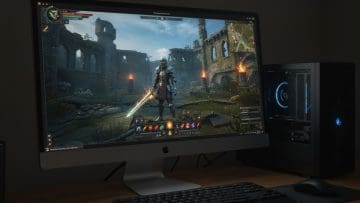
While Apple has made strides to make its Macs more gamer-friendly in recent years, they are still far from being the first choice to play games on. That said, you might be looking to play an old or new game from Windows on your Mac device. If that’s the case, you’re in luck, because this article covers how to do just that.
There are many ways that you can enjoy Windows games on your machine. It’s just a matter of finding which approach works best for you. If you feel your Mac is up to the challenge of running a game, then check out your options below:
Find a Mac-Compatible Version
With Apple’s shift towards catering to gamers with their “M” range of processors, Macs are more capable than ever of tackling games. Many Windows releases have Mac versions. If you’re a Steam user, the client will automatically download the Mac version of games you’ve purchased. You can also check the developer or title websites to check compatibility.
Virtual Machine
Virtual machines are a great way to run games that may no longer be compatible with newer operating systems. But did you know that they can work on a Mac to run Windows games? To take advantage of this, you’ll need to download third-party tools to make this happen. Here are some of the industry leaders for Mac:
Parallels – Easily the biggest name in Mac VM software. This paid tool allows you to run a Windows OS on your Mac and is compatible with many major gaming titles. It’s easy to set up and use, though it can’t run games over DirectX12.
Crossover – This tool allows you to run games rather than Windows itself, translating titles to macOS. This type of software is called a compatibility layer. It offers better performance than Parallels, but comes with less compatibility.
VMWare Fusion – This tool is free for personal use and runs Windows. The downside comes in the form of less powerful performance.
UTM – This tool is both free and open-source, but again has performance issues and a steep learning curve for new users, requiring some advanced setup.
If you’re looking to play older titles, why not try an emulator? DOSBox is a great example of an emulator that can run retro titles with ease.
Intel Boot Camp
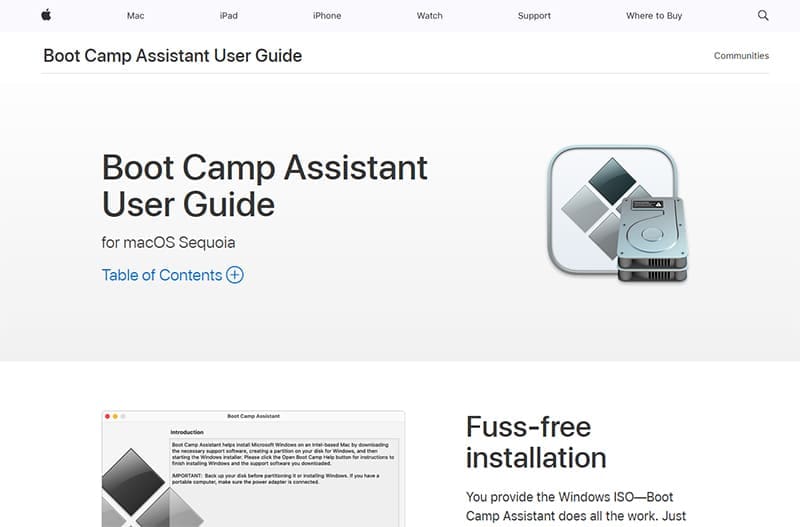
If you own a Mac that uses an Intel processor (not M1, M2, or M3), then you can create a partition on your machine and install Windows directly via Intel Boot Camp. This handy tool can be found under “Utilities” and will guide you through the partition process. This way, you can enjoy both operating systems on one machine, though you will need to reboot to change between them.
Cloud Gaming Service
If you’ve got a super-fast internet connection, then you can harness the power of the cloud and remote services to play Windows games. By subscribing to one of these streaming services, you can have access to a whole range of titles that require no installation of the game itself or Windows. The fact that it requires an account means that your gaming doesn’t have to be restricted to one Mac or even the Apple ecosystem.
Big names in the game streaming service sector include GeForce Now, Amazon Luna, and Xbox Cloud Gaming. To sweeten the deal, these platforms often offer some titles for free.
As an avid gamer, I’ve run into my fair share of error codes and weird faults that have forced me to find fixes to problems I never anticipated. That gave me a passion for sharing those fixes with others so we can all game without feeling like our hardware is rebelling against us.












Write a Comment