The Apple ecosystem rarely plays well with others, and when it does, it might do so with some hiccups. While sharing files and copying clipboard data between iPads, MacBooks, and iPhones is a cinch, the same can’t be said for working with your Windows PC.
Thanks to some dedicated third-party developers, however, it’s still possible to send data between your two machines and their different operating systems. This article will teach you more about how to set up cross-platform syncing.
Right off the bat, we must say that there’s no foolproof way, on Windows or Mac, to transfer clipboard data or sync it between the devices. There are some existing methods, but all with caveats:
Universal Clipboard – Apple’s technology allows for seamless transfer of clipboard data across Apple devices, provided they share a Bluetooth or Wi-Fi signal. Unfortunately, it doesn’t include devices outside that ecosystem.
Phone Link – This Windows app allows for limited connectivity between an iPhone and a Windows PC, including receiving calls and messages. Unfortunately, it’s for phones only.
iCloud and OneDrive – These two cloud storage servers can be accessed via a browser on either machine, and can help with file transfer, but not with clipboard data.
Remote Desktop Access – Windows’ built-in Desktop app can access your Mac, but requires the machine to be on a shared network.
Set Up Cross-Platform Syncing With Third-Party Apps
As with most connectivity shortfalls between Windows and macOS, it’s third-party developers that come to the rescue. Several app options will allow you to seamlessly send copied text, images, and videos from one device to another. Let’s cover some of the major ones and what they offer below:
Alt + C
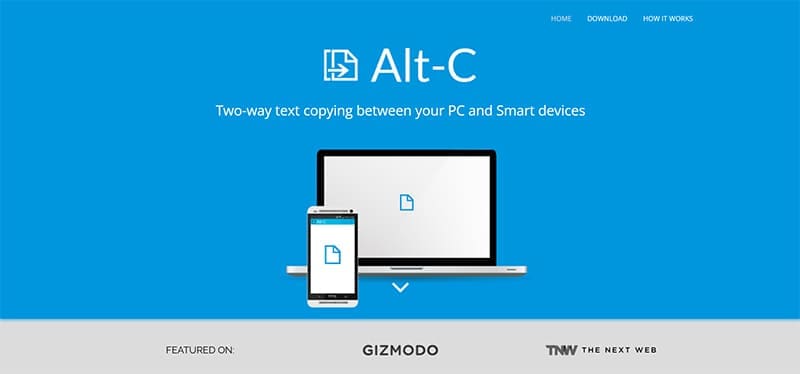
The great thing about many apps is that they’re free to download and use. Alt + C is one such example. While it doesn’t allow for direct transfer between two PCs, it does allow for PC and smart device connection. It’s completely possible to copy data from an iPhone or iPad to your Windows PC, provided the Alt + C app is installed on both.
All you need is the app and a steady network connection on both devices for seamless clipboard syncing.
KDE Connect
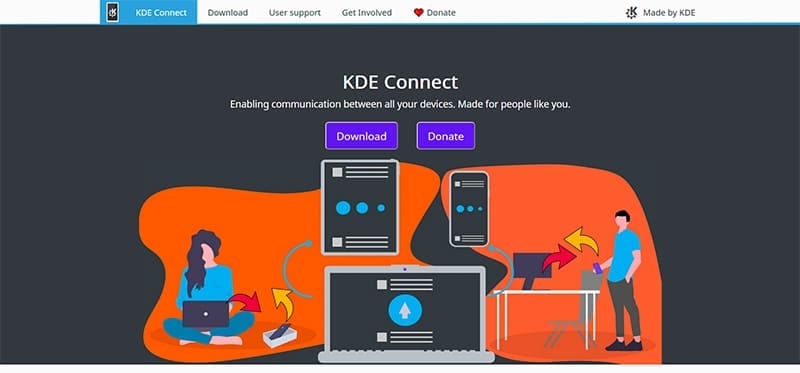
KDE Connect got its start as a Linux app, but was eventually ported to macOS too. With this handy app, not only can you send clipboard data effortlessly, but also send other files and links. You can even remotely control music playlists.
The app can be downloaded to both PCs and smart devices for free (but they do take donations). You can then share files via Bluetooth, Wi-Fi, and over the internet.
Pushbullet
Pushbullet is an app that allows Windows and macOS machines to send clipboard data directly to each other. From the Windows side, it can do this via an app or browser extension, while your Mac will need the app. Pushbullet also has a free tier, which allows for some basic copying.
Unfortunately, this free version doesn’t let users take advantage of the universal copy-and-paste features, requiring them instead to manually save and enter text and images into the app.
Synergy
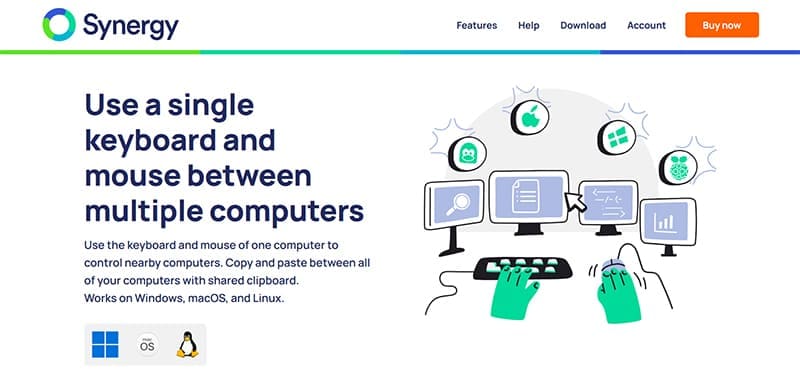
Synergy’s biggest selling point is allowing users to share mouse and keyboard controls across multiple machines and operating systems. Its second big selling point is that you can do the same with your clipboard. TSL/SSL encryption allows for the safe transfer of data across a shared network, provided they’re connected.
That said, Synergy has no free tier, and its expertise comes with a price. Plans start at $29.00.
As an avid gamer, I’ve run into my fair share of error codes and weird faults that have forced me to find fixes to problems I never anticipated. That gave me a passion for sharing those fixes with others so we can all game without feeling like our hardware is rebelling against us.













Write a Comment