AirPods are fantastic for being able to wirelessly connect with any device within the Apple ecosystem, but they can also frustrate you for the same reason. If you’re finding that your AirPods keep switching between devices when you don’t want them to, don’t worry, it’s an easy fix.
Apple products are made to be user-friendly. You can pair them with multiple devices via Bluetooth and readily switch devices when needed. However, as is often the case with items of convenience, they can also become inconvenient when you least expect.
Take media playing, for example. Much like a Bluetooth speaker, your AirPods will detect when a connected device starts playing media and switch over to it. This might be alright for you, but not so much if a family member is watching YouTube on your iPad while you’re working on your Mac.
AirPods Keep Switching Between Devices – What to Do?
If your AirPods are switching between devices frequently, but you’re not switching them intentionally, stopping the jump is a straightforward process. It all has to do with Automatic Switching, a setting that can be easily enabled and disabled on any Apple device running iOS or macOS. We’ll show you how to disable it on both.
Mac Desktops and MacBooks
Disabling automatic switching on devices running macOS is straightforward. Here’s what to do:
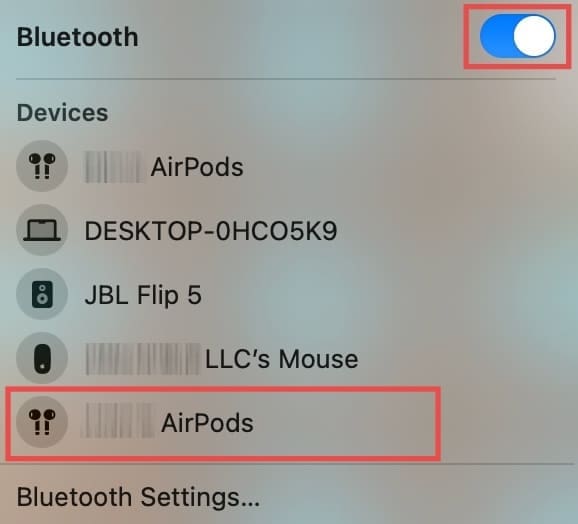
Step 1. Connect your AirPods to your Mac. If you need to do this manually, click the “Bluetooth” icon in the Menu Bar at the top of the screen.
Step 2. Select your AirPods from the dropdown menu.
Step 3. Once connected, head to “System Settings.”
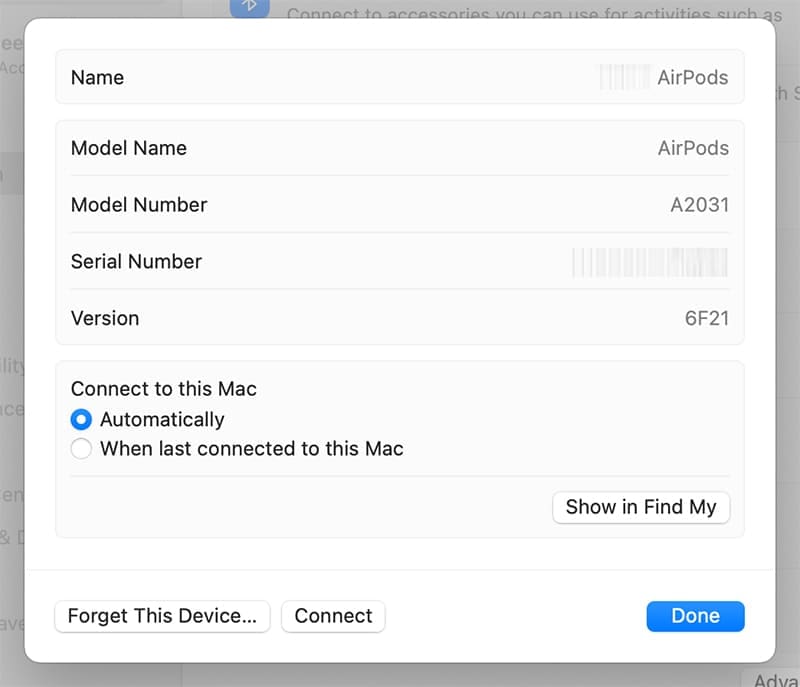
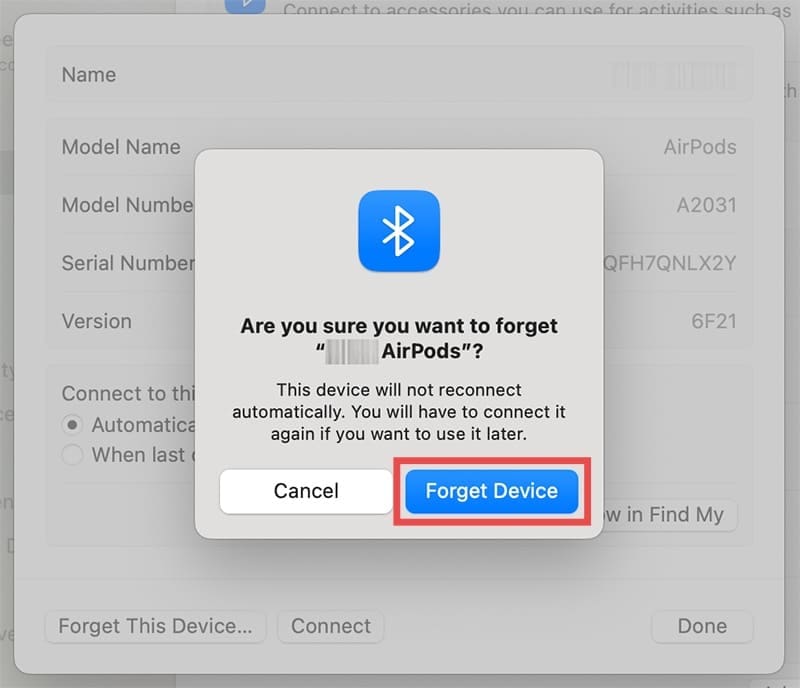
Step 4. In the sidebar, click on “Bluetooth” and locate your AirPods. Click on it and you will see their model name, model number, and serial number.
Step 5. In the AirPods menu, scroll to the “Connect” subsection and select “When last connected to this Mac.”
Your AirPods should no longer switch out freely.
iOS Devices
If you’re a frequent user of iPads and iPhones and don’t want the switch while quickly checking out a short video, you can also disable Automatic Switching through Settings. Here’s what to do:
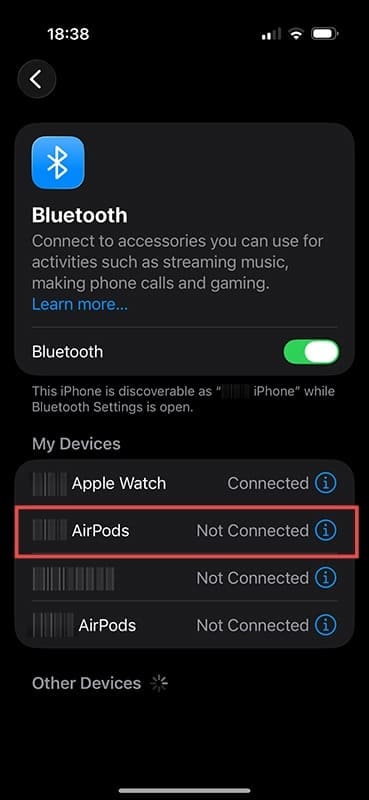
Step 1. Go to Settings, and select your AirPods icon. This should be directly below your Apple ID. If it doesn’t appear, click “Bluetooth” and select your AirPods from the list, pressing the Information Icon next to it.
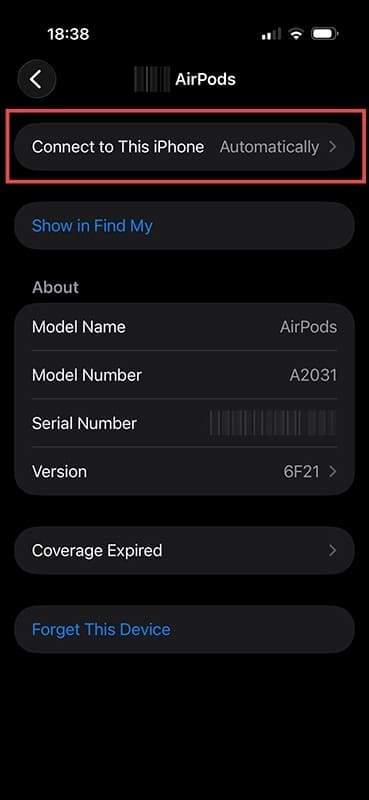
Step 2. In the AirPods Settings, scroll down to “Connect to This Phone” and tap it.
Step 3. Select “When Last Connected to this iPhone [iPad].”
Your AirPods should now stay fixed without switching.
Disable Bluetooth
Another quick tip for keeping other Apple devices from connecting to your AirPods is to disable Bluetooth on your devices. This isn’t the best solution and can disable features like Airdrop and wireless keyboards and mice, but it is easy enough to do without needing to browse through Settings.
Forget Other Devices
If you want to take more drastic steps, you can have an Apple device forget the AirPods. Simply click the Bluetooth option, tap the Information Icon next to the AirPods, and select “Forget This Device.”
This isn’t the best solution for your ecosystem, but it can work for friends’ devices that have been paired with one of your devices in the past.
As an avid gamer, I’ve run into my fair share of error codes and weird faults that have forced me to find fixes to problems I never anticipated. That gave me a passion for sharing those fixes with others so we can all game without feeling like our hardware is rebelling against us.













Write a Comment