The Apple Watch has an impressive number of features, and one useful feature is the Family Setup functionality. This feature allows you to track other members of your family and control their tech use. Below we’ll go into this feature, how it works and how to set it up.
What is Family Setup on the Apple Watch?
The Family Setup feature is a GPS tracker. It’s especially useful if you need to know where your kids are. However, adults sometimes use it to know where someone is while running late or even just to make sure people are staying safe.
The Family Setup, however, is geared more for children. The feature allows guardians to set up an Apple Watch just for their kids. The Family Setup feature allows you to designate which apps and services a child is allowed to use and even who they can send messages to, in addition to the GPS tracking feature.
The feature also allows you to see where your kids are at any given time using the Find My app. You can see where your kid is on a map, get notifications when they leave a certain place or arrive somewhere and even get an alert if your child does not arrive at a certain place at a certain time.
There is also the Apple Cash Family feature that allows you to send money to kids via Apple Pay. You can also see the child’s purchases in the Wallet on your iPhone.
A main perk of the feature is that you can also have your kid use the Apple Watch, without giving them a full phone if you are not ready for them to use one yet.
How Do You Set Up Family Setup for the Apple Watch?
According to Apple’s support page, you’ll need some specific technical specifications enabled. These include:
Apple Watch Series 4 or later with cellular, and Apple Watch SE with cellular enabled that has watchOS 7 or later
An iPhone 6s or later and an iOS 14 or later
An Apple ID set up for yourself and one Apple ID account for your family member who will be using the watch, with two-factor authentication
Family Sharing including the person using the watch, with you as the organizer or parent/guardian
To set up the watch:
Put the watch on and then press and hold the side button. The Apple logo will appear.
If you hold the Apple Watch close to the iPhone, a pop-up should appear on the iPhone that prompts you to set up the Apple Watch.
If you don’t see the prompt, go to the Watch app on your phone, tap All Watches and then select Pair New Watch.
Tap Set Up for a Family Member and select Continue.
At this point, you should see a prompt that reads Position Apple Watch in the Frame. Hold the phone so that the image on the watch matches the watch frame on the iPhone.
Agree to the Terms and Conditions.
Set the passcode that you want.
Now a screen should tell you how to Choose a Family Member. You can either select a family member or tap Add New Family Member. You will get a prompt to enter that family member’s Apple ID password.
You may turn on Ask to Buy to require approval for any purchases or downloads using the watch.
You will have to set up cellular if your plan supports Family Setup. A screen will appear to help you.
You can also select whether to share your current Wi-Fi network with the watch.
Now you can customize which features you want to enable on the watch. These features include Location Services using the Find My app, Messages in iCloud, Apple Cash Family, Health Data, Activity and Workout Routine tracking, etc.
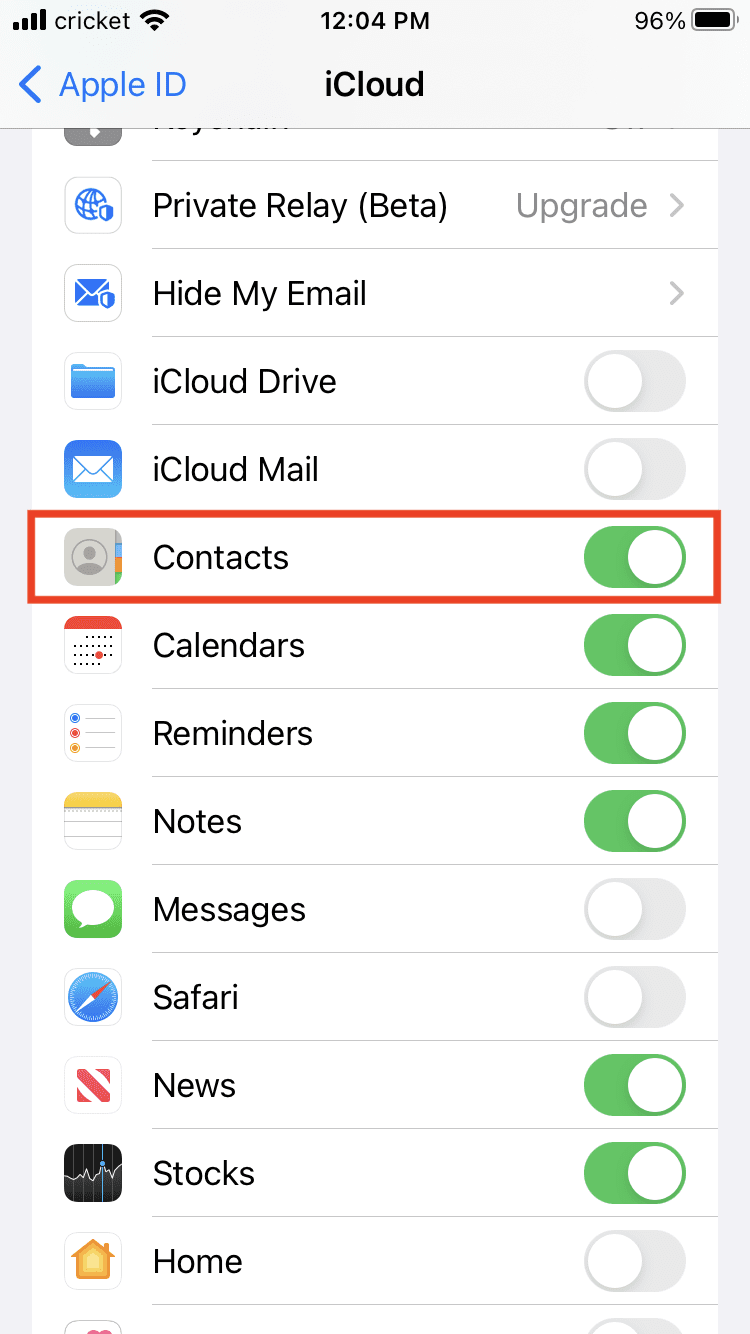
Next, you can determine which contacts will be allowed using the Apple Watch. You need to have Contacts in iCloud turned on. To do this, go to Settings (the cogwheel on the main screen), tap your name, select iCloud and make sure Contacts is turned on (the toggle should be green):
You can manage these contacts and set up restrictions using Screen Time on the iPhone.
Now you’ll set up a Screen Time passcode for the watch and turn on Schooltime, which limits the features during school hours. Later, using the Activity app can help you set move and exercise goals.
Hit ok to begin using the watch.
To change goals and settings and view some reports, you can use the Watch app on the iPhone. For instance, you can follow the prompts to manage features like Schooltime. To see school time reports, for instance, go into the Watch app, tap All Watches, select the Apple Watch for the family member you want to check on and tap Schooltime. The report will show on the screen.
You would also go into the Find My app to track the family member using the watch.
Thanks for the article! For my apple watch family setup I am planning to integrate Better roaming esims for myself, and my parents. Are they good or is there anything better?











Thanks for the article! For my apple watch family setup I am planning to integrate Better roaming esims for myself, and my parents. Are they good or is there anything better?