• Skip to primary navigation
  • Skip to main content
  • Skip to primary sidebar
  • Skip to footer

AppleToolBox

Tools and Fixes for Mac, iPad, iPhone & iWatch

Search posts

  • About
  • Contact

CONNECT WITH US

CATEGORIES

  • iPhone
  • iPad
  • iPod
  • Apple Watch
  • Mac/MacBook
  • AirPods
  • Apple TV
  • News
  • Apple Services
  • HomePod
  • Reviews

SITE

  • Home
  • About Us
  • Contact
  • Advertise

Search posts

You are here: Home / iPhone / How to Use Google Lens on iPhone Without App

How to Use Google Lens on iPhone Without App

By Louis Roundtree 0 comments Last updated January 7, 2026

Things to Know
  • You don’t need to Google Lens app to use this tool on iPhone.
  • It’s possible to access Google Lens via the Google app.
  • Alternatively, you can use the Chrome or Google Photos apps.

Google Lens is a helpful tool for analyzing images, identifying elements, translating text, and so on, but the Google Lens app isn’t currently available for iPhones. Fortunately, that doesn’t mean you can’t use Google Lens on an iOS device, as there are several workarounds available. Here’s how to use Google Lens on iPhone without app access.

Contents

  • How to Use Google Lens on iPhone Without App Access – Method 1. The Google App
  • Method 2. Chrome Browser
  • Method 3. Google Photos
  • What Can You Do With Google Lens on iPhone?

How to Use Google Lens on iPhone Without App Access – Method 1. The Google App

One of the simplest ways to access Google Lens on an iPhone is via the Google app, which many people will already have installed on their devices.

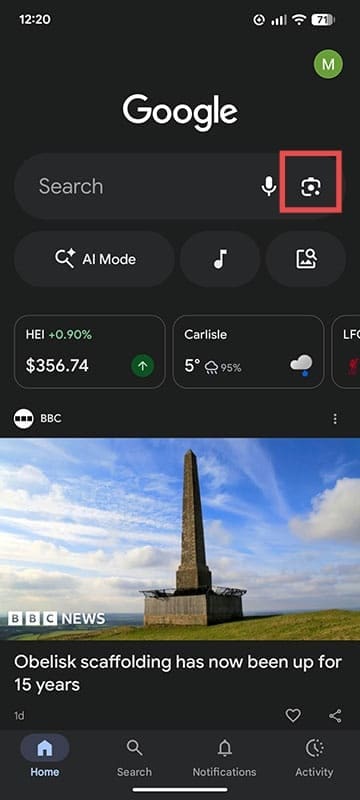
Step 1. Open the Google app and tap the “Google Lens” icon, which looks like a camera lens. You can find the icon on the right side of the Google search bar, next to the microphone icon.

How to Use Google Lens on iPhone Without App 1

Step 2. Lens should then open, at which point you can either select an image from your device gallery to analyze or tap the “Open Camera” button to open your camera in Lens and analyze something in real-time.

Method 2. Chrome Browser

Another app you might already have on your device which will grant you access to Google Lens is Google Chrome. Here’s how to use it:

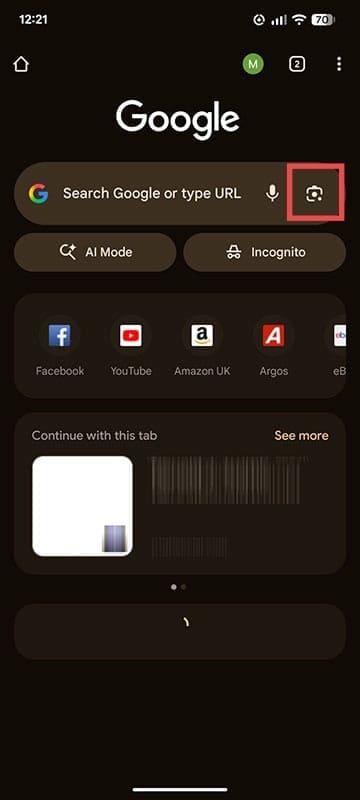
Step 1. Open the Chrome app and tap on the “Google Lens” button, represented by a camera lens icon on the right side of the search bar.

How to Use Google Lens on iPhone Without App 2

Step 2. Google Lens will automatically open your camera, which you can point at anything around you to analyze with the idea of Google AI.

Method 3. Google Photos

You can also access Lens via the Google Photos app, which is a helpful app for viewing and editing photos you’ve taken or stored on your iPhone.

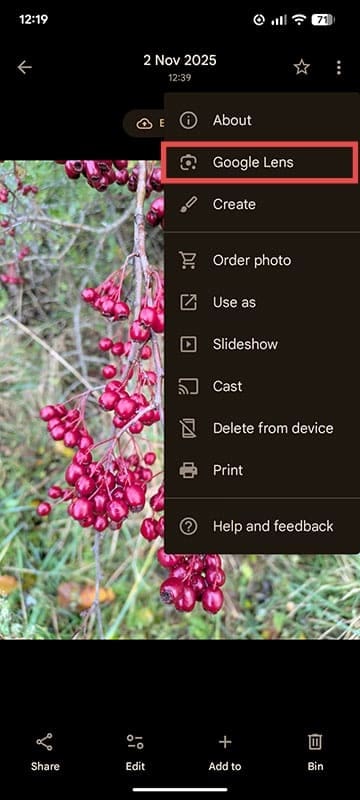
Step 1. Open Google Photos and choose an image you want to analyze with Lens.

How to Use Google Lens on iPhone Without App 3

Step 2. Tap the three dots icon in the top-right corner, then select “Google Lens.”

How to Use Google Lens on iPhone Without App 4

Step 3. Google Lens should then open, allowing you to analyze the image, identify people or objects, etc.

What Can You Do With Google Lens on iPhone?

Google Lens on iPhone and other platforms allows you to analyze and learn from either photos on your device or the world around you, with the aid of your camera. Core functions include:

  • Identify: Identify items, people, and places with the help of Google’s AI search tools.
  • Translate: Translate signs or pieces of text in various languages into English.
  • Shopping: Find items for sale with various retailers around the world.
  • Research: Get step-by-step breakdowns of complex topics or solutions to problems.
  • Copy: Copy text from books, leaflets, posters, etc. to paste into other apps or messages.

In short, Lens lets you learn and do more with both your camera and images you’ve taken, been sent, or downloaded on your iOS device.

Related Posts:

  • iPhone 15 event - iPhone 15 Pro and iPhone 15 Pro Max A17 Pro Video Recording Promo
    iPhone 14 vs. iPhone 15: Should You Upgrade?
  • iPhone 15 Pro Max - 4
    Best iPhone Lock Screen Widgets for iOS 17
  • 2023 Mac Studio lifestyle - 1
    macOS Could Not Be Installed, How-To Fix
  • photo of an iphone with ios 16 downloaded on it
    iOS 16 Tips and Tricks: The Definitive List
  • pexels-tima-miroshnichenko-6860464
    How To Start Using Regex With The Shortcuts App
  • pexels-designecologist-1779487
    The Best iPhone And Mac Shortcuts For Beginners
  • pexels-cottonbro-5082579
    Getting Started With iOS 15: Everything Good And Bad
  • iphone and airpods on a table
    These Apps Have the Best iOS 17 Widgets
  • 0E4A6A0B-65E8-4184-B0C9-16C2179A1256
    The Best Weight Loss Apps For iPhone In 2021
Louis Roundtree
Louis Roundtree

As an avid gamer, I’ve run into my fair share of error codes and weird faults that have forced me to find fixes to problems I never anticipated. That gave me a passion for sharing those fixes with others so we can all game without feeling like our hardware is rebelling against us.
Reader Interactions

Write a Comment Cancel reply

Primary Sidebar

Recent Posts

  • How to Manage Your iPhone Call Log
  • Are Apple’s Safety Precautions Enough for AirTags?
  • How to Hide Username and Photo on the Mac Lock Screen
  • Microsoft Resume vs. Apple Handoff – Which Wins for Cross-Device Work?
  • How to Export iTunes Library to New Computer
  • What the Gemini Desktop App Will Bring to Mac

Connect with us

Footer

ABOUT

  • About Us
  • Contact us
  • Advertise
  • Privacy
  • Terms of Use

GUIDES

  • iOS & iPadOS
  • Apple ID
  • iCloud
  • App Store
  • iTunes
  • FaceTime
  • iMessage
  • Siri
  • Books and iBooks
  • Game Center
  • AirPlay

CONNECT

  • Facebook
  • Twitter
  • FeedBurner
  • YouTube

© Copyright 2010-2024 Guiding Tech Media · All Rights Reserved

This site and its content are in no way affiliated or endorsed by Apple, Inc. · Reproduction without explicit permission is prohibited

Last Updated on January 13, 2026 by Louis Roundtree