If you have various appliances in your house, you will likely find the Home app useful for managing them from your iPhone. And in iOS 16, Apple has made huge updates to its app – making things even easier for you to manage.
After you download iOS 16, you will notice that the Home app looks and feels different. Knowing how to use it can feel overwhelming at first, but don’t worry – we’re here to help.
Keep reading to find out how to use the Home app in iOS 16.
Before we show you how to use the Home app in iOS 16, we should look at what’s new.
The most important update relates to the app’s usability. Apple will give you more control when controlling connected devices – and you will find it easier to organize and find them all.
Tying in with the above, another benefit is that you will see everything you need by selecting the Home tab in the bottom left-hand corner. For the things that you control more often with your iPhone, performing the actions you want will become much simpler.
With the Home app, you will also notice a new tile design – which you might have been familiar with if you already used Shortcuts frequently. On top of that, the app has several categories for you to find what you need more easily.
When using the Home app in iOS 16, you will also see a full-house view – plus lock screen widgets. On top of that, you can see cameras in up to four rooms simultaneously.
In the Home app, you will also find a selection of new wallpapers to choose from. Moreover, you can alter tile sizes so they consume more or less space on your screen.
Which New iOS 16 Updates Are Coming to the Home App Later?
While you will receive several new updates upon downloading iOS 16, the Home App also has a couple of things to look forward to later.
In due course, Apple will improve its app functionalities to ensure you can achieve your desired objectives quicker. The main aim is to make everything more seamless if you have more devices connected to your iPhone.
Apple will work to ensure that multiple devices work better together in two ways. The first is by improving its app architecture, and the second is Matter – a function that will enable you to pick a wider selection of devices for pairing.
Which Devices Can You Connect Your iPhone to Via the Home App in iOS 16?
When using the Home app in iOS 16, you can connect several devices to your iPhone. You can pick from several cameras, including outdoor cameras and ones that work in various rooms throughout the house.
In addition to security cameras, you can also connect thermostats to manage the temperature in your house. Moreover, you can add smart locks and use mesh Wi-Fi routers via the Home app.
Other devices you can connect to your iPhone via the Home app in iOS 16 include:
Lights and bulbs
Switches
Sensors
Note that smart home devices compatible with the Home app might not work with your particular iPhone. If you shop online, you can filter to ensure you get something that does.
How Do I Restore My Home App on iPhone?
If you want to use the Home app on iOS 16, but you previously deleted it, you can easily re-download it from the App Store. Open the App Store and search for Home; you’ll see it appear close to the top of your search results.
How to Use the Home App’s New iOS 16 Additions
Okay, so you’ve got a good level of background knowledge about what you can use the Home app for. With that all out the way, let’s look at how you can use the Home app’s new features in iOS 16.
Adding Lock Screen Widgets
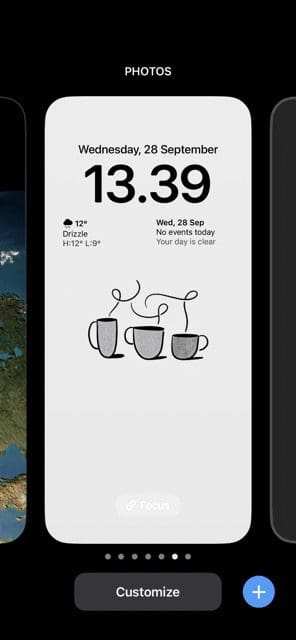
If you want to add lock screen widgets from the Home app in iOS 16, the process is pretty straightforward. First, you’ll need to tilt your phone forward or tap the switch button to wake your device up. After that, follow the instructions listed below.
When you can see your lock screen, tap and hold on to it. When it minimizes, select the Customize option.
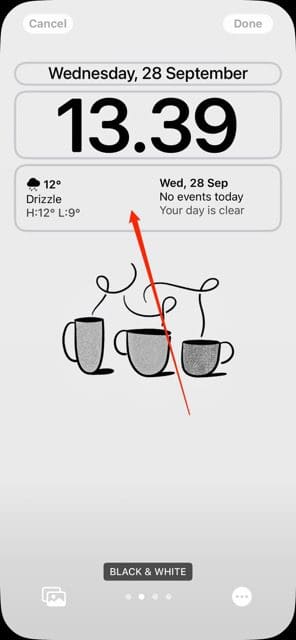
Select the widgets bar, which is underneath the time on your iPhone.
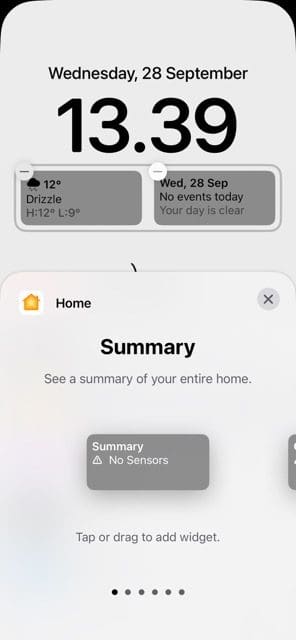
In the Add Widgets section, scroll down until you see Home.
Click on Home and scroll through until you see the widget you want to add to your lock screen. You can either select it or drag it into the box. If you already have two widgets, you’ll need to remove one.
Reordering Your Home App’s Sections
Sometimes, you might want to change how your app looks to ensure that it’s more user-friendly for you. And when using the Home app in iOS 16, you can do precisely that without struggling too much. To do so, follow the instructions below.
Click on the horizontal three dots icon in the Home tab’s top right.
Select Reorder Sections when the dropdown menu appears.
Drag and drop each category in the order you’d like to see them. Once you’ve sorted everything as you feel is necessary, hit Done in the top right.
Using the Tiles
The new tile view is convenient, but you might not want to see each section in the exact way it’s presented to begin with. If you want to change things up, the process is fairly simple. The instructions below will help you achieve the desired result.
Tap and hold on to one of the tiles on the Home tab.
When the dropdown menu appears, pick Edit Home View.
When the tiles start shaking, change the direction by dragging them – just like you would on your iPhone’s home screen.
Hit Done when you’ve finished moving your tiles around.
Finding the New Home App Categories
If you want to see the different categories in the Home app on iOS 16, all you need to do is go to the top of your screen on the Home tab. There, you will see your house’s climate, security, lights, and so on.
When selecting any of the categories, you will have the ability to control your devices from there. On top of that, you will also see an overview of their current status.
Managing Your Home Appliances Is Easier With iOS 16
After you upgrade to iOS 16, you will notice several changes to the Home app. Apple has made significant improvements to assist with usability, allowing you to perform actions you need with greater ease. You will find a wide range of tools to help you customize the interface, too.
While you will already find a huge range of new changes to the Home app on iOS 16, even more are just around the corner. Keep an eye out for those; you should find managing multiple appliances much easier once Apple releases them.
Danny has been a professional writer since graduating from university in 2016, but he’s been writing online for over a decade. He has been intrigued by Apple products ever since getting an iPod Shuffle in 2008 and particularly enjoys writing about iPhones and iPads. Danny prides himself on making complex topics easy to understand. In his spare time, he’s a keen photographer.










Write a Comment