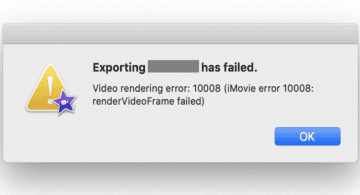
When you try to export your project into a 1080p video file, iMovie error code 10008 may sometimes pop up on the screen. If you try to export the video again, chances are you’ll keep encountering the same error code. Let’s discuss what could be causing this issue and how you can fix it.
Update iMovie and your operating system to the latest version. Launch the App Store, and check if there’s an Update button next to iMovie. Click on it to install the latest app version.
If you’re using the app on macOS, click on the Apple menu, and go to System Preferences. Then click on System Update and check for updates. On iOS, go to Settings, select General, and tap Software Update.
Use a Different Resolution
Change the video resolution, and reduce it to 720p. Check if you can export the problematic video now. Launch the iMovie app, and click on Settings in the upper right-hand corner of your timeline. Go to project settings, and check your project resolution. Check if sharing the project at a lower resolution solves the problem.
Remove Corrupted Frames
iMovie error 10008 may also indicate you have corrupted frames in your video. To identify the problematic frames, scroll through your project and look for any unusual issues. These may include black frames, white flashes, small circles, and other signs of corruption. Simply cut out the problematic frames, and check if you can share your video now.
Finding the corrupted frames may take a while, depending on the length of the video. You can narrow down the search by duplicating the project. Then simply delete half of it and check if you can share out the other half. Or you can navigate to the point where the movie stops rendering, and remove some frames before and after.
Copy-Paste the Video Content Into a New Project
The quickest way to fix a project-related error 10008 is to copy and paste the video into a new project. Simply create a duplicate of the project and try to export it. Click on Edit, and then click on Select All. Go back to Edit, and select Copy. Open a new project and paste the copied media.
Reposition the Titles and Use the Same Video Format
Keep in mind that mixed formats and positions of titles can also trigger this error.
Reposition your titles. Some users suggested that changing the fonts in the titles may help as well – in case the font is corrupted.
Make sure there are no mixed formats among your clips. Convert your clips to MP4 or MOV and check if the error is gone.
Conclusion
To fix iMovie error code 10008, install the latest iMovie app version and update your OS. Additionally, reduce the resolution to 720p, and remove corrupted frames. If the problem persists, copy-paste the video content into a new project. Convert your video to a different format, and check if this method solved the problem.
Did you find other ways to fix iMovie error 10008? Share your ideas in the comments below.
Madalina has been a Windows fan ever since she got her hands on her first Windows XP computer. She is interested in all things technology, especially emerging technologies — AI and DNA computing in particular.












Write a Comment