Consumer privacy is one of the most important topics of the 21st century after hundreds of leaks and reports showcasing how much companies and governments are tracking us. Most casual smartphone users may not be aware of just how much information they’re giving up when using their devices. While Apple has made major attempts to shore up its privacy policies, there’s still a lot you can do to ensure you stay as safe as possible when using your phone. Read on to find out some iOS 16 tips to keep your iPhone safe.
Check out some of these best iOS 16 tips to keep your iPhone safe so you can feel secure on your device:
Safety Check
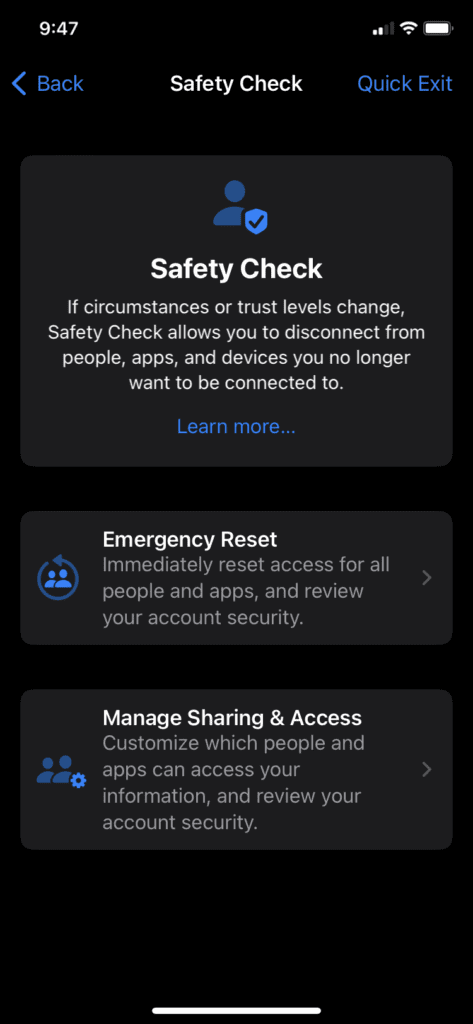
iOS 16’s new feature, Safety Check, allows you to review numerous aspects of your iPhone’s privacy. If you suspect that your privacy has been compromised, you can perform a quick check to see which applications can access your data, along with change other information, such as your passwords. In the Safety Check screen you can also perform an Emergency Reset. This reset allows you to strip all applications of their access to your iPhone and do a complete review of your phone’s security. To access Safety Check, head over to your Settings app > Privacy & Security > Safety Check.
Enable Two-Factor Authentication
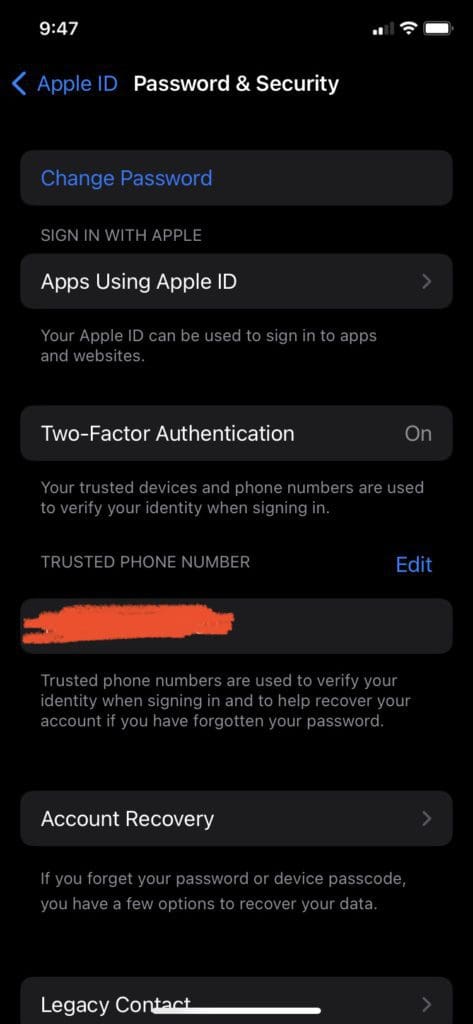
Two-Factor Authentication is one of the most basic features you can implement to instantly boost your digital security. iOS 16 itself doesn’t have any two-factor authentication to secure your hardware, instead, it allows you to turn two-factor on for your Apple ID. To do this, open the Settings app, tap on your Apple ID profile at the top, tap Password & Security, then enable Two-Factor Authentication. This way, whenever you log in to your Apple ID on different devices, for example logging in to Apple Music on your computer, you’ll need to verify it with two-factor authentication on your phone. Two-factor authentication is account-specific, meaning that you have to enable it for each online account you have, such as your bank app. A good rule of thumb is to enable it on your important accounts.
Hard Lock
Hard lock is an emergency feature on iOS 16 to keep your your iPhone safe when you’re in dangerous situations. If you have Face or Touch ID enabled, you may be put into a situation where someone can force you to open your phone by showing it your face or using your fingertips. To combat this hypothetical situation, Apple have created Hard Lock mode. If you hold down your power button and volume button (as if you were going to turn off your device), you’ll have to re-enter your passcode manually to unlock the device. This is one of those features that you’ll be glad you have if the moment ever comes.
Disable Ad Tracking
Third party applications and services frequently hide the information they’re tracking deep in the terms and conditions. They use this information to create a profile on you so that they can sell the data to advertisers looking to personalize ads to create more effective campaigns. Apple only recently introduced the disable ad tracking feature so that you have a bit more control over what data those services can access. To disable ad tracking, navigate to Privacy & Security in your Settings app, then Tracking, and toggle Allow Apps to Request to Track.
Auto-Delete iMessages
Deleting your iMessage history not only erases any trace of them, but also clears up potentially a lot of storage space. Unless you’re going through your old messages, there’s little reason to keep them around. To auto-delete your messages after a certain amount of time, head over to the Settings app > Messages > scroll down to Keep Messages > choose how long to wait before they get auto-deleted.
Enable Find My iPhone
Find My iPhone is an extremely useful tool for those who are worried about losing their iPhones. While this isn’t a new feature, it’s an iOS 16 tip to keep your iPhone safe for more casual users. If you do happen to lose your device, you can use another trusted iOS device to completely erase all content or track it via geolocation. To enable this feature, open your Settings app > Tap on your Apple ID profile > Find My > and toggle the setting on.
Change Safari Search Engines
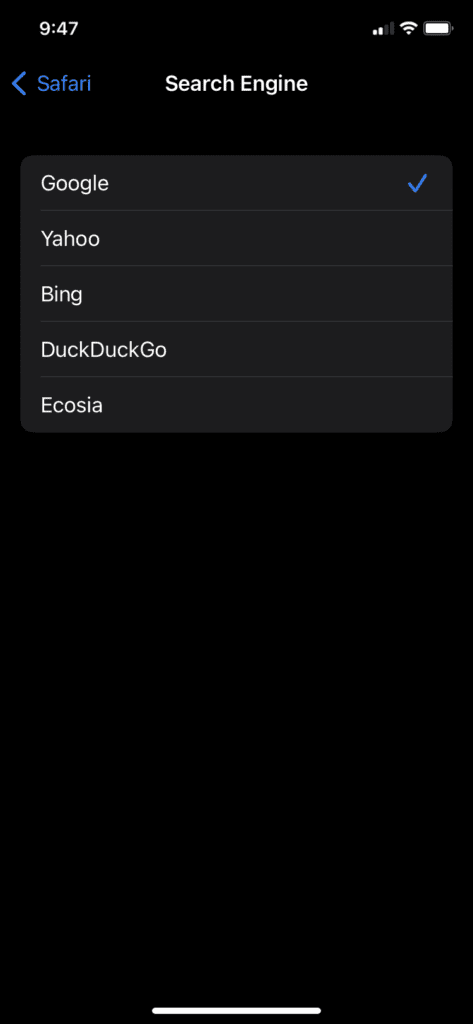
Our last iOS 16 tip to keep your iPhone safe is to change the default Safari search engine. Most iPhones have Google as the default, but the company doesn’t have the best track record in terms of user privacy and data protection. If you want to bolster your iOS device’s safety, you may want to change your search engine to something like DuckDuckGo. Alternatively, you could use Ecosia if you want to help with its environmental causes. To change default search engines, open the Settings app > navigate to Safari > Search Engine > and choose what you prefer.










Write a Comment