Can a new phone software update make you late for work? That’s the concern among some iPhone users, who have found that since the iOS 26 update, their alarms are suddenly not working as expected.
Problems include the alarm sound playing through headphones or AirPods rather than the phone speaker, or the iPhone alarm not ringing or making any noise at all. Thankfully, there are several ways to fix the iOS 26 alarm not working issue. Work through the steps below if you find your iPhone alarm not ringing.
iOS 26 Alarm Not Working: Five Fixes to Try
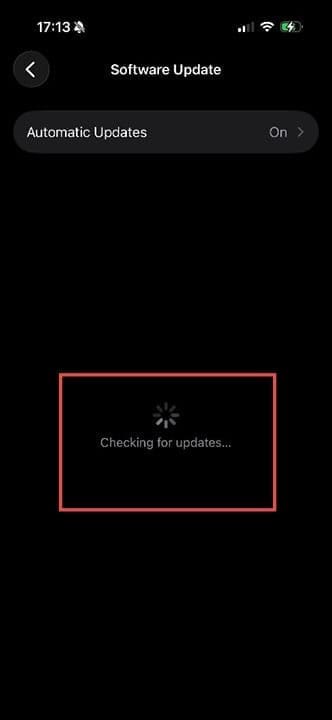
Fix 1. Check if there is another software update. Patches are released frequently that address bugs like the iOS 26 alarm not working. Head to Settings > General > Software Update and allow the phone to check for updates. This may take a few minutes, during which you’ll see the spinning color wheel.
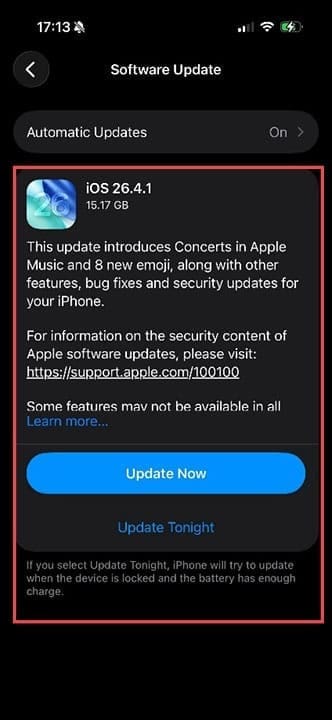
If there is an update to install, follow the onscreen instructions, and prepare for the process to take a few minutes. Once done, restart your phone and test the alarm.
Fix 2. Turn the volume up. Many users have noted that the alarm is “ringing” silently, even when the volume is up slightly. Turn your iPhone’s ringer volume up before you settle down for the night, and your alarm should be loud in the morning. When you press the volume up button on the left-hand side of your device, you should see an indicator appear on the left side of the screen. You can use your finger to adjust this to the exact volume you want.
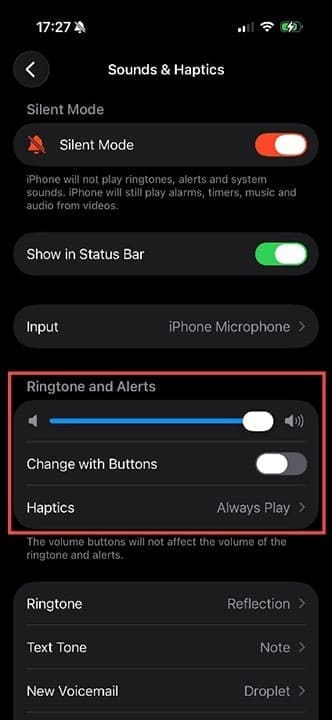
You can also check the volume by heading to Settings > Sounds & Haptics. Even if you’re in silent mode, alarms should still play. Check that the Ringtones and Alerts volume is turned up, and you can choose to disable the function to change this volume with the buttons. This stops you from accidentally turning the alarm volume down while adjusting other volume settings.
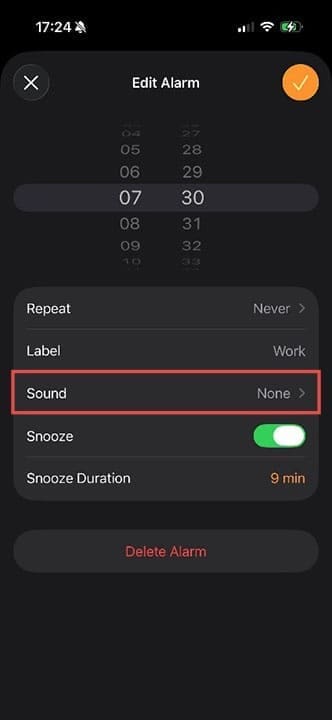
Fix 3. Check the sound setting for your alarm. Another problem noted by iOS26 users is that the alarm sound has changed to “none.”
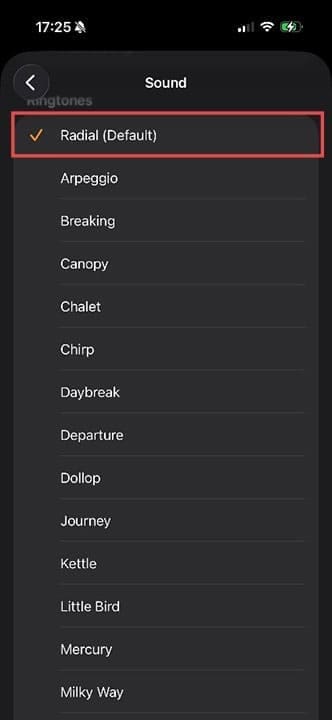
To change this, head to Clock > Alarms and click on the alarm you want to edit. Tap on Sound and choose the alarm noise guaranteed to wake you up in the morning.
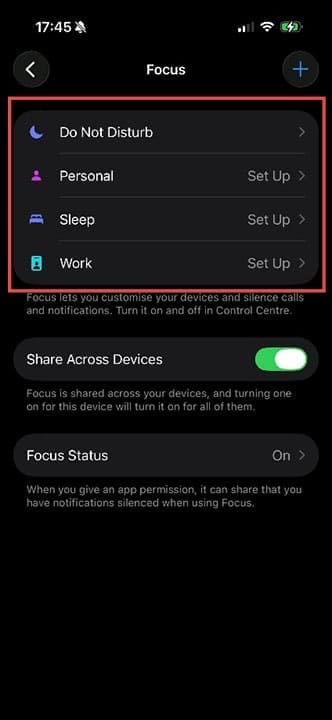
Fix 4. Check your Focus settings. Focus is the new home for Do Not Disturb, and if you have it activated, it will prevent your alarm from going off (if you’re using a third-party alarm app). Go to Settings > Focus and check any profiles you have set up here.
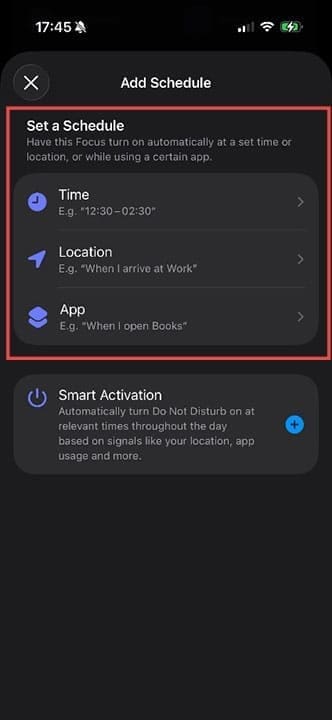
If your Focus profiles have a schedule that includes your wake-up time, change them accordingly or add and activate a different schedule.
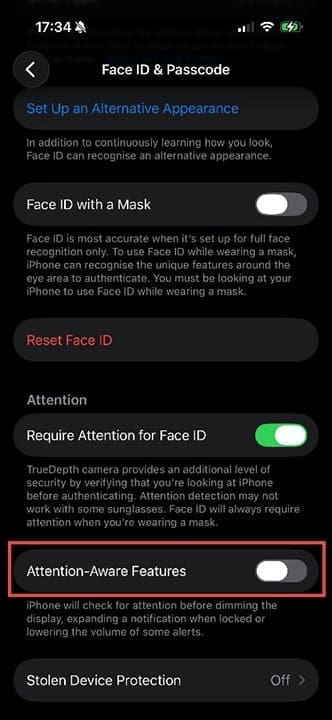
Fix 5. Turn off attention-Aware features. This is particularly useful if you’re the type of person who snoozes their alarm a few times. Face ID Attention-Aware Features is a setting that reduces the brightness and volume of your iPhone once the device logs that you’re looking at it. As this can cut the alarm volume, switching it off can ensure every alarm is loud.
Head to Settings > Face ID & Passcode. You’ll need to enter your passcode to change settings here. Once you have, you can turn Attention-Aware Features off with the toggle button.
Make sure you keep up to date with any subsequent software updates, and you should find your alarm rings normally.
As an avid gamer, I’ve run into my fair share of error codes and weird faults that have forced me to find fixes to problems I never anticipated. That gave me a passion for sharing those fixes with others so we can all game without feeling like our hardware is rebelling against us.








Write a Comment