Computers generate heat when they’re running. When your device is under heavy load and the internal temperature has risen a lot, fans kick into action to cool it down.
If your MacBook’s fans suddenly start spinning at full speed with a lot of noise when there’s no or very little load, something’s not right, especially if your device isn’t even warm to the touch.
This unusual behavior is likely triggered by a thermal monitoring failure. If your Mac is cold to the touch, this is good news, as it indicates that your hardware is operating within its thermal limits.
Here’s what you can do to troubleshoot this glitch.
First things first, make sure nothing’s obstructing airflow. If airflow is blocked, your MacBook’s internal fans might have to work extra hard to keep it cool.
Place your computer on a flat hard surface to ensure ventilation is not a problem.
Put Your Computer to Sleep
If you don’t want to reboot your system, click on the Apple menu, and select Sleep. The fans should spin down after a few seconds. Wait for 30 more seconds and press any key to wake your computer back up.
Many users have confirmed that this quick workaround did the trick for them.
However, if you’re looking for a long-term solution, you need to identify and remove the element triggering this unusual fan behavior.
Check for CPU-Hogging Apps
Even if you think your Mac is under no load, there might be sneaky apps still running in the background.
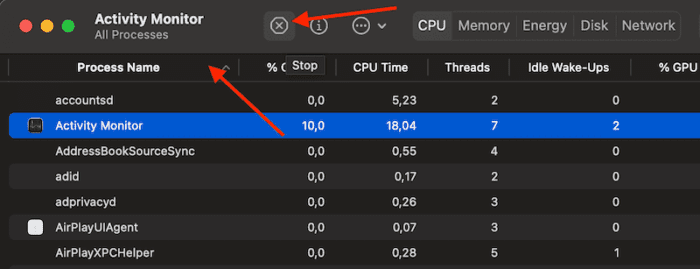
Go to ~/Applications/Utilities/Activity Monitor.app, launch the app, and check what’s maxing out CPU usage.
Additionally, sort your apps by the energy impact they have. Click on the Energy tab to list the apps with the highest energy usage. Force-close those apps, and check if you notice any changes.
Run Apple Diagnostics
If this abnormal fan behavior is caused by hardware issues, run Apple Diagnostics to identify the problem. Before launching Apple Diagnostics, ensure you have installed the latest macOS version on your device.
To run Apple Diagnostics, shut down your computer and disconnect all external devices.
If you own an Apple Silicon Mac, turn on your computer and continue holding down the Start button until you see the Startup Options screen. Then, press Command and D to launch Apple Diagnostics.
If you own an Intel Mac, turn on your Mac and continue holding down the D key until you see a progress bar on the screen or are prompted to select the language you want to use.
Once the Apple Diagnostics test is complete, check the reference code to learn more about the test results.
Reset SMC
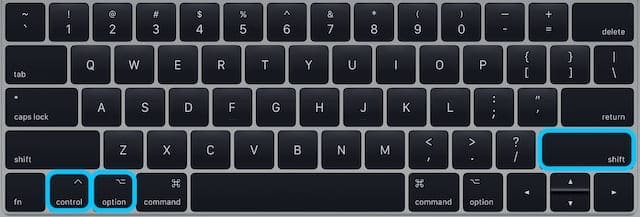
The System Management Controller (SMC) is a built-in tool that manages power on your Mac. Resetting it can help you fix various battery, sleep, and fan noise issues, including the glitch where fans are running fast with no apparent reason.
There are different ways to reset the SMC, depending on your MacBook model.
Make sure you hold keys on the correct side to reset the SMC.
For more information, go to Apple’s Support Page, and select your Mac model to get the step-by-step instructions.
Use Software to Control Your Mac’s Fans
If you want full control over your Mac’s fans, consider installing an app that allows you to monitor and adjust fan speed, such as Macs Fan Control. With it, you can set a threshold temperature at which your fan speed will increase.
You can create multiple fan profiles based on your tasks. For example, you can create presets for video editing, watching Netflix, and more.
However, only use such an app if you’re an advanced macOS user and proceed at your own risk. Incorrect fan settings under heavy load can lead to hardware damage and data loss.
And that’s the end of this guide. Hit the comments below and let us know which of these suggestions worked best for you. If you found other ways to deal with noisy MacBook fans, feel free to share your ideas.
Madalina has been a Windows fan ever since she got her hands on her first Windows XP computer. She is interested in all things technology, especially emerging technologies — AI and DNA computing in particular.











Write a Comment