Optimizing your Mac battery settings can ensure that your battery lasts for longer. And when you’re working, it can also help to make sure that you don’t need to charge your device so often. There are a selection of settings you can customize to enhance your performance.
Low Power Mode is one of the most popular ways to save battery on Apple devices, and many users have the feature activated on their iPhone or iPad. When you’ve switched on Low Power Mode for your Mac, your device will optimize how it uses your battery.
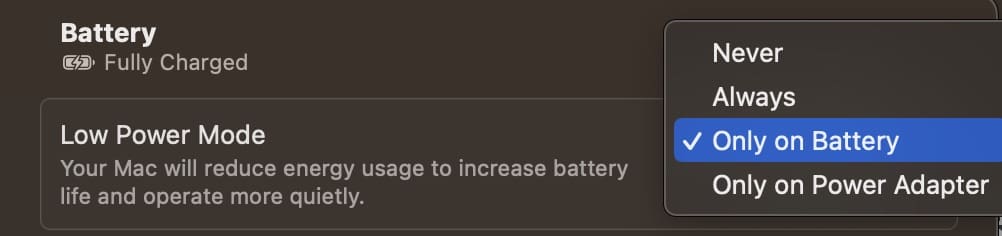
You can choose whether you want Low Power Mode to always be activated on your Mac, and it’s also possible to only switch the feature on when you’re not charging your device. Similarly, you can opt whether you only want Low Power Mode switched on when you’re using your adapter.
To switch on Low Power Mode, follow these steps:
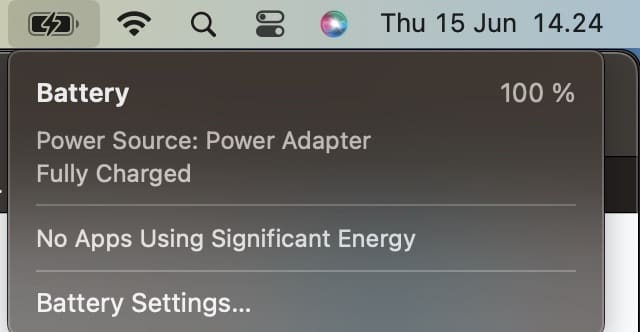
1. In the top right-hand corner of your device, click on the battery icon.
2. Select Battery Settings when the dropdown menu appears.
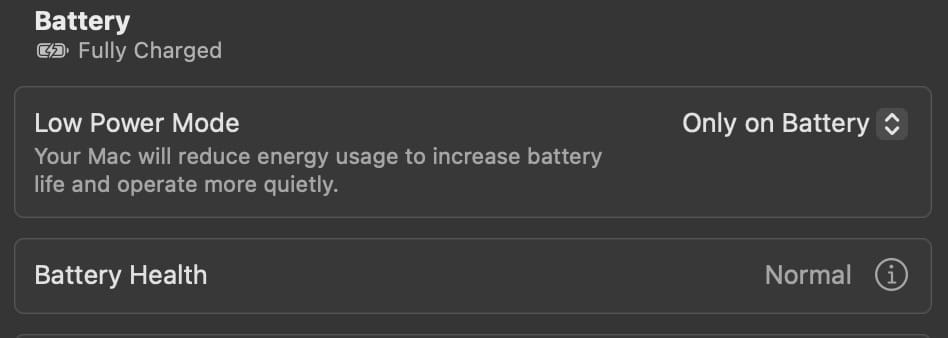
3. Look for Low Power Mode, which will be at the top of your screen. Expand the dropdown menu next to this option.
4. Choose your preferences for when you want Low Power Mode to be switched on.
Optimized Battery Charging
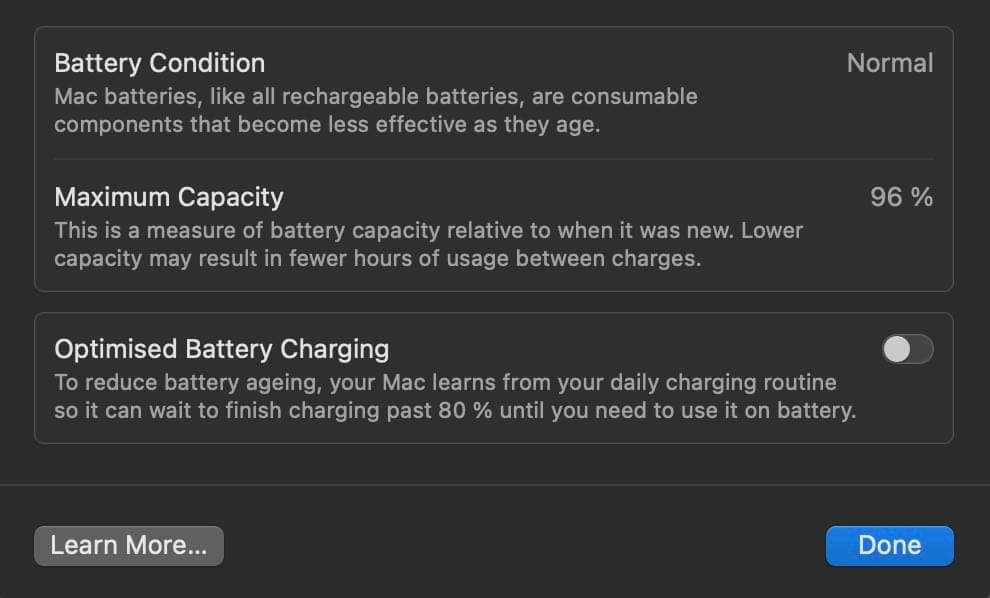
Optimized Battery Charging is a feature that determines when you use your Mac throughout the day, and it’ll use those patterns to decide when your battery needs extra juice – and when you’re better off keeping your charging on standby.
When you use Optimized Battery Charging, you may notice that your battery sometimes doesn’t charge past 80%. This is nothing to worry about, though, and you might notice that your battery is in better condition for a longer period of time.
To turn on Optimized Battery Charging:
1. Go to the battery icon at the top of your screen and select Battery Settings.
2. Select the information icon next to Battery Health.
3. Toggle Optimized Battery Charging on.
4. Hit Done after completing each of these steps.
Optimized Video Streaming While on Battery
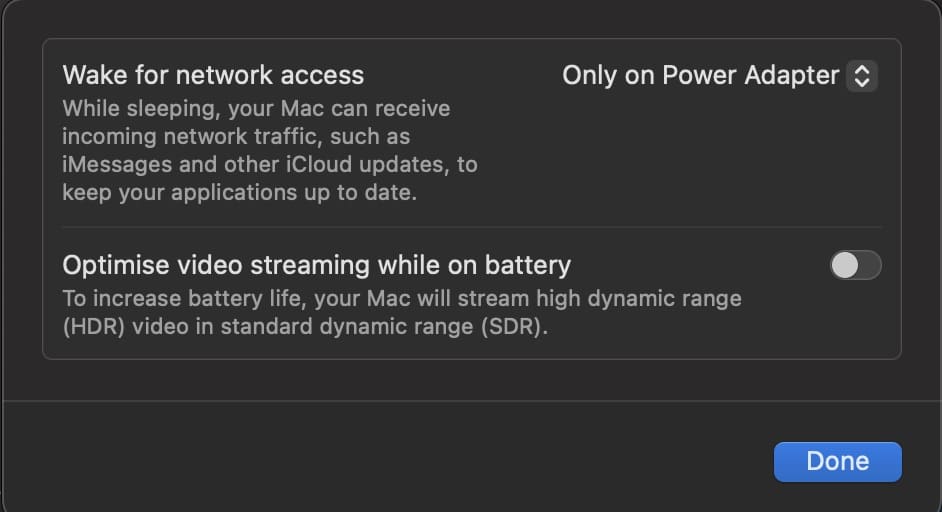
Video streaming can consume a significant amount of battery, and you might want to switch on Optimized Video Streaming to tackle this issue. The feature will determine when you need a different standard of video to be streamed, which will allow you to watch content for longer before needing to charge your battery.
Here are the steps you need to follow to use Optimized Streaming on your Mac.
1. Click on the battery icon > Battery Settings > Options.
2. Toggle on the Optimize video streaming while on battery function.
3. When you’ve finished, click on Done. Your changes will take immediate effect, so you can start watching your favorite movies and TV shows.
Try Customizing These Settings and Seeing if They Help Improve Your Mac Battery Performance
If you want to optimize your Mac battery for improved performance over the long run, you can customize several features on your device. Each of these serves a different purpose, and you’ve got the option to use one or all of them.
You can choose when you want your battery to charge fully, along with when is a good time to turn on Low Power Mode. And if you don’t care so much about having the highest video quality, you can always try Optimized Video Streaming.
Play around with each of these settings and figure out which ones work best for you.
Danny has been a professional writer since graduating from university in 2016, but he’s been writing online for over a decade. He has been intrigued by Apple products ever since getting an iPod Shuffle in 2008 and particularly enjoys writing about iPhones and iPads. Danny prides himself on making complex topics easy to understand. In his spare time, he’s a keen photographer.












Write a Comment