MacBooks are popular with students and employees alike, and you can also use them for personal reasons. In recent years, Apple has offered numerous extra options that allow you to gain more control over your device’s battery consumption.
If you own a MacBook, you might notice that your battery charges at around the 80% range when you’re using it. Moreover, you may find that your battery level goes down – even if your charger is plugged in. This article will discuss the reasons that this happens, and whether you should worry about it.
Your MacBook might charge to 80% because your device is trying to save battery. Each laptop – whether it’s Apple or not – has a specific number of charging cycles during its lifetime.
Of course, you’ll need to recharge your device when the battery meter is empty. However, many people do not look at charging their MacBook in this way. Instead, they keep their charger plugged in the whole time.
This might seem like a smart idea, but you could negatively impact your battery life in the long run. By all means, have your charger with you at all times – but you don’t need to have it always in your device.
Is It a Problem if My MacBook Only Charges to 80%?
Most of the time, you shouldn’t panic if your MacBook is only charging to 80%. Moreover, you often don’t need to worry if your battery percentage goes down while your charger is plugged in.
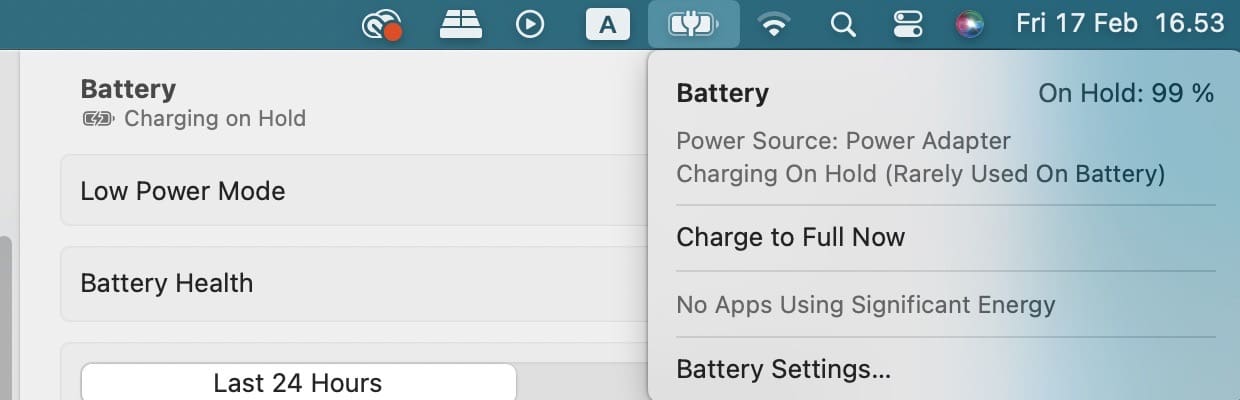
You can tell that you don’t have an issue if your MacBook battery has an icon that looks like a plug. See the screenshot below for an example.
How to Charge Your MacBook to 100%
In some cases, you might decide that you want to charge your MacBook to 100% while using it. And when that happens, you don’t need to do too much. First, go to the battery icon at the top of your screen and click on it.
Next, select Charge to Full Now. Your MacBook battery will then begin charging to its maximum capacity.
You Shouldn’t Worry Too Much About Your MacBook Not Fully Charging
If you’re worried that your MacBook battery isn’t charging because of a problem, you usually don’t need to feel too concerned. Most of the time, your computer is simply trying to optimize your battery life so that your device can last for the long run.
The good news is that you can later decide to charge your battery fully without too many issues. All you need to do is click a few buttons, and your MacBook battery will move its way back up to 100%. So, if you don’t want to remove your charger from your device, you don’t necessarily need to.
In some cases, you might need to go and have your battery looked at. However, you’ll be able to tell this is the case if you see the charging symbol — but your MacBook’s battery still drops.
Danny has been a professional writer since graduating from university in 2016, but he’s been writing online for over a decade. He has been intrigued by Apple products ever since getting an iPod Shuffle in 2008 and particularly enjoys writing about iPhones and iPads. Danny prides himself on making complex topics easy to understand. In his spare time, he’s a keen photographer.













Thank you, Danny. Great answer to exactly my question. Great writing.