Q: I have an iOS device (iPad, iPhone or iPod) and the emoji keyboard is not on the list to select. Where is it?
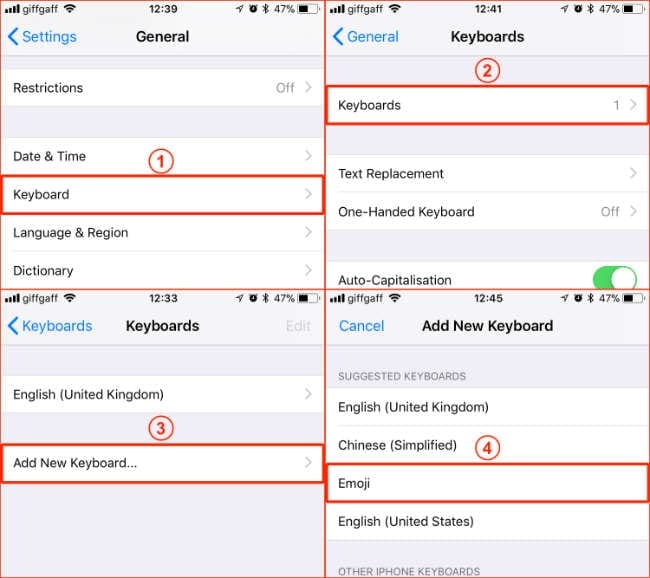
A: Find the emoji keyboard in any app that uses the standard keyboard, like Mail or Messages. iOS offers a lot of emoji that you can use. You need to enable emoji from the keyboard settings. Go to Settings > General > Keyboards > Add New Keyboard… and select Emoji.
And With Messages in iOS 10 and above, you can send bigger emoji. If you send more than three emoji or add emoji with text, emoji adjusts to a smaller size. You can even replace words with emoji!
With iOS 10+, the Messages app shows you words that you can replace with emoji.
Open Messages and tap on New Message icon to start a new message or tap on an existing message
Write your message, then tap the smiley face on your keyboard
Wait for the words to turn orange
Tap an orange word to replace it with an emoji. If there’s more than one emoji you can use, the Quick Reply field shows you options to choose from
When you’re ready, tap the send button to deliver
If you want to replace the emoji with the original word, just tap the emoji
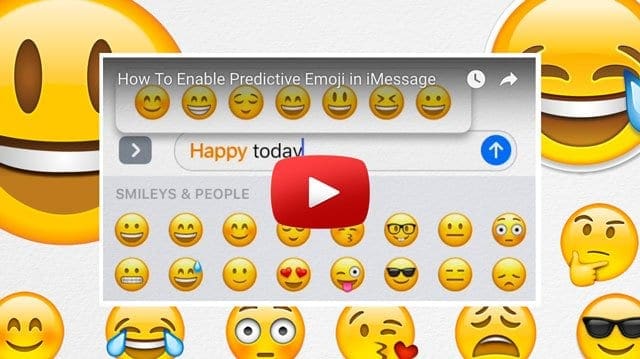
Looking for Predictive Emoji for Texting? Or Predictive Emoji Not Working?
Check out our video!
Using Predictive emoji
With Predictive text, you write and complete entire sentences with just a tap. As you type, choices for words and phrases you normally use appear. These are based on your past conversations and writing style. There are also suggestions for emoji you may want to use. To use a Predictive emoji, write your message and look for the suggested emoji in the predictive input field, then tap it to replace the word or add an emoji.
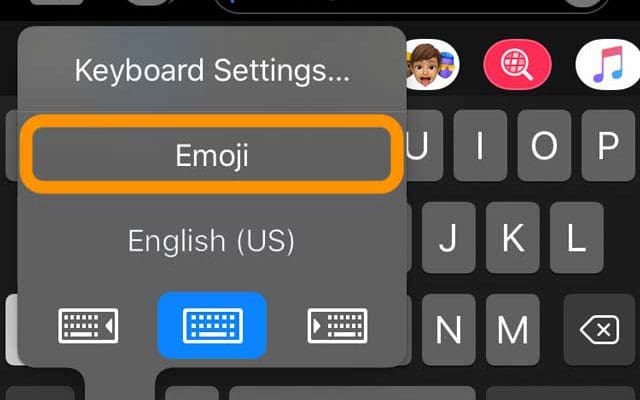
To turn off Predictive text, touch and hold your keyboard’s smiley face or globe icon. It’s as simple as that!
Obsessed with tech since the early arrival of A/UX on Apple, Sudz (SK) is responsible for the original editorial direction of AppleToolBox. He is based out of Los Angeles, CA.
Sudz specializes in covering all things macOS, having reviewed dozens of OS X and macOS developments over the years.
In a former life, Sudz worked helping Fortune 100 companies with their technology and business transformation aspirations.
What do I do if the iphone cant find any emoji keyboard to add so still stuck with no emoji , friends iphones have them but mine iphone 11 does not seem able .
Just to let you know your site is crashing. I would also like the chance to talk to someone about your offer on broadband for £28 per month.
Sincerely. cMrs. Barbara Tremblin. Thanking you in anticipation.
If you verified that the emoji keyboard is installed on your device via Settings > General > Keybaord > Keyboards, then it’s likely you just need to tap either the Smiley face icon inside your keyboard or the globe icon just below the keyboard when typing in Messages, Mail app, and other apps that support the on-screen keyboard.
I accidentally deleted the emoji from my keyboard while trying to follow a solution. Now I can’t get it back. When I go to settings, general, keyboard & tap add new keyboard all I get are different languages as options. My iPhone no longer has the smiley face on the keyboard. HELP
First, close your settings app by double-pressing the home button or swiping up from the bottom to get to the app switcher. Then, locate the Settings app preview and swipe it up off the top of your screen to close it.
Then, try restarting your device by going to Settings > General > scroll down and tap Shut Down.
After shutting down, wait for 1-2 minutes and then power back up.
Finally, return to those Keyboard settings and add back in your emoji keyboard.











What do I do if the iphone cant find any emoji keyboard to add so still stuck with no emoji , friends iphones have them but mine iphone 11 does not seem able .
Just to let you know your site is crashing. I would also like the chance to talk to someone about your offer on broadband for £28 per month.
Sincerely. cMrs. Barbara Tremblin. Thanking you in anticipation.
I have no Emoji option on my keyboard list! It disappeared. How do I get it back?
Hi Kathie,
If you verified that the emoji keyboard is installed on your device via Settings > General > Keybaord > Keyboards, then it’s likely you just need to tap either the Smiley face icon inside your keyboard or the globe icon just below the keyboard when typing in Messages, Mail app, and other apps that support the on-screen keyboard.
I accidentally deleted the emoji from my keyboard while trying to follow a solution. Now I can’t get it back. When I go to settings, general, keyboard & tap add new keyboard all I get are different languages as options. My iPhone no longer has the smiley face on the keyboard. HELP
Hi Christine,
First, close your settings app by double-pressing the home button or swiping up from the bottom to get to the app switcher. Then, locate the Settings app preview and swipe it up off the top of your screen to close it.
Then, try restarting your device by going to Settings > General > scroll down and tap Shut Down.
After shutting down, wait for 1-2 minutes and then power back up.
Finally, return to those Keyboard settings and add back in your emoji keyboard.
I have the same problem since the last upgrade. And, it won’t let me choose “emoji” on the keyboard options!
I haven’t got the emoji on the add new keyboards how do I get it