• Skip to primary navigation
  • Skip to main content
  • Skip to primary sidebar
  • Skip to footer

AppleToolBox

Tools and Fixes for Mac, iPad, iPhone & iWatch

Search posts

  • About
  • Contact

CONNECT WITH US

CATEGORIES

  • iPhone
  • iPad
  • iPod
  • Apple Watch
  • Mac/MacBook
  • AirPods
  • Apple TV
  • News
  • Apple Services
  • HomePod
  • Reviews

SITE

  • Home
  • About Us
  • Contact
  • Advertise

Search posts

You are here: Home / iPhone / How to Put Analog Clock on iPhone Lock Screen

How to Put Analog Clock on iPhone Lock Screen

By Mehvish 0 comments Last updated June 8, 2024

Quick Answer

  • The digital clock can’t be replaced.
  • But another widget can be added to the lock screen where we can keep an analog clock.

How to Add Analog Clock on iPhone Lock Screen

By default, an iPhone shows a digital clock on the lock screen. While you can’t replace it with an analog clock, you can add an analog clock widget to the lock screen. For that, follow these steps:

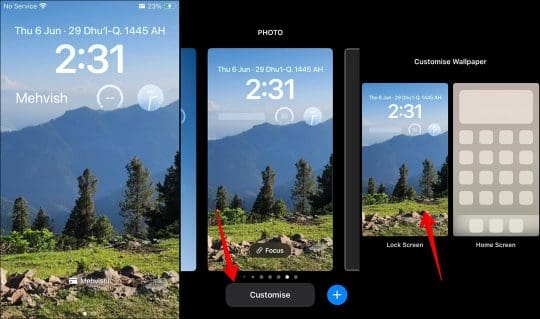
  1. Swipe down from the top-left corner of the screen to open the Lock screen after unlocking your iPhone.
  2. Long-press anywhere on the lock screen and select the Customize button.
  3. Tap on Lock Screen.

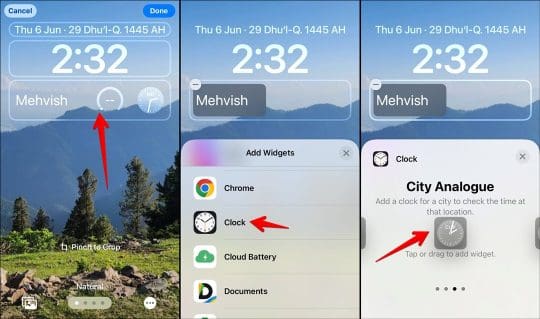
  1. Then, tap on any empty space in the bottom row or tap on any widget (if you have three widgets).
  2. Scroll down and tap on Clock. Swipe left and tap on the Analog clock widget. Finally, tap on Done to save the changes.

That’s it. Now, the iPhone lock screen will display digital and analog clocks.

Note: If the analog clock shows the wrong time, enter the lock screen customization mode and double-tap on the analog clock. Then, select your current city.

Also Read: Why is Set Automatically grayed out in iPhone date and time settings

Related Posts:

  • iphone and airpods on a table
    These Apps Have the Best iOS 17 Widgets
  • iPhone 15 Pro Max - 4
    Best iPhone Lock Screen Widgets for iOS 17
  • photo of an iphone with ios 16 downloaded on it
    iOS 16 Tips and Tricks: The Definitive List
  • How to use ChatGPT on iPhone and iPad - Hero
    How to Use ChatGPT on iPhone and iPad
  • iPadOS 17 Widgets
    Best Interactive Widgets for iPadOS 17
  • Apple Watch Ultra Tips and Tricks
    Apple Watch Tips and Tricks for 2023
  • iPhone 15 Pro Max - 1
    10 Handy Apple Shortcuts You Can Use Every Day
  • pexels-joão-jesus-4929241
    How To Replace A MacBook Battery
  • iPhone 15 Pro unboxing
    How To Extend Your iPhone Battery Life
Mehvish
Mehvish

Mehvish Mushtaq is a computer engineer by degree. Her love for Android and gadgets led her to develop the first Android app for Kashmir. Known as Dial Kashmir, she won the prestigious Nari Shakti award from the President of India. She has been writing about technology for 6+ years and her favorite categories include how-to guides, explainers, tips and tricks for iOS/iPadOS, Android, social media, and web apps.
Reader Interactions

Write a Comment Cancel reply

Primary Sidebar

Recent Posts

  • How to Disable Predictive Text in iOS 26
  • How to Stop Sharing Analytics in iOS 26
  • How to Manage Your iPhone Call Log
  • Are Apple’s Safety Precautions Enough for AirTags?
  • How to Hide Username and Photo on the Mac Lock Screen
  • Microsoft Resume vs. Apple Handoff – Which Wins for Cross-Device Work?

Connect with us

Footer

ABOUT

  • About Us
  • Contact us
  • Advertise
  • Privacy
  • Terms of Use

GUIDES

  • iOS & iPadOS
  • Apple ID
  • iCloud
  • App Store
  • iTunes
  • FaceTime
  • iMessage
  • Siri
  • Books and iBooks
  • Game Center
  • AirPlay

CONNECT

  • Facebook
  • Twitter
  • FeedBurner
  • YouTube

© Copyright 2010-2024 Guiding Tech Media · All Rights Reserved

This site and its content are in no way affiliated or endorsed by Apple, Inc. · Reproduction without explicit permission is prohibited