• Skip to primary navigation
  • Skip to main content
  • Skip to primary sidebar
  • Skip to footer

AppleToolBox

Tools and Fixes for Mac, iPad, iPhone & iWatch

Search posts

  • About
  • Contact

CONNECT WITH US

CATEGORIES

  • iPhone
  • iPad
  • iPod
  • Apple Watch
  • Mac/MacBook
  • AirPods
  • Apple TV
  • News
  • Apple Services
  • HomePod
  • Reviews

SITE

  • Home
  • About Us
  • Contact
  • Advertise

Search posts

You are here: Home / Apple TV / Steps to Sync Apple TV Shows to Your Windows PC

Steps to Sync Apple TV Shows to Your Windows PC

By Louis Roundtree 0 comments Last updated January 22, 2025

Things to Know
  • Install the Apple TV app: You will need the Apple TV app installed on your Windows PC.
  • Check you have the right cable: If you want to sync Apple TV shows from your Windows PC to your iPad or iPhone, you need a lightning or USB-C charging/connection cable, depending on what model of Apple device you have.
  • Use the Apple Devices app: Make sure you’ve downloaded the latest version of Apple Devices from the Microsoft Store.

Sync Apple TV Shows to Windows — Step-by-Step Guide

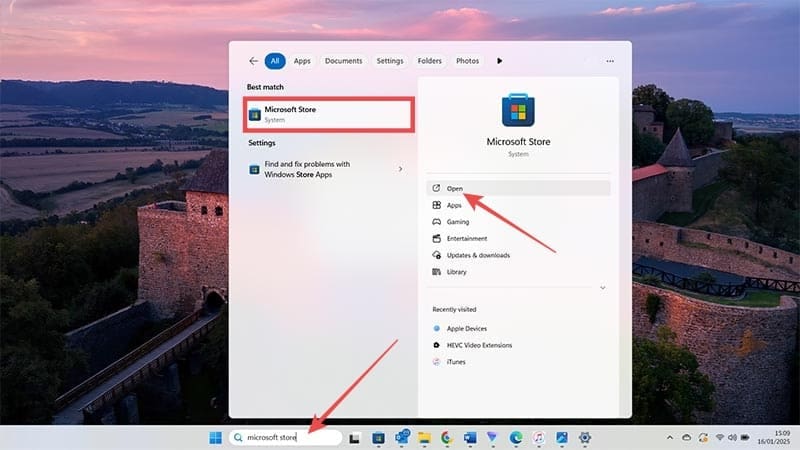
Step 1: Make sure you have the Apple TV app installed on your computer. Start by searching for the Microsoft Store.

Steps to Sync Apple TV Shows to Your Windows PC 1

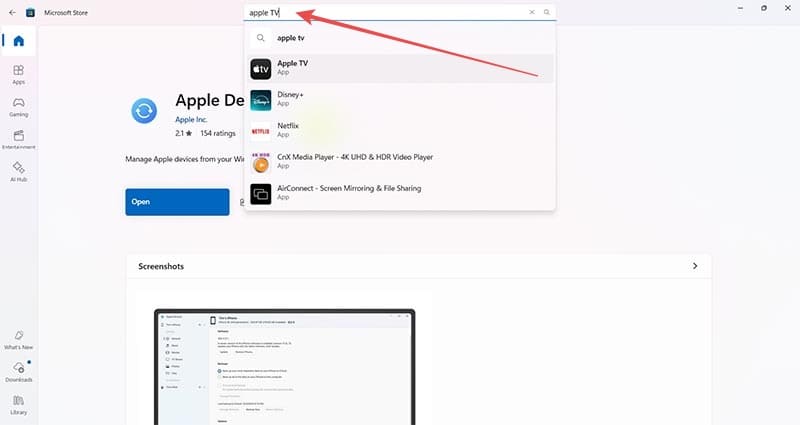
Step 2: Click where it says “Open” under the Microsoft Store logo —or double-click the store icon on the left. Once you’ve done that, search for Apple TV as shown.

Steps to Sync Apple TV Shows to Your Windows PC 2

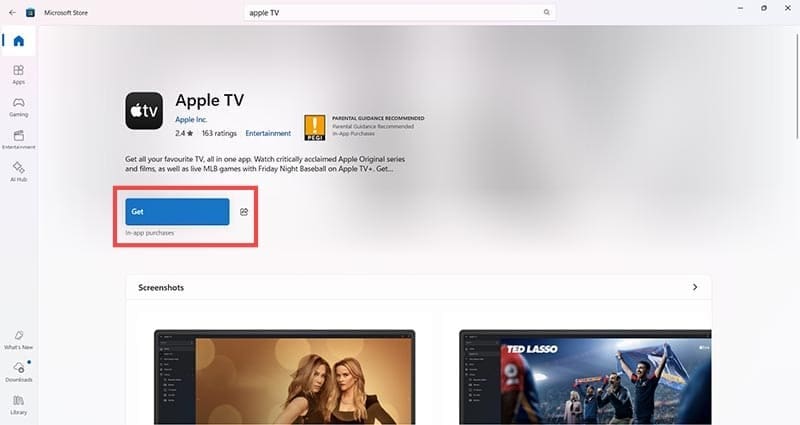
Step 3: Click on the Apple TV icon and then click the blue “Get” button.

Steps to Sync Apple TV Shows to Your Windows PC 3

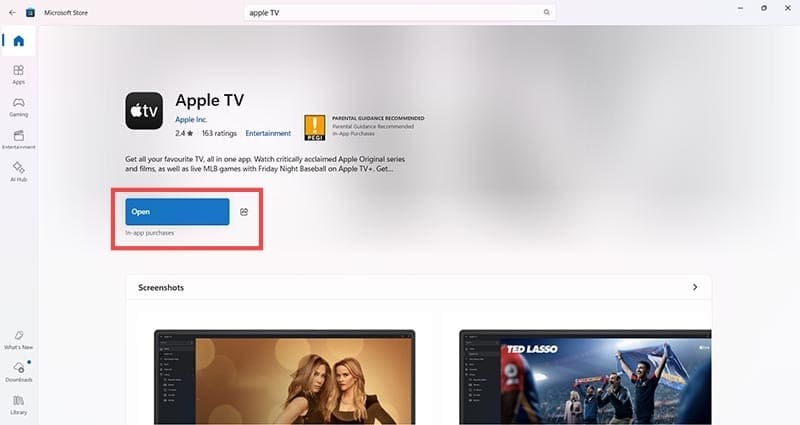
Step 4: The installation takes a few minutes and you’ll see a progress bar while you wait. Once complete, press the blue “Open” button.

Steps to Sync Apple TV Shows to Your Windows PC 4

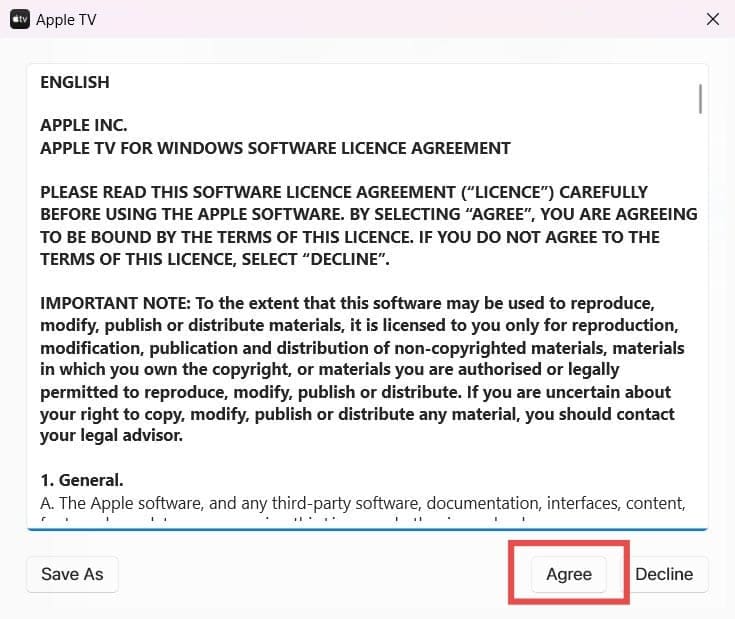
Step 5: A terms and conditions screen will appear — confirm that you agree to the license agreement.

Steps to Sync Apple TV Shows to Your Windows PC 5

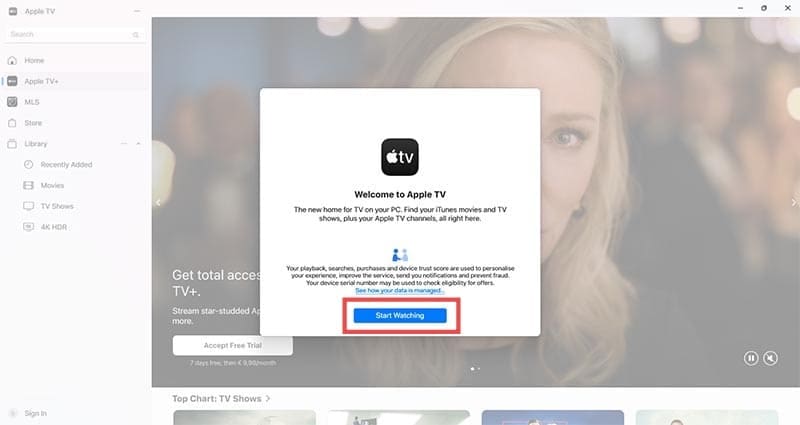
Step 6: When the app opens, click “Start Watching.” There’s also a link so you can see how Apple is using your data.

Steps to Sync Apple TV Shows to Your Windows PC 6

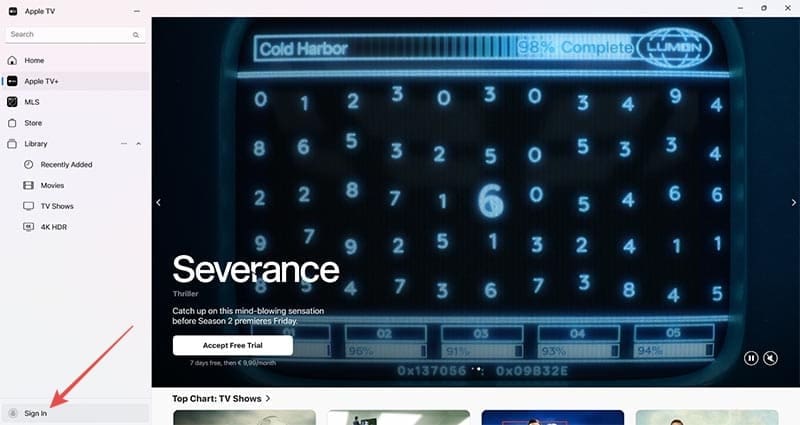
Step 7: Your content won’t automatically appear so sign in via the button in the bottom-left of the app.

Steps to Sync Apple TV Shows to Your Windows PC 7

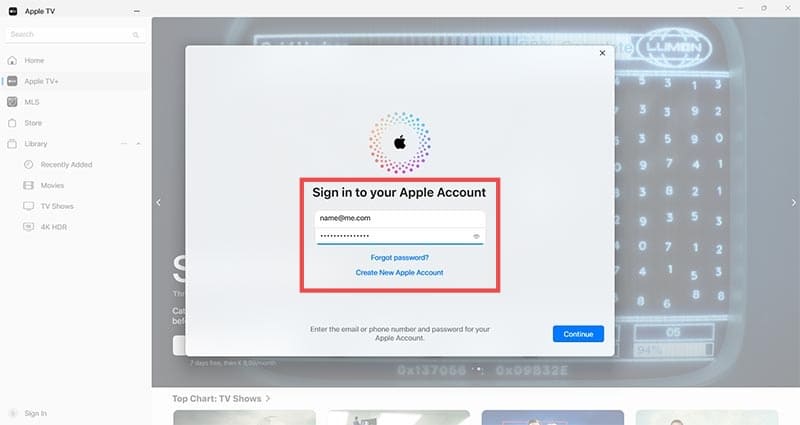
Step 8: Enter your Apple Account (previously known as Apple ID) details, ensuring you’re using the same username and password as you usually use to access your Apple TV account.

Steps to Sync Apple TV Shows to Your Windows PC 8

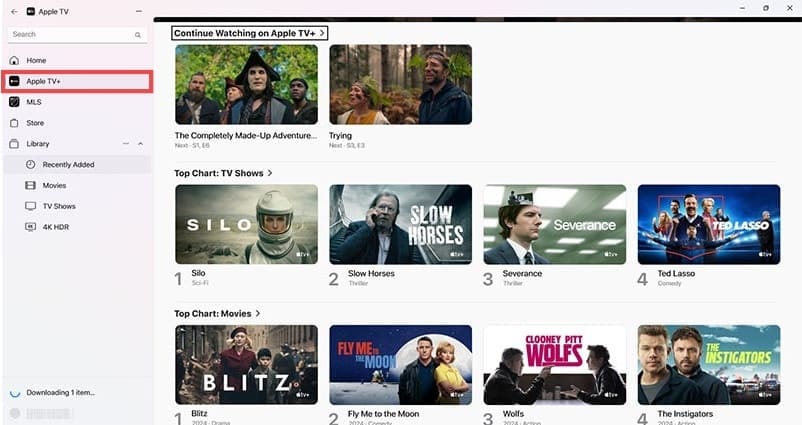
Step 9: There are several options on the left — click Apple TV to access shows and scroll or search to find the ones you want.

Steps to Sync Apple TV Shows to Your Windows PC 9

Step 10: Click on the TV show then scroll to the episode you want to sync. There are always three dots on an episode icon — click here, then choose Download.

Steps to Sync Apple TV Shows to Your Windows PC 10

Step 11: To check the sync was successful, go to the “Library” dropdown menu and click “TV Shows”. You should now see any shows (or movies) you’ve downloaded and these will always be available to you on this Windows PC.

Steps to Sync Apple TV Shows to Your Windows PC 11

Using Apple Devices to Sync Apple TV Shows to Your iPad or iPhone

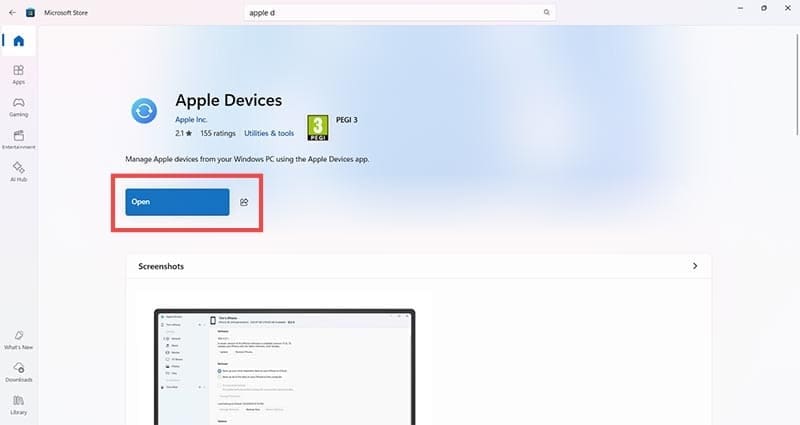
Step 1: Once you’ve successfully downloaded your favorite TV shows, you can sync them to any Apple device using an app called Apple Devices. Again, use the Microsoft Store for this. Either “Get” or “Open” the app.

Steps to Sync Apple TV Shows to Your Windows PC 12

Step 2: The Apple Devices app should open automatically but you can always use the Start or Search menus to find and open it. Plug your apple device in using the correct cable — recent models require a USB-C connector. Once connected, you’ll see your device details in the Apple Devices app.

Steps to Sync Apple TV Shows to Your Windows PC 13

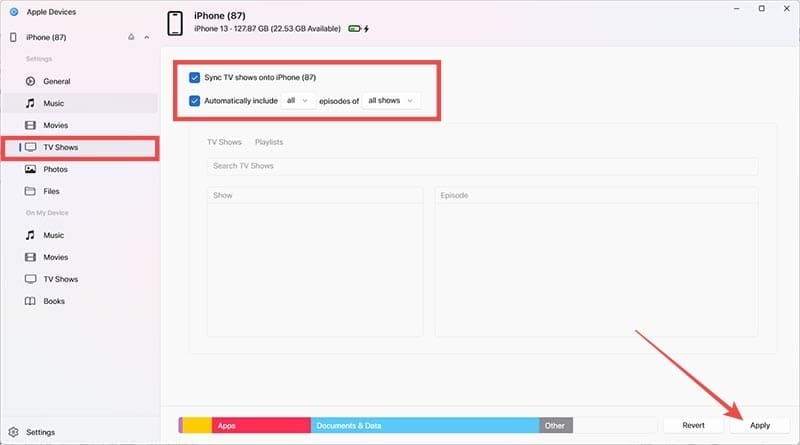
Step 3: Click “TV Shows” on the left-hand side. Ensure the “Sync TV shows onto [your Apple device]” box is ticked, and then below that, you can choose whether you want to automatically add new or all shows. Click “Apply” and wait for the app to confirm it’s completed the sync process.

Steps to Sync Apple TV Shows to Your Windows PC 14

Related Posts:

  • 2023 Mac Studio lifestyle - 1
    macOS Could Not Be Installed, How-To Fix
  • Photo of someone using Apple Music on their smartphone
    How to Fix Apple Music Not Working on iPhone / iPad
  • Apple Watch Ultra Tips and Tricks
    Apple Watch Tips and Tricks for 2023
  • How to Install Windows 11 on Mac
    How to Install Windows 11 on Mac
  • How to Install Windows 11 on Mac
    Want iMessage on Your Windows PC? How-To
  • 2022 Mac Mini with Studio Display and Accessories
    Mac Tips For New Users In 2023
  • photo of an iphone with ios 16 downloaded on it
    iOS 16 Tips and Tricks: The Definitive List
  • How to Fix Verifying Microsoft Outlook Mac Stuck Error 11 Best Methods
    How to Fix Verifying Microsoft Outlook Mac Stuck…
  • iPhone 15 Pro Max - 4
    Best iPhone Lock Screen Widgets for iOS 17
Louis Roundtree
Louis Roundtree

As an avid gamer, I’ve run into my fair share of error codes and weird faults that have forced me to find fixes to problems I never anticipated. That gave me a passion for sharing those fixes with others so we can all game without feeling like our hardware is rebelling against us.

Reader Interactions

Write a Comment Cancel reply

Primary Sidebar

Recent Posts

  • How to Stop Sharing Analytics in iOS 26
  • How to Manage Your iPhone Call Log
  • Are Apple’s Safety Precautions Enough for AirTags?
  • How to Hide Username and Photo on the Mac Lock Screen
  • Microsoft Resume vs. Apple Handoff – Which Wins for Cross-Device Work?
  • How to Export iTunes Library to New Computer

Connect with us

Footer

ABOUT

  • About Us
  • Contact us
  • Advertise
  • Privacy
  • Terms of Use

GUIDES

  • iOS & iPadOS
  • Apple ID
  • iCloud
  • App Store
  • iTunes
  • FaceTime
  • iMessage
  • Siri
  • Books and iBooks
  • Game Center
  • AirPlay

CONNECT

  • Facebook
  • Twitter
  • FeedBurner
  • YouTube

© Copyright 2010-2024 Guiding Tech Media · All Rights Reserved

This site and its content are in no way affiliated or endorsed by Apple, Inc. · Reproduction without explicit permission is prohibited

Last Updated on January 22, 2025 by Louis Roundtree