Voice Memos is an excellent productivity tool. You can record lectures, meetings, or key ideas that suddenly cross your mind using your Mac’s built-in microphone or an external audio input device. But many MacBook Pro users complained Voice Memos sometimes fails to record audio. The app launches without any problem, but nothing happens when users hit the Record button. Let’s see how you can fix this issue and restore your Mac’s audio recording functionality.
Navigate to System Preferences, select Sound, and go to Sound Settings.
Locate and enable Play user interface sound effects.
Check if you can record voice memos now.
It seems that the Voice Memos functionality is tied to this option being enabled. Other users suggested the option to Play feedback when volume is changed needs to be checked as well. Try both troubleshooting versions and check which one does the trick for you.
Enable the Built-in Mic
If you can’t use Voice Memos with your AirPods or AirPods Pro, go to System Preferences, select Sound, and then Input. Tweak your settings and switch to your built-in mic. Check if Voice Memos is working now.
Then turn off your Bluetooth connection and wait two minutes. Turn the Bluetooth connection back on, connect your AirPods and check if you can use Voice Memos with your wireless headphones.
Change Your Input and Output Rates
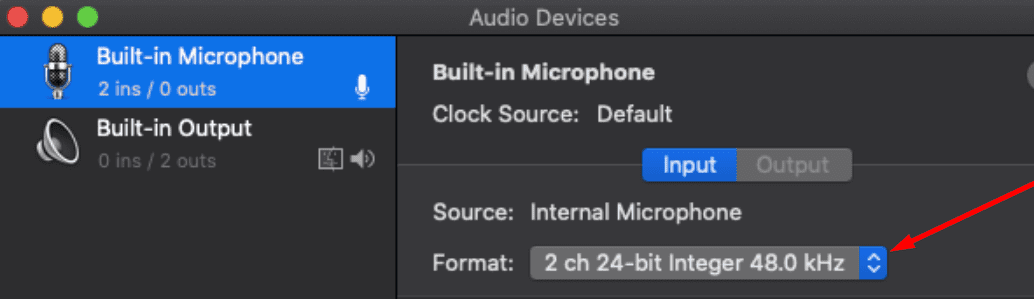
A number of users solved this problem by tweaking their input and output rates. More specifically, go to MIDI settings and set the input to 48 kHz 2 ch 24-bit Integer, and the output to 44,1 kHz 2 ch 16-bit Integer. If the issue persists, keep on tweaking the settings in an attempt to find the right rates for your Mac. It seems that the app becomes unresponsive when using rates above 48 kHz.
Create a New User Account
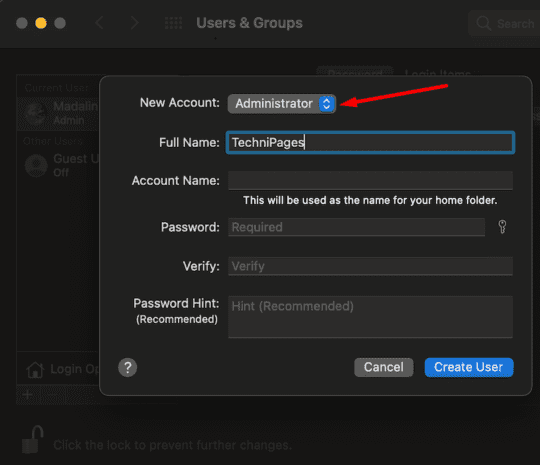
Many users confirmed that Voice Memos records fine when they logged into a new user account. So, if the tool is not working under your main account, create a new user profile and check if you can recording audio.
Go to System Preferences and select Users & Groups.
Click the lock icon and then hit the +icon.
Add a new standard or guest user account, and hit the Create User option.
Launch Voice Memos and try to record something.
Additional Solutions
Disconnect USB speakers.
Update macOS to the latest version.
Press the Mute button and start a new recording.
Conclusion
Voice Memos may stop working if you use rates above 48 kHz. Tweak your input and output rates, and make sure to enable Play User Interface Sound Effects. Additionally, create a new guest user account and check if the new user profile fixes the issue. Did you manage to resolve the issue? Hit the comments below and let us know what worked for you.
Madalina has been a Windows fan ever since she got her hands on her first Windows XP computer. She is interested in all things technology, especially emerging technologies — AI and DNA computing in particular.











Write a Comment