• Skip to primary navigation
  • Skip to main content
  • Skip to primary sidebar
  • Skip to footer

AppleToolBox

Tools and Fixes for Mac, iPad, iPhone & iWatch

Search posts

  • About
  • Contact

CONNECT WITH US

CATEGORIES

  • iPhone
  • iPad
  • iPod
  • Apple Watch
  • Mac/MacBook
  • AirPods
  • Apple TV
  • News
  • Apple Services
  • HomePod
  • Reviews

SITE

  • Home
  • About Us
  • Contact
  • Advertise

Search posts

You are here: Home / Mac / Reducing the Size of a PDF on Mac

Reducing the Size of a PDF on Mac

By Danny Maiorca 0 comments Last updated April 17, 2023

PDFs are useful file formats for several scenarios. You can use them to send and sign contracts, along with gaining access to important documents – such as instruction manuals. On top of that, you can use these files for saving Word documents and more.

Related Reading:

  • Save, Edit, and Open Word Docs and PDF Files on Your iPad and iPhone
  • How to Edit a PDF on Your Mac: The Best Methods You Should Know
  • How to Download and Save PDF From Safari Into Your iPhone’s Files App
  • How to Save an Email as a PDF on Your iPhone and iPad<
  • macOS: How to Print a Double-Sided PDF on Your Mac

Sometimes, however, you might need to reduce the size of a PDF. Many websites have restrictions on the sizes you can upload, and you might also need to compress your files so that they fit in emails.

Reducing your PDF size is pretty simple on a Mac. Keep reading to find out how to do it.

Contents

  • How to Reduce the Size of a PDF on Mac
  • Are There Alternative Options?
  • Reducing PDF File Sizes on Your Mac: Convenient and Useful

How to Reduce the Size of a PDF on Mac

To reduce the size of a PDF on your Mac, your best option is to use the Preview app. The process shouldn’t take you too long, and you can follow the instructions below.

1. Double-click on the PDF file you want to open. Once you’ve done that, you’ll be able to access the Preview app.

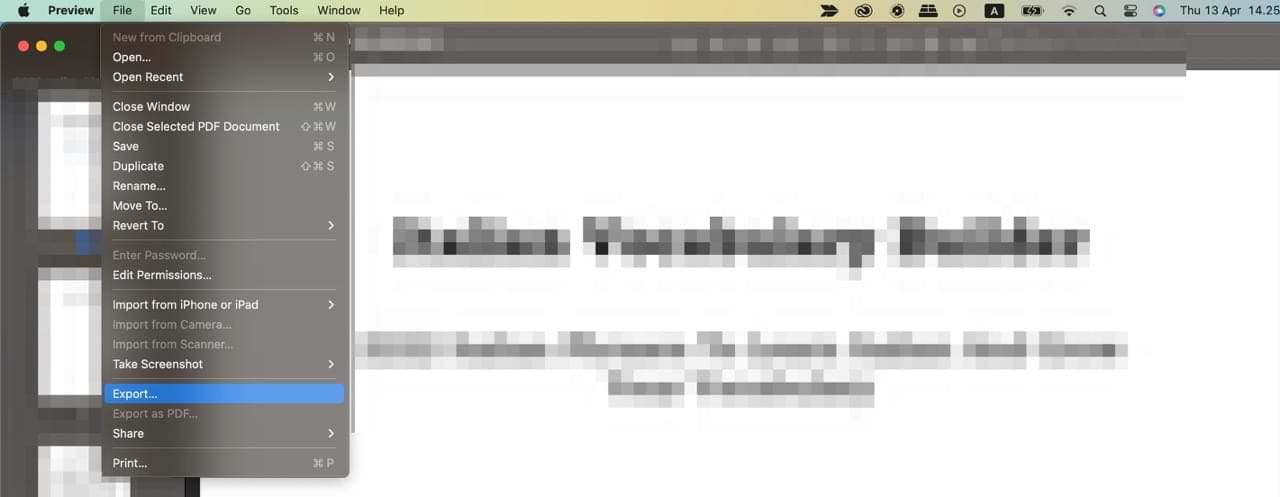
2. In the toolbar at the top, go to File > Export.

File and Export in Preview on Mac Screenshot

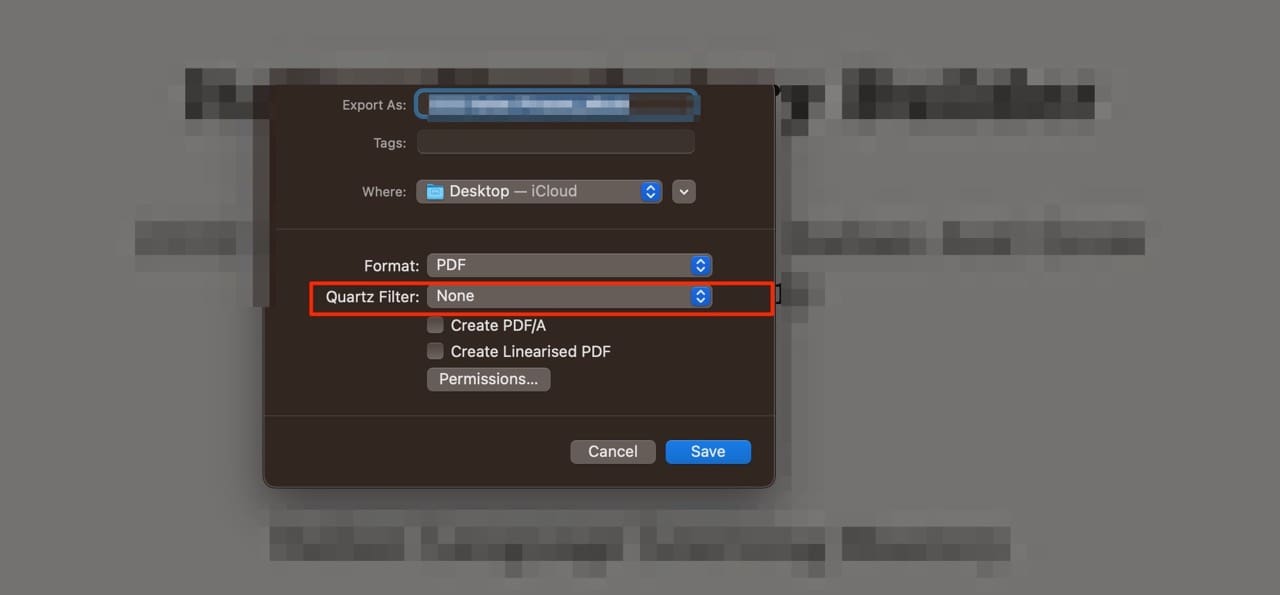
3. Expand the menu next to Quartz Filter.

Quartz Filter Select Mac Screenshot

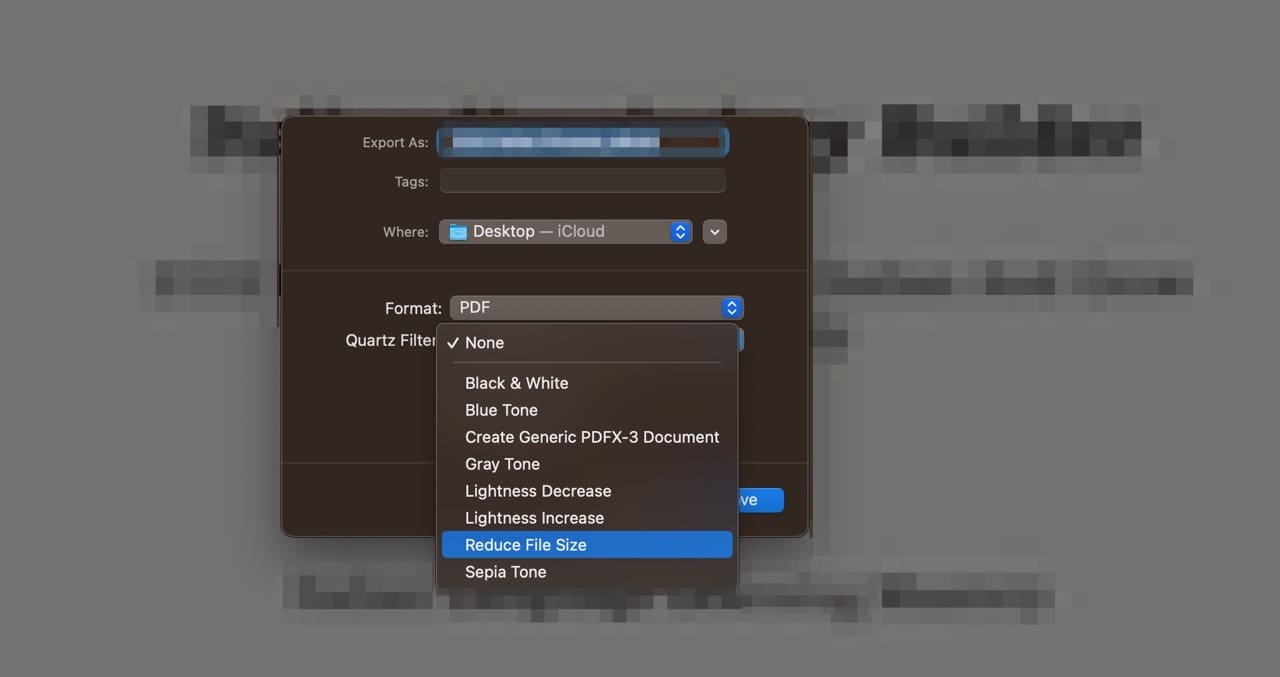
4. Select Reduce File Size.

Reduce File Size Mac Filter PDF Screenshot

Once you’re happy with your selection, hit the Save button. You might need to rename your PDF, depending on where you save it.

Are There Alternative Options?

In addition to reducing the size of a PDF file on your Mac, you have a number of other options. If you search online, you’ll find several PDF resizers – and for some of these, you can access several features for free.

Once you’ve dragged and dropped your PDF document, you can download a resized version. Some of the best PDF resizing tools you should consider checking out are:

  • Adobe Acrobat
  • SmallPDF
  • ILovePDF

You can also reduce your file sizes on your Mac by deleting pages that aren’t necessary. Open Preview, select the page you want to remove, and hit the backspace key. You should, however, not do this on legal documents if you need to refer to the full version later – or if you’re going to return a signed version.

Some PDF compressors have paid plans that’ll offer you access to a broad selection of extra features that you may find useful. Often, however, you’ll only need the free edition.

Reducing PDF File Sizes on Your Mac: Convenient and Useful

Reducing the size of a PDF won’t take you too long on your Mac. The easiest way to do so is by using the Preview app; you can opt to reduce the file size when exporting your document, and it’s also possible to delete pages if you don’t need them.

Besides using the Preview app, you can also use several online tools to reduce your PDF file sizes. Many of these are free to use and will help you meet your needs.

Related Posts:

  • How to Edit a PDF on Mac 6 Best Methods You Should Know
    How to Edit a PDF on Mac: 6 Best Methods You Should Know
  • Apple Right to Repair Hero
    How to Download Apple Repair Manuals for iPhone
  • How to Recover Unsaved Word Document on Mac in 5 Best Ways
    How to Recover Unsaved Word Document on Mac in 5 Best Ways
  • How to Add Grammarly to Word on Mac 4 Best Methods in 2023
    How to Add Grammarly to Word on Mac: 4 Best Methods in 2023
  • iPhone 15 Pro Max - 4
    Best iPhone Lock Screen Widgets for iOS 17
  • photo of an iphone with ios 16 downloaded on it
    iOS 16 Tips and Tricks: The Definitive List
  • 2023 Mac Studio lifestyle - 1
    macOS Could Not Be Installed, How-To Fix
  • Windows computer
    How to AirDrop from iPhone to Windows PC
  • how to convert a pages file into word
    How to Convert a Pages File Into Word File
Danny Maiorca

Danny has been a professional writer since graduating from university in 2016, but he’s been writing online for over a decade. He has been intrigued by Apple products ever since getting an iPod Shuffle in 2008 and particularly enjoys writing about iPhones and iPads. Danny prides himself on making complex topics easy to understand. In his spare time, he’s a keen photographer.
Reader Interactions

Write a Comment Cancel reply

Primary Sidebar

Recent Posts

  • How to Manage Your iPhone Call Log
  • Are Apple’s Safety Precautions Enough for AirTags?
  • How to Hide Username and Photo on the Mac Lock Screen
  • Microsoft Resume vs. Apple Handoff – Which Wins for Cross-Device Work?
  • How to Export iTunes Library to New Computer
  • What the Gemini Desktop App Will Bring to Mac

Connect with us

Footer

ABOUT

  • About Us
  • Contact us
  • Advertise
  • Privacy
  • Terms of Use

GUIDES

  • iOS & iPadOS
  • Apple ID
  • iCloud
  • App Store
  • iTunes
  • FaceTime
  • iMessage
  • Siri
  • Books and iBooks
  • Game Center
  • AirPlay

CONNECT

  • Facebook
  • Twitter
  • FeedBurner
  • YouTube

© Copyright 2010-2024 Guiding Tech Media · All Rights Reserved

This site and its content are in no way affiliated or endorsed by Apple, Inc. · Reproduction without explicit permission is prohibited

Last Updated on April 17, 2023 by Mitch Bartlett