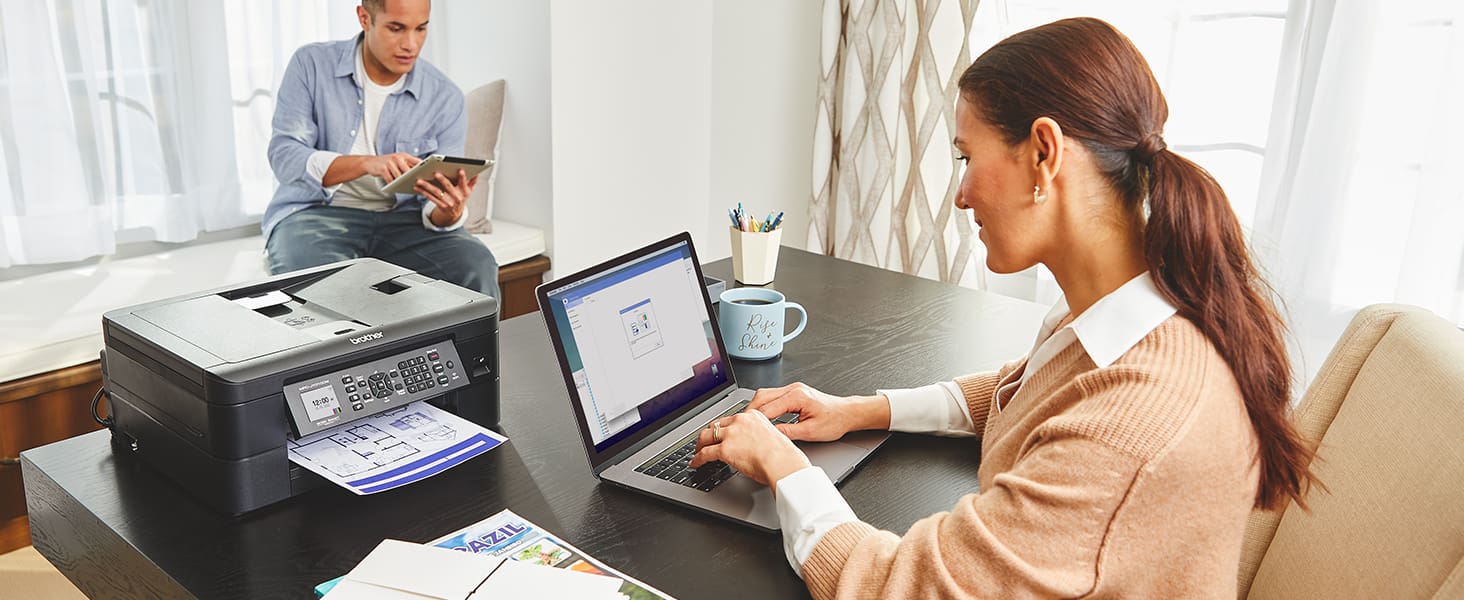
While digital storage is convenient, there are times when having a physical copy is necessary. That’s why printers are still relevant and provided that you already have a printer set up properly in your home, you can even go so far as to print a double-sided PDF on Mac.
Owning a printer is one of those things that you don’t ever really think about, until you actually need to print something. They’re big, clunky, take up a bunch of space, and replacing the ink can get pretty darn expensive, pretty quickly.
But if you want to print a double-sided PDF on Mac, and plan on printing more documents and files in the future, it might be worth finding a good printer to keep in your home. This removes the need to go to a local Staples or Office Dept location, just to print off a document, saving you time and money.
However, not all printers are created equal, and if you plan on printing any double-sided documents, you’ll need to make sure you have a “duplex capable printer”. Many of the best printers for Mac already offer this functionality, but if not, here are a couple of great options for you to consider:
Some might consider printing physical copies as a bit redundant, but the reality is that there are still instances when a physical copy is necessary. By printing a PDF on your Mac, you won’t need to worry about logging into any cloud accounts to access files if you have a meeting and can’t take your Mac with you. Or maybe, you’ll need to fill out a form to take to the doctor’s office, and they haven’t quite “gotten with the times” just yet.
As for needing to print a double-sided PDF on Mac, it’s pretty self-explanatory why you would want to do something like this. The most obvious answer is to reduce the amount of paper that you could be using if you need to print out a big document to take with you. PDFs are also great for those who have official or important documents that are intended to be stored for archival purposes, as physical copies are less vulnerable to data loss, corruption, or obsolescence.
To print a double-sided PDF on a Mac, you can follow these steps:
Locate and open the PDF document you want to print.
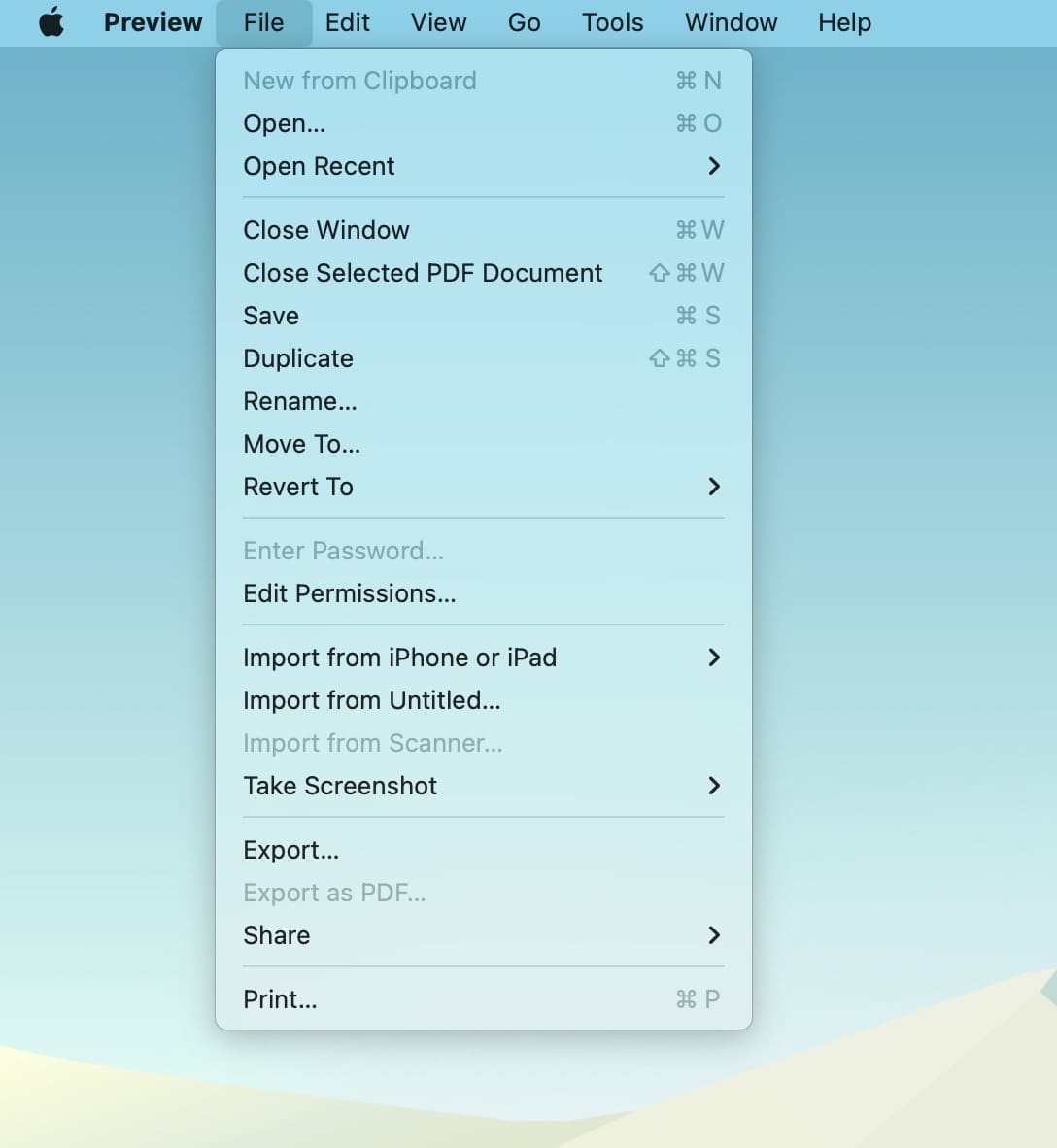
Click on File in the menu bar
From, the drop-down menu, select Print.
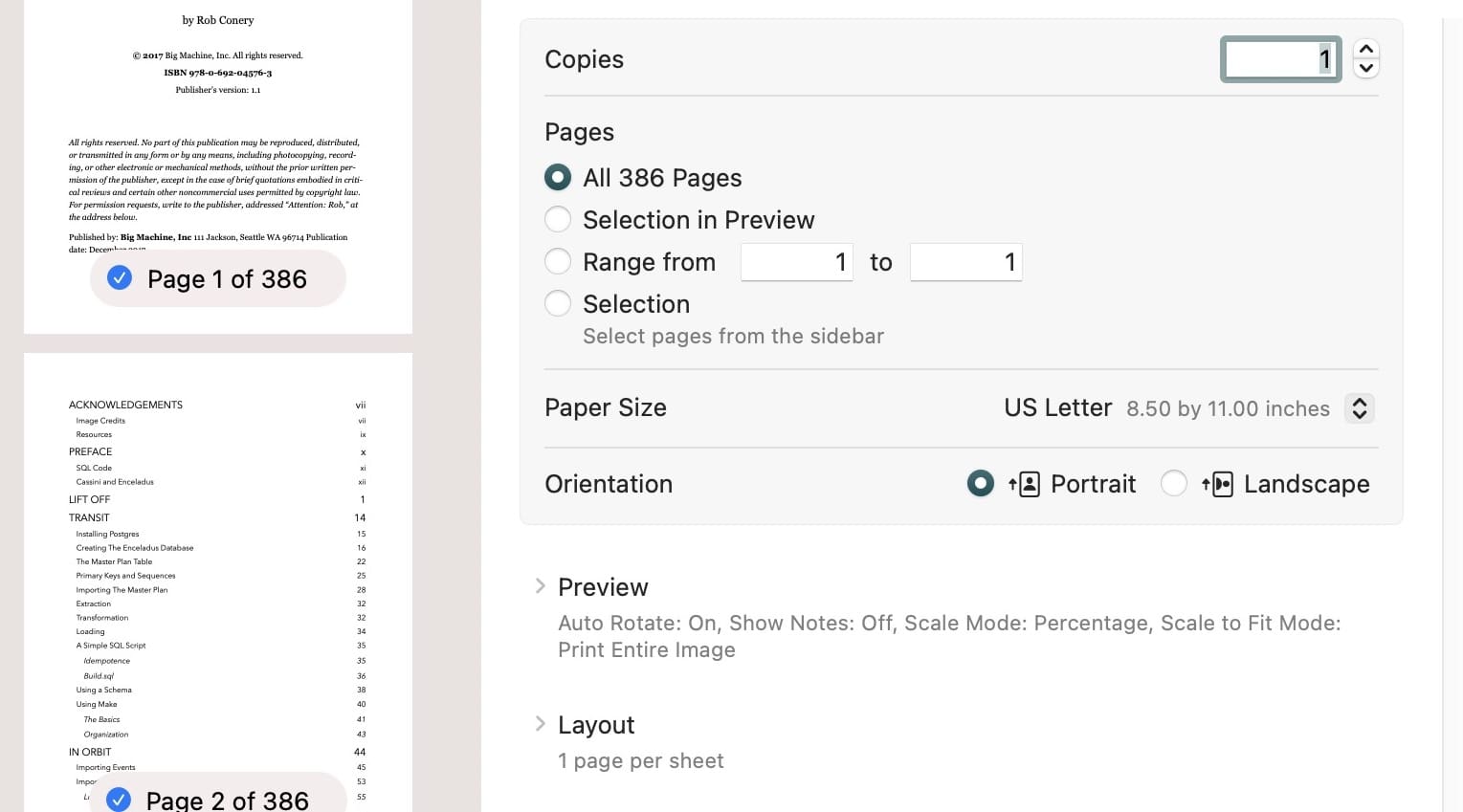
In the print dialog box, click on Show Details to reveal additional options.
Look for the Two-Sided option
Then, select Long-Edge binding or Short-Edge binding, depending on how you want the pages to be flipped.
Choose your desired page range, number of copies, and other printing options as needed.
Click on the Print button to print your double-sided PDF.
Something we want to point out if your printer doesn’t support automatic double-sided printing, you may need to manually flip the paper over and print the other side separately. In this case, you can print all the odd pages first, then flip the paper over and print all the even pages.
Obsessed with tech since the early arrival of A/UX on Apple, Sudz (SK) is responsible for the original editorial direction of AppleToolBox. He is based out of Los Angeles, CA.
Sudz specializes in covering all things macOS, having reviewed dozens of OS X and macOS developments over the years.
In a former life, Sudz worked helping Fortune 100 companies with their technology and business transformation aspirations.
I tried this but the “two-sided” option is set to “off” and is grey so I can’t click it. Im using a macbook pro w. the newest OS X and the samsung C460 series as printer. I thought printing double sided would be possible w. this printer. Can anyone help?







Why, oh why do they make this so complicated to find. THANK YOU so much!
You saved my life. 🙂
Hi,
I tried this but the “two-sided” option is set to “off” and is grey so I can’t click it. Im using a macbook pro w. the newest OS X and the samsung C460 series as printer. I thought printing double sided would be possible w. this printer. Can anyone help?
thanks,
Wouter
I’ve got the same problem with Epson. So frustrating.