The Dock on your Mac is an important tool. It provides quick access to the apps you use most often, those you’ve used recently, and those you are currently using.
There are a lot of ways that you can customize your Dock. From changing its size and location to enabling magnification and effects, you can make your Dock look and act exactly as you want.
In addition to basic customization options that you can find in your System Preferences, there is another little trick using Terminal that you might like. You can add spaces to your Dock and we’ll show you how.
Since you have a Dock full of icons, it can get cluttered. And depending on exactly how many apps you decide to keep in your Dock, it can get really messy.
By adding spaces to your Dock, you can not only put some gaps between the icons, but even use spacing to group them.
Maybe you want to keep your communication-related apps next to each other or apps you use for images and photos grouped together. Spaces in your Dock can help you do this.
Add spaces to your Dock on Mac
If you’re not very familiar with Terminal on your Mac, don’t be intimidated. Once you open it and pop in the command we’ll give you, you can close it again forever if you like.
Open Terminal
There are actually more than a handful of ways to open Terminal on your Mac. But using one of these three ways is the quickest and easiest.
Access Siri and and give the command, “Open Terminal.”
Open Spotlight Search and type in “Terminal.”
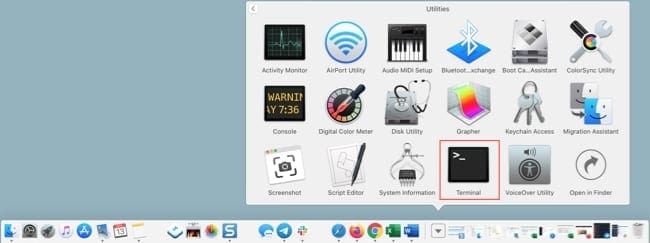
Click the Applications folder in your Dock, select Utilities, and choose Terminal.
Open Terminal from Applications in your Dock
Enter the Terminal command
Put your cursor in the Terminal window when it opens and type or copy and paste the following command:
defaults write com.apple.dock persistent-apps -array-add ‘{“tile-type”=”spacer-tile”;}’; killall Dock
Press your Return key.
Terminal window with command
Move the space
Using the Terminal command above, you should now see a space in your Dock. Click and drag the space where you want it and release.
Space added to Dock
To add another space, run the Terminal command again. Then drag the second space where you want it.
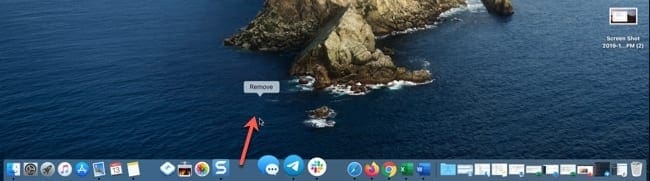
If you decide later to remove the spaces you’ve added, just click and drag them out of the Dock.
Remove space from Dock
More space, better organization
By adding these spaces to your Dock on Mac, you can easily group and organize your app icons easily.
Are you going to give this nifty trick a try? Let us know!
Sandy worked for many years in the IT industry as a project manager, department manager, and PMO Lead. She then decided to follow her dream and now writes about technology full-time. Sandy holds a Bachelors of Science in Information Technology.
She loves technology– specifically – terrific games and apps for iOS, software that makes your life easier, and productivity tools that you can use every day, in both work and home environments.
Her articles have regularly been featured at MakeUseOf, iDownloadBlog and many other leading tech publications.
Please change the quotes in the command to straight quotes instead of curly quotes, so that the command may be pasted into the Terminal and run without error.














It does NOT work. Nice try though.
The PROPER text is…
defaults write com.apple.dock persistent-apps -array-add ‘{“tile-type”=”spacer-tile”;}’; killall Dock
And the difference between yours and mine?
Ask a technological journalist.
Luke, your text is exactly the same as the author’s. Mark’s correction fixes it, though.
Please change the quotes in the command to straight quotes instead of curly quotes, so that the command may be pasted into the Terminal and run without error.
Thanks for this comment, Mark!