You can add multiple calendars to your view when using Apple Calendar, but – in most cases – you’ll probably look at one of them more frequently than all of the others. To stop yourself from becoming overwhelmed, organizing your internal calendars is a good idea.
When using Apple Calendar, you can easily change your default calendar. However, the process will differ depending on the device you use. In this guide, you’ll learn how to adjust your default calendar in the app on your iPhone, iPad, and Mac.
How to Change Your Default Calendar in Apple Calendar on iPhone
First, let’s look at how you can change your default calendar when using Apple Calendar on your iPhone. Below are all of the steps you’ll need to follow:
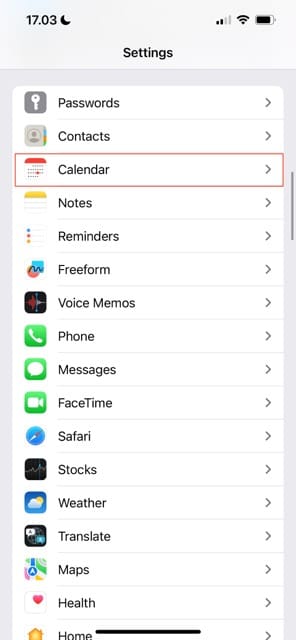
Open the Settings app on your iPhone.
Scroll down until you see Calendar.
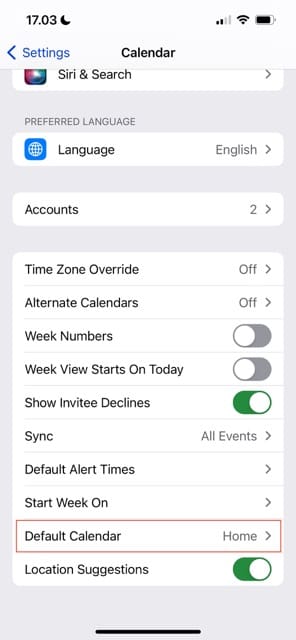
Close to the bottom of the next window, you’ll see an option called Default Calendar; click on this.
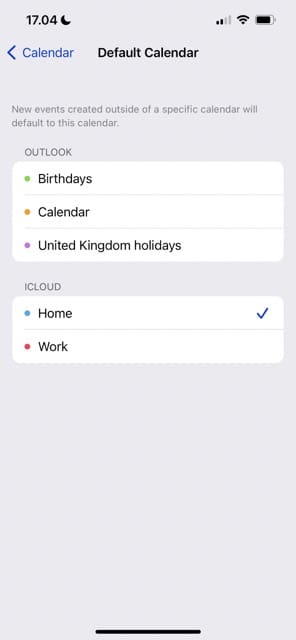
Pick the calendar you’d like to have as your default one. As you’ll notice, the calendars will be split depending on the internet account they’re associated with.
How to Change Your Default Calendar in Apple Calendar on iPad
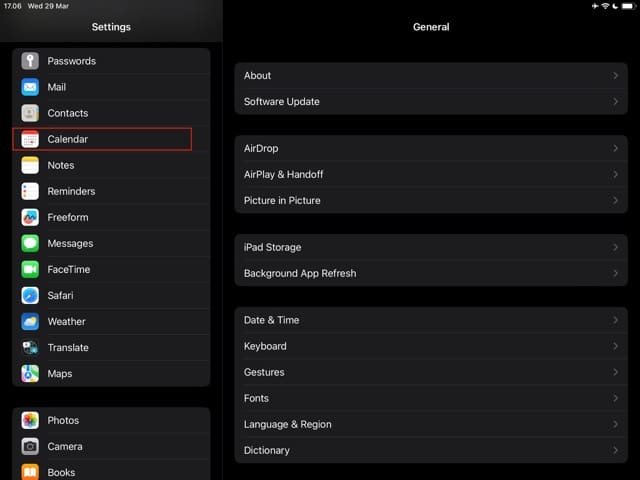
If you’d like to change your default calendar on your iPad, you can also do that without too many problems. The process is pretty similar to iOS; the only real difference is the layout of your Settings app. Here are the steps you should follow:
1. Open the Settings app on your iPad.
2. In the toolbar on the left, scroll down until you see the Calendar tab.
3. On the right-hand side, look for the Default Calendar option.
4. Choose the calendar you’d like to have as your default calendar.
How to Change Your Default Calendar in Apple Calendar on Mac
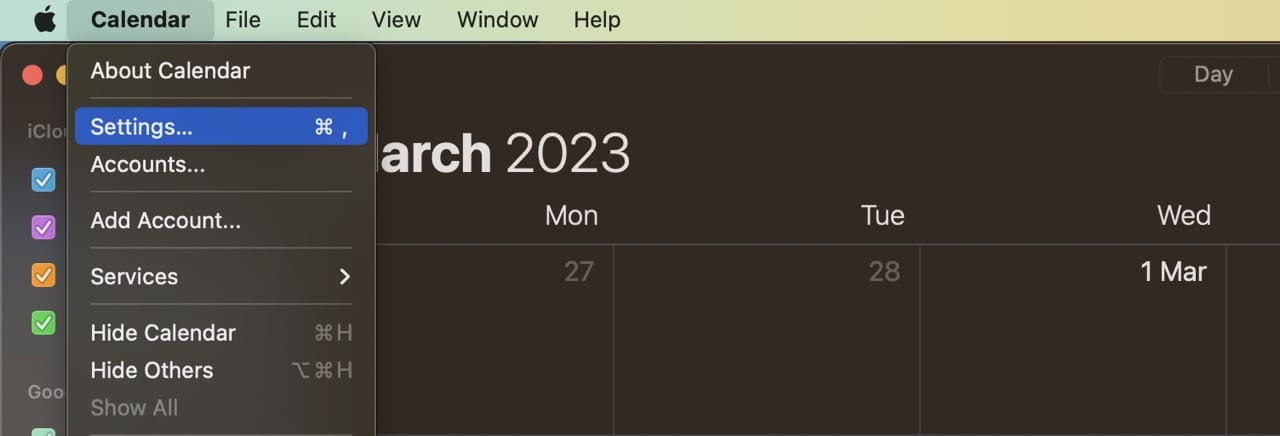
Unlike when changing the default calendar on your iPhone or iPad, you don’t need to go into your Mac’s System Settings to do the same. Instead, you have to open the Calendar app. Once you’ve done that, you can follow these instructions:
1. Click on Calendar in the toolbar at the top of your screen.
2. Select Settings when the dropdown menu appears.
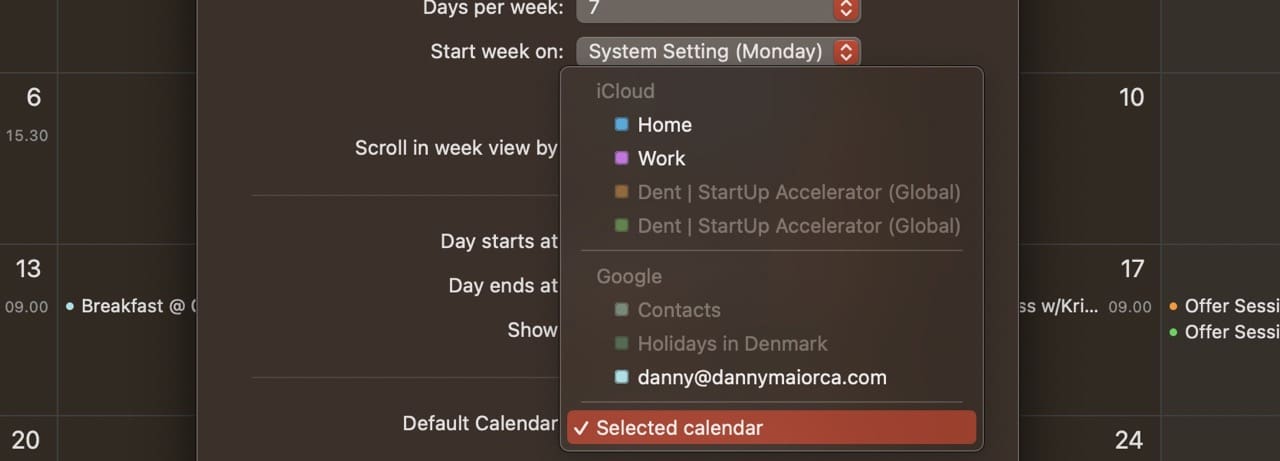
3. Scroll down until you see Default Calendar. Note that this is different from Default calendar app, which you will see closer to the top of your window.
4. Expand the dropdown menu next to the Default Calendar option.
5. Choose your new default calendar.
Changing Your Default Calendar in Apple Calendar: It Differs Across Your Devices
Whether you use your iPhone, iPad, or Mac, changing your default calendar is easy in Apple Calendar. You can choose if you’d like to add a work calendar as the main option or whether you want your personal events to be the main point of referral. You can change between your different calendars as many times as you want.
Now that you’ve read this guide, you’re ready to adjust the default calendars on your different devices. If you later want to switch back to what you previously had, you can simply choose that option when going into your smartphone or tablet settings – or the Calendar settings on your Mac.
Danny has been a professional writer since graduating from university in 2016, but he’s been writing online for over a decade. He has been intrigued by Apple products ever since getting an iPod Shuffle in 2008 and particularly enjoys writing about iPhones and iPads. Danny prides himself on making complex topics easy to understand. In his spare time, he’s a keen photographer.













Write a Comment