More and more iOS users are turning to Apple Maps for navigation directions. Apple has significantly improved its native navigation app in recent years, adding a plethora of useful new features and mapping new cities and regions. But Maps may sometimes crash unexpectedly on iOS. When you’re driving in a new city, that’s the worst possible thing that can happen. Let’s explore what you can do to fix this problem.
Background apps can sometimes interfere with Apple Maps causing the app to crash unexpectedly. This issue often occurs if you’re running resource-hogging apps. Close all background apps, launch Apple Maps again, and check if you notice any improvements.
Update Apple Maps and iOS
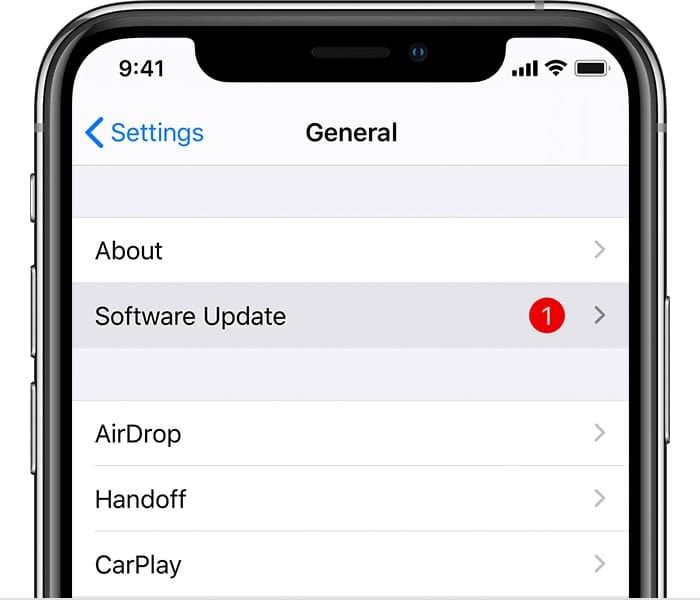
Make sure to check for app and iOS updates. Running outdated app and iOS versions could trigger all sorts of glitches. Launch the App Store, and tap your profile icon. Go to pending updates, and install the latest Apple Maps release. Then navigate to Settings, tap General, and then select Software Update. Restart your iPhone after installing the latest updates.
Make sure your device is running the latest software.
Force Restart Your iPhone
To force restart your iOS device, press and hold the Sleep and Home buttons for about 10 seconds. Release the buttons when the Apple logo appears on the screen. If you own an iPhone 7, press and hold the Sleep and Volume Down buttons instead. Check if you notice any improvements after force restarting your iOS device.
Reinstall Apple Maps
If the issue persists, tap and hold Apple Maps, and select Remove app. Then restart your iPhone. Keep in mind that you might lose the data stored in the app after uninstalling it. Then launch the App Store again, search for Apple Maps and download the app again. Check if installing a fresh copy of Apple Maps solved the problem.
Switch to a Different App
If the issue persists and Maps is still unusable, use a different navigation app. For example, if you need an app for auto navigation, install Waze. If you need directions for walking, bicycling, and public transportation, Google Maps is an excellent option.
Conclusion
To conclude, if Apple Maps keeps crashing on iOS, restart the app. If the problem persists, install the latest Apple Maps and iOS updates, and force restart your iPhone. If reinstalling the app doesn’t solve the problem, switch to a different GPS and navigation app such as Google Maps or Waze. Did you manage to fix the problem? Let us know in the comments below.
Madalina has been a Windows fan ever since she got her hands on her first Windows XP computer. She is interested in all things technology, especially emerging technologies — AI and DNA computing in particular.
I had the same issue. It appears that something is corrupt with the icloud maps data sync.
Steps to resolve:
1. delete maps app
2. make sure it is gone from icloud list
3. reinstall apple maps app
4. prior to launching app, go to the icloud setting and toggle maps to off
5. launch maps app.
This appears to have fixed mine. I am going to research where I can go and delete the corrupt data on my icloud maps in the cloud, but this got me working again.












I had the same issue. It appears that something is corrupt with the icloud maps data sync.
Steps to resolve:
1. delete maps app
2. make sure it is gone from icloud list
3. reinstall apple maps app
4. prior to launching app, go to the icloud setting and toggle maps to off
5. launch maps app.
This appears to have fixed mine. I am going to research where I can go and delete the corrupt data on my icloud maps in the cloud, but this got me working again.
Nope, nothing worked.