• Skip to primary navigation
  • Skip to main content
  • Skip to primary sidebar
  • Skip to footer

AppleToolBox

Tools and Fixes for Mac, iPad, iPhone & iWatch

Search posts

  • About
  • Contact

CONNECT WITH US

CATEGORIES

  • iPhone
  • iPad
  • iPod
  • Apple Watch
  • Mac/MacBook
  • AirPods
  • Apple TV
  • News
  • Apple Services
  • HomePod
  • Reviews

SITE

  • Home
  • About Us
  • Contact
  • Advertise

Search posts

You are here: Home / Mac / OneDrive Keeps Closing Unexpectedly on Mac – What to Do

OneDrive Keeps Closing Unexpectedly on Mac – What to Do

By Louis Roundtree 0 comments Last updated February 18, 2026

Things to Know
  • OneDrive should function properly if it’s kept updated. However, if a recent update broke it, you might need to revert it.
  • You can try to reset the app to clear its cache and force it to restart.
  • Make sure you have enough storage space on your Mac and enough in OneDrive so it can keep syncing files.

If OneDrive keeps closing unexpectedly on Mac, you might not be able to access important files. The problem here could be anything from corrupted cache files to compatibility issues with your macOS version. Luckily, most of these issues can be solved without losing data or files, typically by resetting the app or its account.

Contents

  • Fix 1: Restart OneDrive the Right Way if OneDrive Keeps Closing Unexpectedly on Mac
  • Fix 2: Reset OneDrive Using the Built-In Reset Command
  • Fix 3: Uninstall and Reinstall OneDrive

Fix 1: Restart OneDrive the Right Way if OneDrive Keeps Closing Unexpectedly on Mac

If OneDrive keeps closing unexpectedly on Mac or won’t stay open, you might need to restart it and reconnect to the online server. But unlike most apps, OneDrive doesn’t shut off when you press the “X” button.

Step 1. Click on the OneDrive cloud icon in your Mac’s menu bar on the top-right of your screen (by default).

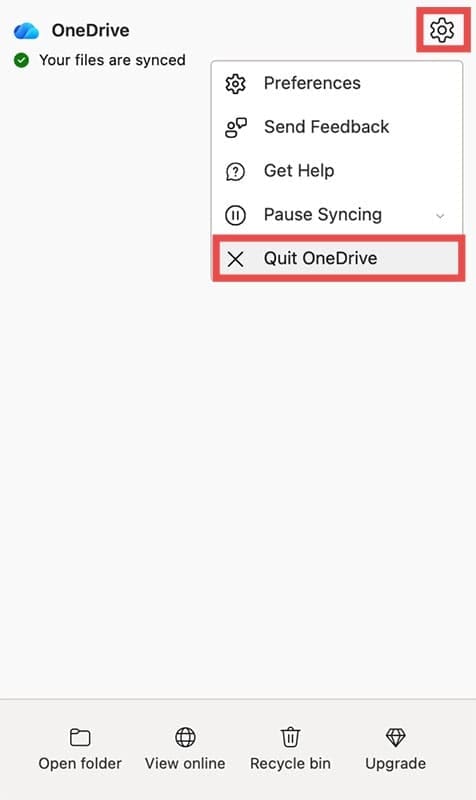
Step 2. Click on the gear icon or “Help & Settings” button, then choose “Quit OneDrive.”

OneDrive Keeps Closing Unexpectedly on Mac – What to Do 1

Step 3. After about 10 seconds, go to your Applications folder and double-click on OneDrive to reopen it.

OneDrive Keeps Closing Unexpectedly on Mac – What to Do 1

Step 4. Sign back in when prompted.

Fix 2: Reset OneDrive Using the Built-In Reset Command

If OneDrive keeps crashing even after restarting and updating, there might be corrupted files in its cache. Microsoft built a reset function directly into the app that clears out this junk without deleting your saved OneDrive files.

Step 1. Make sure OneDrive is closed. If it’s running, quit it from the menu bar (see Fix 1).

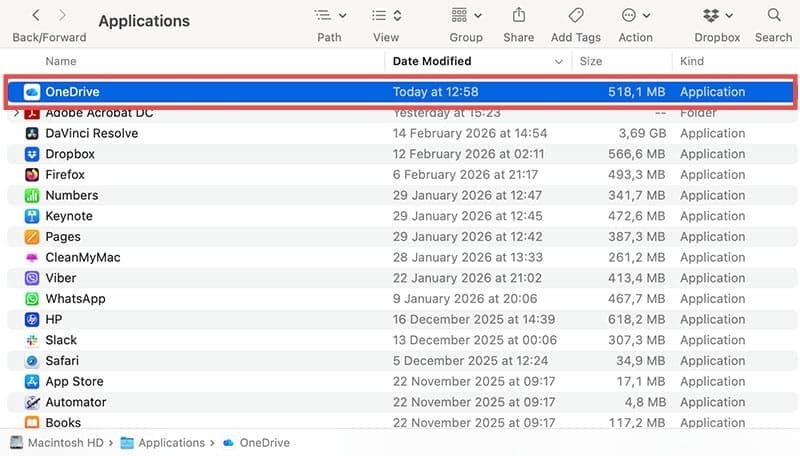
Step 2. Open Finder and go to your Applications folder, then scroll and find the OneDrive app.

Step 3. Right-click (or Control-click) on the OneDrive app and select “Show Package Contents.”

OneDrive Keeps Closing Unexpectedly on Mac – What to Do 3

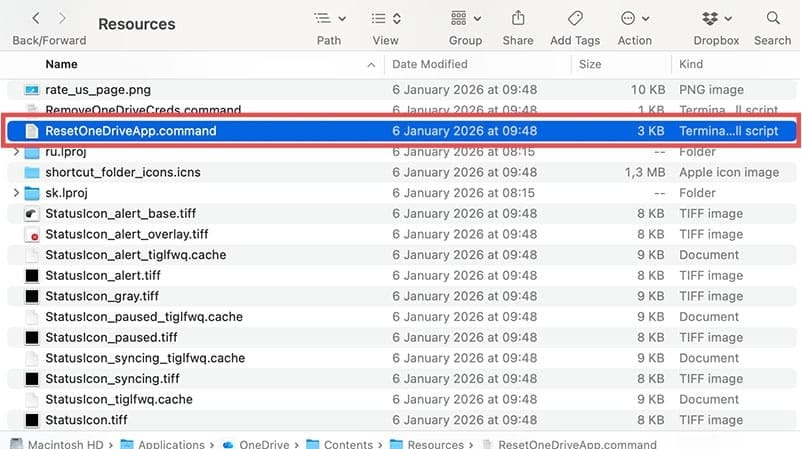
Step 4. Go to “Contents” and then to “Resources.” Find the file called “ResetOneDriveApp.command” (it might be called “ResetOneDriveAppStandalone.command” if you’re using the standalone version).

OneDrive Keeps Closing Unexpectedly on Mac – What to Do 4

Step 5. Double-click on the file. A Terminal window will pop up and run the reset script automatically (it might also close without displaying any messages). This clears out all temporary data and files that OneDrive uses to keep itself synced to the cloud.

OneDrive Keeps Closing Unexpectedly on Mac – What to Do 5

Step 6. Restart OneDrive from your Applications folder and sign back in. You may need to go through the initial setup again or wait for OneDrive to re-download files.

Fix 3: Uninstall and Reinstall OneDrive

If neither of the above solutions work, a clean reinstall should do the trick, but it will wipe all local files (stuff on your cloud should be kept). This means anything that didn’t get uploaded might be lost, so make sure to backup files on a physical drive.

Step 1. Quit OneDrive if it’s running.

Step 2. Open Finder, go to Applications, and drag the OneDrive app to your Trash. Then, empty the Trash.

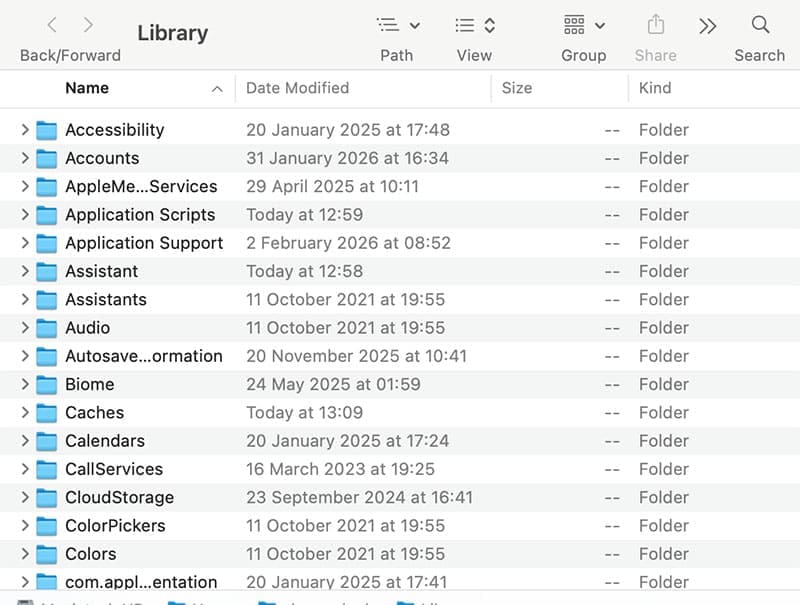
Step 3. Go to Finder and select “Go” in the menu bar while holding down the “Option” key, then click on the Library folder.

OneDrive Keeps Closing Unexpectedly on Mac – What to Do 6

Step 4. Look for these folders and delete them if they exist:

  • ~/Library/Application Support/OneDrive
  • ~/Library/Containers/com.microsoft.OneDrive-mac
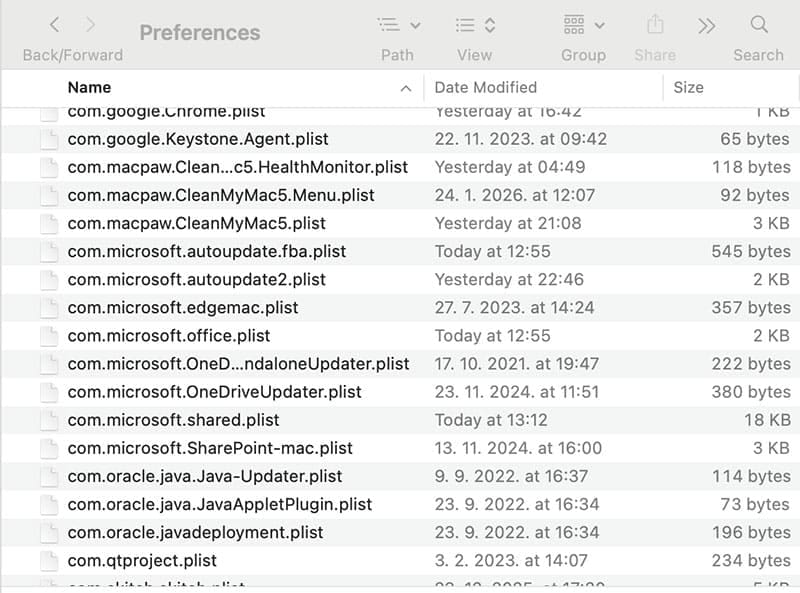
  • ~/Library/Preferences (look for any files starting with “com.microsoft.OneDrive” and delete those)

OneDrive Keeps Closing Unexpectedly on Mac – What to Do 7

Step 5. Restart your Mac to make sure everything is cleared out.

Step 6. Go to the Microsoft OneDrive website and download the latest version of OneDrive for Mac.

Step 7. Install it, sign in with your Microsoft account, and set up your sync preferences again.

Related Posts:

  • 2023 Mac Studio lifestyle - 1
    macOS Could Not Be Installed, How-To Fix
  • Update Apple ID settings on your iPhone, iPad, or Mac after changing your password
    Getting a Message to Update Apple ID Settings on…
  • sidecar on iPadOS and macOS
    Sidecar not working in iPadOS and macOS? How to fix…
  • Delete-Group-Reminders-Folder-macOS
    MacBook Will Not Start Up After macOS Update, How-To Fix
  • iOS 16 Unsend Messages on Your On Your iPhone
    No Text or Message Notification Alerts or Sounds on…
  • An iPhone, Mac, and MacBook on a table
    Can You Use Time Machine to Back up Your Mac to…
  • iPhone 15 event - iPhone 15 Pro and iPhone 15 Pro Max A17 Pro Video Recording Promo
    iPhone 14 vs. iPhone 15: Should You Upgrade?
  • Windows computer
    How to AirDrop from iPhone to Windows PC
  • iPadOS 17 Widgets
    Best Interactive Widgets for iPadOS 17
Louis Roundtree
Louis Roundtree

As an avid gamer, I’ve run into my fair share of error codes and weird faults that have forced me to find fixes to problems I never anticipated. That gave me a passion for sharing those fixes with others so we can all game without feeling like our hardware is rebelling against us.

Reader Interactions

Write a Comment Cancel reply

Primary Sidebar

Recent Posts

  • How to Stop Sharing Analytics in iOS 26
  • How to Manage Your iPhone Call Log
  • Are Apple’s Safety Precautions Enough for AirTags?
  • How to Hide Username and Photo on the Mac Lock Screen
  • Microsoft Resume vs. Apple Handoff – Which Wins for Cross-Device Work?
  • How to Export iTunes Library to New Computer

Connect with us

Footer

ABOUT

  • About Us
  • Contact us
  • Advertise
  • Privacy
  • Terms of Use

GUIDES

  • iOS & iPadOS
  • Apple ID
  • iCloud
  • App Store
  • iTunes
  • FaceTime
  • iMessage
  • Siri
  • Books and iBooks
  • Game Center
  • AirPlay

CONNECT

  • Facebook
  • Twitter
  • FeedBurner
  • YouTube

© Copyright 2010-2024 Guiding Tech Media · All Rights Reserved

This site and its content are in no way affiliated or endorsed by Apple, Inc. · Reproduction without explicit permission is prohibited

Last Updated on February 21, 2026 by Louis Roundtree